Google Mail
Send emails using Gmail.
The Google Mail node allows you to automate email operations in Gmail. Before using this node, you’ll need to connect your Google Mail account to Fours. See Google Mail Integration for more details.
Parameters
To Email (Required)
The primary recipient’s email address. Can be set as a fixed value or using an expression.
Example: info@example.com
CC Email List (Optional)
Additional recipients to be CC’d on the email. Multiple email addresses can be added. Can be set as fixed values or using expressions. Use the “Add Cc Email” button to add more recipients.
Subject (Required)
The subject line of the email. Can be set as a fixed value or using an expression. Example: “My email subject”
Email Format
Choose from three format options:
-
Text
- Send email as plain text
- Best for simple, text-only messages
-
HTML (Default)
- Send email as HTML
- Supports rich formatting, images, and styling
-
Both
- Sends both HTML and plain text versions
- Email client determines which version to display
- Recommended for maximum compatibility
Text
Plain text message content. This field appears when Email Format is set to “Text” or “Both”. Can be set as a fixed value or using an expression.
HTML Source
When Email Format is set to “HTML” or “Both”, choose how to provide the HTML content:
Manual Input
The HTML content of your email when using Manual Input mode. This field supports both fixed values and expressions.
AI Generated
Use AI to generate professional HTML email content dynamically. The following parameters are available:
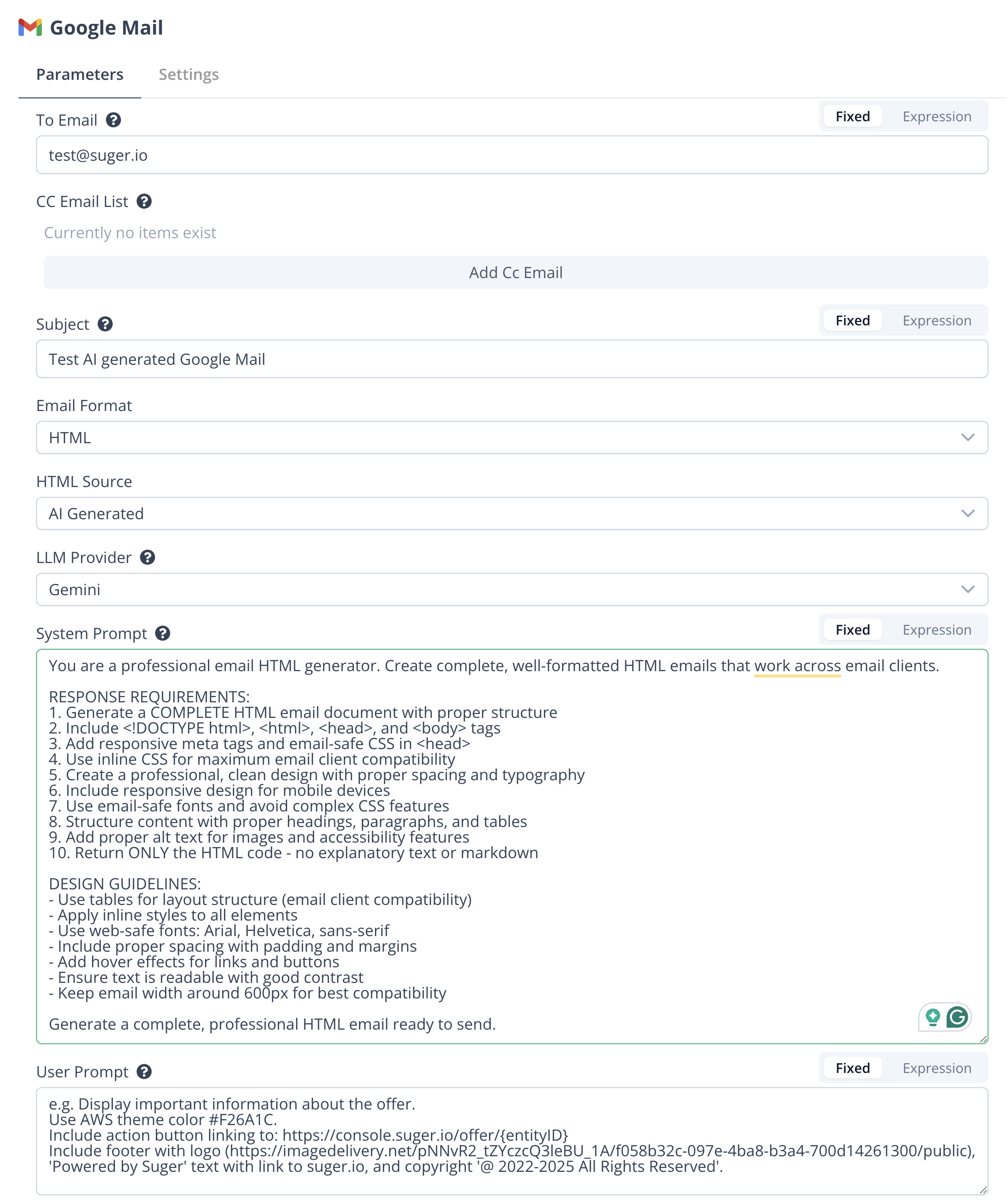
Model (Required)
Choose the AI model that writes the HTML. The list offers OpenAI GPT, Anthropic Claude and Google Gemini models.
Instruction (Required)
Describe what the email should contain and how it should look. The model receives your instruction together with the input data of the item being sent, and writes the HTML from both. Fours gives the model its own fixed rules for email-safe HTML (a complete HTML document, inline CSS, tables for layout, about 600px wide), so the instruction only needs the content and the look.
The field starts with an example instruction that begins with e.g.; replace it with your own. The example reads:
e.g. Display important information about the offer.
Use AWS theme color #F26A1C.
Include action button linking to: https://console.suger.io/offer/{entityID}
Include footer with logo (https://www.fours.com/logos/fours-logo-email-634x161.png), 'Powered by Fours' text with link to fours.com, and copyright '© 2022-<current year> Fours. All Rights Reserved.'.Examples
Sending a Plain Text Email
- Set Email Format to
Text - Enter recipient in To Email field
- Add Subject line
- Enter message content in Text field
Sending an HTML Email (Manual)
- Set Email Format to
HTML - Set HTML Source to
Manual Input - Enter recipient in To Email field
- Add Subject line
- Enter HTML content in HTML field
Sending AI Generated HTML Email
- Set Email Format to
HTMLorBoth - Set HTML Source to
AI Generated - Enter recipient in To Email field
- Add Subject line
- Choose a Model
- Replace the example in Instruction with a description of the email you want. Example:
Display important information about the offer.
Use AWS theme color #F26A1C.
Include action button linking to: https://console.suger.io/offer/{entityID}
Include footer with logo (https://www.fours.com/logos/fours-logo-email-634x161.png), 'Powered by Fours' text with link to fours.com, and copyright '© 2022-<current year> Fours. All Rights Reserved.'.- The AI will automatically generate professional HTML email content based on your input data
Sending Both Text and HTML Email
- Set Email Format to
Both - Configure both Text content and HTML Source settings
- This provides maximum compatibility across email clients
Usage Tips
- Multiple email addresses in CC fields should be comma-separated
- When using AI Generated HTML, the content is automatically optimized for email clients
- Use expressions to dynamically populate email content with workflow data
- Consider using the “Both” format option for better email client compatibility
- AI-generated content works best with structured data inputs
Spotted something wrong or out of date on this page? Tell us and we'll correct it.