View Your Team's Earned Certificates
Review the certificates your team has earned from completed training courses, check whether each one is active or expiring, and download a copy when you need it.
Overview
Each seller’s certificates are on your record of that seller, in the Certificates tab of its Training section. Use it to see at a glance whether a certificate is active, expiring soon, or expired, and to print or save a copy for your records. A seller that runs its training in Skilljar can have its Skilljar certificates show here too, with the dates Skilljar gave them.
Find a Certificate
- Go to Fours Console, then Partners, and open your record of the seller. With a single partnership, Partners opens it for you.
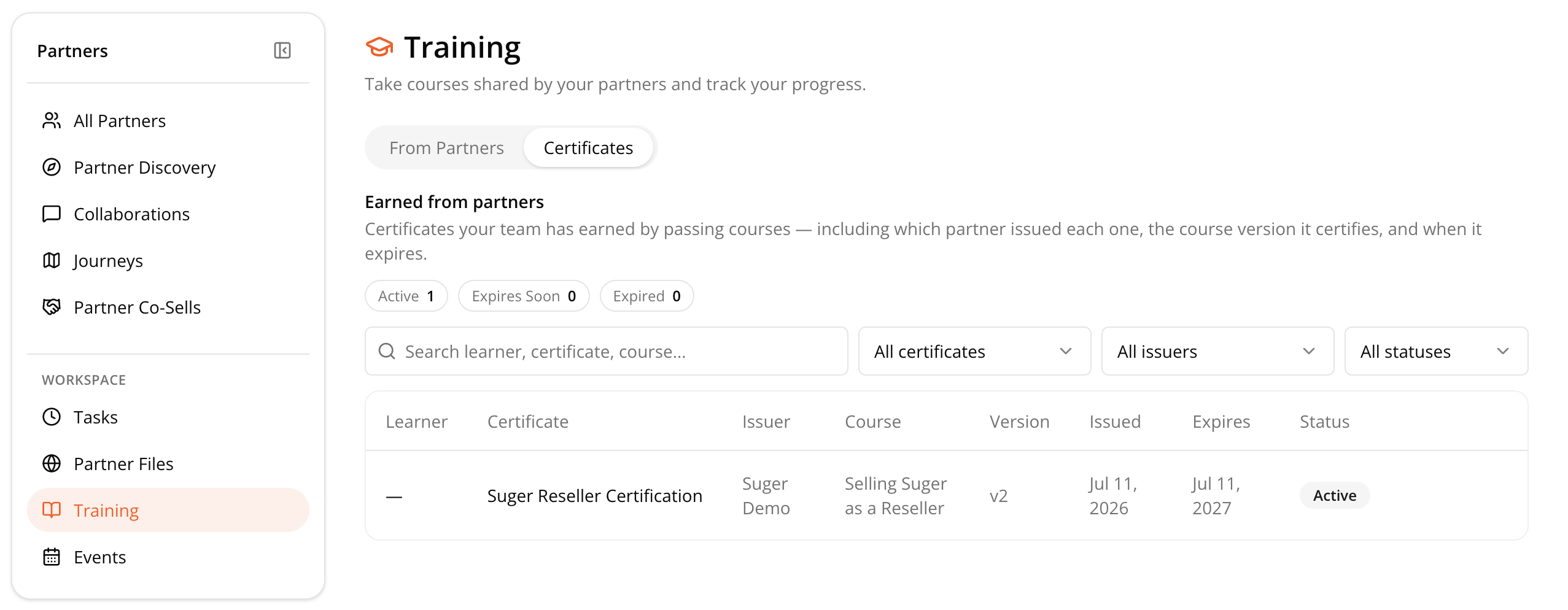
- Choose Training in its sections rail, then the Certificates tab. Earned from {seller} lists the certificates your team has earned from that seller’s courses.
- Scan the Active, Expires Soon, and Expired counters at the top first. These tell you at a glance whether anything needs attention before you dig into the full list. They count your team’s current certificates, so a certificate that has been renewed counts once, under its newest copy.
- Narrow the list using Search by learner, certificate or course, or filter by certificate or status.
View or Print a Certificate
- Open the seller’s Certificates tab, as above.
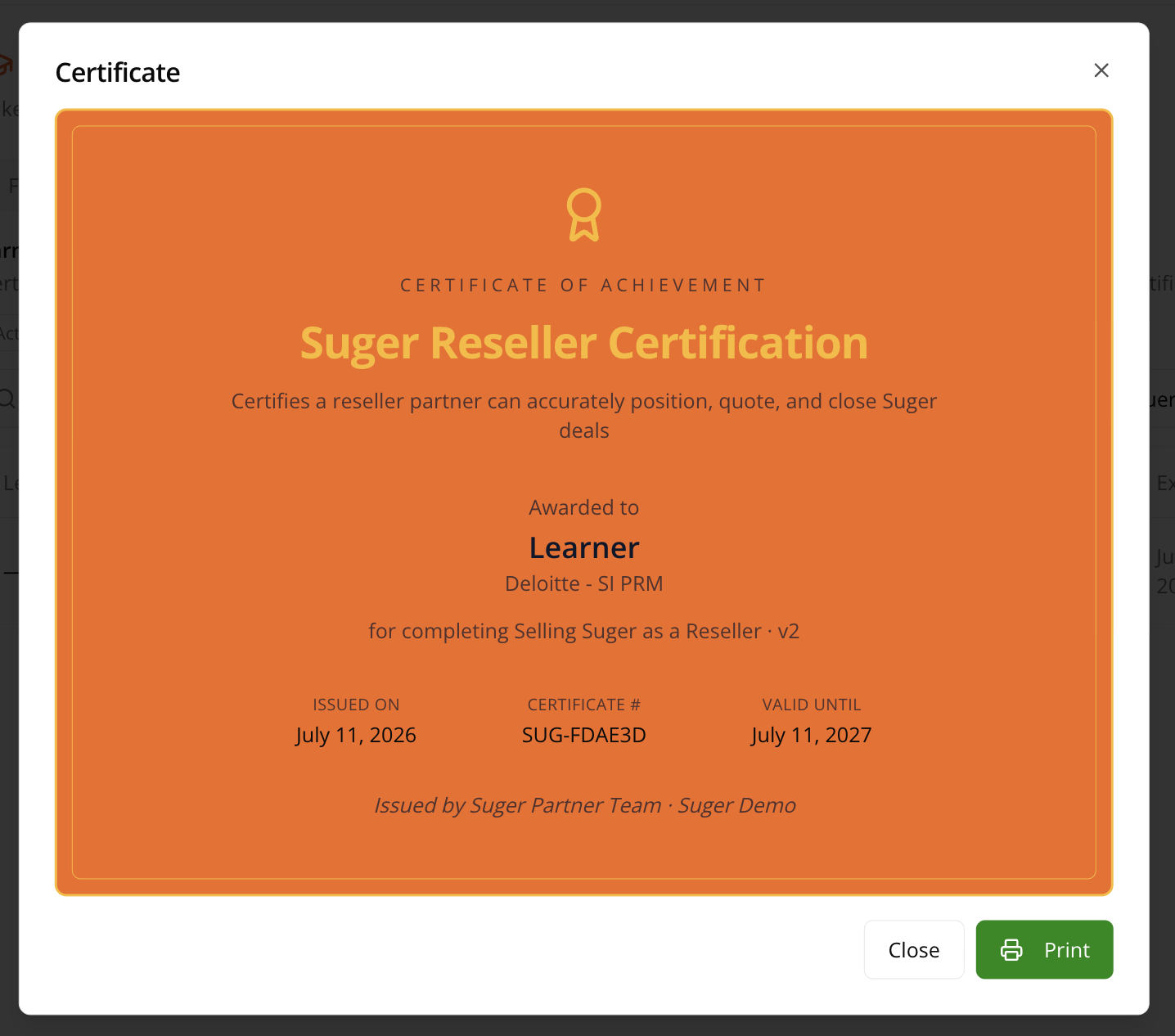
- Click the certificate name.
- Click Print to save a PDF copy.
Next Steps
Haven’t enrolled your team yet? Start with Take a Partner Training Course.
Spotted something wrong or out of date on this page? Tell us and we'll correct it.