Set up Tax
Before Tax can audit anything it needs three things: a verified connection to Avalara, the selling entity (the Avalara company) whose records your marketplace revenue should be compared with, and your decision on whether Fours may write corrections to Avalara. The first time you open the app, a three-step setup collects them; afterwards you change them in Settings.
Before you start
- Avalara connected and verified in Integrations. Tax has no connect form of its own: connect Avalara under Settings → Integrations with your Avalara Account ID and License Key, then come back. See Avalara.
- At least one active tax registration in Avalara. An audit is refused while Avalara reports no registrations for the selling entity.
- The Admin or Editor role to complete setup or change settings. Viewers can read the Settings page but not change it.
First-time setup
Open Tax from the Insulin Dock. Until a provider is connected and a selling entity chosen, the Sales Tax destination shows a three-step setup instead of the audit workspace.
If Avalara isn’t connected and verified yet, the setup shows Connect a tax provider. Its button opens Settings → Integrations; connect and verify Avalara there, then return to Tax.
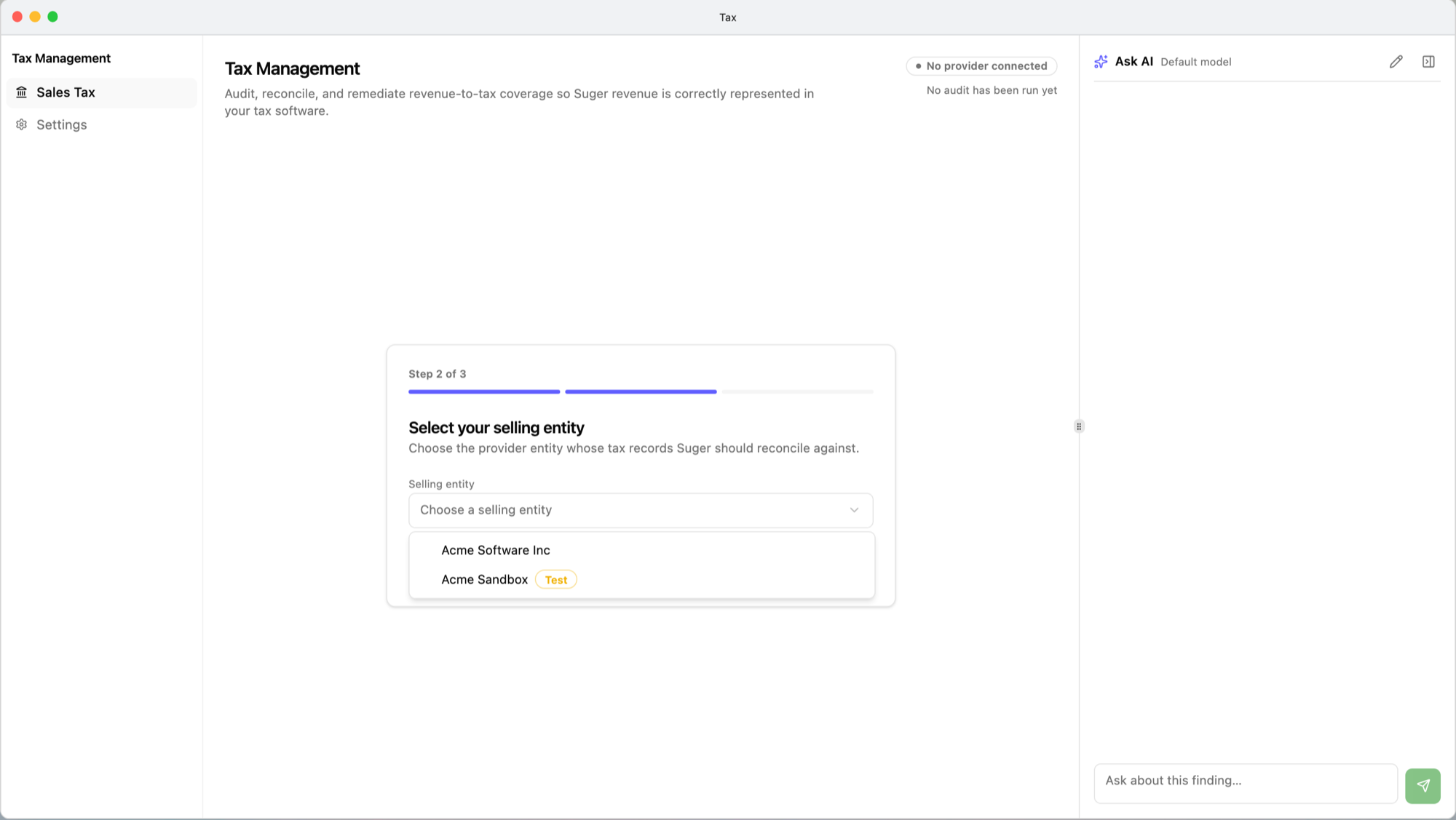
- Choose your tax software. Pick Avalara and select Continue.
- Select your selling entity. In Selling entity, choose the Avalara company whose tax records your marketplace sales should appear in. Entities flagged as test entities in Avalara carry a Test badge — audit against a test entity and your real sales will not match its records. Select Continue.
- One last thing — corrections. Turn Allow Fours to create missing records on if you want Fours to be able to write corrections to Avalara, then select Proceed with corrections enabled or Proceed without corrections. Either way, nothing is ever written until someone submits a specific correction — see Corrections.
The summary, You’re connected, repeats your Tax software, Selling entity, and Corrections choice. Select Start auditing to open the Audit tab.
Each step is saved as you go. If a step reports that the connection isn’t ready, the Avalara connection is not verified yet — finish it in Integrations and try again.
Settings
Select Settings in the left rail of the Tax window. The page, Tax system connection, has five cards.
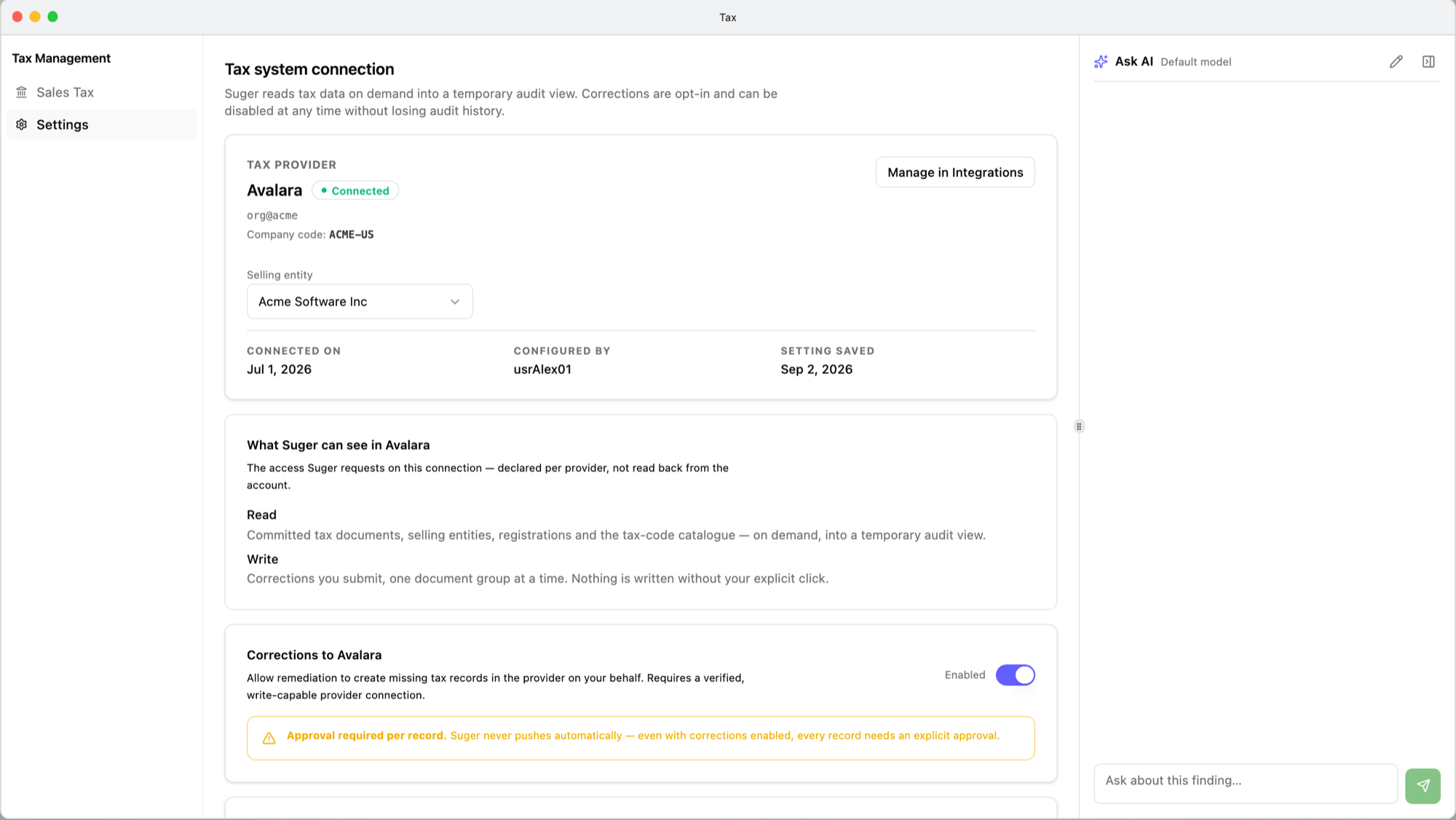
Tax provider
Shows Avalara with a Connected chip, the selected entity’s Company code (with a Test badge when it is a test entity), and when and by whom the connection was set up — Connected on, Configured by, and Setting saved.
- Selling entity — change the entity Fours audits against. The change saves immediately and applies to the next audit.
- Manage in Integrations — opens Integrations, where the Avalara connection itself is verified, re-authorized, or removed. The Tax app cannot disconnect it.
What Fours can see
States what Fours reads from Avalara — committed tax documents, selling entities, registrations, and the tax-code catalogue — and what it writes: the corrections you submit, one document group at a time, or nothing at all when corrections are off. A warning appears here when the selected entity is a test entity.
Corrections
The switch on the Corrections to Avalara card is your organization’s consent for Fours to write new records to Avalara. With it off, Fours offers no correction that creates a record or overrides one’s tax to zero; with it on, each correction still has to be submitted individually — the card says so: “Approval required per record.” One correction, Revise tax record, is not governed by this switch, except on GCP sales (see Corrections).
The switch is checked again at the moment a submitted correction runs, so turning it off also stops corrections that are still waiting to run. Which corrections the switch governs is listed in Corrections.
Tax registrations
Lists the jurisdictions Avalara reports your selling entity is registered in — Jurisdiction, Tax type, Filing frequency, and Registration ID.
Filing frequency is the one value you set here: Monthly, Quarterly, or Annually, per jurisdiction. It is assigned by the tax authority, so check each one — any jurisdiction you leave unset is treated as Monthly. Fours uses it to decide when a period counts as already filed (see Amended returns). A frequency is copied onto an amended return when the return is created, so changing it later does not move returns that already exist.
Revenue sources audited
Shows each marketplace channel Tax audits — AWS, Azure, GCP, and Snowflake — as Connected or Not connected. It is informational: a channel shown as Not connected doesn’t stop an audit, which still reads whatever revenue Fours already holds for that channel.
The assistant’s settings are separate
The Ask AI panel on the right of the Tax window has its own settings, under Edit assistant: the AI model it uses, which knowledge sources it may search, and Discard conversation. These are saved per user, not for the organization, and anyone in the organization can change their own. See Ask AI.
Related
- Audits and findings — run your first audit.
- Avalara — connecting Avalara.
Spotted something wrong or out of date on this page? Tell us and we'll correct it.