Home
Track your marketplace activity, revenue, and time-sensitive deals from the Home dashboard in the Fours Console.
Chat and Dashboard
Home, in the console’s main navigation, opens the Fours AI chat. The dashboard this page describes is one click away.
Chat on Home
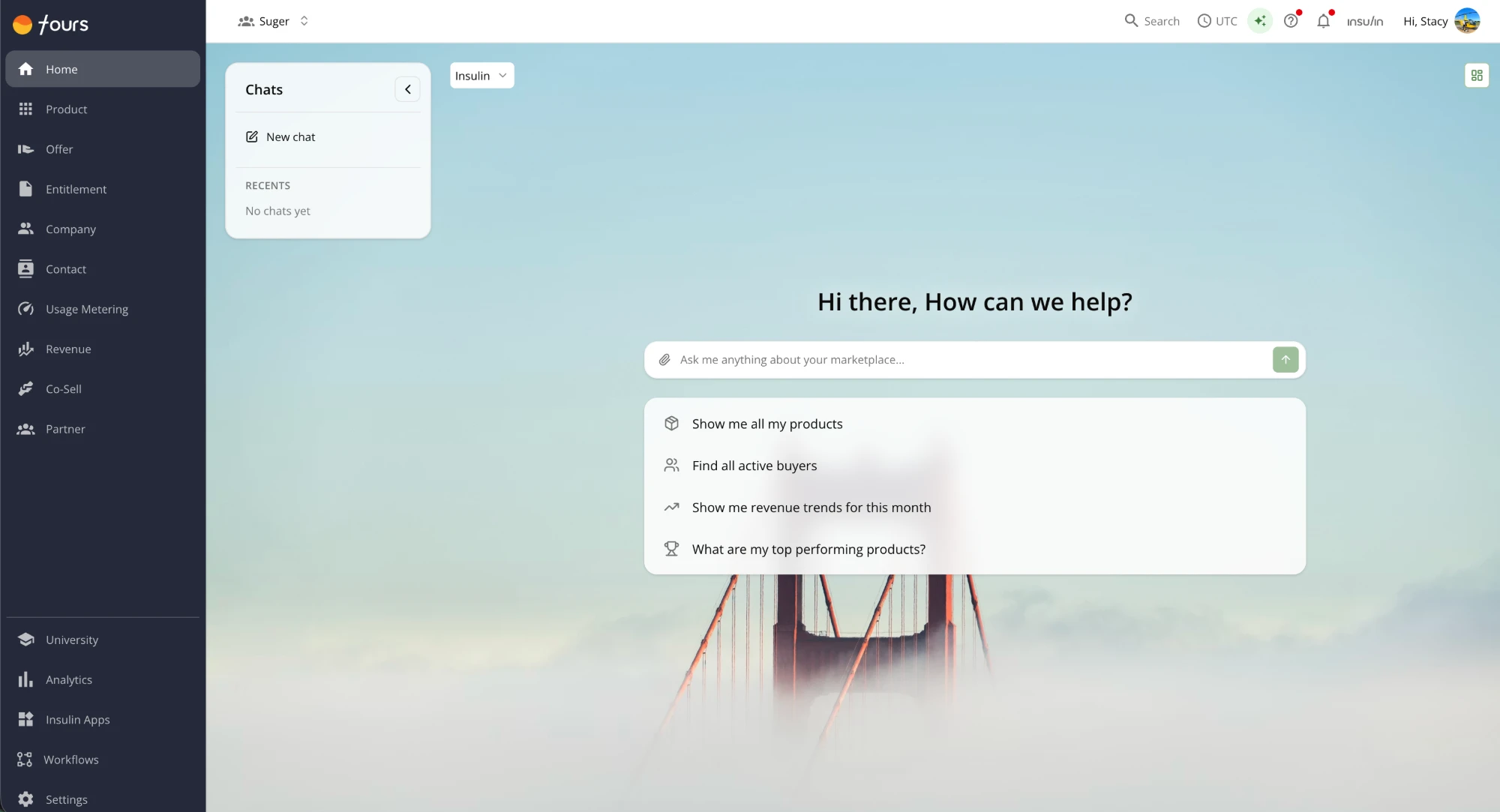
Home’s chat is always Insulin, the Fours AI assistant. On other console pages the chat opens in a side panel, where a selector switches between Insulin and the Co-sell Agent if your organization uses it; Home has no selector.
Before your first message, Home greets you by your first name (Let’s get started) and puts the chat input, Ask anything or describe what you need…, in the middle of the page. Under it, What should I look at?, Create a private offer, Create co-sell, and Find funding each send their text to the chat, and Insulin asks for whatever else it needs. More lists further questions, such as Show me all my products.
The Chats card on the left holds New chat, your Pinned chats once you pin one, and your recent chats; collapse it with the arrow beside its title. Point to a chat and click its ⋯ button for Pin to top (or Unpin), Rename, and Delete.
Preview a record as you draft it
When Insulin drafts a record with you in a Home chat — after Create a private offer, for example — it shows the draft in a preview pane beside the conversation and fills it in as you answer. The pane is titled with the kind of record (Private offer, Co-sell referral, or Fund request) and its status, and lists every field, each reading Not set until it’s filled. Still needed counts the required fields that are still missing and names them.
- Open in form (Open in Funding form for a fund request) opens the record’s form in the console, so you can finish it there. On a new private offer it appears only once Insulin has saved the offer as a draft in your organization, which it can do only through your own Fours connection with write access. Until then, finish the offer in the chat, or start it from the console’s Create private offer form.
- Create offer asks Insulin, in the chat, to go ahead. It reads Update offer when the draft extends an existing offer, and Submit to with the cloud for a co-sell referral; a fund request has no such button. It stays greyed out while fields are still needed or Insulin is replying. Insulin makes the change through your own Fours connection, so that connection needs write access, and your role must allow the change.
Drafting a private offer in Home’s chat covers AWS SaaS offers for now. For an offer on Azure, Google Cloud, or Snowflake, use the console’s Create private offer form, where you pick that cloud’s product.
The pane saves nothing by itself, and it has no close button. It belongs to its chat, so it isn’t shown when you start a new chat or open one with no draft. It appears only on Home, not in the side panel on other pages.
Change the Home background and theme
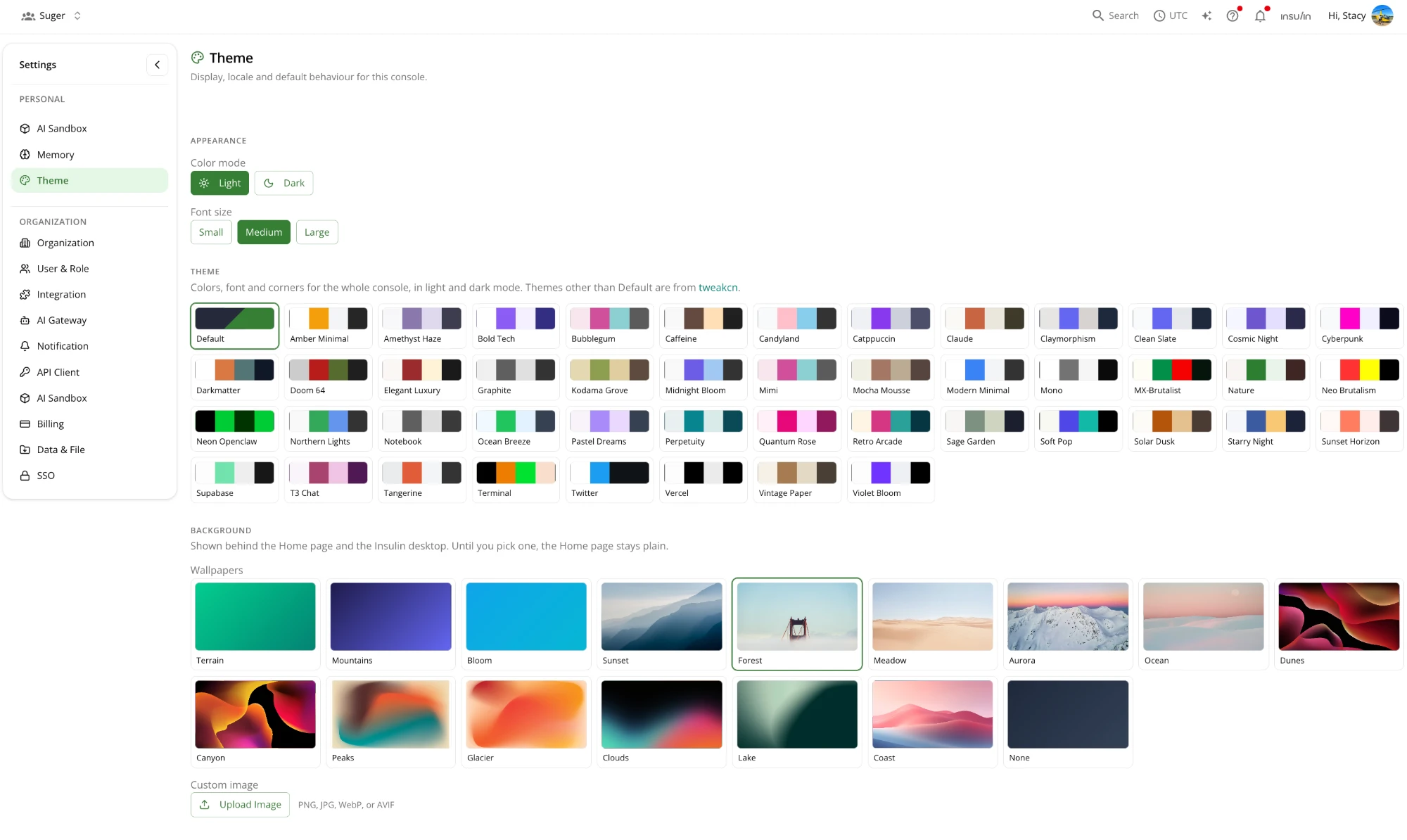
Home is plain until you pick a background. To set one, or to change the console’s colors:
- Go to Settings, then Theme (under Personal).
- Under Background, pick a wallpaper, or click Upload Image to use your own (PNG, JPG, WebP or AVIF). It shows behind Home and the Insulin desktop.
- Under Theme, pick a theme to change the colors, font and corners of the whole console. Appearance sets light or dark mode and the font size.
These settings apply only to you. See Settings for more.
Dashboard
The Home dashboard gives you a live view of where your marketplace business stands. It pulls together summary metrics, disbursed revenue, and expiring deals so you can spot momentum and act before anything lapses.
Track Your Summary Metrics
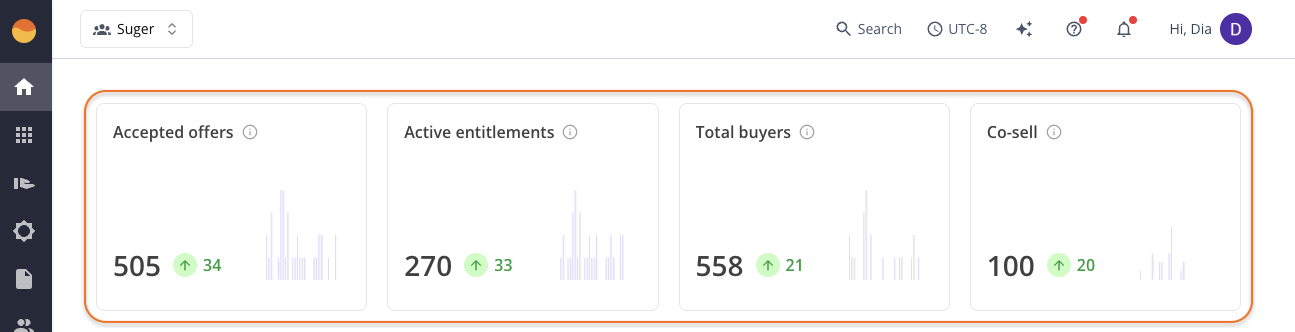
The four summary cards at the top give you a live view of where your marketplace business stands right now. To see how each metric has shifted over the past 30 days, hover over the info icon on any card.
Use these cards together rather than in isolation. Comparing them against each other helps you spot gaps or momentum in your pipeline.
Accepted Offers
This is an all-time total of marketplace offers that buyers have accepted.
If accepted offers are growing but active entitlements aren’t keeping pace, deals may be getting stuck before they go live. Check whether there’s a bottleneck between acceptance and activation.
Active Entitlements
This shows only currently active contracts. It reflects your live customer base at this moment.
If this number flatlines or drops while accepted offers keep climbing, something may be stalling between signing and activation. Bring this to your team’s attention so it doesn’t quietly widen.
Total Buyers
This is the total number of buyer accounts in your workspace. Comparing this against your active entitlements can surface accounts that haven’t converted or are no longer active.
If that gap is widening, it may be worth reviewing whether there are opportunities your team hasn’t followed up on.
Co-Sell
Your current partner-driven activity on the platform. If this number is trending up, make sure your team is following up on those opportunities in a timely manner.
Track Your Disbursed Revenue
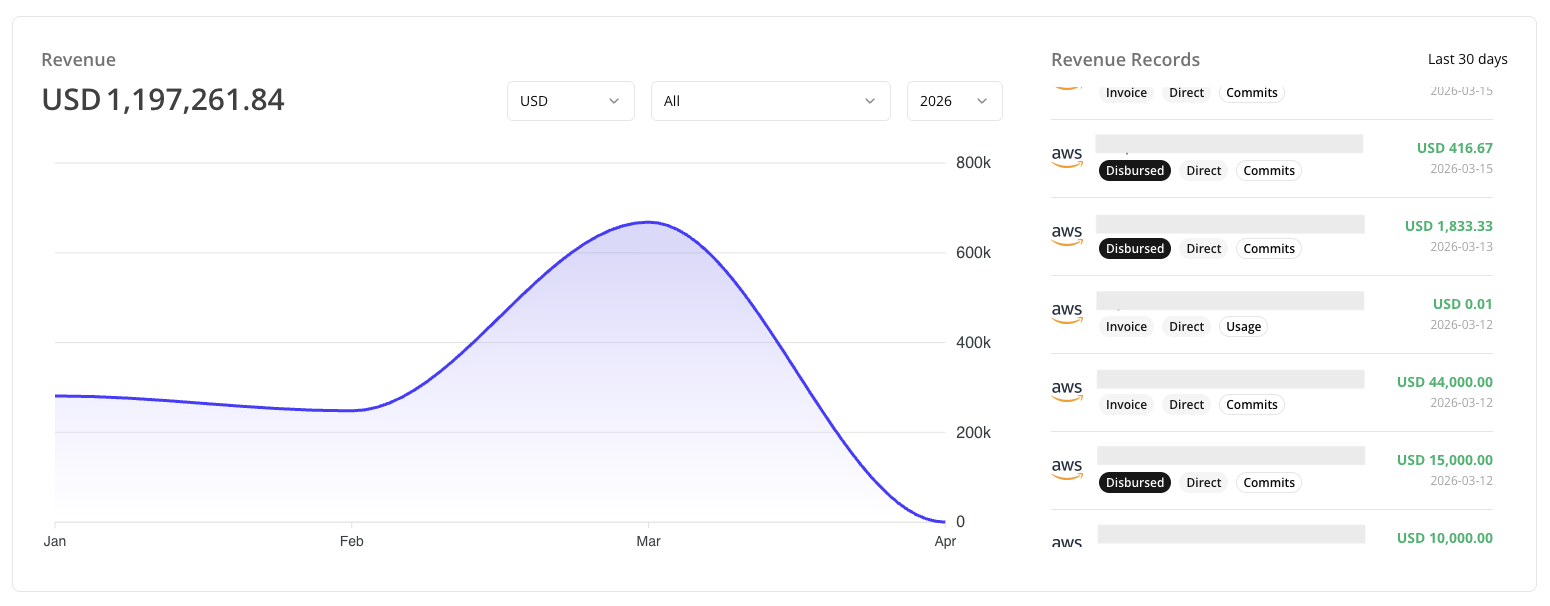
The Revenue section gives you two views of your marketplace earnings:
- A trend chart (left) that shows disbursed revenue over time.
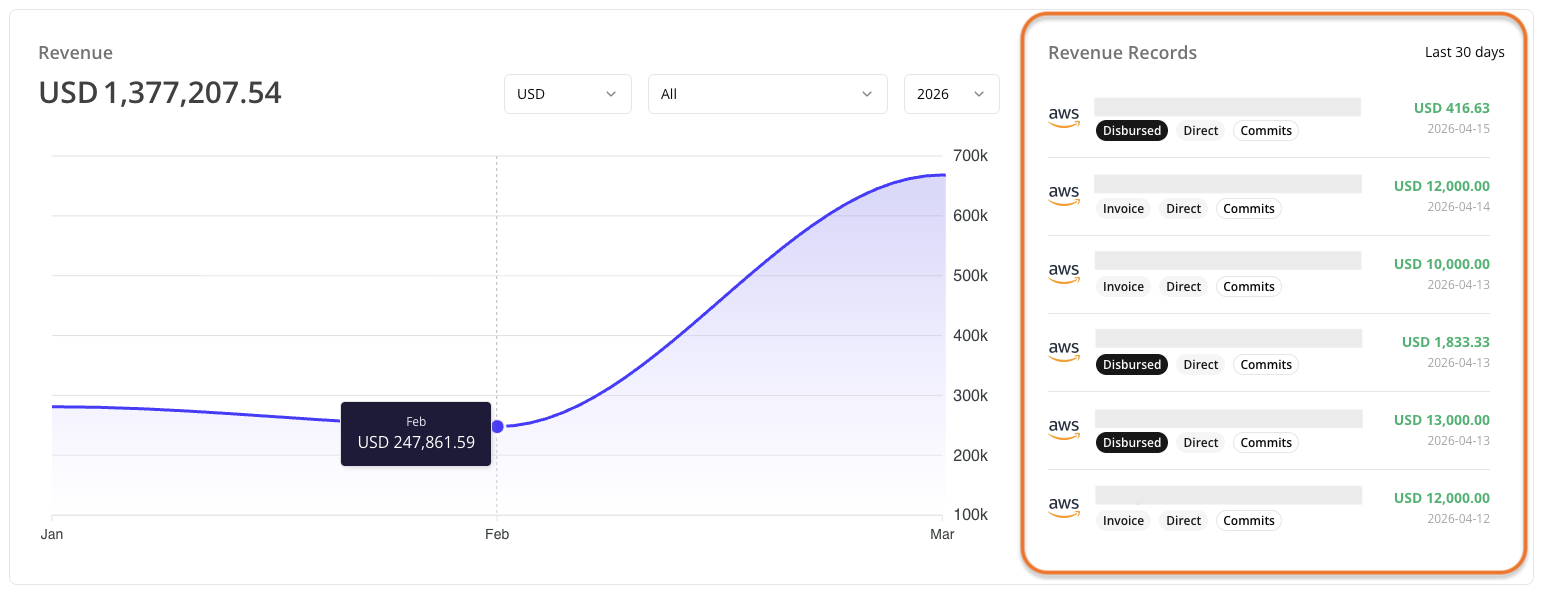
- A feed of recent revenue records (right) showing what’s moved in the last 30 days.
Together, they answer two questions: how much has been paid out to you over time, and what’s been moving recently?
Key terms to know
- Disbursed Revenue: The net cash deposited into your bank account after marketplace fees and deductions. This is what the Revenue chart tracks.
- Invoice Amount: The gross amount billed to the buyer by the cloud provider, before any deductions. Shown in the revenue records.
- Total Contract Value (TCV): The full value of a deal at signing. Tracked separately on the entitlement and not reflected in the revenue chart.
Revenue Trend Chart
The chart displays your total disbursed revenue across all cloud marketplaces for the selected year. Because it only shows deals where disbursement has already occurred, the numbers reflect actual cash paid out to you rather than invoiced amounts or TCV sold.
If a deal is missing from the chart entirely, it means disbursement has not happened yet, even if the buyer has already been invoiced or payment has been collected. Once disbursement is processed, the record will appear.
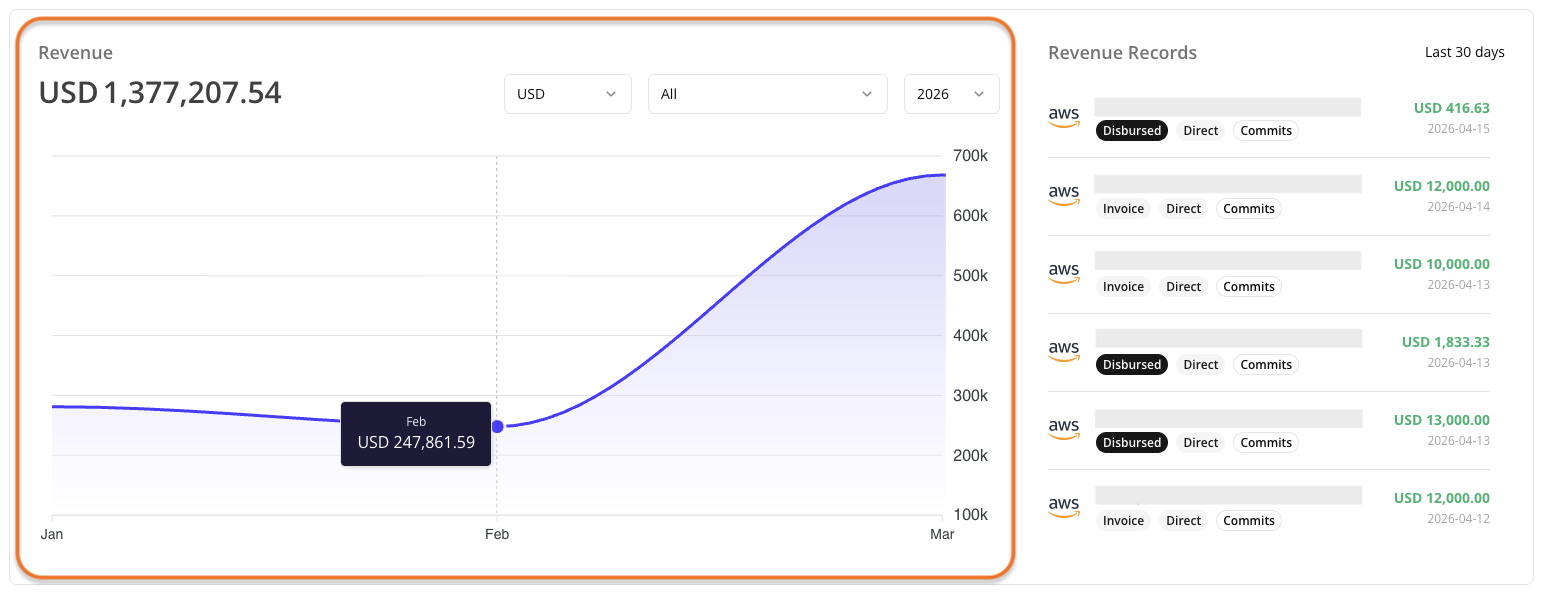
Use the filters above the Revenue chart to zero in on what you need:
- Currency: Switch between USD and other supported currencies to see disbursements in your preferred denomination.
- Marketplace: Filter by a specific cloud marketplace or keep it set to “All” for a combined view. This is useful when comparing performance across providers or isolating revenue from one cloud.
- Year: Select the disbursement year you want to analyze.
Revenue Records
The panel on the right shows transactions from the last 30 days, giving you a current view of what has been invoiced and disbursed across your marketplace deals.
Each record shows the customer name, invoice amount, invoice date, and a set of badges that describe the transaction. Click any record to open the full deal details and history.
Stay on Top of Expiring Deals
This section surfaces time-sensitive deals so you can act before they lapse, and gives you shortcuts to common workflows.
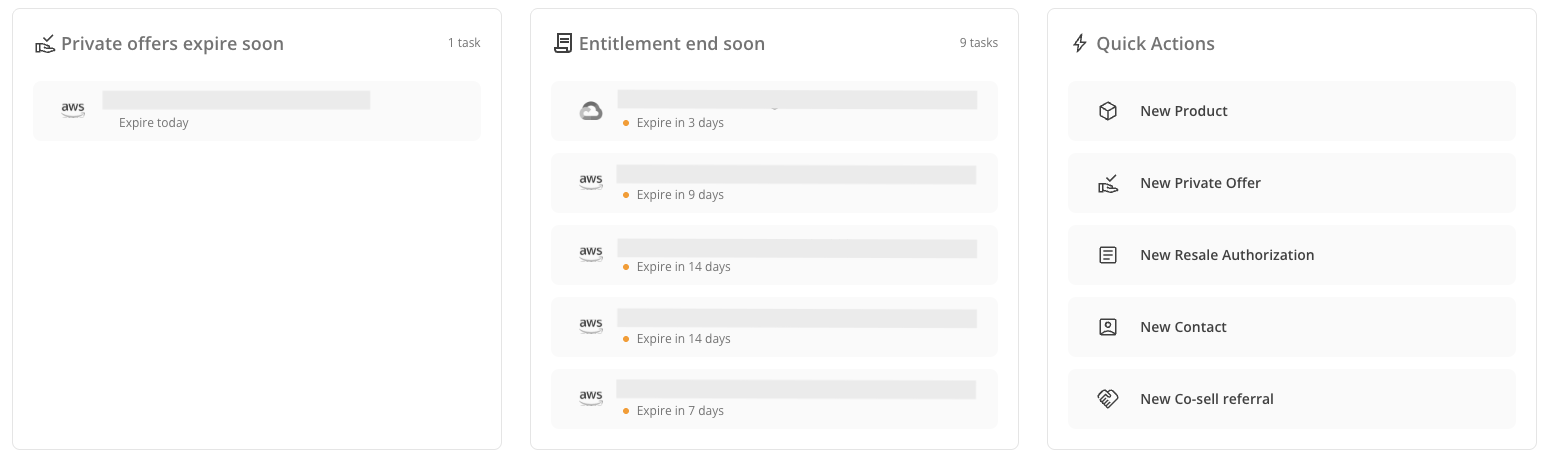
- Private offers expire soon: Shows private offers approaching their expiration date. Reach out to the buyer to confirm their intent before the offer expires. Click any offer to open the offer page directly, where you can review the details and take action, like extending the offer.
- Entitlements end soon: Shows active marketplace contracts nearing their end date. Use this list to prioritize renewal conversations with your customers before their contract lapses. When you’re ready to renew, click the entitlement to open it directly and initiate the renewal workflow from within Fours.
- Quick actions: Provides direct shortcuts to commonly used workflows to speed up your daily tasks without navigating through multiple menus.
Frequently Asked Questions
Why is my recent disbursement missing from the dashboard?
The dashboard syncs automatically every two hours, so very recent transactions may not appear right away. If you need the latest data immediately, you can trigger a manual sync:
- Go to Settings, then Integration.
- Find the tile for the cloud marketplace the deal belongs to.
- Click Sync.
If the record still doesn’t appear after syncing, you can also check Revenue > Revenue Records > Raw Records for a more granular view of your transaction data.
What does the revenue number on the dashboard represent?
The Home dashboard displays total disbursed revenue (money actually paid out by cloud providers), not invoiced amounts or TCV. This means revenue will only appear after the cloud provider processes and disburses payment.
Timing varies depending on the cloud marketplace, customer payment terms, and contract type. While 30–60 days is a common range, actual time to disbursement can be shorter or longer depending on these factors.
Why is my dashboard showing zero revenue when I know I have sales?
Revenue only appears on the dashboard after disbursement has been processed by the cloud provider. If your deals have been invoiced but disbursement has not occurred yet, it won’t show in the dashboard.
To check the status of a specific transaction before disbursement, go to Revenue > Revenue Records > Raw Records.
Why do I see different revenue numbers between the Home dashboard and my product pages?
The Home dashboard shows total disbursed revenue across all products, marketplaces, and time periods. Meanwhile, product pages may show different metrics like invoiced amounts, pending disbursements, or product-specific totals.
My Fours homepage shows different numbers than my AWS/Azure/GCP console. Why?
Cloud provider consoles may show invoiced amounts or different time periods, while Fours’ Home dashboard specifically tracks disbursed revenue.
There can also be a reporting delay between systems depending on your cloud provider’s processing time. If the discrepancy persists after your next sync, reach out to Fours Support for assistance.
Spotted something wrong or out of date on this page? Tell us and we'll correct it.