AWS Co-Sell
A co-sell referral shares an opportunity with AWS, so that the AWS sales team can help you close the deal. With the Dynamics 365 App, you share an opportunity with AWS from the Fours side pane. You then follow the co-sell and change it from the same pane. The app co-sells with AWS only. For the co-sell concepts, see Co-sell.
Before you start
Make sure that your organization connected AWS ACE in Fours, on the Sandbox catalog or the AWS catalog. See Co-sell configuration. Without it, the pane does not show the Co-sell menu or the Co-sell tab. You also need the Fours User security role. See Security roles.
Fours fills in the form from the opportunity through the Dynamics 365 co-sell field mapping of your organization. See Field Mapping.
Share an opportunity with AWS
- Open the opportunity, then open the Fours pane. See The Fours Side Pane.
- Select Co-sell, then select AWS. The Co-sell with AWS dialog opens.
- In the Customer step, review the prefilled values and complete the other fields. Fields marked * are required.
- Select Next.
- In the Project step, complete the fields.
- Select Next.
- In the Review step, make sure that every value is correct.
- Select Submit.
If the opportunity has no co-sell yet, you can also select Share on the Co-sell tab.
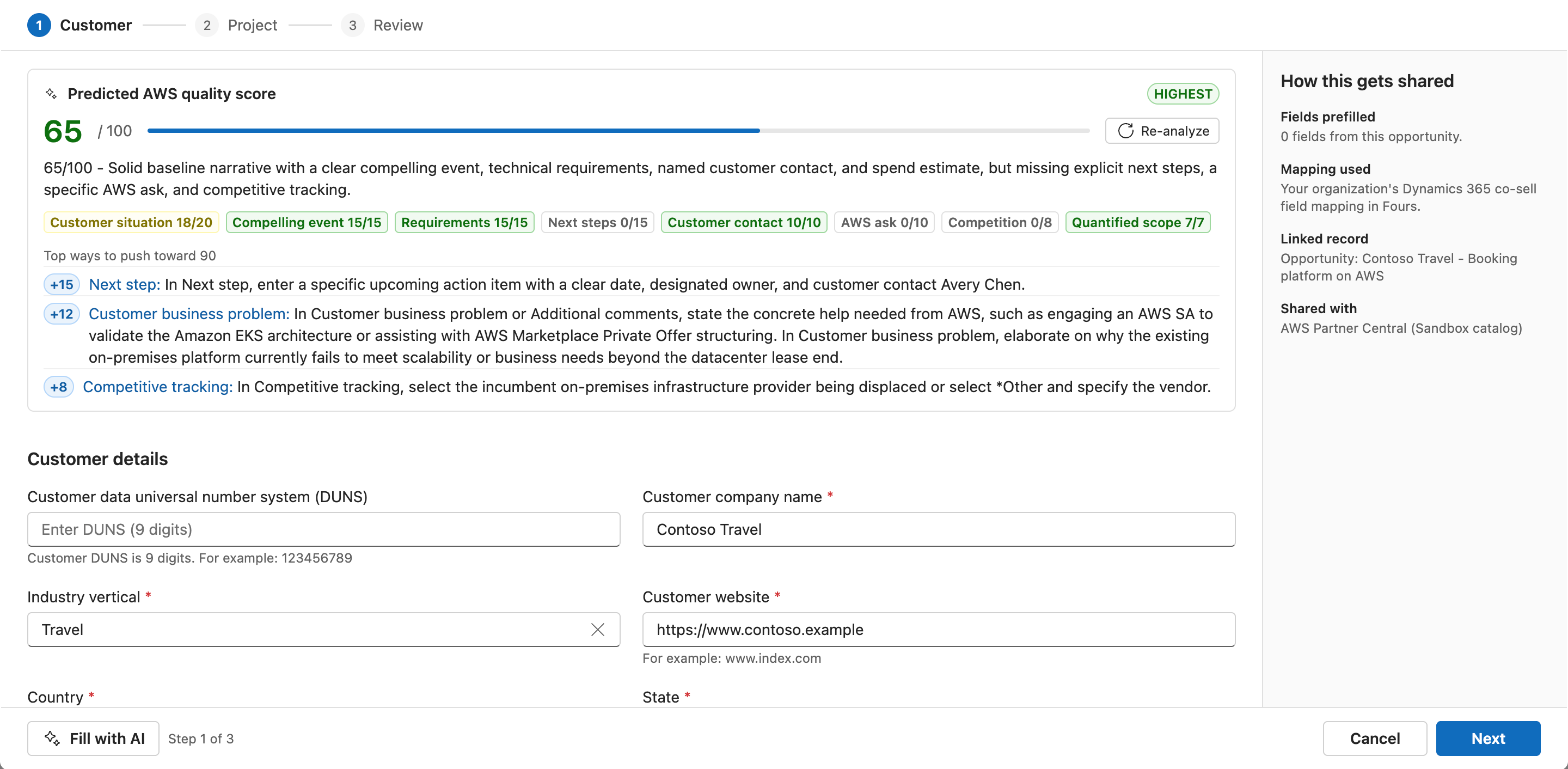
If Fours cannot fill in the form, the dialog shows “Preview failed”. The form stays usable, and you fill in the fields yourself. The box “How this gets shared” on the right shows the prefilled fields, the mapping and the linked opportunity. It also names the AWS catalog that gets the co-sell.
The fields that show, and the rules for their values, are the same as in the Fours Console. For example, the State field shows only for the United States. Only a field that shows and is open can stop the submit. If the Review step lists fields to fix, select the name of a field to go to it. For the AWS fields, see Co-Sell Fields in ACE.
After you submit
The co-sell shows on the Co-sell tab with the status Pending create. While it is Pending create, the tab reads it again every 10 seconds. When AWS has the co-sell, its status shows where AWS is, for example Submitted, In review or Approved. For the statuses, see Status & Stage.
If your organization holds referrals for approval in Fours, a share by a Fours User waits for that approval. Its card shows Pending approval, and you cannot change the co-sell until it is approved. A share or a resubmit by a Fours Admin includes the approval.
The predicted AWS quality score
The dialog shows the predicted AWS quality score above the form. The score is from 0 to 100. Fours scores the form when the dialog opens. It scores again 3 seconds after a large change, and when you select Re-analyze. When the content changed after the last score, the panel says “Content changed”.
The panel shows the score of each part of the form and a list of fixes. Each fix shows the points it can add. To go to the field of a fix, select its field name.
Generate the business problem with AI
- In the Project step, find the Customer business problem field.
- Select Generate with AI. Fours writes a draft of the business problem into the field.
- Read the draft and correct it.
The quality score updates a short time after the draft.
Fill with AI
Fill with AI suggests values for the open fields of the form. It uses the opportunity, its account and contact, and the errors that the form reports. You review each suggestion before the form uses it.
- In the footer of the dialog, select Fill with AI. The Fill with AI panel opens at the top of the form.
- Optional: type an instruction. For example, describe the deal, or say what to change.
- Select Fill.
- Read the table of suggestions. For each field, it shows the value now, the suggested value and the reason.
- Clear the box of each suggestion that you do not want.
- Select Apply (the button shows the number of changes). To close the panel without changes, select Discard.
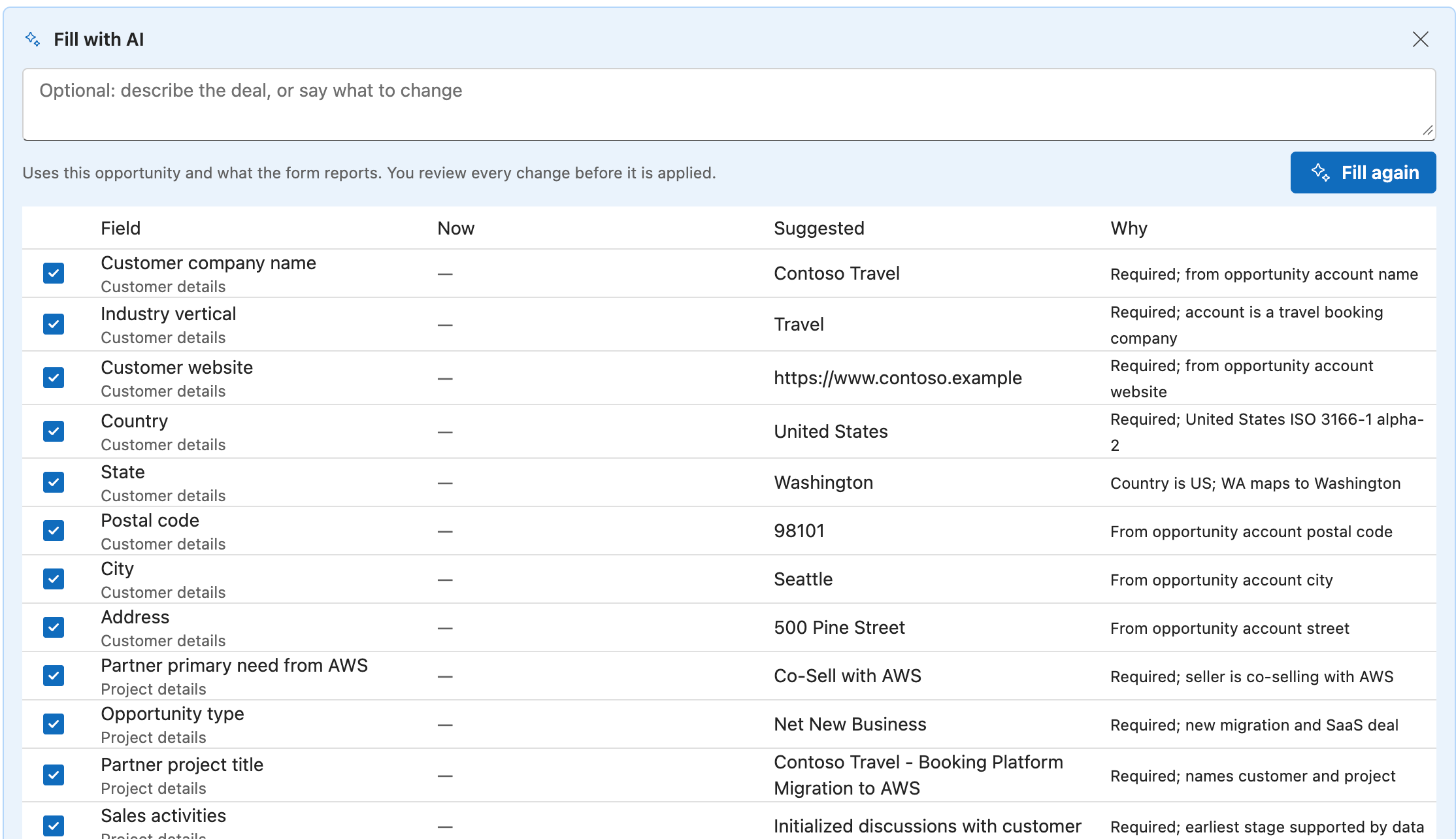
After you apply, the panel lists each field that changed, with a link. A field can be on another step. To go to a field, select its link.
Fill with AI gives a value only when the opportunity data supports it. It leaves the other fields empty. It suggests changes only for fields that show and are open. If a suggestion is not a field or a value that the form takes, the panel leaves it out and gives the number left out. Fill with AI does not submit the co-sell. Only you submit it.
A fill can take up to 100 seconds. To fill again after you correct the form, select Fill again. The next fill sees what the form still reports. The AI policy and spend limits of your organization in Fours apply to each fill.
The co-sell record
Select the title of a co-sell card to open its record. The record opens in a dialog that is almost as large as the window.

| Button | What it does |
|---|---|
| Sync now | Gets the latest changes from AWS. Its menu also has Send to AWS again. The record loads again 2 seconds later. |
| Refresh | Loads the record again from Fours. |
| Edit | Opens the form in the same dialog, so that you can change the co-sell. |
| Resubmit | Shows instead of Edit when the co-sell failed to reach AWS. It opens the form to send it again. |
| Change stage | Sets the AWS stage: Prospect, Qualified, Technical Validation, Business Validation, Committed, Launched or Closed Lost. |
Sync now and Change stage show only for a co-sell that is on AWS. Every change sends the stored co-sell with your change to AWS.
Change the stage
Most stages change when you select them. Two stages open a form first:
- Launched. For ISV Accelerate and SaaS Revenue Recognition partners, you enter the software revenue of the deal. Other partners confirm the change.
- Closed Lost. You select the closed lost reason.
If Fours skipped a stage change because the deal already closed in another cloud, the record shows a Cross cloud conflict banner.
What the record shows
The main column shows the Overview, the next steps and their history. To change the next steps, select Edit next step. The next steps can have 255 characters at most. The main column also has the Customer, Project, Marketing, Additional, Contacts and System information sections. The right column shows the AWS opportunity quality, the Insights and the contacts in Fours.
When you cannot edit the co-sell, a warning says why. For example, AWS did not approve it yet, it is rejected or closed lost, or Fours is still sending it.
AWS invitations
An invitation is a co-sell that AWS sends to you, linked to the opportunity. Its card is on the Co-sell tab. Its record shows the details of the invitation, with Accept and Decline.
To accept an invitation:
- On the Co-sell tab, select the title of the invitation card.
- Read the details of the invitation.
- Select Accept.
To decline an invitation:
- On the Co-sell tab, select the title of the invitation card.
- Select Decline.
- In Reason to send AWS, enter the reason. It is one line of 80 characters at most.
- Select Submit.
For inbound co-sells, see Inbound Referral.
Related
Spotted something wrong or out of date on this page? Tell us and we'll correct it.