Create Reseller Authorization
Easily create a reseller authorization (Channel Partner Private Offer / CPPO) using the Fours App within your Salesforce Console.
Overview
A reseller authorization — also called a Channel Partner Private Offer (CPPO) — is how you give a reseller or channel partner permission to sell your product on a cloud marketplace on your behalf.
Here’s how it works in plain terms:
- You (the ISV) create a reseller authorization that sets the price you’re willing to give the reseller.
- The reseller then creates their own private offer to the end customer, using your authorization as the basis — at whatever markup they choose.
- The end customer buys from the reseller through the marketplace, and billing flows through accordingly.
Think of it as a wholesale price you set for your channel partner, who then handles the last mile to the customer. On Azure you can instead grant a standing resale authorization, which carries no price.
For more details on resale, see Channel Partner Private Offers (CPPO).
Prerequisites
- The Fours App must be installed, connected, and set up with the Fours widget on your opportunity pages. If you haven’t done that yet, work through Install the Fours App first.
- You need the Suger User, Suger User - Marketplace, or a cloud-specific marketplace permission set assigned to your Salesforce account. If you can’t see the New Offer button on an opportunity, your permission set is likely missing — see Permission Sets.
- The product you want to authorize must already exist in Fours. If it doesn’t, create it in the Fours Console first. See Products.
Create a Reseller Authorization
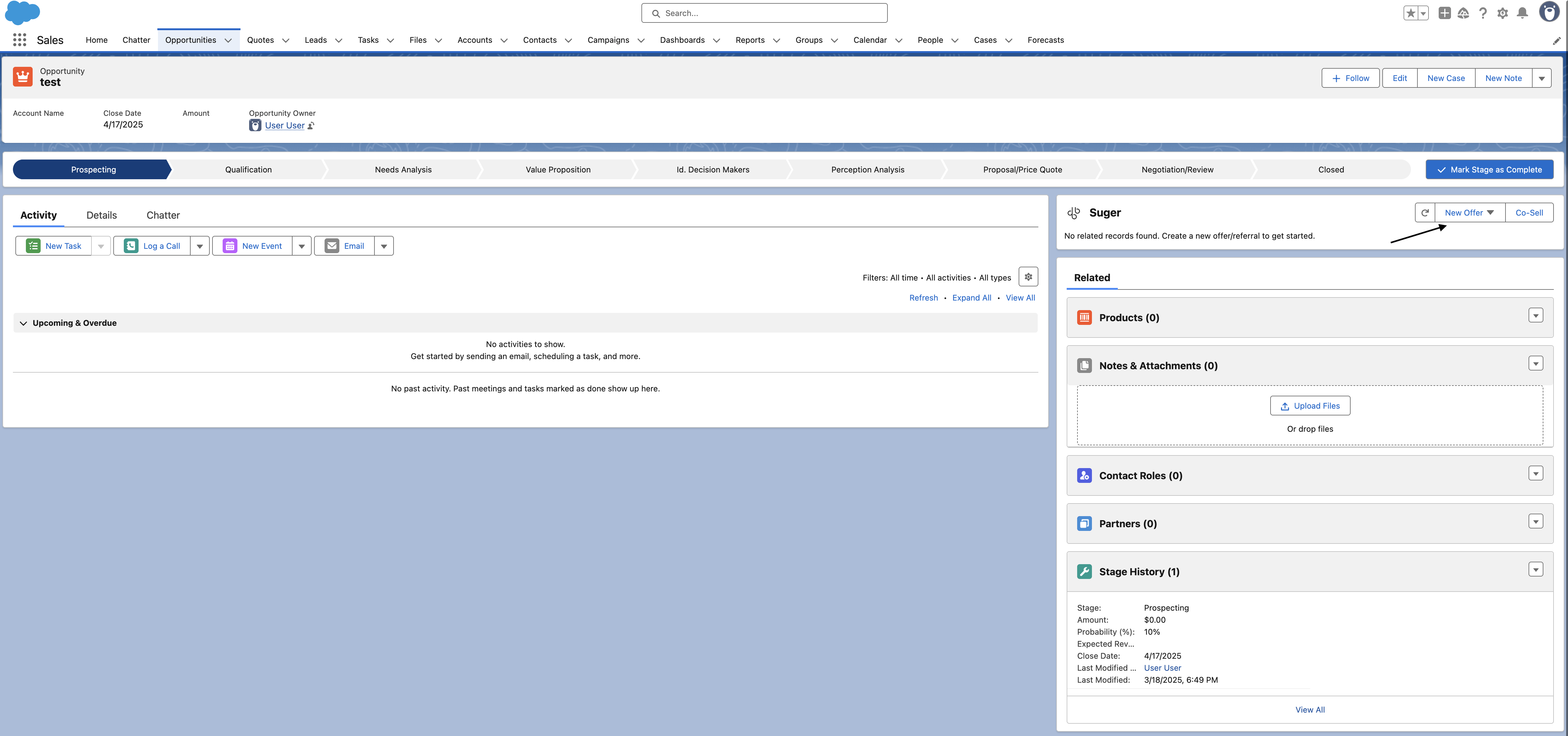
- Navigate to the opportunity’s detail page (the opportunity associated with your reseller) and click the New Offer dropdown button at the top of the Fours App. If you don’t see the widget, it may not be added to your page layout yet — see Page Components.
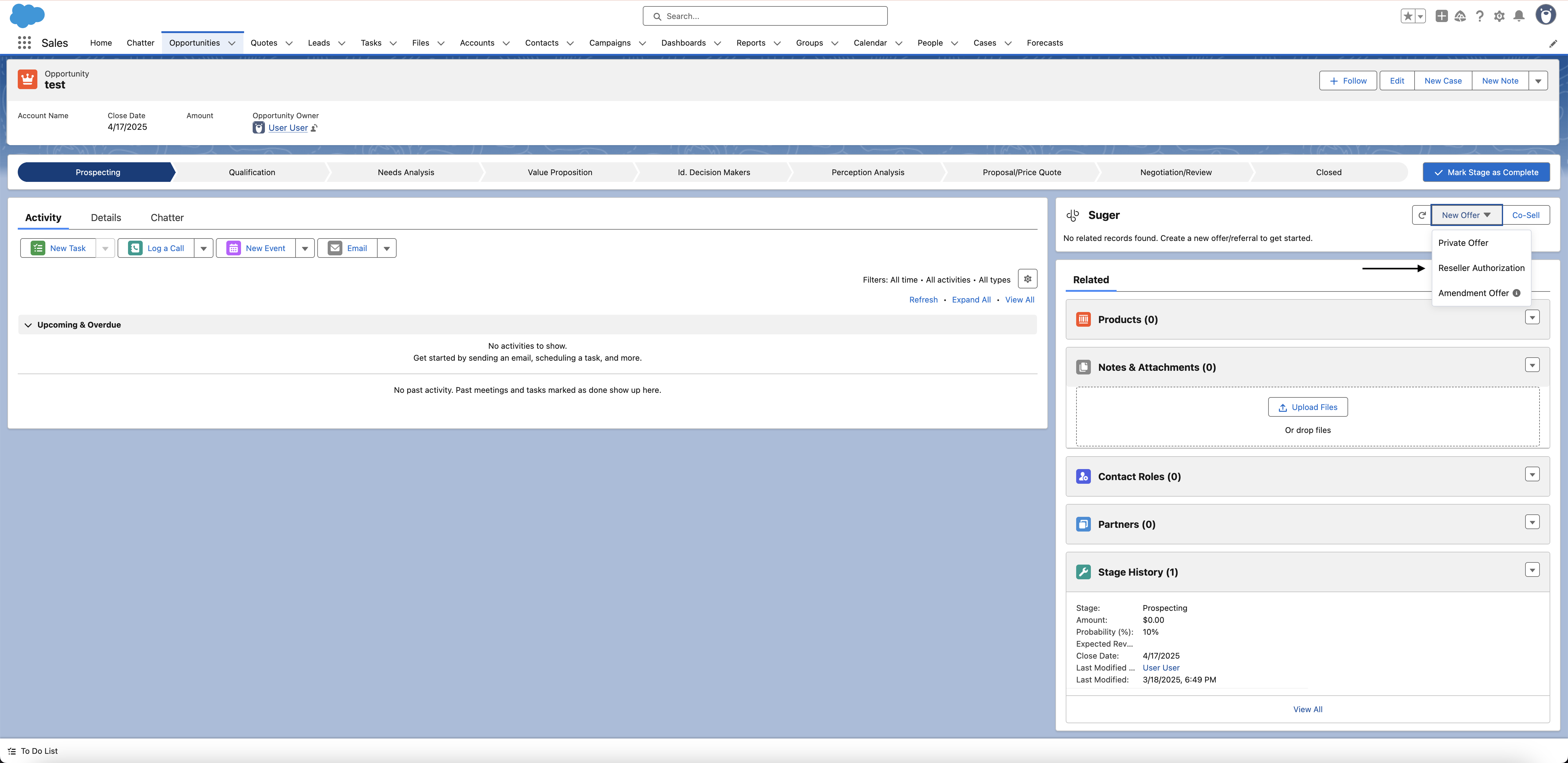
- Locate and click the “Reseller Authorization” button.
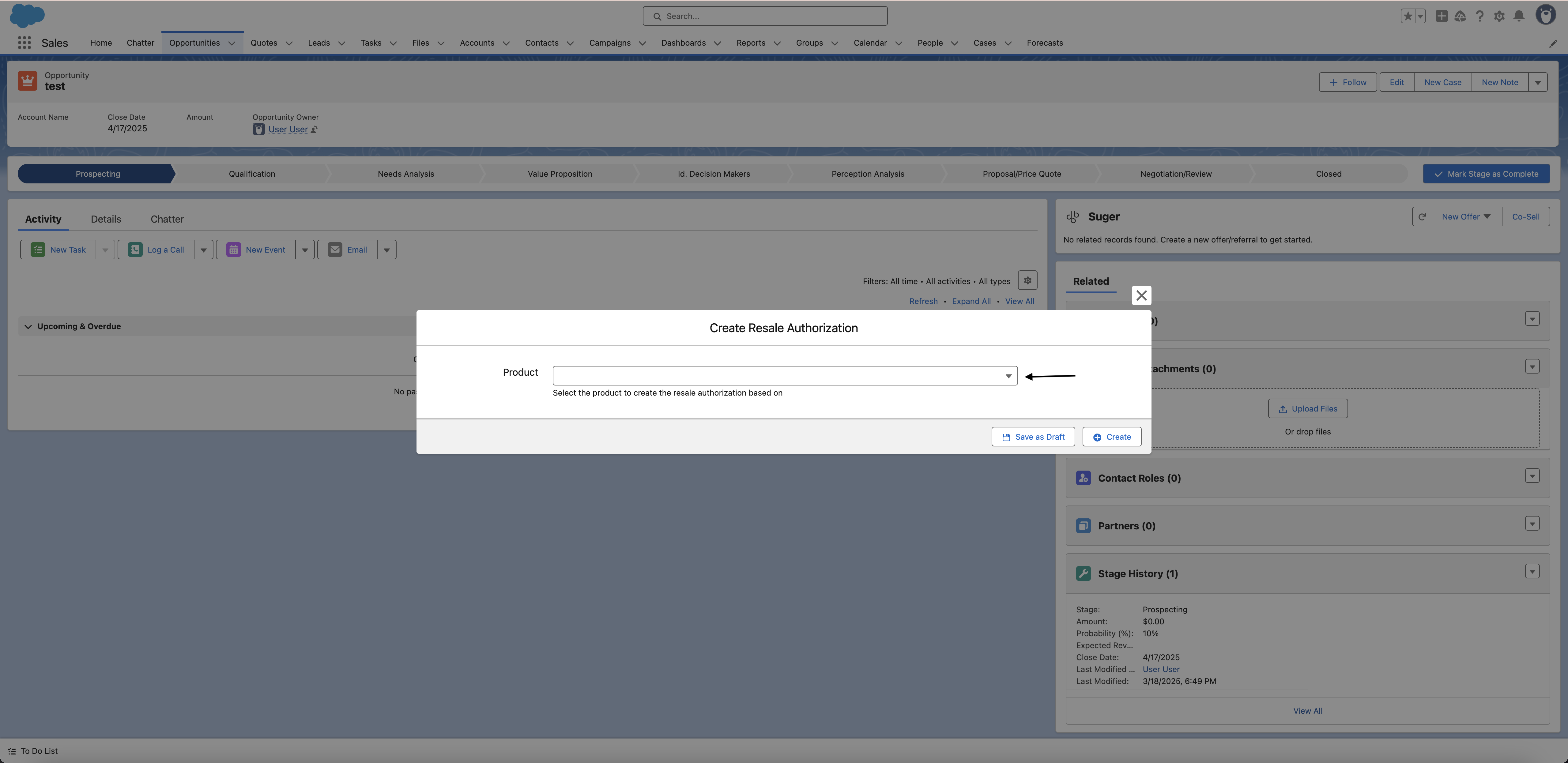
- Choose the product on which the Reseller Authorization will be based and complete the required fields in the form. Note that the required fields may vary depending on the cloud marketplace and type of product. The product list shows only the products available in your Fours account — if you are assigned a cloud-specific permission set (e.g., Suger Marketplace - AWS), you will only see products for that cloud.
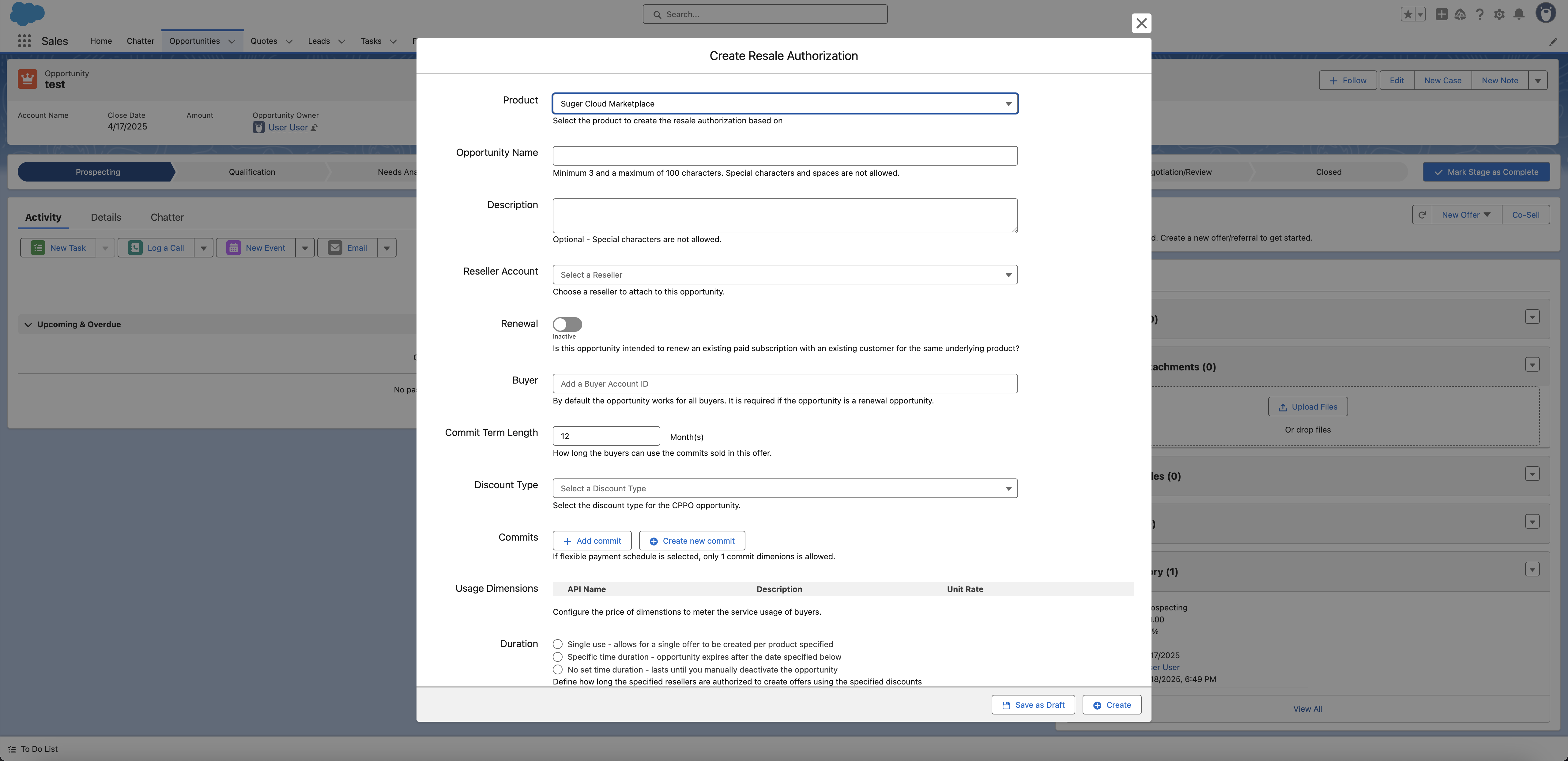
- Once all necessary information is filled in, submit the form to create the offer.
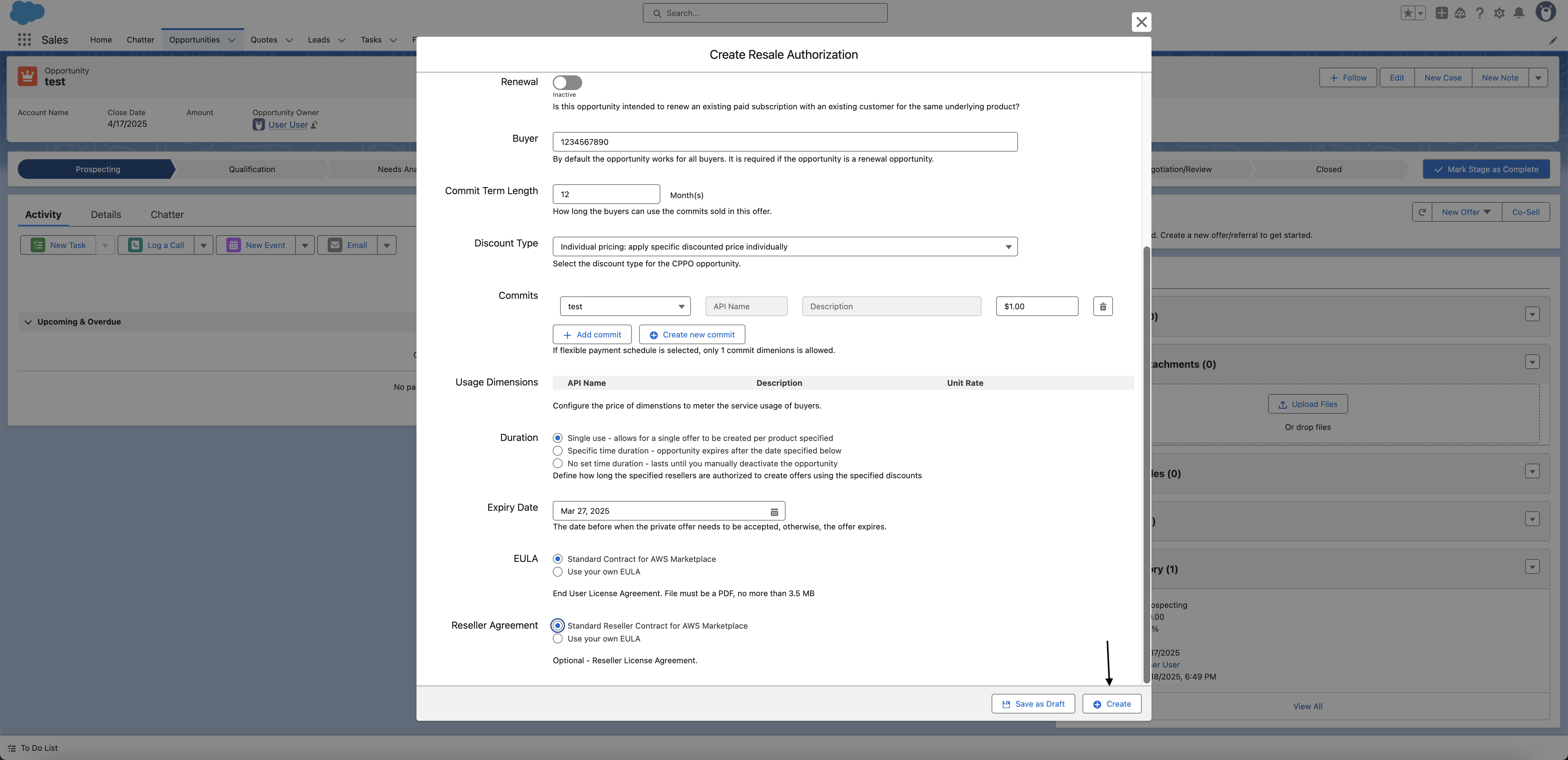
- You are all set!
AWS: choose the currency
The AWS reseller authorization form has a Currency section — Choose a transaction currency for this offer. You will receive payment in the selected currency. — with USD, AUD, CAD, GBP, EUR and JPY, USD by default. A currency your AWS Marketplace integration doesn’t support is refused when you submit: the currency code … is invalid for AWS marketplace.
AWS: commit term length
The AWS reseller authorization form accepts a commit term length of up to 144 months for SaaS products — contract or subscription — and up to 60 months for other AWS product types.
Dates on a GCP reseller authorization
Three dates on the GCP form are checked before the authorization is submitted. All three accept today — they are compared as calendar dates in your own timezone, so picking today is never rejected as being in the past:
| Date | Rule |
|---|---|
| Offer start time | Today or later. “The offer start time should be today or in the future.” |
| Acceptance Due Date | Today or later, and within GCP’s three-month acceptance window. A later date passes the form but is refused when you submit: the Failed to create CPPO_OUT message contains the offer expiration date (…) is too late. Google Cloud Marketplace requires offers to expire within 3 months, so choose a date on or before … — pick that date or an earlier one. |
| Scheduled start date | Today or later, when the start policy is On a scheduled date and you are setting custom payment installments. |
The offer end time must be on or after the start time, and the installment start date on the form is labelled (UTC) because the installment arithmetic runs in UTC.
GCP: reseller discount
Reseller Discount (%) on the GCP reseller authorization and its replacement form accepts any value from 0 to 100 with up to six decimal places.
Azure: multiparty private offer or resale authorization
The Azure reseller authorization form opens with a Private Offer Type choice:
| Type | What it creates |
|---|---|
| Multiparty private offer (the default) | You and an authorized partner sell a personalized offer with custom payouts to a Microsoft customer. The form works as described above. |
| Resale authorization | A standing grant, not a private offer. A resale partner may sell this product on your behalf in the customer markets you choose, and creates their own private offers for it in Partner Center. It has no pricing, dates or terms of its own, and you can revoke it at any time. |
Resale authorization is offered only for SaaS products (including the Flat Rate and Per User types) and Virtual Machine products — Microsoft supports resale-enabled offers for no other type. A draft that already holds a resale authorization keeps the option.
Choosing Resale authorization cuts the form down to Offer Name, Private Offer Type, the two fields below, and Internal Notes. Everything else — the partner and buyer fields, description, dates, pricing, EULA, customer renewals and notification contacts — does not apply, so it is not shown.
| Field | What to enter |
|---|---|
| Resale partner’s seller ID | The Partner Center seller ID of the partner you are authorizing. The partner finds it in Partner Center under Account settings → Identifiers, in their organizational profile. |
| Customer markets | The markets where the partner may sell. Move markets from Available to Authorized, or use Select all / Clear all. At least one is required. |
Brazil, Belarus, India, South Korea, Mexico, Russia and Singapore are never offered, because Microsoft does not support resale-enabled offers in those markets. A saved draft that still lists one of them drops it when you reopen it, so the authorization can be submitted.
If a required field is missing, the form stops with Please enter the resale partner’s seller ID. or Please select at least one customer market.
For how resale authorizations work on the Azure side, see Azure CPPO.
EULA files merge in the order shown
On the AWS, Azure and GCP forms, the EULA section merges the PDFs you attach in the order shown, with the standard contract (if attached) appended last, and uses the same reorder arrows as a private offer — see Attach your own EULA files. The AWS Reseller Agreement list has no reorder arrows.
What happens next?
After you submit the reseller authorization:
- Fours creates the reseller authorization record in your Salesforce org, linked to the opportunity.
- The authorization is sent to the cloud marketplace for processing.
- Once confirmed by the marketplace, the reseller receives access to the authorization and can create their own private offer to the end customer.
- You can track the status of the authorization from the offer record in Salesforce or in the Fours Console.
Troubleshooting common issues
| Issue | Possible cause | Resolution |
|---|---|---|
| No New Offer button visible on the opportunity | Fours permission set not assigned, or the Fours widget is not on the page | Check your permission set. If the widget is missing, add it. |
| Reseller Authorization option is not in the New Offer dropdown | The product type or cloud does not support CPPO, or your permission set restricts access | Confirm your product supports reseller authorization for the target cloud. Check your permission set assignment. |
| Product list is empty | No products have been set up in Fours, or your permission set restricts which clouds you can see | Confirm products exist in the Fours Console. Cloud-specific permission sets only show products for that cloud. |
| Form fields are blank — not pre-filled from the opportunity | Field mapping has not been configured | Field mapping is an optional admin setup. Contact your Salesforce admin to configure it. |
| The reseller is not in the reseller account dropdown (AWS) | The reseller has not yet been crawled from AWS Marketplace | Click Add reseller manually below the dropdown and enter the reseller’s 12-digit AWS account ID. |
| Reseller authorization was created but does not appear on the opportunity | Sync between Fours and Salesforce is delayed | Refresh the page after a few minutes. If it still doesn’t appear, confirm the authorization was created in the Fours Console. |
| Opportunity Name is rejected by the form | The name is under 3 characters, over 100 characters, or contains one of ; " ' < > \ | Adjust the name to fit. Spaces, forward slashes, periods, and parentheses are allowed, so AWS’s ResellerName_ProductName_MM/YYYY convention is valid as written. |
Frequently Asked Questions (FAQs)
Q: What’s the difference between a reseller authorization and a private offer?
A private offer goes directly to an end customer. A reseller authorization goes to a channel partner (reseller), who then creates their own private offer to the end customer. Use a reseller authorization when you’re selling through a partner, not directly to the buyer.
Q: Does the reseller see my cost price when I create a reseller authorization?
Yes — the reseller sees the price you set in the authorization. They can then mark it up when creating their own offer to the end customer, but they cannot go below the price you’ve authorized.
Q: Which cloud marketplaces support reseller authorization (CPPO) from Salesforce?
Check which products appear in the product selector — if products for a specific cloud are missing, that cloud may not yet support CPPO from Salesforce. Contact Fours support to confirm.
Q: Can I track whether the reseller has acted on the authorization?
Yes. You can check the status of the reseller authorization from the offer record in Salesforce or in the Fours Console.
Q: Do I need a separate opportunity for each reseller I authorize?
That depends on your Salesforce setup and sales process. Fours links the reseller authorization to whichever opportunity you create it from. If you have multiple resellers, most teams create a separate opportunity per reseller to keep records clean.
Spotted something wrong or out of date on this page? Tell us and we'll correct it.