Cash & Disbursements
The Cash & Disbursements page (sidebar → Cash & Disbursements) tracks the money on its way to you — marketplace and Stripe payouts, plus the installments still to come.
Overview
Open Revenue → Cash & Disbursements. The page has three summary cards, a disbursement schedule, a future-installments table, and a refund activity card; select any schedule row to open its payout detail. For what buyers still owe you, see Invoices.
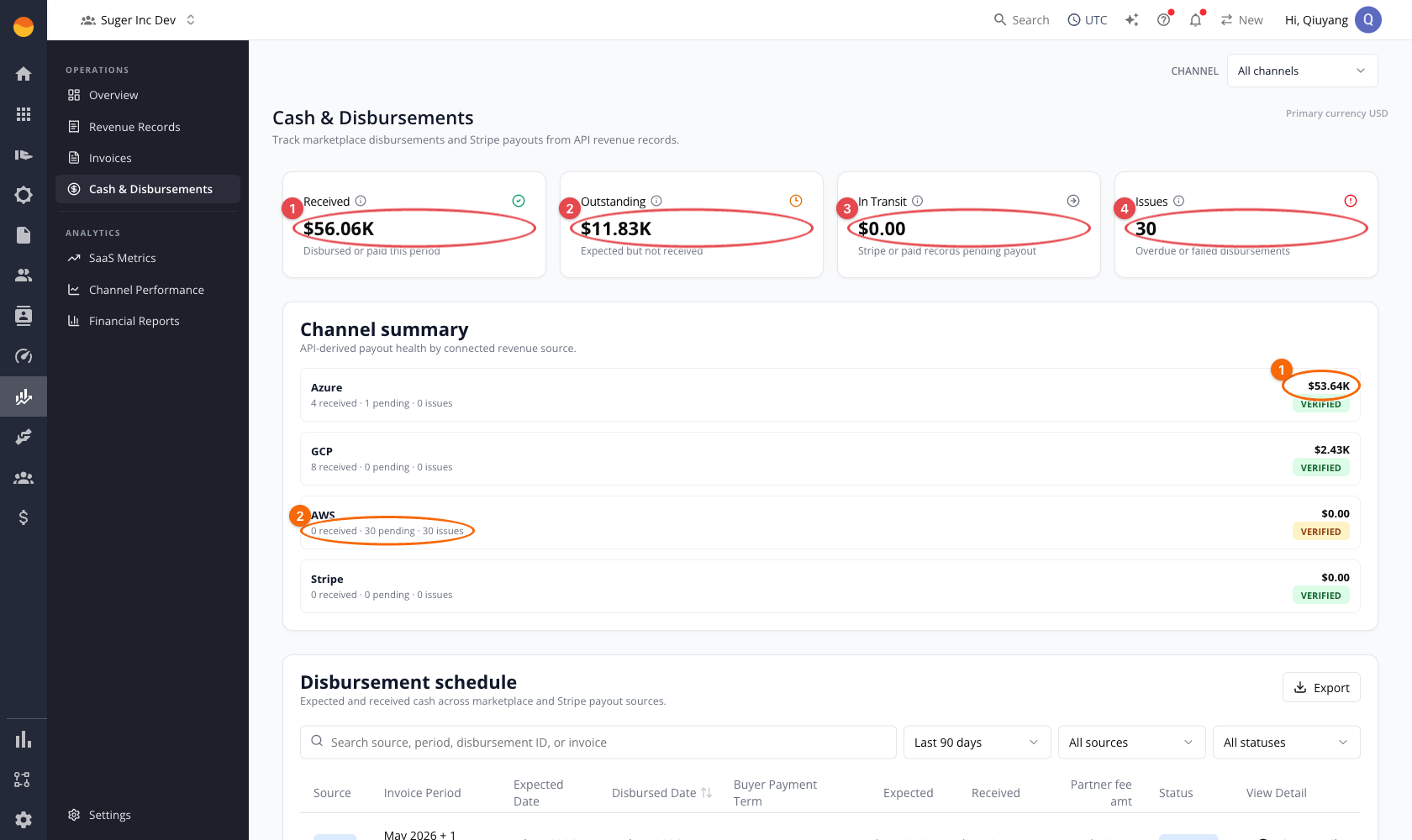
Summary cards
| Card | Meaning |
|---|---|
| Received | Payouts in Received status — the amount that landed for the current scope. |
| Outstanding Payout | The expected amount of every payout that is not Received — pending, overdue, and failed ones alike. |
| Issues | The number of Failed payouts. |
GCP payouts
Google reports a payout amount in its Detailed Disbursements report but never a payout date, so a GCP row never reaches Received. It stays Pending until its expected payout date — the 21st of the month after the charge month — and then shows Overdue, even when Google has confirmed the amount. A confirmed amount still appears in the row’s Received column, but the row counts toward Outstanding Payout, not Received. The schedule export flags these rows Is Estimated. See GCP Revenue for the full lifecycle.

The cards read left to right — Received, then Outstanding Payout, then Issues, which is a count of failed payouts rather than an amount.
Schedules and installments
- The disbursement schedule table lists each payout with its source, buyer name, expected and disbursed dates, expected and received amounts, partner fee, currency, and status.
- The future installments table lists upcoming installment payouts by marketplace, offer, buyer, due date, currency, and amount.
The Disbursed Date, Expected, and Received columns are sortable. A row is placed in the date range by its disbursed date, or by its expected date until the payout lands.
Filter the disbursement schedule by search, date range (the last 90 days by default), source, status, and currency — its search matches buyer names as well as the IDs on each payout; filter future installments by search, source, date range, and currency — its search matches an offer’s name or ID or a buyer ID, but not buyer names. Use Export on the schedule or Export CSV on installments to download — the schedule export adds the period, Is Estimated, and the disbursement, bank trace, and invoice IDs, and the installments export includes the Buyer ID.
The future installments table covers every offer with a payment schedule except drafts, previews, tests, and offers that were canceled, rejected, expired, deleted, deprecated, voided, invalid, or failed to create — so offers still awaiting acceptance are included, with a first installment that has no charge date yet listed as At acceptance. Installments dated before today are left out.
The future installments date range looks forward from today: This Month, Next 3 Months (the default), Next 6 Months, Next 12 Months, Next 24 Months, Next 36 Months, or All Time. Each range runs from today to the last day of its final month — Next 3 Months ends on the last day of the third month after this one — and All Time has no end date, so it lists every installment still to come. The table’s Total row adds up every installment that matches the filters, not just the page on screen, with a separate total for each currency.
To inspect a single payout:
- Locate the disbursement in the disbursement schedule table.
- Select View Detail on its row.
- Review the payout summary and the linked invoices in the detail modal.
- Close the modal to return to the schedule.
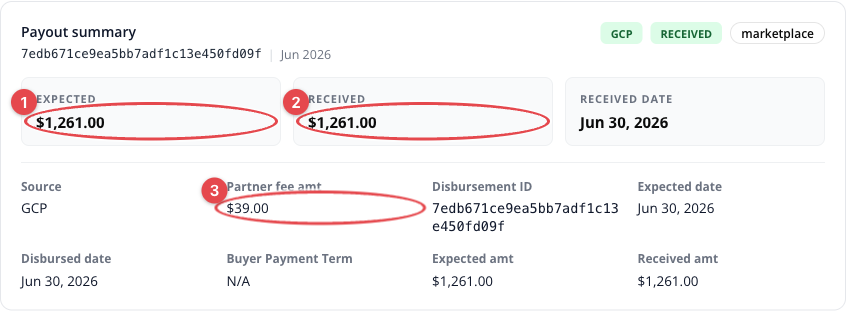
The payout summary circles the three figures you reconcile most: ① Expected (what the channel owed), ② Received (what actually landed), and ③ Partner fee amt (the channel’s cut). Below the summary the modal lists the linked invoices and an expandable raw payload section that shows the source data behind the row: for marketplace and Stripe rows the source revenue record or payment payload, and for AWS rows the payout header plus its components. It does not currently show refund details for a payout — use Refund activity for refunds.
The Linked invoices table lists every invoice the payout covers:
| Column | What it shows |
|---|---|
| Invoice | The invoice number, linked to that invoice’s detail on Invoices. Beneath it: the buyer’s name — or No buyer linked / Buyer name unavailable — and how many entitlements the invoice covers. |
| Disbursed Amount | On an AWS payout, the invoice’s share of the cash in that payout. On a Stripe row, the net amount Stripe settled. On any other row, the record’s disbursed amount less refunds when it has one — otherwise its collectable amount, else its invoice amount — converted at the record’s stored rate, so it can show a figure before the payout lands. |
| Partner Fee Amount | The channel’s fee on that invoice: the AWS fee lines allocated to it, the channel fee recorded on the record for other marketplaces, or the Stripe processing fee (never below zero). |
| Status | The invoice’s payment status on that payout. |
The same modal opens from Matched To on Bank Reconciliation when a matched record belongs to a payout.
To confirm the deposit itself reached your bank, match it in Bank Reconciliation.
Refund activity
A Refund activity card on this page collects the refunds recorded on your revenue records across the channels, so you do not have to open payouts one at a time to find them. It follows the schedule’s date range, source, and currency filters.
Two totals sit at the top, one set per currency, and they also follow the card’s own status filter:
| Total | What it is |
|---|---|
| Deducted From Payouts | Refunds already taken out of a payout. |
| Pending Refunds | Refunds not yet deducted. |
Filter the rows by status:
| Status | Meaning |
|---|---|
| Disbursed | The refund has been settled through a payout. |
| Issued | The refund has been issued but not yet settled. |
The filter also offers Request pending, but no refund is currently given that status. Credit memos and refund requests that have not been issued are not listed, while a refund attempt that failed but still carries an amount is.
Each row shows the invoice the refund is matched to, and the card has its own Export.
KPI calculation formulas
Each row is in its payout’s own currency: marketplace records converted to USD at their stored rate, AWS payouts in the payout currency, and Stripe payouts in the settlement currency. With all currencies selected, the cards add these amounts together as they are. See Revenue Settings for FX handling.
| KPI | Applies to | Formula | Calculation details |
|---|---|---|---|
| Received | AWS, Azure, GCP, Stripe | Σ received amount of payouts in Received status | Rows are placed by their disbursed date, or by their expected date until the payout lands. GCP rows never reach Received — see GCP payouts. |
| Outstanding Payout | AWS, Azure, GCP, Stripe | Σ expected amount of payouts not in Received status | Pending, Overdue, and Failed payouts all count, on the same date window as Received. |
| Issues | AWS, Azure, GCP, Stripe | count(payouts in Failed status) | Overdue payouts are not counted, although the card’s subtitle mentions them. Unmatched deposits and reconciliation variances are surfaced elsewhere — see Bank Reconciliation. |
| Future installments Total | Offers with a payment schedule, on any channel | Σ installment amount, per currency | Over every installment that matches the source, currency, date-range, and search filters — not just the page on screen — including offers still awaiting acceptance. Each currency is totalled separately and not converted. The range starts today and ends on the last day of its final month; All Time has no end. |
| Deducted From Payouts | AWS, Azure, GCP, Stripe | Σ refund disbursement amount of Disbursed refunds, per currency | Follows the card’s date range, source, currency, and status filters. |
| Pending Refunds | AWS, Azure, GCP, Stripe | Σ refund amount of Issued refunds, per currency | Refund amount = the refund invoice amount, else the amount deducted. Same filters. |
Spotted something wrong or out of date on this page? Tell us and we'll correct it.