Create and Assign Partner Journeys
Build reusable, step-by-step playbooks that guide partners through onboarding and other key milestones, then assign them to partners and track progress from one place.
Overview
Journey Templates are reusable, step-by-step playbooks for onboarding and other key milestones in your partner program. You create the template once, assign it to partners as needed, and track progress centrally instead of managing each task by hand.
Create a Template
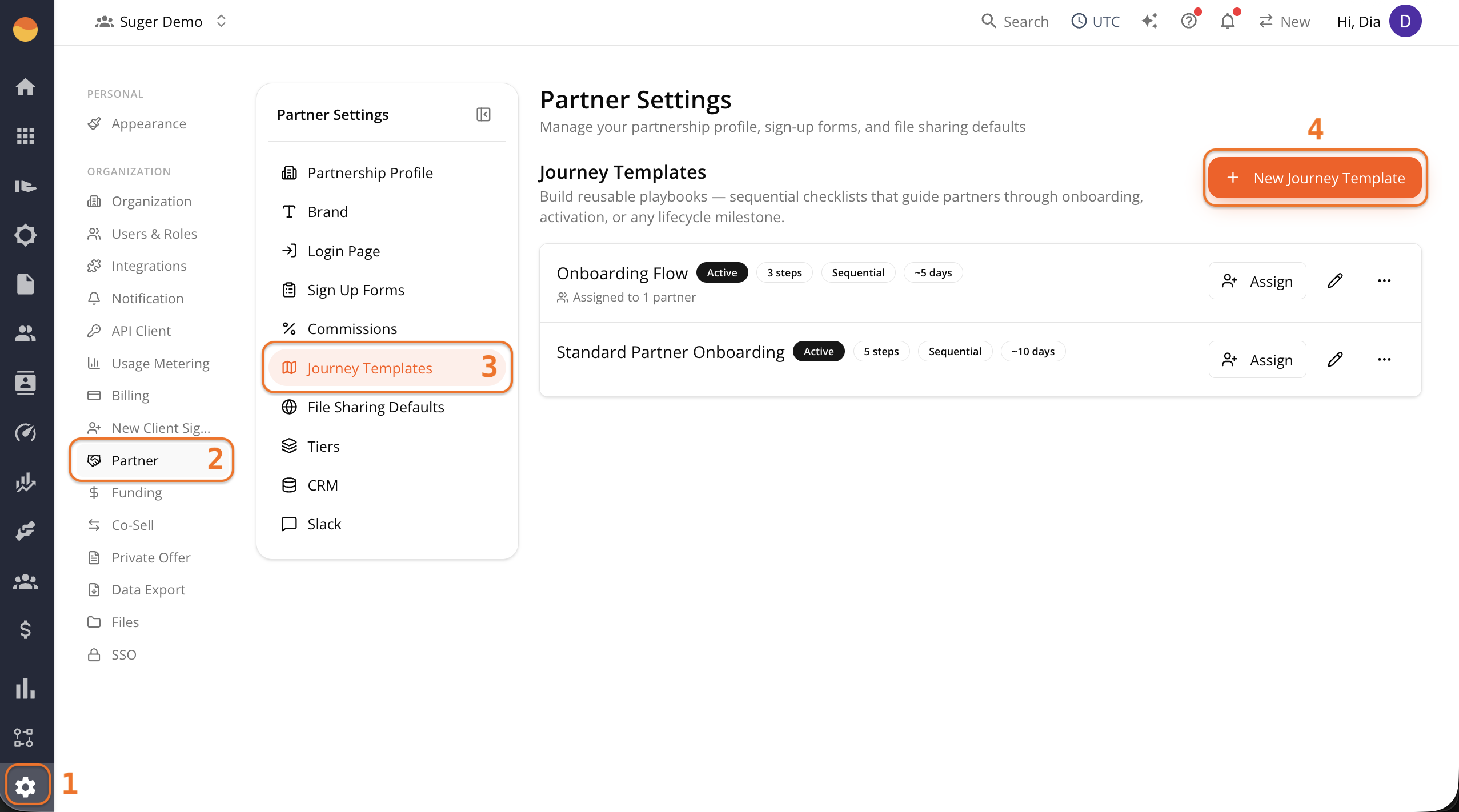
- Go to Fours Console, then Partners.
- Click Settings at the bottom of the rail, then Journey Templates.
- Click + New Journey Templates.
-
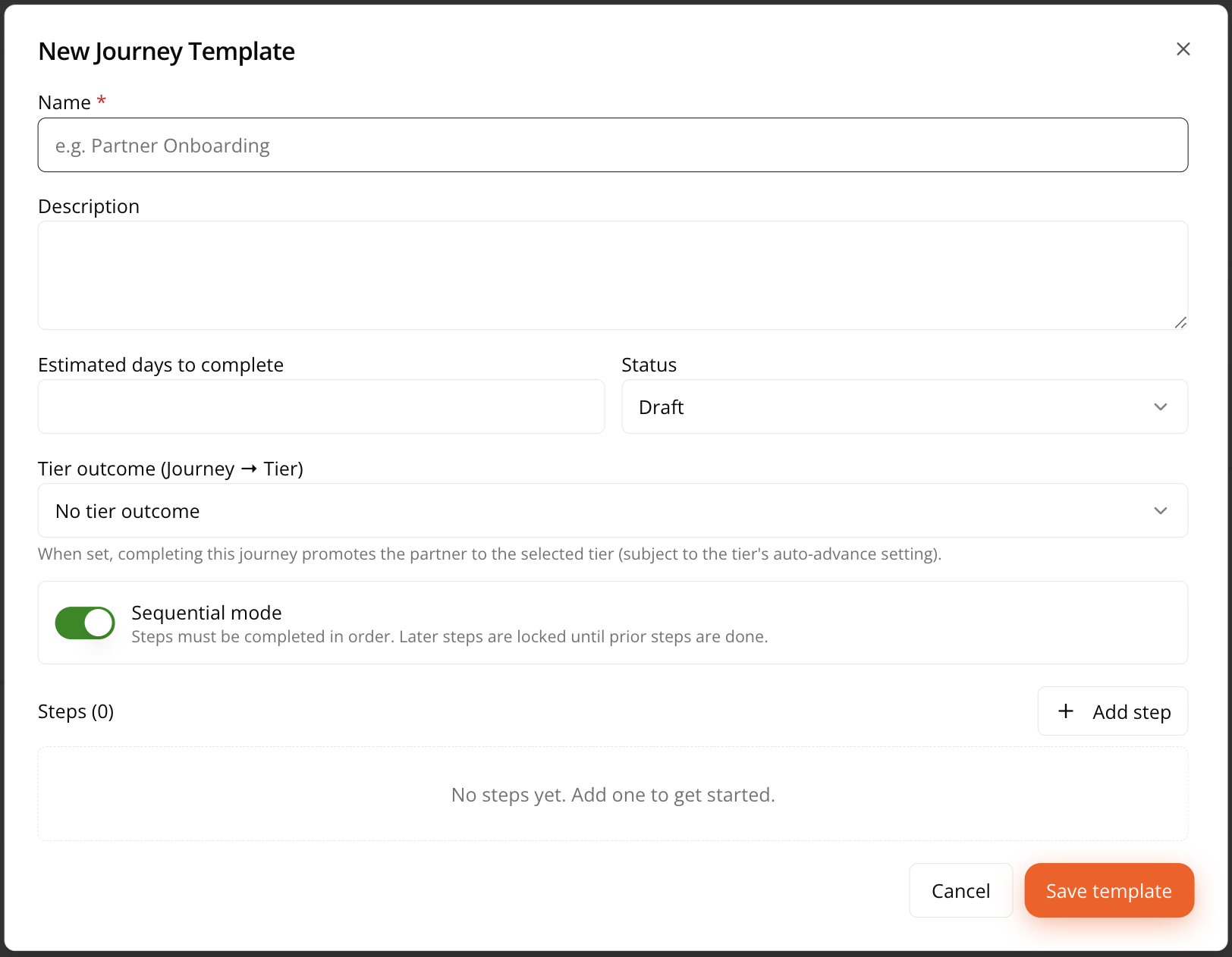
Fill in the journey template details:
- Name — What the template is called, for example “Partner Onboarding.”
- Description — A short description of what this journey is for.
- Estimated days to complete — A rough duration estimate, shown later as a reference (for example “~5 days”) wherever this template appears.
- Status — Draft while you’re still building it, or Active once it’s ready to be assigned. Only Active templates make sense to assign to real partners.
- Journey type — Standard journey, or Renewal journey (keeps its tier each fiscal year). A renewal journey restarts every fiscal year so that partners keep its tier, once renewal is switched on under Tier Year and Renewal. It needs a tier outcome, and each tier can have one active renewal journey.
- Start automatically for partners at — Nobody — assign by hand, or one of your tiers. Pick a tier and Fours assigns this journey to the partners at that tier, so a partner who reaches Silver can start the path to Gold without anyone assigning it. The tier you picked as the outcome isn’t offered here.
- Tier outcome (Journey → Tier) — Optional, except on a renewal journey. Set to something like Promote to Gold, it moves the partner up to that tier once they finish every required step. Partners already at or above it keep their tier. Leave it as No tier outcome if this journey isn’t meant to affect tier standing. See Earn Tiers Through Journeys.
- Sequential mode — Toggle on if steps must be completed in order, with later steps locked until earlier ones are done. Toggle off if partners can complete steps in any order.
-
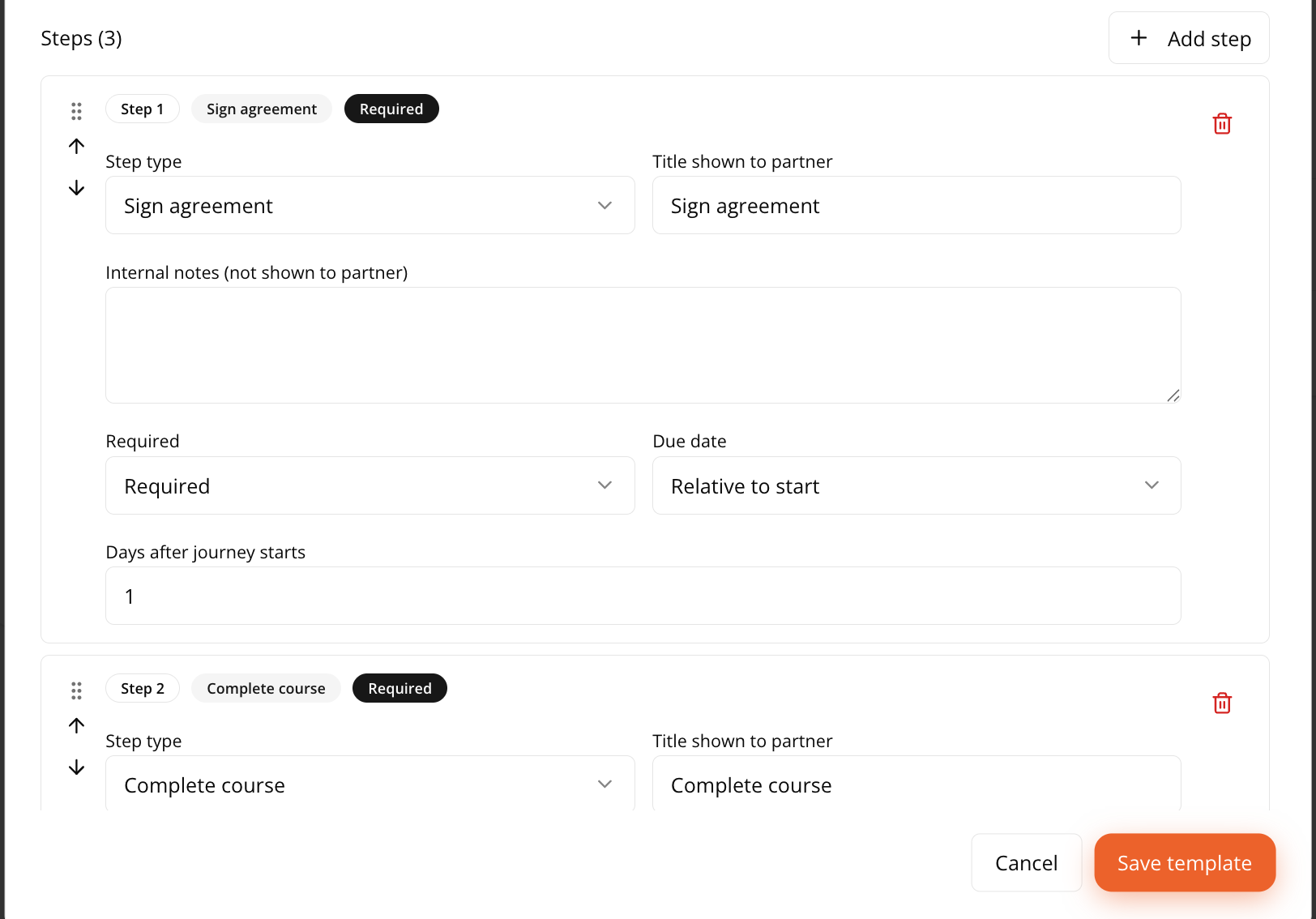
Click + Add step to add each milestone to the journey. For every step, you’ll set:
-
Step type — What kind of action this is:
- Sign agreement — A step where the partner needs to sign a contract or NDA, like “Sign NDA & Partner Agreement.”
- Upload document — A step where the partner submits a file, like partner documentation you need on record.
- Complete course — A step tied to training content, like an onboarding course.
- Earn certification — A step tied to a certificate. People needed sets how many people at the partner must hold a current, unexpired copy of it; a step saved before this field existed leaves it empty (Any one person) and completes when anyone earns the certificate. Assigning the journey opens the courses that award it.
- Deals — A deal target. See Deals Steps.
- Marketing points — A number of Points needed within a Period (Fiscal year, Fiscal quarter, or Last 12 months). Partners earn points by asking for the activities you list under Marketing Activities, and the points count once you approve each request.
- Custom task — The catch-all. You can optionally link this step to a Task.
A step saved as Register a deal, where the partner’s deal registrations count toward completion, keeps working and shows as Register a deal (older). New steps use Deals instead.
-
Section — No section, Delivery, Revenue, Marketing, or Other. The editor groups steps by section, with an Add step for each, and partners see the same groups on their journey.
-
Title shown to partner — The label the partner actually sees for this step.
-
Internal notes — Notes for your own team, not visible to the partner.
-
Task template — Optionally link this step to an existing task template, if one applies.
-
Required or Optional — Whether this step must be completed to finish the journey, or whether it’s a nice-to-have.
-
Due date — Either “No due date” or “Relative to start” (due some number of days after the journey is assigned).
-
-
Use the up/down arrows or drag handle to reorder steps, and the trash icon to remove one. Add as many steps as the journey needs, then click Save template.
Deals, Marketing points, and Earn certification steps carry a Completes automatically badge: Fours counts the work and completes them, and nobody ticks them by hand. See Steps That Count Themselves.
Deals Steps
A Deals step has two tabs:
- Deal value — the partner’s deals must add up to Deal value at least this amount within a period. Amounts are added as they are, with no currency conversion.
- Number of deals — the partner needs Deals needed deals, counted over all time. When a renewal journey restarts for a new fiscal year, its count starts again from zero.
A line beside the target sums up the rules. For a deal value, click Deal value rules to change them:
| Rule | Choices |
|---|---|
| Period | Preset range: Fiscal year, Fiscal quarter, or Last 12 months, each shown with its dates. Or Custom range, with a Start date and an End date. |
| Deal value comes from | Fours co-sells, the deal value on each co-sell; or Salesforce fields, read from the Salesforce opportunities the partner’s co-sells are linked to. |
| Which deals count (Fours co-sells) | Sourced by the partner, Co-sold with the partner, and Closed won. Tick at least one of the first two. |
| Count each deal by (Fours co-sells) | Close date, Registered date, or Created date. |
| Salesforce fields | A Value field and a Date field, and optionally conditions under Only records where (is or is not a value). |
Click Apply to keep the rules. A Deals step that reads Salesforce fields is counted once a night; one that reads Fours co-sells is counted again shortly after a co-sell changes.
Define the Task Inside a Custom Task Step
A Custom task step doesn’t have to point at a task template you built earlier. Two tabs let you decide:
- Create new task — write the task here, inside the step.
- Select template — pick an existing task template from the Task template dropdown.
Choosing Create new task gives you three extra fields:
| Field | What it does |
|---|---|
| Priority | URGENT, HIGH, NORMAL, or LOW. Drives how the task sorts on the Tasks page. |
| Auto-assign by role | Picks the assignee by role rather than by name, so the same template works for every partner. |
| Tags | Free-form labels for filtering later. |
Whichever tab you use, a task is created and linked to each partner at the moment the journey is assigned. Its title and due date come from the step above, so you don’t set them twice.
Auto-assign by role
Auto-assign by role offers None plus two roles:
| Role | Resolves to |
|---|---|
| Partner Manager (internal) | The partner manager on your side of the relationship. |
| Champion contact | The partner’s champion contact. |
Resolution happens per partner when the journey is assigned, which is the point — one template, correctly assigned across every partner you give it to.
Assign a Journey Automatically to Every New Partner
A Default onboarding template picker sits above the template list. Choose one, and that journey is assigned the moment a partnership becomes Active — the partner starts onboarding without anyone remembering to assign it.
Only Active templates can be the default, so only those are offered in the picker. Choosing none leaves the manual flow below exactly as it was.
While Journeys is switched off under Partners → Settings → Features, the default template isn’t auto-assigned, and a partner that became Active in that time doesn’t get it later when you switch Journeys back on. See Turn Modules Off and Rename Them.
Two things make an auto-assignment legible rather than mysterious:
- The template list shows the chosen one as Default — auto-assigned, and each template’s usage reads as an
(n manual, n auto-assigned)split, so you can tell deliberate assignments from automatic ones. - When a partnership is approved, the partner record shows a banner naming the journey that was auto-assigned and saying it is this organization’s default onboarding template for new partners.
The template list also badges the tier settings: Promotes to {tier} for a tier outcome, Renewal journey, and Starts for {tier} partners for a journey that starts automatically.
Tier Year and Renewal
The Tier year and renewal card sits above the template list on Partners → Settings → Journey Templates. It applies to every journey with a tier outcome, and its header shows whether renewal is On or Off. Click the card to open it.
| Setting | What it does |
|---|---|
| Fiscal year starts | The first day of your fiscal year, January 1 to December 1. It sets the dates of the Fiscal year and Fiscal quarter periods that Deals and Marketing points steps count in. |
| Enable renewal | “Each fiscal year, partners finish their current tier’s journey again to keep it.” Off until you switch it on. |
| If they don’t finish in time | Shown while renewal is on. Keep their tier (the default) or Move them down one tier. |
| Time to renew | Shown while renewal is on. 30, 45, 60 (the default), or 90 days from the start of the fiscal year, each shown with its last day. |
With renewal on, a line under the settings says what the start of the next fiscal year does, with its dates: each partner’s current tier journey restarts, deals and marketing points count again from zero inside the new year, and certifications that are still valid carry over. Below it, the card names the journey each tier renews with, or reads “No tier renews yet: make a journey a Renewal journey to renew its tier.” Only a tier with a renewal journey renews. Click Save to keep your changes.
Marketing Activities
Marketing points steps count points that partners earn for marketing work, such as a webinar or a case study. The Marketing activities card, below the template list, is the list partners pick from when they ask for points.
- Click Marketing activities to open the card, then Add activity.
- Enter a Name, the Points it earns (a whole number, at least 1), and an optional Description, which partners see when they ask for it.
- Click Save activity. Each change to the list is saved straight away; the card has no Save of its own.
Use the pencil to edit an activity and the trash icon to remove one. Removing an activity keeps the points partners already earned with it. A partner asks for points from a Marketing points step of their journey, and you approve or reject each request; see Review Marketing Points Requests.
Assign a Journey to a Partner
Once your template is Active, you can assign it to partners from several places in Fours.
From the Journey Template
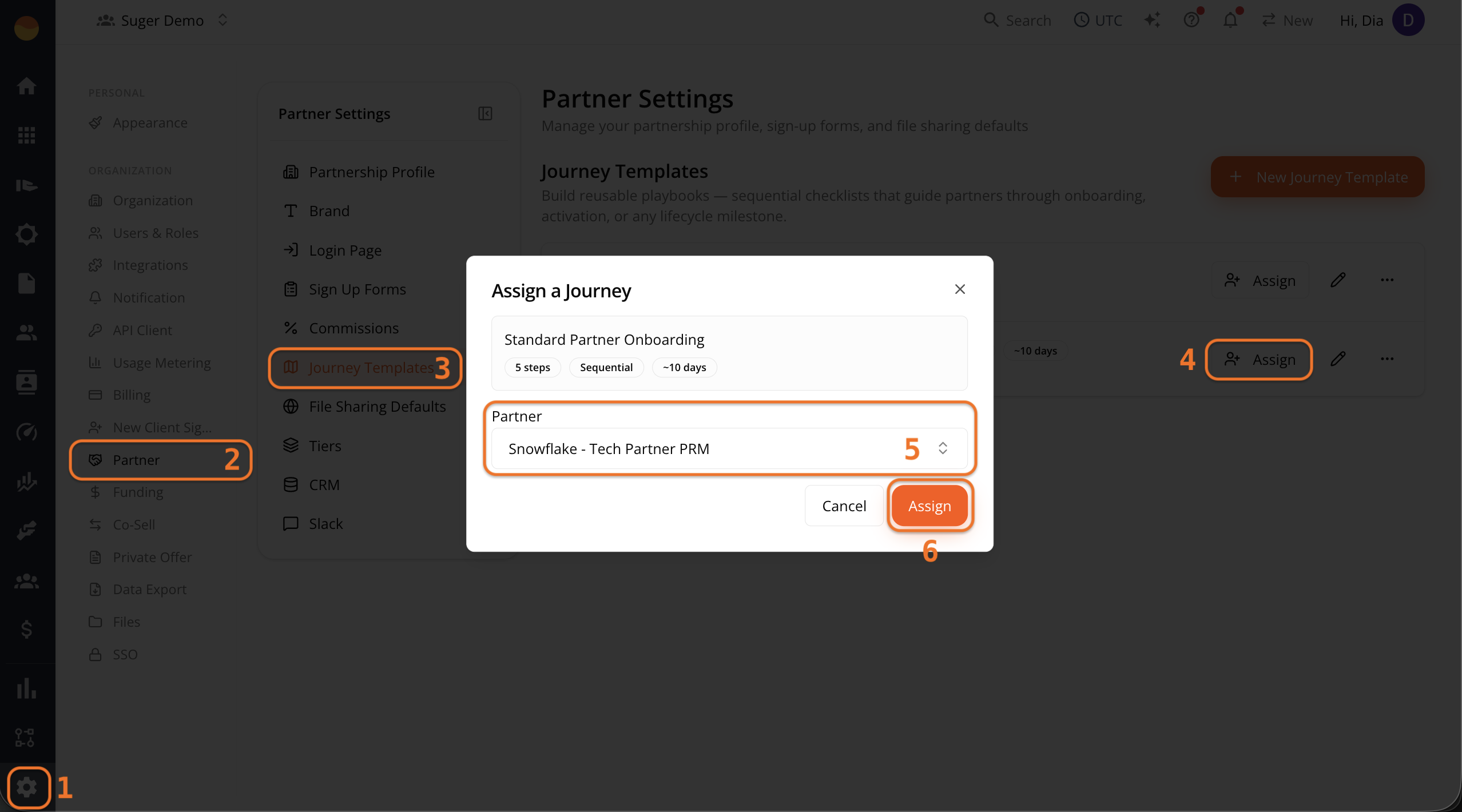
- Go to Fours Console, then Partners.
- Click Settings at the bottom of the rail, then Journey Templates.
- Find the template, and click Assign.
- In the Assign a Journey dialog, select the partner from the dropdown.
- Click Assign.
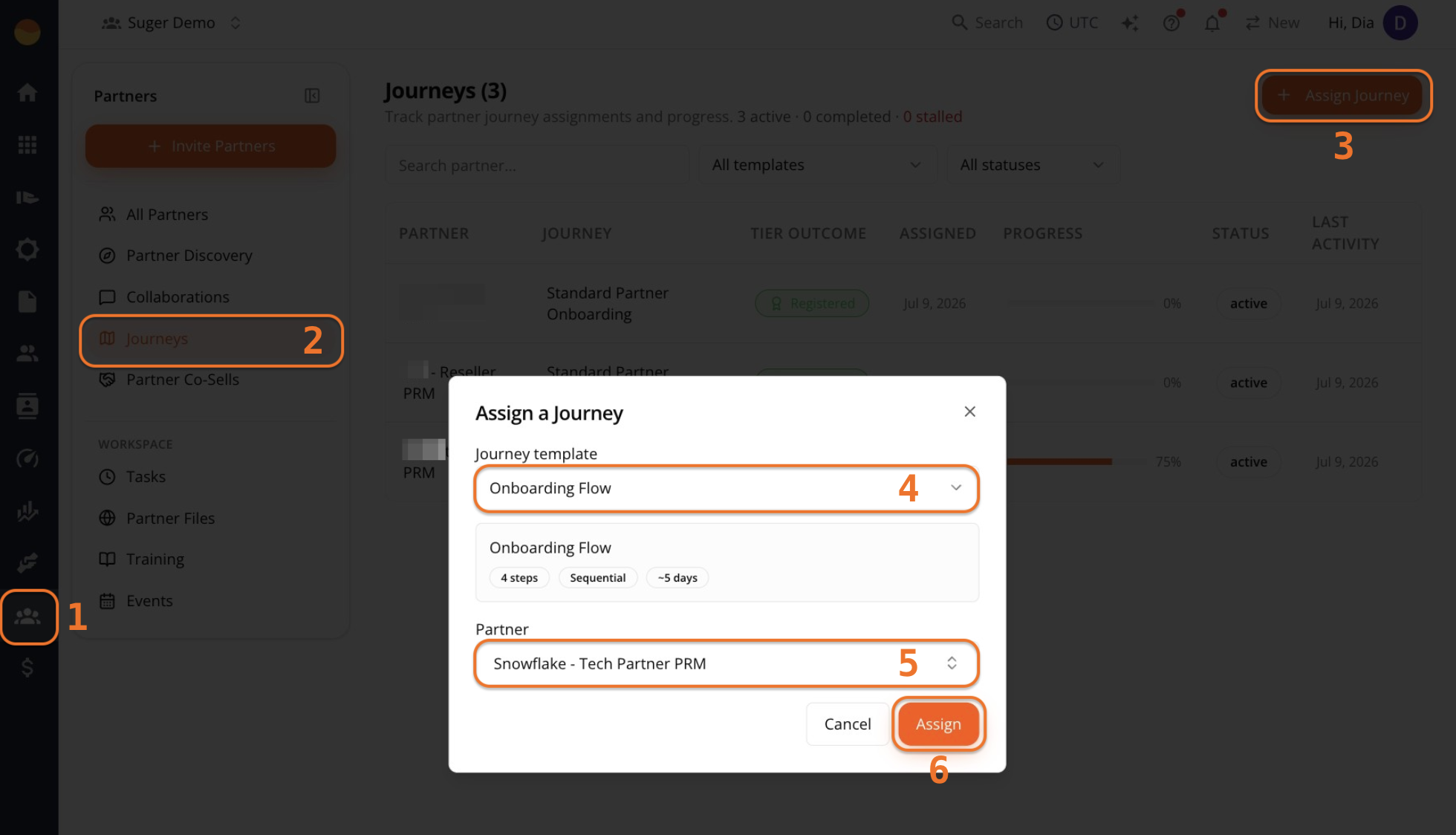
From the Journeys Page
- Go to Fours Console, then Partners.
- Go to the Journeys menu, and click + Assign Journey.
- In the Assign a Journey dialog, select the Journey template and Partner from the dropdowns.
- Click Assign.
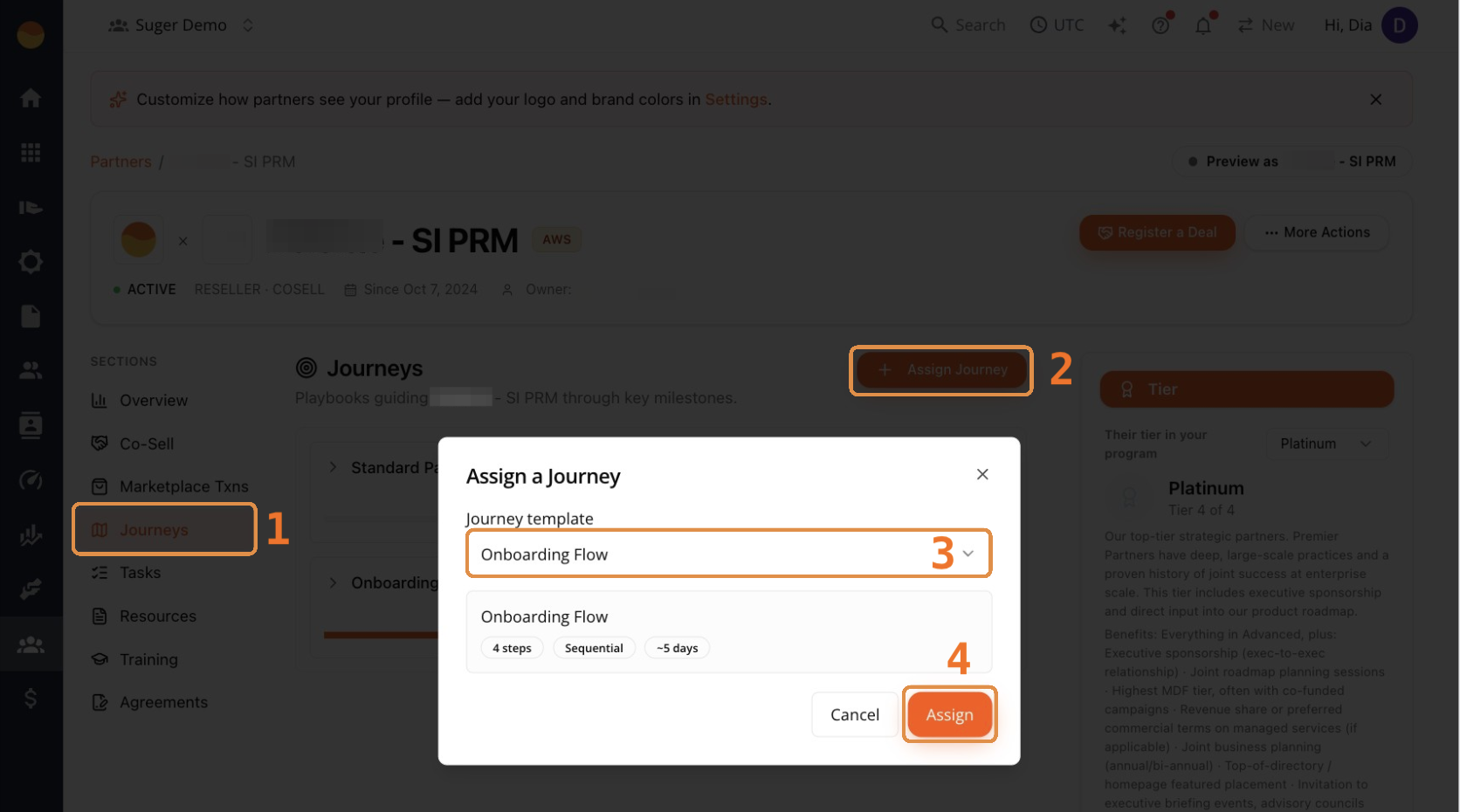
From a Partner’s Profile
- Go to Fours Console, then Partners.
- Click the partner’s name to open their profile.
- Click Journeys, then + Assign Journey.
- In the Assign a Journey dialog, select the Journey template, then click Assign.
Assign to Several Partners at Once
The partner field in Assign a Journey takes more than one partner. Onboarding a cohort is one action, not one per company.
Search your partners by name and tick every partner who should get the journey; more partners load as you scroll, and the ones you’ve picked stay at the top. The list offers the partners where your product is the one being sold. The confirm button counts what you selected — Assign for one, Assign to 6 partners for six — so you can check the number before committing.
Partners who already have an active assignment of that same journey are greyed out and can’t be selected, and a line under the picker tells you how many were excluded and why. This stops you accidentally issuing a second copy of a journey somebody is already halfway through.
Reference: Journey Statuses
Template status — whether a template can be handed out:
| Status | Meaning |
|---|---|
DRAFT | Editable, not assignable. |
ACTIVE | Published and assignable. |
You can move a template back from ACTIVE to DRAFT to take it out of circulation while you rework it.
Assignment status — one partner’s copy of a journey:
| Status | Meaning |
|---|---|
ACTIVE | In progress. |
COMPLETED | Every required step is done. |
ARCHIVED | Retired from the active view. |
The Journeys list and a partner’s record show these as Active, Completed, and Archived. An active journey that has fallen behind also carries a Stalled badge.
Step status — visible to the partner as well as to you:
| Status | Meaning |
|---|---|
NOT_STARTED | Nothing has happened yet. |
IN_PROGRESS | Underway. |
DONE | Complete. |
Step types — the eight kinds of milestone a template can contain:
| Type | Completed by |
|---|---|
SIGN_AGREEMENT | The partner signing an agreement. |
COMPLETE_COURSE | The partner finishing a specific course. |
EARN_CERTIFICATION | The partner earning a specific certificate, or, with People needed, that many people at the partner holding a current copy of it. |
DEAL_VALUE | Deals: the partner reaching a deal value in a period, or a number of deals. |
MARKETING_POINTS | Marketing points: the partner’s approved marketing requests reaching a number of points in a period. |
REGISTER_DEAL | The partner registering their target number of co-sells. Older steps only; new steps use Deals. |
UPLOAD_DOCUMENT | The partner uploading a file. |
CUSTOM_TASK | Anything else — either a task template or a task you write inline. |
Task status — for the tasks a CUSTOM_TASK step creates:
| Status | Meaning |
|---|---|
OPEN | Not started. |
IN_PROGRESS | Being worked on. |
BLOCKED | Stopped, waiting on something else. |
COMPLETED | Done. |
Task priority, highest first: URGENT, HIGH, NORMAL, LOW.
Next Steps
Once assigned, see Track Journey Progress to check on progress and understand what the partner sees on their end.
Spotted something wrong or out of date on this page? Tell us and we'll correct it.