Tax audits and findings
An audit compares the marketplace revenue Fours holds for a period with the tax documents in your connected provider, and produces one finding per invoice: the sale is covered by a matching tax record, has none, disagrees with its record, or has tax recorded twice. The Audit tab is where you run audits and work through the findings; Runs keeps the history.
Overview
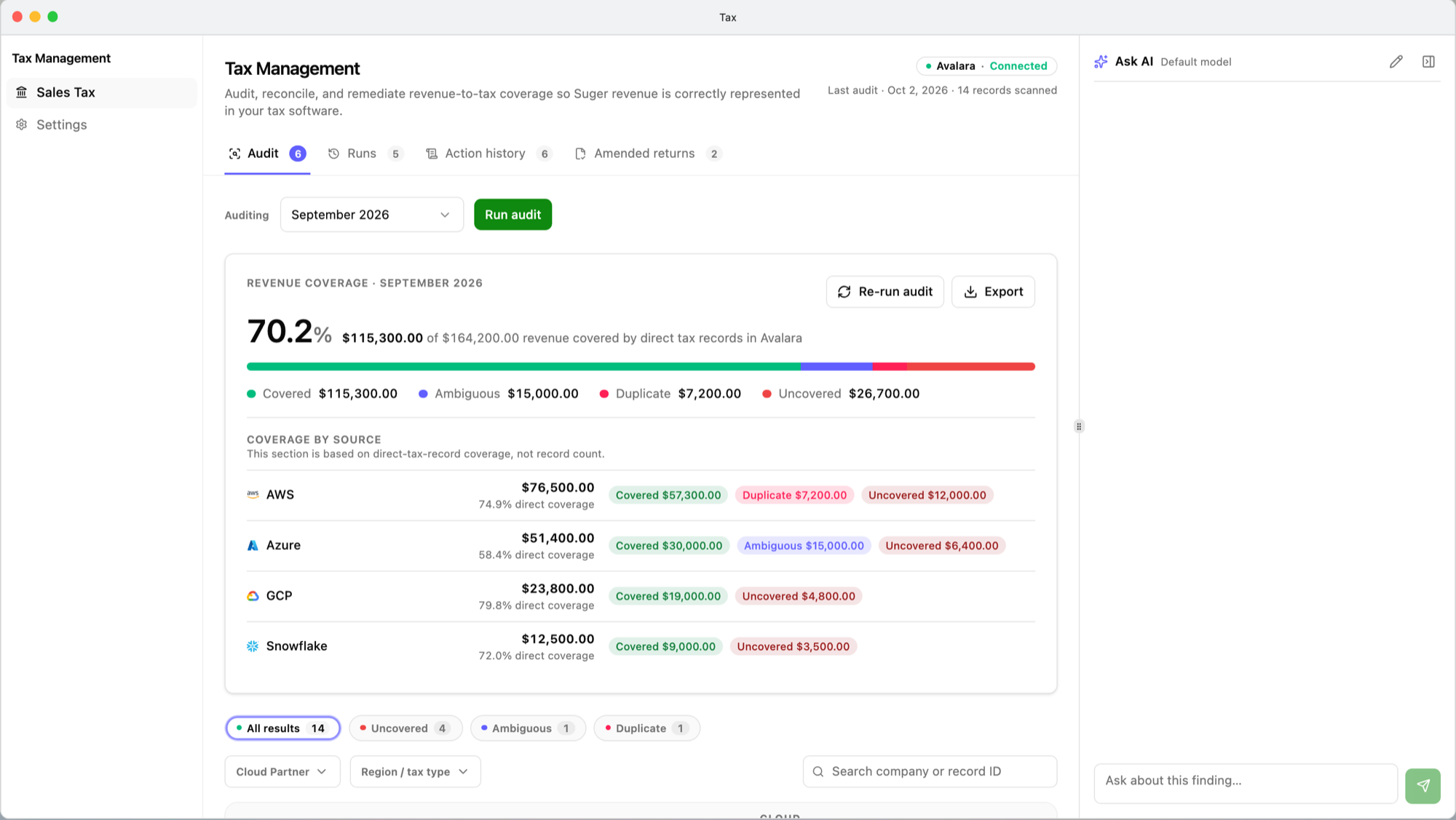
Open Tax → Sales Tax → Audit. Above the findings, the header shows your provider and its connection state, and when the last audit ran and how many revenue records it scanned. The Audit tab’s badge counts the Uncovered, Ambiguous, and Duplicate findings of the most recent run.
Before the first audit, the tab shows a single Run audit for month button for the most recent complete calendar month. If Tax shows a setup screen instead, finish Set up Tax first.
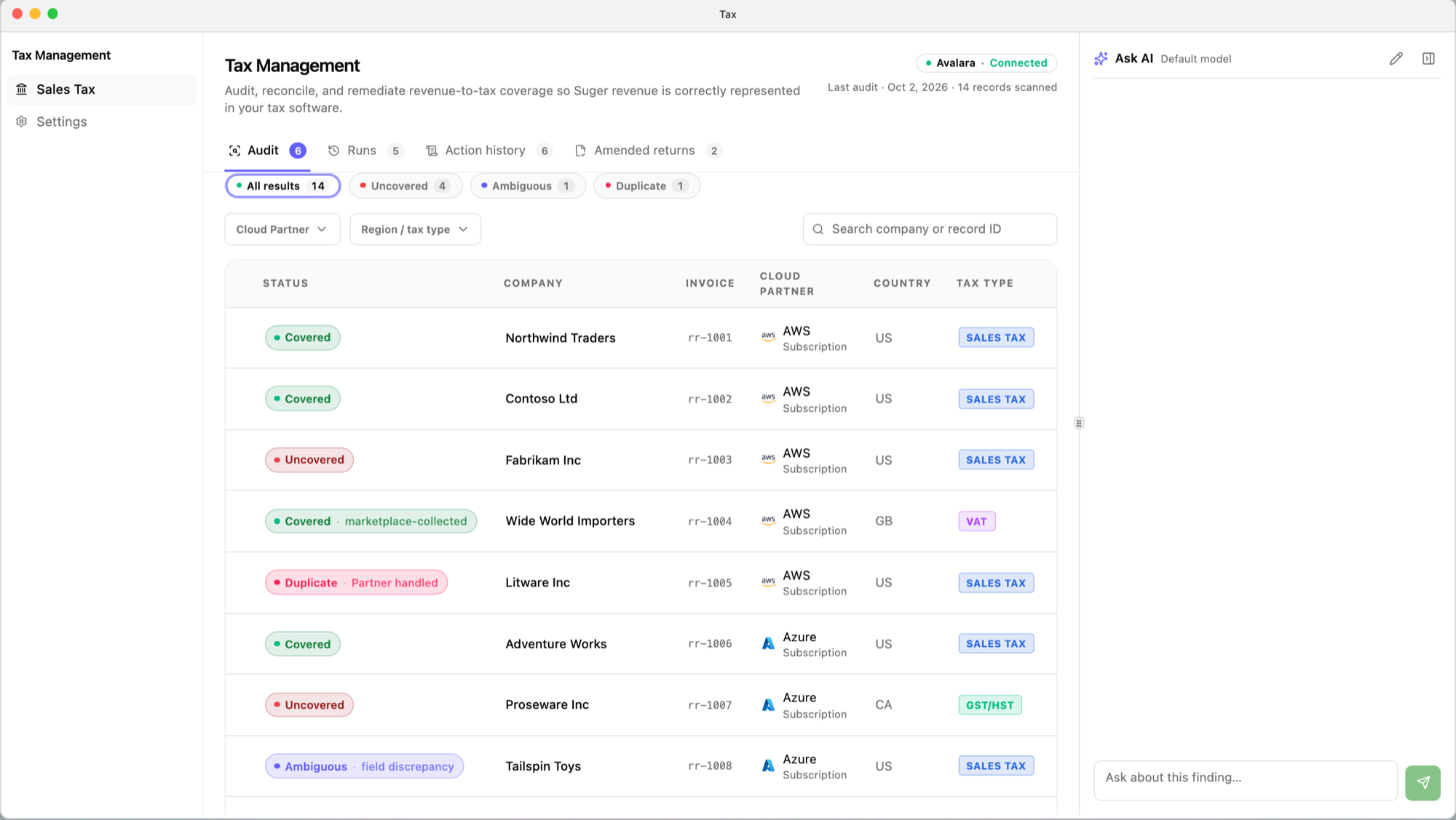
Below the coverage card, the findings table lists one row per finding:
Run an audit
- In Auditing, pick a period: one of the last 12 complete calendar months, or Custom range… with a Start date and an End date (exclusive) — the end date itself is not included. Months and dates are UTC.
- Select Run audit. You need the Admin or Editor role; for a Viewer the button is disabled with “You need editor permission to run an audit.”
- Wait while the panel shows Auditing period… with the elapsed time. Findings appear when the run completes; you can leave the tab and come back.
To audit the same period again — after a correction, or after your provider’s records changed — select Re-run audit on the coverage card. The Audit tab then shows the newest run’s findings for the period; corrections already made stay in the Action history.
When an audit won’t start. The run is refused, with the reason under “Couldn’t start the audit”, when no selling entity is selected, when the selected entity no longer exists in the provider, or when the provider reports no active tax registration for it. Fix the cause in Settings or in your provider, then run again.
When an audit fails. The panel reads Audit failed for period with Try again. If only some revenue channels failed to load, the run still completes and the Audit tab warns “Some revenue sources didn’t load — their coverage is unknown.” — the coverage figures then describe only the channels that loaded.
What an audit reads
Revenue. Revenue records from AWS, Azure, GCP, and Snowflake — the same records as Revenue Records. Stripe revenue is not audited. A sale belongs to the period of its invoice date, and a refund to the period of its own refund date, so a refund is audited separately from the sale it reverses. Records that carry no invoice-level detail produce no finding.
The taxable amount. Each sale is compared on its revenue excluding any tax already inside the invoice amount:
| Channel | Amount compared with the tax record |
|---|---|
| AWS | Invoice amount − seller-remitted tax |
| Snowflake | Invoice amount − sales tax |
| Azure, GCP | Invoice amount (their reports carry no tax) |
Marketplace-collected tax. Under marketplace-facilitator rules, the marketplace — not you — collects and remits the tax on many sales. Fours marks a sale as marketplace-collected per channel:
| Channel | Marked marketplace-collected when |
|---|---|
| AWS | AWS reports tax it collected on the sale. |
| Snowflake | Snowflake reports sales tax on the sale. |
| GCP | The buyer is in any country except Australia, Israel, or Switzerland, where you are liable. A buyer whose country can’t be resolved is not marked. |
| Azure | Never — Azure reports no tax, so every Azure sale is treated as yours to record. |
A marketplace-collected sale still needs a record in your provider — with your own tax liability at zero. Seller tax charged on top of marketplace-collected tax is tax collected twice; Fours detects it only on records it created itself, so check records you filed by other means yourself.
Tax records. Every committed tax document for your selling entity in Avalara for the period. A record Fours itself created through a correction is recognized directly, without matching.
How a finding gets its status
Fours pairs invoices and provider records as a whole, choosing the assignment that matches the most invoices, rather than taking the first record that fits each invoice.
| Status | Meaning |
|---|---|
| Covered | One provider record matches the invoice. |
| Uncovered | No provider record covers the invoice — a sale or refund missing from your tax records. |
| Ambiguous | A record Fours created for the invoice now disagrees with it on one or more fields (shown as field discrepancy). Findings from older audits may instead read multiple matches. |
| Duplicate | The invoice is covered more than once: a second record also matches it, or a record Fours created charges seller tax on a sale the marketplace already collected tax on (tax collected twice). |
| Needs review | Appears only on findings from older audits; new audits no longer produce it. |
Additional labels on a status:
- Partner handled / marketplace-collected — the marketplace collected the tax on this sale, so your own liability is zero.
- Ignored — someone set the finding aside (see Ignore a finding).
Tax type. Each finding shows the tax family for the buyer’s country: Sales Tax (United States), GST/HST (Canada), Consumption Tax (Japan), GST (Australia, Singapore, India), or VAT (EU countries, United Kingdom, South Korea, Israel). A country outside these has no tax type and shows —.
Work the findings
The findings table has four queues: All results, Uncovered, Ambiguous, and Duplicate. There is no Covered queue — covered findings are under All results.
- Filter by Cloud Partner and by Region / tax type, and search by company, revenue record ID, or invoice ID. Your queue, filters, and search are kept in the window’s address, so a link to it opens the same view.
- Columns: Status, Company, Invoice, Cloud Partner, Country, Tax type, Revenue, Tax, Period, and Tax record. Tax reads collected by partner on a marketplace-collected sale; Tax record reads — None — when no record matched.
- The table shows 25 invoice groups per page — a sale together with its refunds — so a page can hold more than 25 rows.
- Export downloads the current queue, filters, and search as CSV.
Select Take actions on a row (Review for a covered one) to open the finding.
The finding page
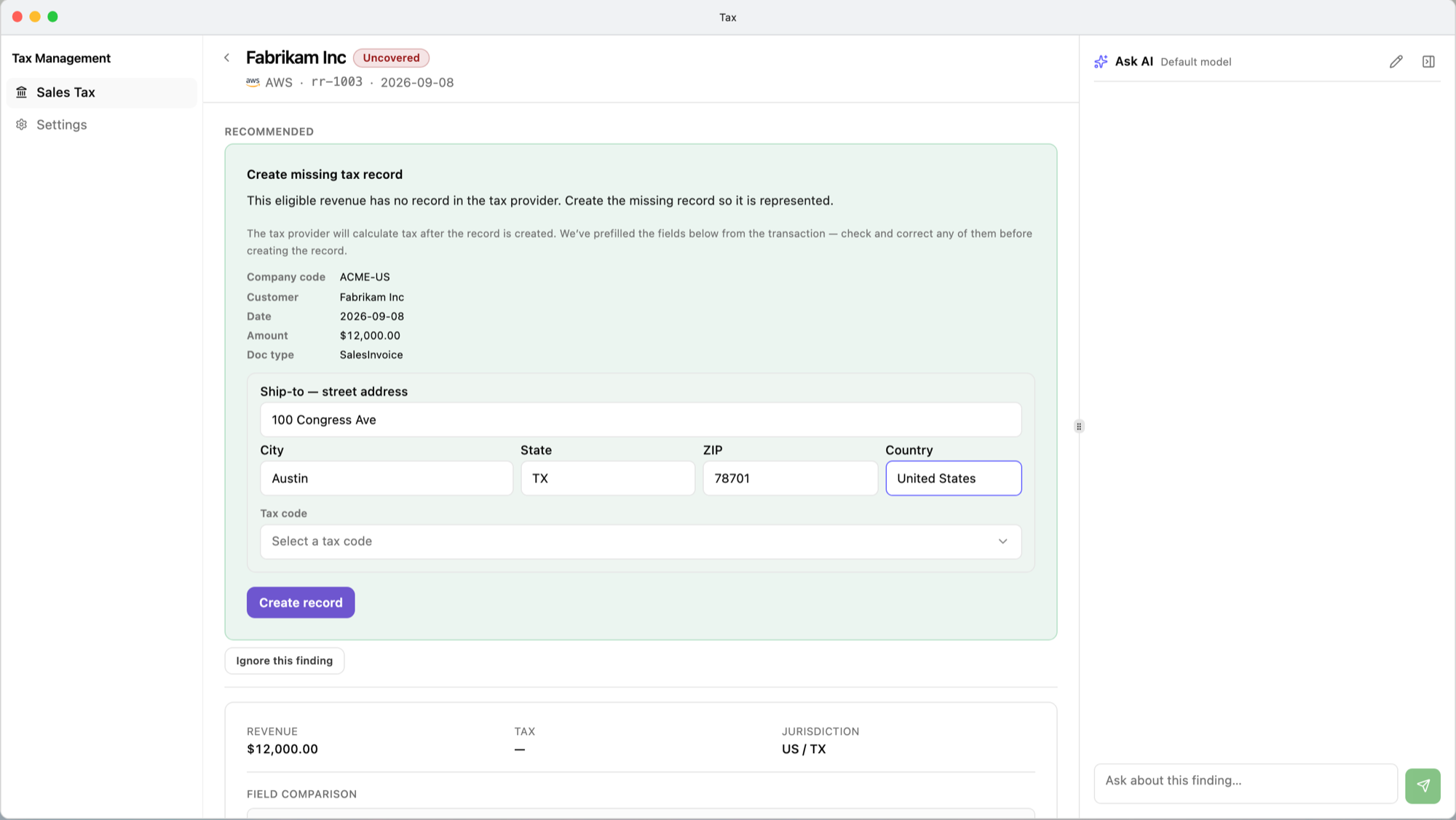
The page shows the buyer, status, channel, and invoice, then:
- Recommended — what Fours concluded and the one correction it recommends, with the correction’s form right in the card: for example No matching tax record, Field discrepancy, Tax collected twice, Marketplace facilitator collected the tax, or Period already filed. See Corrections.
- Ignore this finding — see below.
- Revenue, Tax, and Jurisdiction, followed by a field-by-field comparison of Fours’ figures with the provider record — or, for a marketplace-collected sale, the record Fours proposes.
The open finding is part of the window’s address, like the queue and filters, so you can paste its link into a ticket or a chat and a colleague opens the same finding; the Back to control returns you to the list you came from. An entry in Action history and an amended return have links of their own too. Audits replace their results, so a link can outlive the finding it names — the page then says This finding no longer exists. A link opened in an organization that hasn’t connected a tax provider says No tax provider connected and offers Go to settings.
Ignore a finding
Ignore this finding sets a finding aside without changing anything in your provider: it leaves its queue and that queue’s export, but stays under All results, labeled Ignored. It is not offered on a covered finding, and needs the Admin or Editor role.
The filed-period banner
When findings fall in a period Fours considers already filed with the tax authority, the Audit tab says so: ”… has already been filed with the tax authority. Discrepancies in a filed period can’t be corrected instantly — open a finding to flag it for an amended return.” See Amended returns.
Runs
Tax → Sales Tax → Runs lists past audits, newest first, under Audit runs:
| Column | Shows |
|---|---|
| Run | The run and the window it audited. |
| Started | Start time, UTC. |
| Status | New, Running, Completed, or Failed — with N source(s) didn’t load when some channels failed. |
| Scope | Calendar month with the month, or Custom range. |
| Records | Revenue records scanned. |
| Outcome | covered and findings counts at the time of the run; — for a failed run. |
| Actor | Who started it. |
| Duration | How long it took. |
The list is read-only: rows don’t open, and Run a new audit takes you to the Audit tab to choose a period. It shows the 50 most recent runs. If a run is still New or Running more than five minutes after it was created, opening the list checks whether it is actually still running; a run that has stopped is marked Failed then. A run that really is still working stays Running.
Ask AI
The Ask AI panel on the right of every Tax screen answers questions about what you are looking at. It hides automatically when the window is narrow; Show assistant brings it back.
- It can read the current screen — on a list, up to 25 visible rows — explain a finding, open the recommended correction and fill in its fields, offer quick choices, and search the knowledge sources you attach.
- It cannot submit a correction or change anything, navigate for you (it gives you a link instead), choose a tax code, calculate a tax amount or rate, change a finding’s status, or answer a tax-law question without a knowledge source that covers it.
Edit assistant sets your model and knowledge sources and lets you discard the conversation. These choices are yours alone; they don’t change the assistant for anyone else.
KPI calculation formulas
The same formulas apply to every audited channel — AWS, Azure, GCP, and Snowflake. Only the taxable amount of a finding differs by channel, as defined in What an audit reads.
| KPI | Applies to | Formula | Calculation details |
|---|---|---|---|
| Revenue coverage (N% — $X of $Y revenue covered by direct tax records in provider) | AWS, Azure, GCP, Snowflake | coverage % = covered amount ÷ total amount × 100 | Covered amount = sum of the taxable amounts of the run’s Covered findings. Total amount = sum of the taxable amounts of all the run’s findings, ignored ones included. Refunds count as negative amounts. Only the run’s main currency (the one with the largest total, refunds counted by size) is counted; findings in other currencies are left out and noted as record(s) in another currency not included. Records skipped for lack of invoice detail are not in either sum. Percentage to one decimal; amounts in that currency to two decimals. It updates live: a successful correction turns its finding Covered. |
| Amount per status (the legend beside the coverage percentage) | AWS, Azure, GCP, Snowflake | amount for a status = sum of the taxable amounts of the run's findings with that status | Same currency, sign, and rounding rules as revenue coverage. Needs review is listed only when it is not zero. The amounts for all statuses add up to the total amount. |
| Coverage by source (N% direct coverage) | each channel separately | channel coverage % = channel's covered amount ÷ channel's total amount × 100 | Same rules as revenue coverage, per channel; channels listed largest first. |
| Coverage count (N of M covered) | AWS, Azure, GCP, Snowflake | covered findings ÷ all findings | Shown only while the findings themselves are loading; counted when the run finished. |
| Queue counts (All results, Uncovered, Ambiguous, Duplicate) | AWS, Azure, GCP, Snowflake | number of findings in the queue | Ignored findings are left out of Uncovered, Ambiguous, and Duplicate and kept in All results. Live: they change as you ignore and correct findings. |
| Audit tab badge | AWS, Azure, GCP, Snowflake | Uncovered + Ambiguous + Duplicate findings of the most recent run | Counted when that run finished, so it does not drop as you ignore or correct findings; it follows the most recent run even if that run failed or covered another period. |
| Runs and Action history tab badges | AWS, Azure, GCP, Snowflake | Runs = number of runs listed; Action history = number of actions listed | Runs counts the listed runs of every status, at most 50. Action history counts corrections of every status and amendment flags. The Amended returns badge is defined on Amended returns. |
| Records scanned (header) and Records (Runs) | AWS, Azure, GCP, Snowflake | number of distinct revenue records the run loaded | Records, not findings: one record can yield several findings (a sale and its refunds), and a record without invoice detail yields none. |
| Outcome (Runs) | AWS, Azure, GCP, Snowflake | covered = Covered findings; findings = all findings that are not Covered | Counted when the run finished; — for a failed run. |
Related
- Corrections — fix what the audit found.
- Amended returns — discrepancies in filed periods.
- Revenue Records — the revenue an audit reads.
Spotted something wrong or out of date on this page? Tell us and we'll correct it.