Resale Authorizations and Resale Offers
AWS lets a reseller (a channel partner) sell your product to a buyer. AWS calls this a channel partner private offer (CPPO). It has two parts:
- A resale authorization. The ISV gives it to a reseller. The ISV is the software vendor that owns the product.
- A resale offer. The reseller makes it to the buyer, on a resale authorization that the reseller received.
With the Dynamics 365 App, you create both from an opportunity in the Fours side pane. For the AWS concepts, see Channel Partner Private Offers (CPPO).
Before you start
Make sure that you have the Fours User security role. See Security roles. For a resale authorization, the product must be an AWS product of your organization in Fours. For a resale offer, your organization must resell in Fours and must have an active resale authorization from an ISV.
Create a resale authorization
A resale authorization lets the reseller that you pick resell one of your AWS products.
- Open the opportunity, then open the Fours pane. See The Fours Side Pane.
- Select New offer, then select Resale authorization. The New resale authorization dialog opens.
- In Product, select the product.
- In Opportunity name, enter a name for the authorization.
- In Reseller account, type a reseller name or AWS account ID, then select the reseller.
- Fill in the other fields of Basic information, Offer terms, Pricing information and Other information.
- Select Create offer.
- Select Confirm.
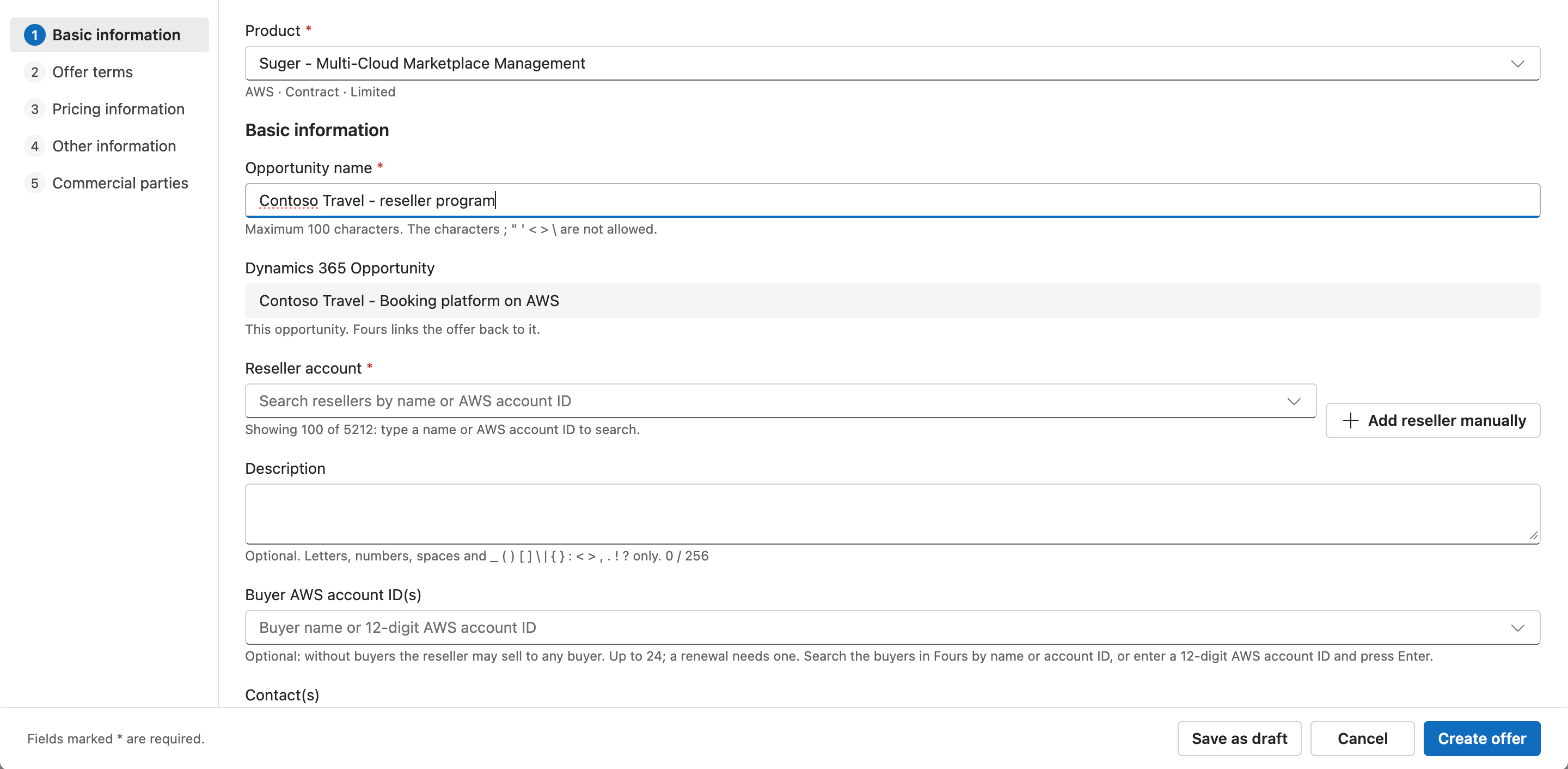
The product list shows every AWS product of your organization, not only the products for this opportunity. An authorization is not an offer to this customer. The list does not show pending, failed, restricted, draft or reseller-owned listings. Machine Learning products show in the list, but you cannot select them.
To keep the authorization without sending it to AWS, select Save as draft instead of Create offer. The pane then shows a card with the type Resale authorization and the channel Resale.
Add a reseller manually
The reseller list has the AWS list of resellers and the resellers that your organization added. If the reseller is not in the list, add it:
- Next to Reseller account, select Add reseller manually.
- Enter the AWS account ID of the reseller.
- Optional: enter a display name. Fours shows it next to the account ID. Fours does not send it to AWS.
- Select Add.
The reseller is then in the list of your organization. Every Fours User can add a reseller.
The fields of a resale authorization
| Section | Field | What it sets |
|---|---|---|
| Basic information | Description | Optional. Letters, numbers, spaces and some punctuation only. The hint of the field lists the characters. |
| Basic information | Buyer AWS account ID(s) | Optional. At most 24 buyers. Without buyers, the reseller can sell to any buyer. A renewal authorization needs one buyer. |
| Offer terms | Maximum buyer net payment term | The longest payment term that the reseller can give the buyer. See Maximum buyer net payment term. |
| Offer terms | Contract duration | 1 to 60 months. An AMI product uses its own unit. |
| Offer terms | Selling authorization availability | Single use, Specific time duration (until the expiry date), or No set time duration (until you deactivate it). |
| Offer terms | Expiry date | The last day the reseller can create offers on the authorization. It does not show for No set time duration. |
| Offer terms | Maximum allowed service start date | SaaS products only. Optional. The latest start date that the offers of the reseller can give, at most 3 years from today. |
| Pricing information | Discount type | How you set the wholesale price of the reseller. See the table below. |
| Other information | EULA | The license agreement for the buyer. |
| Other information | Reseller agreement | Optional. The agreement between you and the reseller: None, the Standard Reseller Contract for AWS Marketplace, or your own files. |
The wholesale price is the price that the reseller pays you. The product type decides which discount types you can pick:
| Discount type | What it does |
|---|---|
| Percentage discount | Takes one percentage off every list price of the product. A row without a list price gets its own price. |
| Individual pricing | Sets a price for each commit and each usage dimension. |
| Flexible payment schedule | Sets commit quantities that the reseller pays by installments. The authorization is then single use. |
AWS does not keep the percentage. A draft with a percentage discount opens again as individual prices. A renewal authorization is also single use.
For your own reseller agreement, the first file you choose is the agreement. You can attach up to 5 more files to it. You can also attach the Standard Reseller Contract for AWS Marketplace.
The Commercial parties section shows your organization as the ISV (seller) and the reseller you picked as the reseller of record.
If the authorization failed to create
An authorization can fail to create after AWS already has it. A retry then updates that authorization on AWS. The dialog locks the reseller, because AWS takes the reseller only when it creates an authorization. To authorize another reseller, use Clone offer from the … menu of the card. A clone starts a new authorization.
Manage a resale authorization
On the card of an active resale authorization, the … menu has Notify contacts, Clone offer and Cancel offer. Cancel offer restricts the authorization, so the reseller can no longer create offers from it. See Actions on offers. The Offer details page of an authorization also has a Reseller EULA button.
Create a resale offer
A resale offer is the private offer that a reseller makes to a buyer, on a resale authorization from an ISV. The Resale offer item shows in the New offer menu only when your organization resells in Fours. Only SaaS products have a resale offer form.
- Open the opportunity, then open the Fours pane.
- Select New offer, then select Resale offer. The New resale offer dialog opens.
- In Resale authorization, select one of the active resale authorizations of your organization.
- Fill in Basic information and Offer terms.
- In Pricing information, set the pricing and the markup.
- Select Create offer.
- Select Confirm.
The authorization sets these parts of the offer:
- The product and the currency.
- The contract durations.
- The commits and the dimensions, with their wholesale rates.
- The longest buyer net payment term.
- The installment plan of the ISV, when the ISV set one.
Pricing of a resale offer
| Case | What you set |
|---|---|
| A contract, and the ISV set no installment plan | In Pricing model, select Contract pricing with upfront payment or Contract pricing with installment plan. Then set the markup. |
| A contract with the installment plan of the ISV | In Markup options, select Markup percentage(%) or Custom payments. With custom payments, you enter each payment. Each payment is at least the payment of the ISV. |
| A subscription | An end date and a markup percentage. |
An offer is a contract when the authorization has commits. The form shows the Total due to buyer, the Total due to ISV and the Partner margin. AWS receives the markup or the payment schedule and applies the markup. The discount panel is not available for a resale offer.
The EULA is the EULA of the ISV, unless you add your own. A resale offer has no renewal terms. A resale draft continues in the same form, with Continue editing on its card. The card shows the type Resale offer and the channel Resale.
Related
- Create and Manage Private Offers
- The Fours Side Pane
- Channel Partner Private Offers (CPPO)
- Dynamics 365 App FAQ
Spotted something wrong or out of date on this page? Tell us and we'll correct it.