Partner Portal Login Page
Give partners a branded way to sign in to your Partner Portal with a custom login page.
Overview
The Login Page settings let you share a unique Partner Portal login URL directly, or embed it on your website, so partners arrive at a login page that matches your company’s branding.
This step is optional. Partners can already sign in to Fours without a custom login page — enabling one simply provides a more consistent, branded experience.
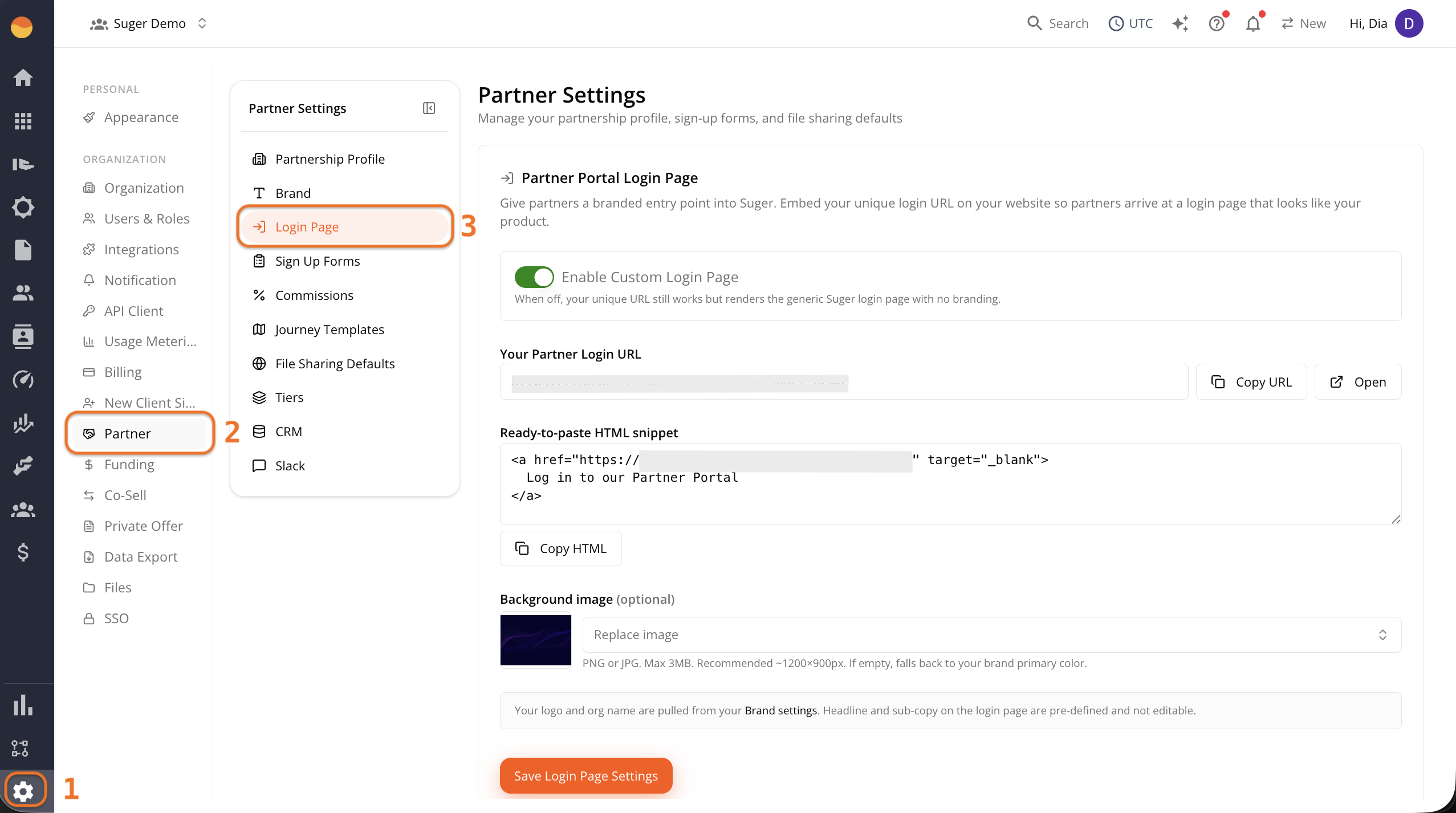
Access Your Login Page Settings
- Go to Fours Console, then Settings.
- Click Partner, then Login Page.
How Branding Works
- Your logo and organization name are automatically pulled from your Brand settings.
- The login page headline and supporting text are managed by Fours and can’t be customized.
- To update your logo or other brand assets, see Brand Settings.
Set Up Your Login Page
Choose your portal slug
The Partner Portal URL card at the top of the tab sets your portal slug, the last part of your partner portal address (console.suger.io/prm/{your-portal-slug}). The login URL and HTML snippet below are built from it.
- Under Portal Slug, enter the slug, for example
acme-partners. It must be 3–63 characters, start with a letter, and use only lowercase letters, numbers, and single hyphens between them. - Click Save. Fours confirms with “Portal slug saved.” Slugs are unique across Fours, so if yours is taken, Fours says so and you pick another.
The same slug also builds your public deal registration link. Changing or clearing a slug you’ve already saved breaks every link your partners have, so Fours asks first — Change your portal slug? or Clear your portal slug? — and warns that the old URLs will stop working and show a “not found” page. Click Change it or Clear it to go ahead, or Keep current slug to back out. Setting a slug for the first time saves straight away.
Enable the custom login page
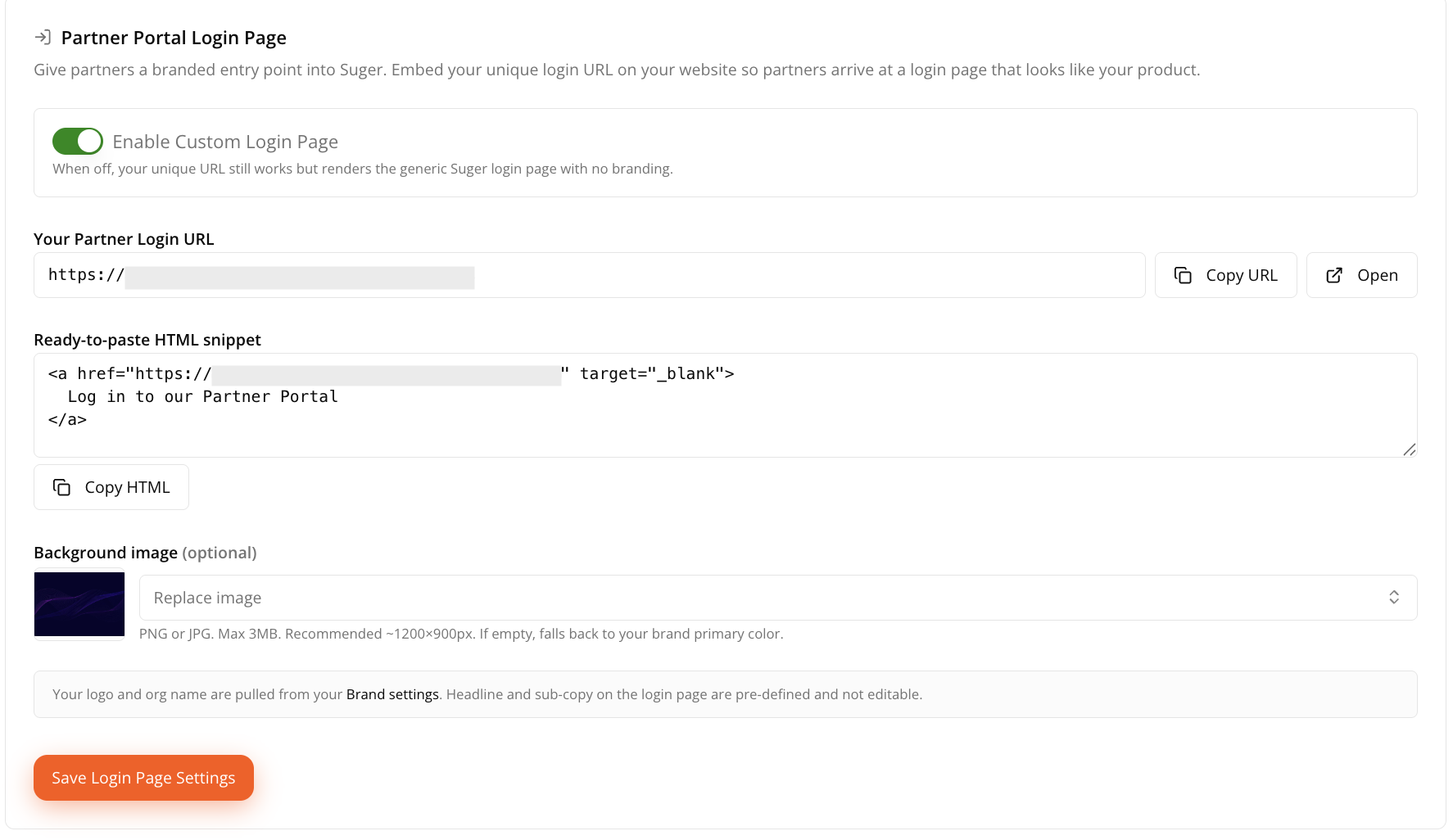
The Enable Custom Login Page toggle controls whether partners see your branded login page or the default Fours login page.
- On: Partners see your branded login page, including your logo, organization name, and optional background image. It asks for their work email first, then shows each partner the next step that fits them. See What Partners See When They Sign In.
- Off: Partners see the standard Fours login page.
The login URL itself doesn’t change. The toggle decides which page partners get after opening the link, and with it whether their work email is checked before they sign in.
Copy your partner login URL
Your Partner Login URL is the dedicated link partners use to access your portal.
- Click Copy URL to copy the link and share it directly with partners.
- Click Open to preview the login page in a new browser tab.
Embed the login link on your website
Under Ready-to-paste HTML snippet, click Copy HTML to copy a ready-to-use login link for your website.
Paste the snippet wherever you want partners to access your Partner Portal. No additional HTML is required unless you want to customize its appearance.
Add a background image (optional)
The background image appears behind your branding on the custom login page.
Click Upload New File to upload a PNG or JPG (up to 3 MB). Fours recommends an image that’s approximately 1200 × 900 px.
If you don’t upload a background image, the page uses your brand’s primary color instead.
Brand the sign-in form (optional)
Your branded login page is the first screen partners see. After they click Log In or Create your account there, they reach the sign-in form, where they enter their email and password. That form looks like Fours’ standard one unless you brand it as well, with the Auth0 Universal Login logo card near the bottom of the tab.
- Paste the address of your logo image into the card’s field, for example
https://example.com/logo.png. Use an address anyone can open: the sign-in form loads the logo straight from it, not from the logo you uploaded in Brand Settings. - Click Sync to Auth0. Fours confirms with “Synced to Auth0 Universal Login.”
The sync puts that logo and your brand primary color on the sign-in form, and turns on sign-in with Google, Microsoft, and email and password for your partners. Once it’s done, the card shows that your portal is linked to an Auth0 Organization.
- It takes effect straight away. It’s separate from Save Login Page Settings, which neither saves nor undoes it.
- Your brand color is copied at the moment you sync. If you change it in Brand Settings later, click Sync to Auth0 again.
- It needs Enable Custom Login Page on. Only your branded login page sends partners to the branded sign-in form.
Save your settings
Click Save Login Page Settings to apply your changes.
What Partners See When They Sign In
With Enable Custom Login Page on, your login page asks a partner for their work email before anything else. There are no separate Log In and Sign Up buttons to choose between: Fours checks the address and shows the partner the next step for them.
- The partner enters their Work email and clicks Continue.
- Fours checks the address against your partnerships and shows one of the screens below. Each one repeats the address the partner typed, so a typo is easy to spot, and each has Use a different email to go back.
- If the partner goes on to Log In or Create your account, their address is already filled in on the next screen.
| When the work email is… | The partner sees | What they can do |
|---|---|---|
| On your own company’s email domain | That is a {your company} address | Nothing on this page. A company can’t be its own partner, so your team uses the Fours Console instead. |
| From a personal email provider, such as Gmail | Use your work email | Go back and enter a work address. Fours matches companies by email domain, so a personal address can’t be linked to a partnership. |
| At a company with an Active partnership with you, and the person already has a Fours account | Welcome back to {your company} | Log In |
| At a company with an Active partnership with you, but the person has no Fours account yet | {your company} already partners with your company | Create your account |
| At a company that isn’t your partner, whose domain belongs to more than one Fours organization | Your company has more than one Fours account | Log in to the Fours Console instead. Fours doesn’t guess which organization they belong to. |
| At any other company | Your company has not partnered with {your company} yet | Apply to be a partner, which opens your default application form. |
Only an Active partnership counts. People at a company you’ve invited that hasn’t accepted yet are treated as not partnered, so the invitation email you sent them is their way in.
Before a partner types anything, the page also shows a New to {your company}? card with a Sign up to be a partner button, for companies that haven’t partnered with you yet. It opens the same default application form. If Fours can’t find a default application form for your organization, the card doesn’t appear, and a partner in the last row of the table sees “Applications are not open through this page right now.” instead of the button.
To stop the page being used to look up addresses in bulk, Fours limits how many addresses can be checked from one IP address in a short time. Someone who checks too many in a row sees “Too many attempts. Wait a few seconds and try again.”
Spotted something wrong or out of date on this page? Tell us and we'll correct it.