The Fours Side Pane
The Fours side pane is a panel on the right side of a Dynamics 365 opportunity. It shows the co-sells, offers and entitlements that are linked to the opportunity. You also start new offers and co-sells from it. You work with your Dynamics 365 sign-in, and you do not sign in to Fours.
Before you start
Make sure that an administrator installed the app and connected it to Fours. See Install the Dynamics 365 App. You also need the Fours User or the Fours Admin security role. See Security roles.
Open the pane
- Open an opportunity record in Dynamics 365 Sales.
- On the command bar of the opportunity, select Fours. The button shows the Fours logo, next to the Save button.

The pane opens on the right side of the page. To close it, select Fours again, or select Close in the pane header. The Fours button is on the opportunity record page only. It is not on the list of opportunities.
What the pane shows
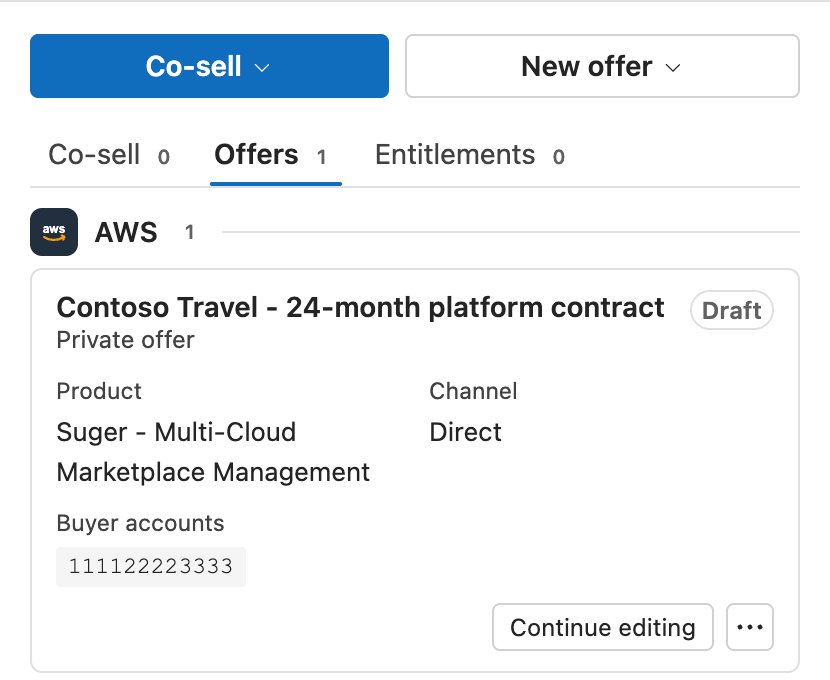
From top to bottom, the pane has these parts:
- A header with the Fours logo, the Refresh button and the Close button.
- A status line with your Dynamics 365 user name and the time of the last update, for example “updated 2 min ago”.
- The Co-sell menu and the New offer menu.
- The tabs. Each tab shows the number of cards it lists.
| Tab | What it lists | Who sees it |
|---|---|---|
| Co-sell | The AWS co-sell referrals of the opportunity. | Everyone, when your organization connected AWS ACE in Fours. |
| Offers | The private offers, resale offers, resale authorizations, amendments and offer sets of the opportunity. | Everyone. |
| Entitlements | The agreements of the opportunity. An agreement is what a buyer has after accepting an offer. | Everyone. |
| Approvals | All offers in your organization that wait for approval. | A Fours Approver, when offer approval is on. |
When the Co-sell tab shows, the pane opens on it. Otherwise, the pane opens on the Offers tab. The pane does not list default offers, public offers or deleted agreements.
Cards are grouped by cloud
Each tab groups its cards by cloud: AWS, Microsoft and Google Cloud. A group heading shows the number of cards in the group. The newest card is first. A group shows 20 cards. To see the other cards, select Show more.
An offer card shows the offer name, the offer type and the status. It also shows these fields when they have a value: Product, Expires, Channel (Direct or Resale), Substatus and Buyer accounts. An offer set card shows its expiry date and the number of offers in it. An agreement card shows the product, the start date, the end date and, for AWS, whether auto renew is on.
The status is a colored label, for example Draft, Pending create, Pending acceptance, Active or Create failed. A status that tells you something failed is red.
Work with a card
Open the record
Select the title of a card to open its record in a dialog:
- For an AWS offer, the Offer details page opens. See The details pages.
- For an AWS agreement, the Entitlement details page opens.
- For a co-sell, the co-sell record opens. See The co-sell record.
Buttons on a card
| Button | When it shows | What it does |
|---|---|---|
| Continue editing | An AWS offer in Draft, Create failed or Invalid, or an offer set that is not created yet. | Opens the saved draft in the create dialog. See Continue editing a draft. |
| Amend | An AWS agreement that can be amended. | Opens the amendment dialog on that agreement. See Amend an agreement. |
| Copy offer URL | An offer that has a link for the buyer. | Copies the link to the clipboard, so that you can send it to the buyer. |
| Sync now | A co-sell that is on AWS. | Gets the latest changes from AWS. |
| Resubmit | A co-sell that failed to reach AWS. | Opens the co-sell form to send it again. |
| … (More actions) | A record that has an action for its current status. | Opens the actions menu. |
The offers of an offer set do not have Continue editing. Fours creates them with their set.
The actions menu
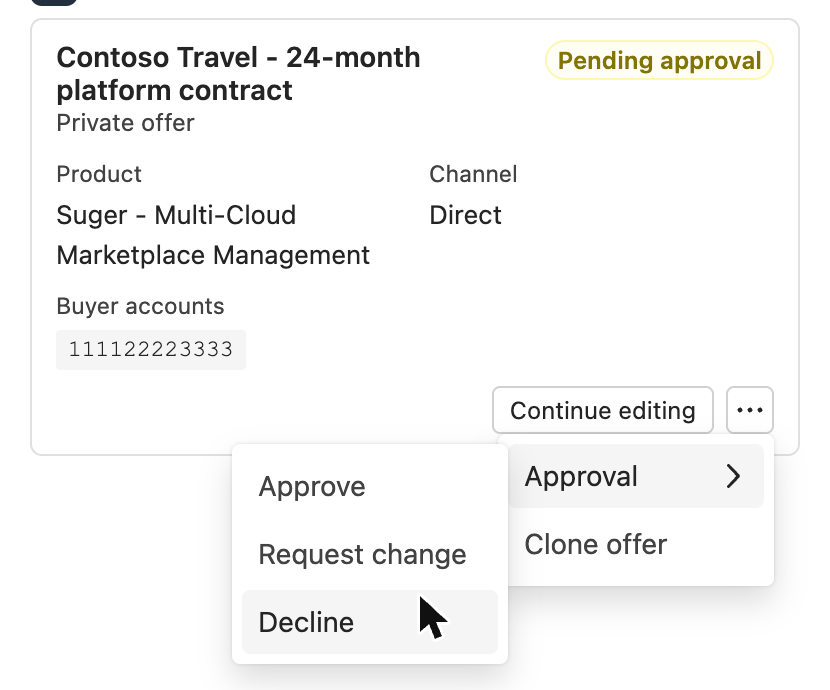
The … menu shows only the actions that apply to the record in its current status:
- On an offer: Notify contacts, Extend expiry date, Clone offer and Cancel offer. See Actions on offers.
- On an agreement: Adjust renewal uplift and Opt out of auto-renewal. A Fours Admin also sees Billing adjustment, Request cancellation and Cancellation requests. See Actions on agreements.
- On an offer that waits for approval, a Fours Approver also sees Approval. See Review an offer.
Each action opens a dialog. The dialog loads the record again before it acts, so it uses the current status of the record.
Start a new offer
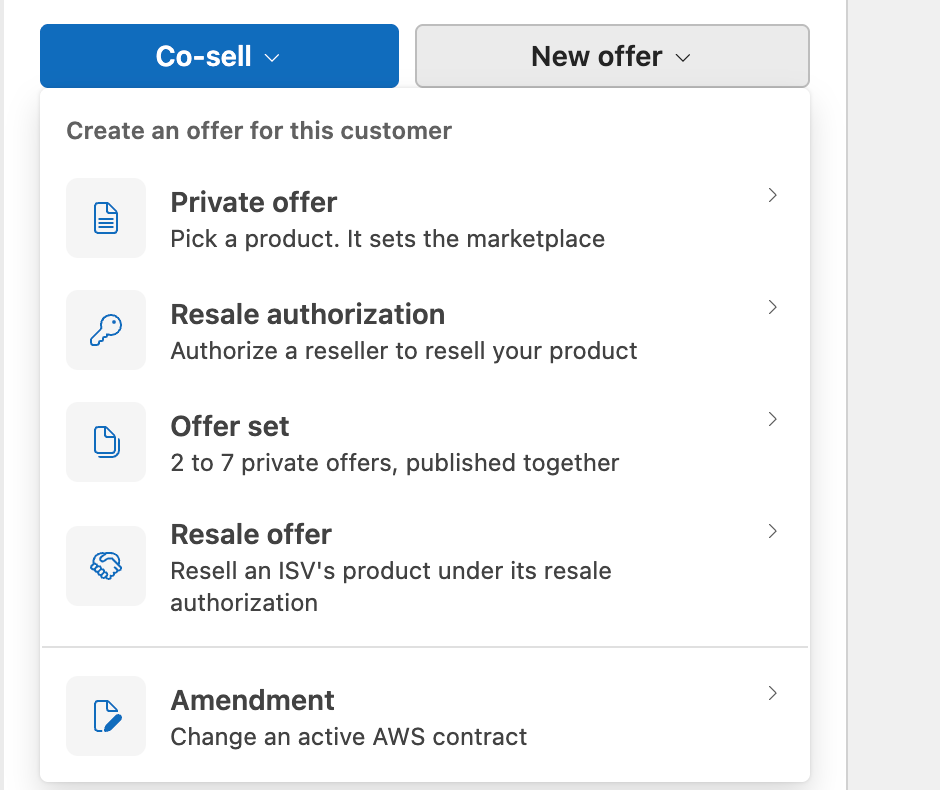
Select New offer to open the menu. Then select one of these items:
| Menu item | What it creates |
|---|---|
| Private offer | An AWS private offer for this customer. The product you pick sets the form. See Create and Manage Private Offers. |
| Resale authorization | A permission for a reseller to resell your product. See Create a resale authorization. |
| Offer set | 2 to 7 private offers that AWS publishes together. See Create an offer set. |
| Resale offer | An offer on a resale authorization that an ISV gave you. An ISV is the software vendor that owns the product. This item shows only when your organization resells. See Create a resale offer. |
| Amendment | A change to an active AWS contract. See Amend an agreement. |
Start a co-sell
The Co-sell menu shows only when your organization connected AWS ACE in Fours. Select Co-sell to open the menu “Share this opportunity for co-sell”. It has a row for AWS. The row says “Not shared yet”, or “Shared” with the status of the newest co-sell. To open the Co-sell with AWS form, select AWS. See AWS Co-Sell.
The AWS row always starts a new share. A closed lost, rejected or expired co-sell can be shared again. To work on a co-sell that exists, select the title of its card on the Co-sell tab.
On the Co-sell tab, an opportunity with no co-sell shows “Not shared with AWS yet” and a Share button. An opportunity with co-sells shows Share again with AWS below its cards. While a co-sell is Pending create, the tab reads it again every 10 seconds.
Refresh the pane
The pane reads its cards from Fours each time it loads. It does not save them in Dynamics 365. To read the cards again, select Refresh in the pane header. After you create an offer, save a draft or finish an action, the pane reads its cards again without your help. A message at the bottom of the pane tells you the result.
The pane follows you
The pane stays open when you go to another opportunity. It then shows the cards of that opportunity. The pane looks at the main page every second, so the change takes up to one second. On a page that is not an opportunity, the pane shows “Open an opportunity to see its co-sells, offers and entitlements.”
If the pane does not load
| Message | What to do |
|---|---|
| You don’t have access to Fours | Ask your Dynamics 365 administrator for the Fours User security role. |
| Can’t reach Fours, with “Fours is not connected.” | Ask your administrator to connect Microsoft Dynamics 365 in the Fours Console. See Install the Dynamics 365 App. |
| Can’t reach Fours, or Unable to connect to Fours, with another detail | Select Retry. If the message stays, give the detail to your administrator. |
Related
Spotted something wrong or out of date on this page? Tell us and we'll correct it.