Offer Approval
With offer approval, an approver reviews each offer before Fours creates it on AWS. A rep fills in the offer and submits it for approval. An approver then approves it, asks for a change or declines it. Only an approver creates the offer on AWS.
Offer approval is off by default. The app applies it to every request, not only to the buttons that users see.
Turn on offer approval
A Dynamics 365 System Administrator turns on offer approval in the Fours Configuration table. The table has one row. Fours writes that row when an administrator connects Dynamics 365 in the Fours Console.
- Go to make.powerapps.com and select the environment of the app.
- Select Tables.
- Find and open the Fours Configuration table.
- Open the row of the table in its form.
- Select the Offer approval box, so that it shows a tick.
- Select Save.
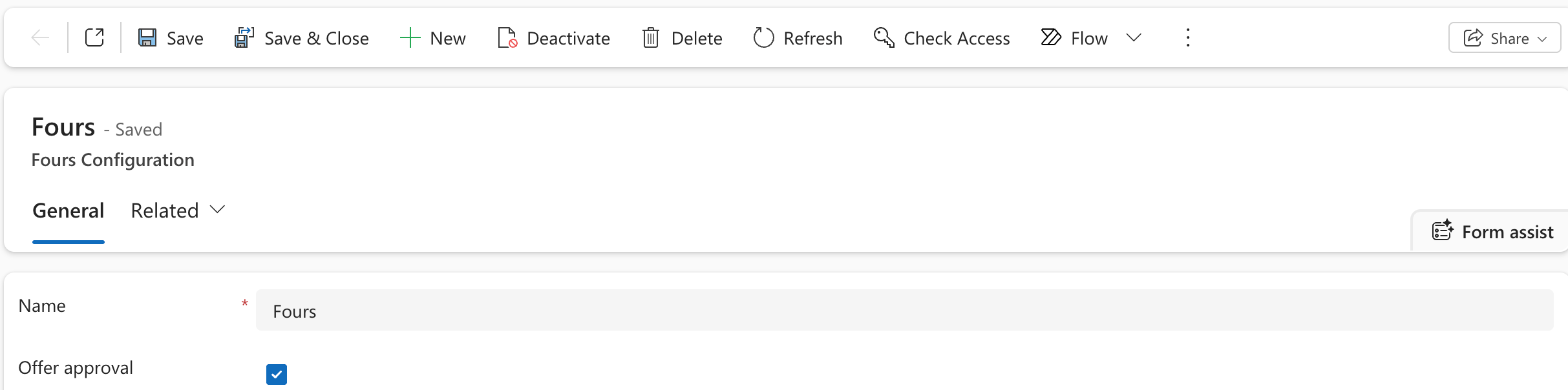
To turn off offer approval, clear the Offer approval box and save the row.
Give the approver role
Assign the Fours Approver security role to each person who approves offers. Give it together with Fours User or Fours Admin. Alone, the role gives the access of a Fours User. A Fours Admin or a System Administrator is not an approver without this role. See Security roles.
Submit an offer for approval
While offer approval is on, the main button of the create dialog is Submit for approval instead of Create offer. Every user submits a new offer for approval, and a Fours Approver does too.
- Fill in the offer. See Create and Manage Private Offers.
- Select Submit for approval.
- Select Confirm.
Before it submits, the dialog shows field errors and looks for an active agreement of the buyer, as Create offer does. Fours saves the offer as a draft and marks it as submitted. Fours then emails your organization. The email links to the Dynamics 365 opportunity. For the approval email scopes, see Email notification.
On the Offers tab of the pane, the card of the offer shows Pending approval instead of Draft.
If the draft is saved but the submit fails, a message says “Saved as a draft, but not submitted for approval”. To submit it again, select Continue editing on its card, then select Submit for approval.
When the approver sends it back
The approver can ask for a change or decline the offer, with a comment. You get the comment by email and on the card of the offer, after “Approver:”.
| Card status | What it means |
|---|---|
| Action required | The approver asks for a change. |
| Declined | The approver declined the offer. |
To submit the offer again:
- On the card of the offer, select Continue editing.
- Make the changes that the approver asks for.
- Select Submit for approval.
- Select Confirm.
Review an offer
A Fours Approver reviews a submitted offer from the … menu of its card. The card can be on the Offers tab of the opportunity or on the Approvals tab.
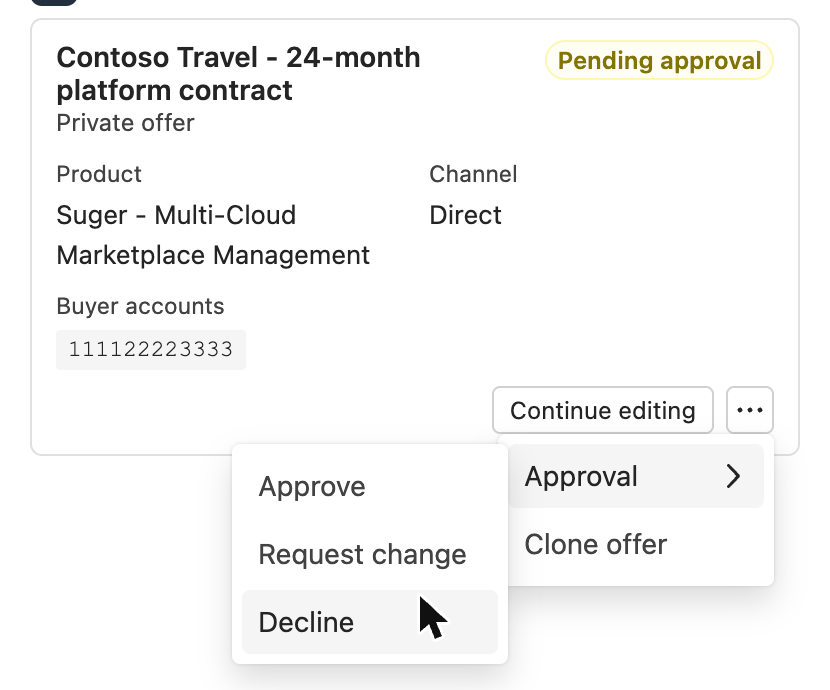
To approve an offer and create it on AWS:
- On the card of the offer, select ….
- Select Approval, then select Approve. The Review offer dialog opens on the draft.
- Review the offer.
- Select Approve & Create.
- Select Confirm.
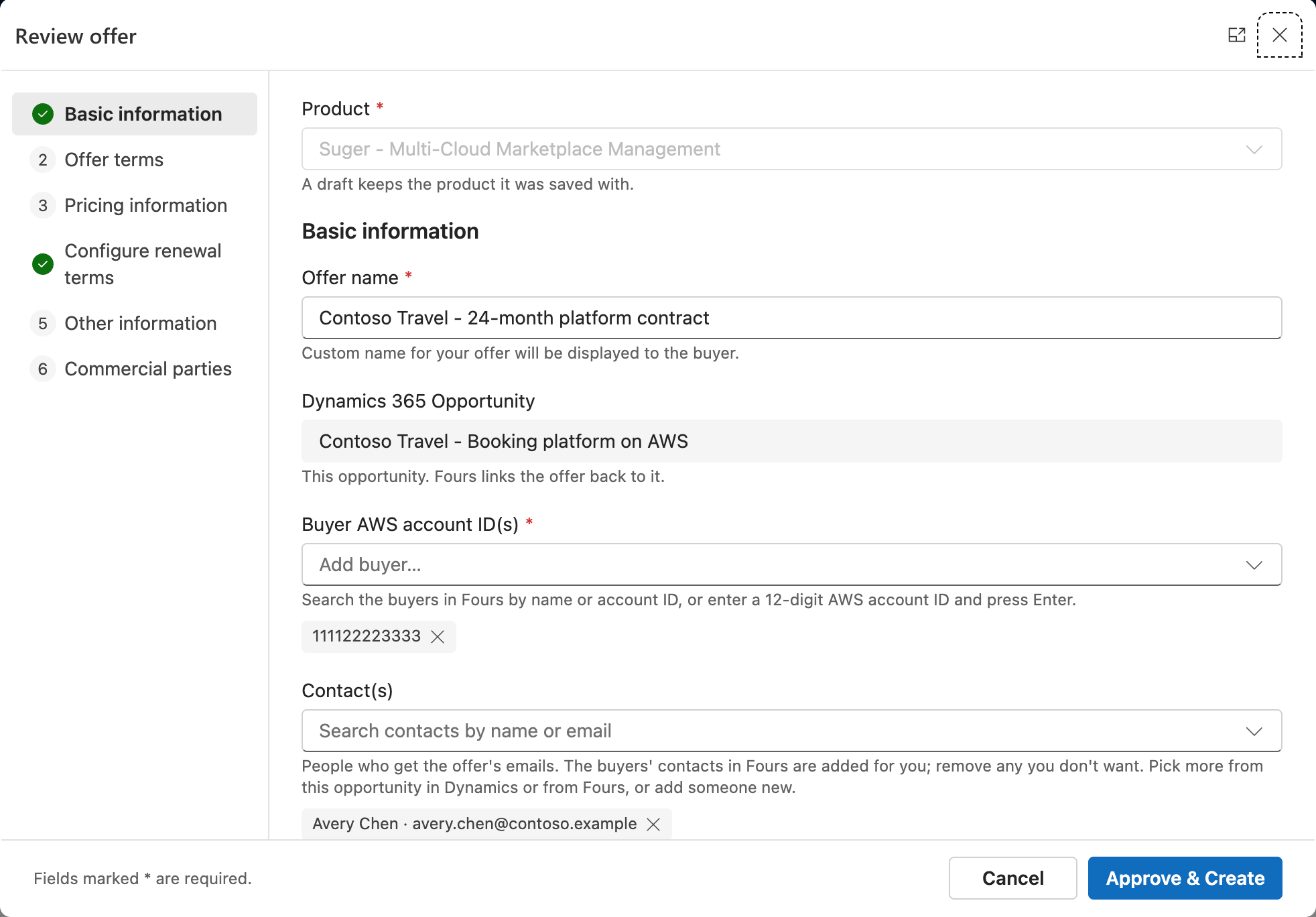
The Review offer dialog has no Save as draft button. Fours creates the offer on AWS and records that you approved it. The card then shows the status of the offer on AWS, for example Pending create.
To ask for a change or decline the offer:
- On the card of the offer, select ….
- Select Approval, then select Request change or Decline.
- Enter the comment for the rep. The comment is required and can have 1000 characters at most.
- Select Request change or Decline.
The Approvals tab
A Fours Approver has an Approvals tab in the pane, on every opportunity. It lists the offers that wait for approval in your whole organization.
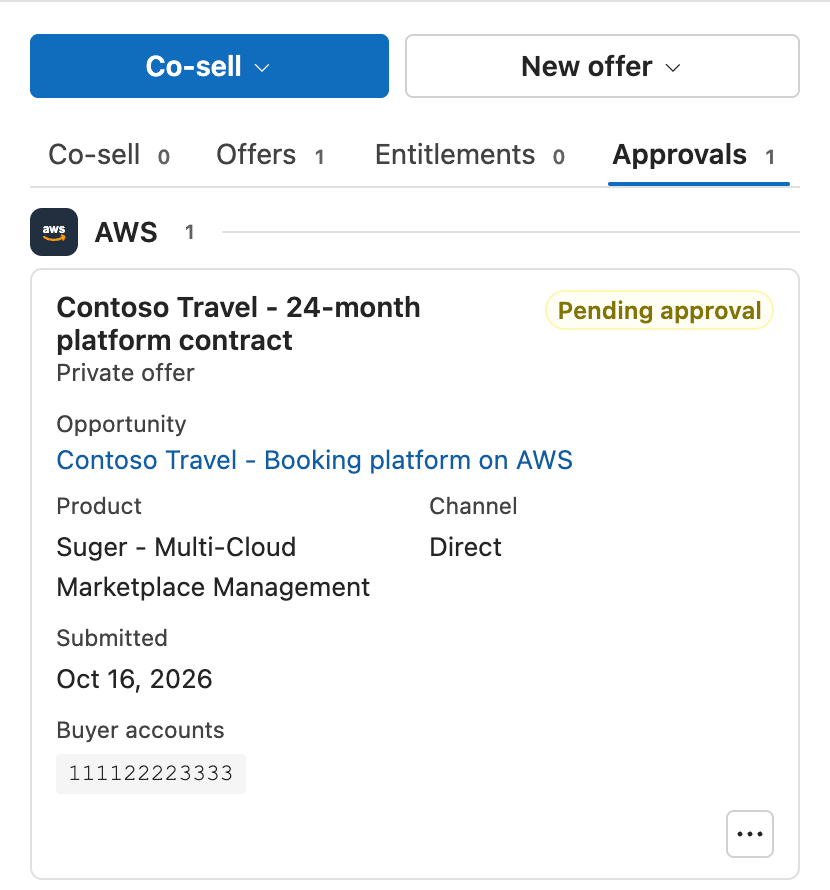
The tab shows up to 100 AWS offers, and the offer that waits longest is first. Each card shows the opportunity of the offer and the date it was submitted. To open the opportunity, select its name. The title of a card opens the Offer details page. The … menu has the Approval actions, and they act on the opportunity of the offer.
The Approvals tab does not have Continue editing or the other offer actions. Use the pane of the opportunity of the offer for them. If no offer waits for approval, the tab shows “No offers are waiting for approval.”
Offer sets
You cannot submit an offer set for approval yet. While offer approval is on, only a Fours Approver can create an offer set. For other users, the Create offer set button is off, and its tooltip says why. See Create an offer set.
Related
Spotted something wrong or out of date on this page? Tell us and we'll correct it.