Create and Manage Private Offers
A private offer is a custom deal that you send to one buyer through AWS Marketplace. It has your negotiated prices, terms and expiry date. With the Dynamics 365 App, you create AWS private offers from an opportunity in the Fours side pane. Fours links each offer to the opportunity. You then manage the offer and its agreement from the same pane.
For the AWS concepts, see Create Private Offer and Private Offer Best Practices.
Offer types
The create dialog uses the form for the type of the product you pick. For the AWS product types, see Product Types.
| Offer type | What the form sets |
|---|---|
| SaaS contract | A commit term, or a future start with dates. Commit amounts or quantities, optional payment installments and usage rates. |
| SaaS subscription | An end date and usage rates. |
| Container | A pricing model (installment plan, upfront payment or usage), a contract duration of 1 to 60 months, commits, installments and usage rates. |
| AMI | A pricing model, a contract duration in days to years, commits for each instance type, and usage rates. |
| Professional Services | A commit term of 1 to 60 months from acceptance. The buyer pays a fixed fee for one commit, or pays by installments. |
| Machine Learning | Usage pricing until an end date, or contract pricing for 1 to 60 months paid by installments. You set prices for each instance type, or for each inference. |
| Amendment | New terms for an active AWS SaaS contract. See Amend an agreement. |
| Offer set | 2 to 7 offers on different products that AWS publishes together. See Create an offer set. |
For resale authorizations and resale offers, see Resale Authorizations and Resale Offers.
Before you start
Make sure that you have the Fours User security role. See Security roles. The product of the offer must exist in Fours. The product list shows the AWS products that your organization allows for the opportunity.
If your organization turned on offer approval, you submit each offer for approval instead of creating it. See Offer Approval.
Create a private offer
- Open the opportunity, then open the Fours pane. See The Fours Side Pane.
- Select New offer, then select Private offer. The New private offer dialog opens.
- In Product, select the AWS product of the offer. The dialog opens the form for that product type.
- Fill in each section of the form. Fields marked * are required.
- To send the offer to AWS, select Create offer. To keep it in Fours, select Save as draft.
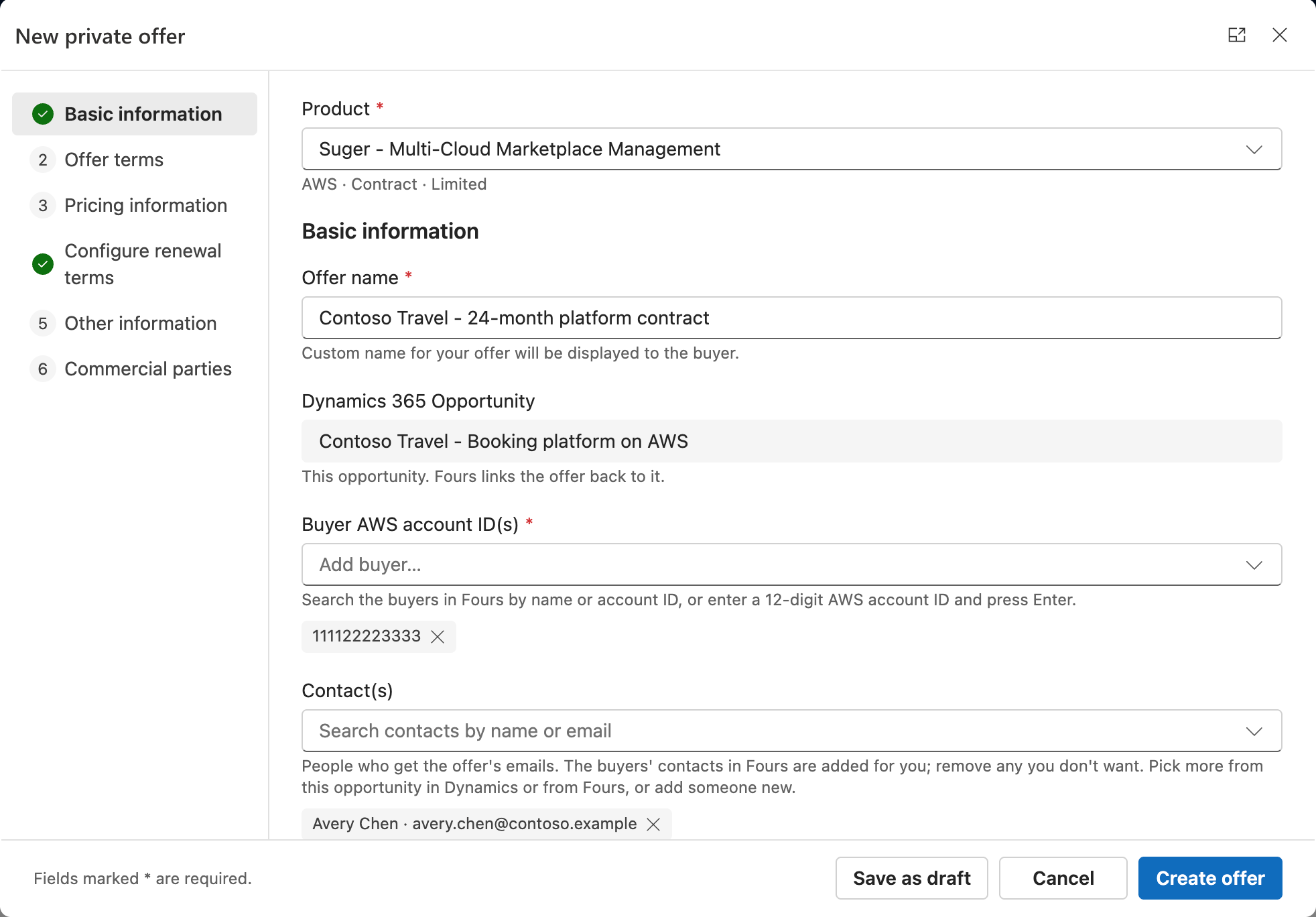
The list on the left shows the sections of the form. To go to a section, select its name. The list marks a section as done when none of its fields has an error. The tooltip of the Create offer button lists the sections that are not complete.
The sections of the form
| Section | What you fill in |
|---|---|
| Basic information | The offer name, the buyer AWS account IDs, the contacts and an internal description. The section also shows the Dynamics 365 opportunity. Fours links the offer to it. |
| Offer terms | The expiry date, the buyer net payment term, and the start date, end date or duration of the contract. The expiry date is the last day the buyer can accept the offer. |
| Pricing information | The currency, the commits, the payment installments and the prices of the usage dimensions. |
| Configure renewal terms | The pre-authorized auto-renewal of the offer. This section shows only for an offer that can renew. |
| Other information | The EULA, and whether the offer renews an existing paid subscription (Is Renewal Offer). |
| Commercial parties | A summary that you do not edit. It shows the facilitator (AWS), the customer of record, the buyer country or region, the channel and the reseller of record. |
For the buyer net payment term, see Buyer net payment term.
Buyers and contacts
In Buyer AWS account ID(s), type a buyer name or a 12-digit AWS account ID. Then select the buyer. The list shows 50 buyers at a time. To see more, select Show more buyers.
The Contact(s) field lists the people who get the emails of the offer. When you add a buyer, Fours adds the contacts of that buyer in Fours. The form lists them apart, under “From the buyer’s contacts in Fours”, with the names of the buyers. Remove each contact that must not get the emails. If you remove a buyer, the form removes the contacts that only that buyer added.
To add more contacts:
- In Contact(s), type a name or an email address.
- Select a person from the “This opportunity in Dynamics” group or from the “Fours contacts” group.
- If the person is not in the list, select Create new contact.
- Enter the name and the email address of the person.
- Select Add.
For how Fours emails the contacts of an offer, see Email an offer’s contacts.
EULA
In Other information, choose the EULA (end user license agreement) of the offer:
- Public Offer Default EULA. This choice shows only when the public offer of the product has its own EULA.
- Standard Contract for AWS Marketplace.
- Use your own EULA. Pick PDF files that are in Fours, or upload a new PDF of 9 MB at most. You can attach the EULA and up to 5 more files.
With your own EULA, you can also attach the Standard Contract for AWS Marketplace or the Public Offer Default EULA. A Professional Services offer uses your own EULA file only.
Discount panel
If your organization uses dimension tagging in Fours, the pricing section shows the discount panel instead of the grid of usage rates. In the panel, you set a percentage discount for groups of dimensions by tag, or a fixed rate for each dimension. The panel also lists the saved discount rules of your organization. Only a Fours Admin can save or delete a discount rule.
Save as draft or create the offer
Save as draft keeps the offer in Fours as a draft. Fours does not send it to AWS. The card on the Offers tab shows Draft and a Continue editing button.
To create the offer on AWS:
- Select Create offer. If a field has an error, the form shows the errors and goes to the first one.
- If the offer has one buyer with an active agreement on this product, the dialog shows “Active agreement detected”. To create the offer anyway, select Proceed.
- When the dialog asks “Are you sure to create the offer?”, select Confirm.
The dialog does not look for an active agreement on a Professional Services offer or an amendment. After you confirm, Fours starts to create the offer on AWS. The card shows Pending create until AWS has the offer. When the offer has a link for the buyer, select Copy offer URL on its card.
Continue editing a draft
A card in Draft, Create failed or Invalid has a Continue editing button. It shows for AWS private offers of every type, resale offers, resale authorizations and amendments. It does not show for the offers of an offer set.
- On the Offers tab of the pane, find the card of the draft.
- Select Continue editing. The dialog opens with the saved values.
- Change the fields.
- Select Save as draft or Create offer.
You cannot change the product of a draft. If the offer failed to create, the dialog shows “This offer failed to create” with the reason. Fours updates the same draft and keeps the fields that the form does not edit.
The details pages
Select the title of an AWS card to open its details page in a wide dialog. The page opens only for a record that is linked to the opportunity. A linked record, for example the agreement of an offer, opens in the same page. To go back, select the Back arrow.
Offer details
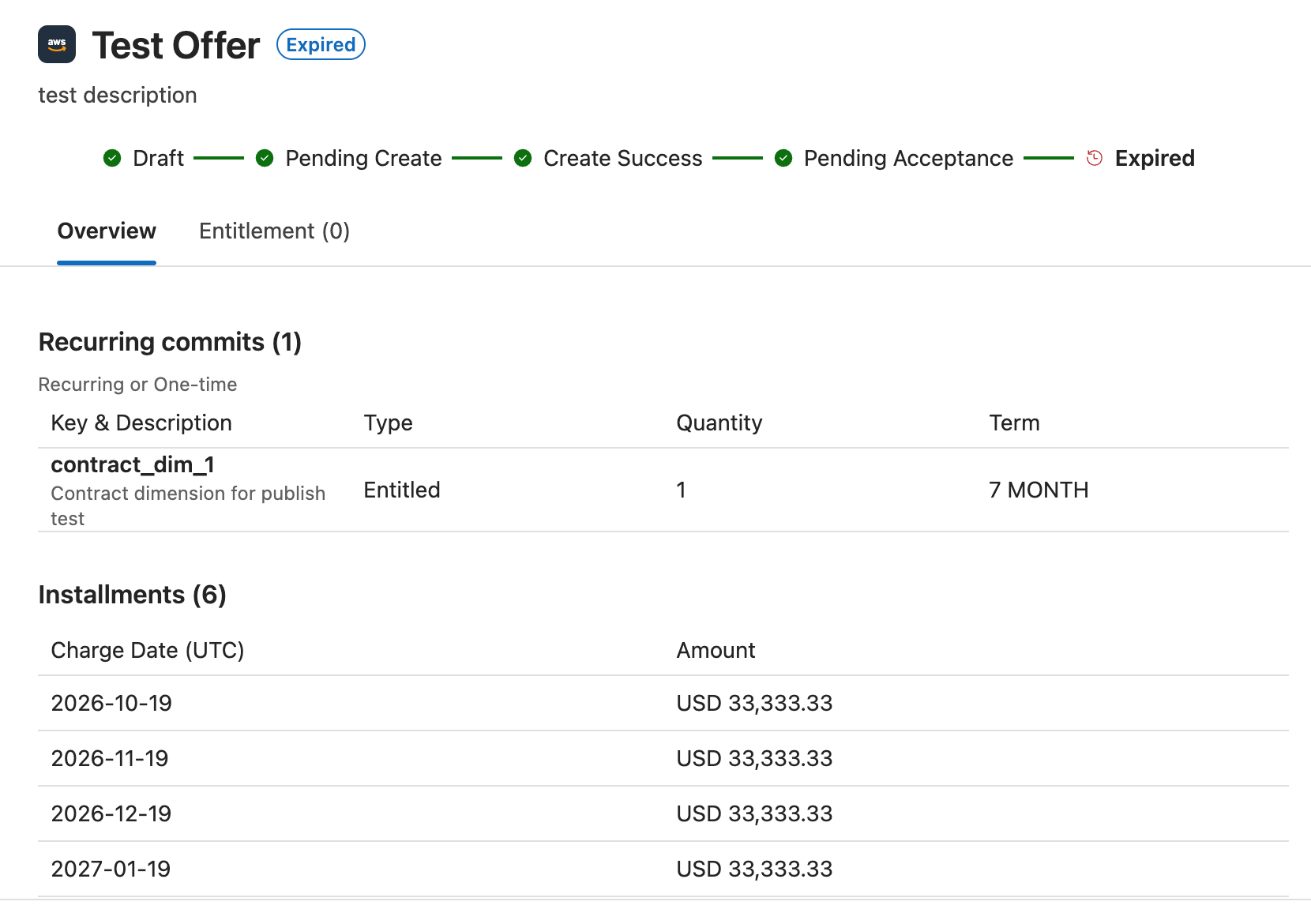
The Offer details page shows:
- Banners when the offer failed, when its acceptance failed, or when AWS sent a warning.
- The name, the status, and the Resale and Offer set association tags.
- The internal note of the offer.
- The Copy offer url and EULA buttons. A resale authorization also has Reseller EULA.
- A stepper with the status steps of the offer.
- The Overview tab, with the commits, usage dimensions, installments, Basic Information, Buyer Information and Product Information.
- The Entitlement tab, with the agreements of the offer.
Entitlement details
The Entitlement details page shows:
- Banners for a pending cancellation (Fours Admin only), an amendment or a failed renewal.
- The name, the status and the contract value.
- The EULA, Invoice and Agreement PDF buttons. The ISV of a resale agreement does not get Agreement PDF.
- The Renewal section, with Renewal details and Renewal history.
- The commits, dimensions and installments of the current term.
- Basic Information, Buyer Information, Offer Information and Product Information.
Dates show as UTC days. Amounts show with their currency code. The agreement tabs for invoices, disbursements, revenue and usage metering are not in the app yet. Terms history, refunds and the history logs are not in the app either. For these, use the Fours Console.
Actions on offers
Select … on an offer card to see the actions for its status:
| Action | When it shows | What it does |
|---|---|---|
| Notify contacts | The offer is Pending acceptance, or it is an active resale authorization. | Emails the offer link to the contacts that you select. You can also add and remove the contacts of the offer. |
| Extend expiry date | The offer is Pending acceptance, Expired or Update failed. Not for resale authorizations or a reseller’s CPPO offer. | Sets a later expiry date. The new date must be after the current expiry date and after today. It must be before a future start date. |
| Clone offer | Every offer, except an amendment, a reseller’s CPPO offer and a resale authorization that you received. | Opens the Clone offer dialog, filled in from the offer. Fours saves it as a new offer. |
| Cancel offer | The offer is Pending acceptance or Used, or it is an active resale authorization. | Expires the offer on AWS, so the buyer can no longer accept it. An active resale authorization becomes restricted, so the reseller can no longer create offers from it. |
To take an action:
- On the card, select ….
- Select the action. A dialog opens.
- Fill in the dialog. For example, for Extend expiry date, pick the new expiry date.
- Select the main button of the dialog, for example Save.
Actions on agreements
Select … on an agreement card on the Entitlements tab to see its actions. For the AWS rules behind them, see Pre-Authorized Auto-Renewal and Refunds and Cancellations.
| Action | Who and when | What it does |
|---|---|---|
| Opt out of auto-renewal | Every user. An active AWS agreement with auto-renewal terms, before the renewal decision deadline. | Expires the pending renewal offer, so the agreement does not renew. The change can take a few minutes. |
| Adjust renewal uplift | Every user. An agreement with a percentage range uplift, before the adjustment deadline, while the uplift is not final. | Sets the target uplift percentage, or an uplift for each dimension, with a preview of the payment schedule. You save it as a draft or publish it. |
| Request cancellation | Fours Admin. An agreement that is Active or Pending start. | Sends a cancellation request to the buyer. An agreement can have one pending request at a time. |
| Cancellation requests | Fours Admin. Every AWS agreement. | Lists the cancellation requests. You can withdraw the pending request. |
| Billing adjustment | Fours Admin. An active agreement with no cancellation scheduled. | Requests a deduction from up to 5 invoices across billing terms. |
To request a cancellation:
- Select … on the agreement card, then select Request cancellation.
- Select a reason.
- Enter a description of 500 characters at most. If the reason is Other, the description is required.
- Select Review.
- Select Confirm & Submit.
The buyer gets a notice and has 7 days to respond. If the buyer does not respond, AWS approves the cancellation.
To withdraw a pending request, open Cancellation requests and select Withdraw. Then enter the reason for withdrawing.
For a billing adjustment, select the invoices, a reason code and the amount to deduct from each invoice. An amount cannot be more than the Max Adjustment Amount of its invoice. Review the request, then submit it.
Amend an agreement
An amendment is a replacement offer that changes the terms of an active AWS agreement. You can amend an AWS SaaS contract agreement that is Active or Pending start and has an AWS agreement ID. You cannot amend Container, AMI, Professional Services or subscription agreements. For the AWS concept, see Agreement Based Private Offer.
- In the Fours pane, open the Entitlements tab.
- On the card of the agreement, select Amend. The Amend an agreement dialog opens on that agreement.
- Change the terms of the amendment.
- Select Create offer.
You can also select New offer, then Amendment. Then pick the agreement from this opportunity, or search the agreements of your organization.
The dialog fills in the amendment from the agreement:
- The name and the currency.
- The end date. The new end date can only be later.
- The commits that the agreement still lists, each with quantity 1.
- The usage dimensions, at the rates of the agreement.
- The installments that are still due.
The buyer of the amendment is the buyer of the agreement, so you do not pick buyers. The buyer pays by installments. For the EULA, you can append a file to the EULA of the agreement, keep it, use your own, or use the standard contract. Is Renewal Offer starts on. An amendment has no auto-renewal terms. The form shows an error for a payment without a date and for an expiry date after the end of the agreement. It also shows an error for an end date before the previous one.
Create an offer set
An offer set is 2 to 7 offers on different products that AWS publishes together. The offers share one name, one customer note, one set of buyers, one expiry date and an optional solution association. A set holds private offers. When your organization resells, it can also hold resale offers.
- In the Fours pane, select New offer, then select Offer set. The Offer set dialog opens.
- Enter the offer set name.
- Enter the customer note. The buyer sees it with the offer set.
- Enter the buyer AWS account IDs and the expiry date. Every offer of the set uses them.
- If the set is for an AWS solution, enter it in Solution association.
- Select Create private offer. For a resale offer, select Create resale offer.
- Fill in the offer form. It shows the buyers and the expiry date of the set, and you cannot change them there.
- Select Add to set.
- Do steps 6 to 8 again for each offer of the set.
- Select Create offer set.
- Select Confirm.
Fours creates the offers of the set and publishes them on AWS. To change an offer of the set before you create it, select its edit icon in the list. To remove it, select its delete icon.
While you put the set together, the pane shows it as a card “Offer set · not created yet”, with the status In progress. To continue, select Continue editing on that card. You put together one set for each opportunity at a time. To delete the set, select Discard offer set, then select Confirm.
After Fours creates the set, its offers do not continue on their own. If offer approval is on, only a Fours Approver can create an offer set. See Offer Approval.
Related
- The Fours Side Pane
- Resale Authorizations and Resale Offers
- Offer Approval
- Create Private Offer
- Dynamics 365 App FAQ
Spotted something wrong or out of date on this page? Tell us and we'll correct it.