Accept Private Offer
Guidance to accept the private offer as the end buyer in AWS marketplace
Overview
This guide walks the end buyer through accepting an AWS Marketplace private offer: what to check before accepting (permissions, which account pays, the payment method and tax settings), the acceptance steps, and what to do when an offer can’t be accepted or is cancelled after acceptance. Sellers will also find what to send a buyer who is stuck, and what Fours records once the offer is accepted.
Before you begin
When a typical private offer is negotiated, you pay the entire amount of the offer when you accept it, unless you are using third-party financing. With third-party financing, the financier pays the contract on your behalf and invoices you based on the agreed payment schedule. Before you accept a private offer, verify permissions, the billing structure for your company, your payment method for AWS billing, and your tax settings.
Permissions to access private offers
Select one of the following AWS Managed IAM roles based on your need:
AWSMarketplaceRead-onlyto allow permissions to view subscriptions & private offers, but not change or accept.AWSMarketplaceManageSubscriptionsto allow permissions to subscribe, unsubscribe & accept private offers.AWSMarketplaceFullAccessto allow complete control of your subscriptions & private offers in AWS marketplace.
How to check
- In the AWS console, click your name at the top right and note the Account ID. It must match the account the offer was sent to.
- Open IAM → Users (or Roles), open your user, and look at Permissions policies.
- If you only see AWSMarketplaceRead-only, the Create contract button will be greyed out. Ask your AWS admin to add AWSMarketplaceManageSubscriptions.
- Signed in through SSO? Your admin checks your permission set instead.
Verify your AWS billing
Billing and Cost Management is the service that you use to pay your AWS bill, monitor your usage, and budget your costs. You can use the consolidated billing feature in AWS Organizations to consolidate billing and payment for multiple accounts or multiple Amazon Internet Services Pvt. Ltd (AISPL) accounts. Every organization in AWS Organizations has a management account that pays the charges of all the member accounts. The management account is called a payer account, and the member account is called a linked account. Before negotiating a private offer, verify how your company pays their AWS bill and which AWS account the private offer is made to.
How to check
- Open AWS Organizations. If it shows a management account ID different from yours, that account pays. Check payment there.
- No organization? Your own account pays.
Verify your payment method
Before accepting a private offer, verify that your payment method supports paying the entire cost of the private offer. To verify your payment method, open the Billing and Cost Management console at https://console.aws.amazon.com/billing/.
How to check
- Go to Billing and Cost Management → Payment preferences. Check the default payment method, its expiry date and its limit.
- A card must allow one charge of the full upfront amount. For a large contract, ask AWS Support for invoicing terms.
- Paying by SEPA direct debit? It only pays bills from AWS Europe (AWS EMEA SARL). If the offer is billed by Amazon Web Services, Inc., add a card or another payment method for those bills.
- Depending on the type of bank account, some banks block or flag US dollar charges. If yours does, ask the seller for the offer in EUR, GBP, AUD or JPY.
- A new payment method can take up to 7 days to work for new purchases.
Verify your tax settings
If your company qualifies for a tax exemption, verify your tax settings. To view or modify your tax settings, sign in to the AWS Management Console and, in your account settings, view the tax settings. For more information on tax registration, see How do I add or update my tax registration number or business legal address for my AWS account?.
Troubleshooting
For sellers
When a buyer says the offer isn’t working.
AWS cancelled the purchase right after the buyer accepted
Why: The offer shows Offer Acceptance Failed, and the entitlement shows AWS Status TERMINATED. AWS doesn’t tell sellers why. In most cases, this is due to issues with the buyer’s payment setup, but there can be a number of causes.
What to do: Send the buyer a link to For buyers. If it was their payment, they can accept the same offer again once it’s fixed, as long as it hasn’t expired.
The buyer can't accept because they already have the product
Why: The buyer’s AWS account already has an active subscription to this product. For a SaaS contract or a contract with consumption pricing, AWS allows one per buyer account, so it won’t accept a second (AWS FAQ, which also gives the rules for AMI products).
What to do: Change their current agreement instead: open the entitlement in Fours and choose Upsell / Renew.
The buyer accepted, but Fours still shows Pending Acceptance
Why: Fours syncs with AWS every two hours.
What to do: See Private Offer Stuck in “Pending Acceptance”.
The offer expired before the buyer accepted
Why: Approvals at large companies often take more than a week.
What to do: Send a new offer that expires at least 7 days out. Confirm who will accept it first.
The buyer's bank won't pay the charge
Why: Depending on the type of bank account, some banks block or flag US dollar charges. Also, SEPA direct debit only pays bills from AWS Europe (AWS EMEA SARL). AWS Europe bills a European buyer only when the seller is EMEA-eligible; otherwise Amazon Web Services, Inc. bills them.
What to do: Offer the buyer their own currency (EUR, GBP, AUD or JPY). If they pay by SEPA direct debit and your offer is billed by Amazon Web Services, Inc., they can add a card for those bills and accept again.
For buyers
If you can’t accept a private offer, or it was cancelled after you accepted.
You accepted, then the purchase was cancelled minutes later
Why: AWS couldn’t charge your payment method. It is missing, invalid, declined, or over its limit.
What to do: Read AWS’s email about the failed payment and fix your payment method (see Verify your payment method). Then open the same offer link and accept again. If it has expired, ask the seller for a new one.
- Paying by SEPA direct debit? It only pays bills from AWS Europe (AWS EMEA SARL). If the offer is billed by Amazon Web Services, Inc., add a card for those bills, then accept again.
- AWS India (AISPL) account? Cards can’t pay for contracts. Ask AWS Customer Service to change your default payment method. Details
An error when you accept an offer with a payment schedule
Why: It isn’t invoicing terms. Since November 2023, AWS accepts a payment schedule on any approved payment method: a card, a bank account, SEPA direct debit or invoicing terms (AWS announcement).
What to do: Check your default payment method (see Verify your payment method), then accept again. If it still fails, contact AWS Marketplace support with the error message.
"Page not found", the offer isn't in your list, or "Agreement is not active"
Why: You’re signed in to a different AWS account than the one on the offer. For an amendment or renewal, it’s a different account than the one that holds your agreement.
What to do: Check the Account ID at the top right of the AWS console. Sign in to the right account, or send the seller the right ID.
Create contract is greyed out, or you see an error when you click it
Why: One of three things: your user doesn’t have the aws-marketplace:Subscribe permission; you already have this product (“You already have an active contract”); or your company’s Private Marketplace blocks it (“Not available in your private catalog”).
What to do:
- Permission: ask your admin for AWSMarketplaceManageSubscriptions (see Permissions), or have someone who has it accept.
- Already have it: ask the seller for an amendment to your current agreement.
- Private Marketplace: ask its admin to approve the product.
No purchase order field at checkout
Why: The management account hasn’t turned on AWS Billing integration, or the product type doesn’t support it.
What to do: Ask the management account admin to turn it on. Purchase orders work for most AWS Marketplace products, but not for free or BYOL products (AWS details).
The offer expired
Why: Every private offer has an expiry date.
What to do: Ask the seller for a new offer.
Your finance team won't approve it
Why: The offer doesn’t match your purchase order.
What to do: Send the seller the differences.
Still stuck? Send the seller the offer ID, your AWS account ID and a screenshot.
Step by step guidance
These are the buyer’s steps for a SaaS private offer, as AWS documents them in Viewing and subscribing to a private offer. AMI and machine learning offers use different buttons (Accept terms, Accept contract or Accept offer); that page lists them.
- Sign in to the AWS account the offer was sent to. Opening the offer while signed in to another account shows Page not found.
- Open the offer. Follow the link the seller sent, or open Private offers in the AWS Marketplace console and choose the Offer ID on the Available offers tab.
- Check it’s the right offer. A product can have more than one private offer; each is listed by its Offer name.
- Check the pricing. Under Pricing details, confirm the dimensions and quantity. A future-dated offer is listed as an early renewal.
- Check the payments. Under Payment information, confirm the payment dates and amounts. If you didn’t agree a payment schedule, the whole contract is billed when you accept.
- Check the contract. Under Terms and conditions, confirm the EULA is the one you agreed with the seller. A section that isn’t on the page isn’t part of the offer.
- Accept. Choose Subscribe. Some offer pages, like the one under What Your Buyer Will Receive, label it Create contract. Don’t refresh the browser while AWS processes the contract.
- Check the confirmation page. It shows the agreement summary, the estimated tax, the payment schedule if the offer has one, and any purchase order numbers you gave.
- Set up your account. Choose Set up your account to finish setup on the seller’s website.
If a step fails, see Troubleshooting.
What Your Buyer Will Receive
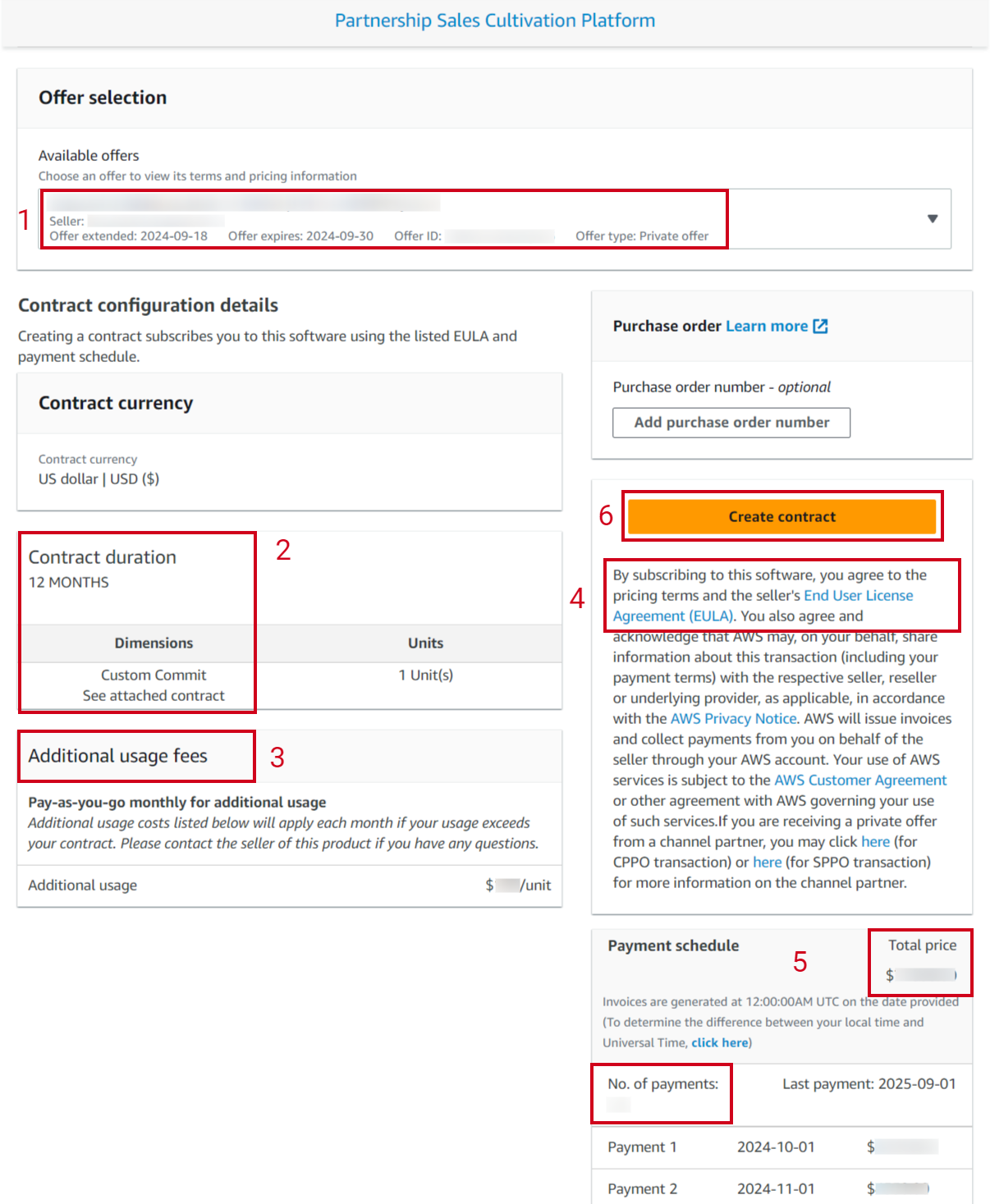
When you send a private offer, the buyer receives an email with a link to the offer. Here is how the private offer looks on their end:
-
Offer details: The offer name, who sent it, and its ID.
-
Contract details: The contract duration and the specific dimension (“plan” or “tier”). In this example, the dimension reads “Custom Commit; see the attached contract.” This is a recommendation for a custom dimension that you can reuse as a template for all private offers, because the details will always live on the EULA (contract).
-
Additional usage fee: Makes it clear to your buyer that if they consume extra units (extra users, extra storage, etc.), they will be invoiced for that amount.
-
EULA (contract): The buyer can open and review the EULA you attached when you created the private offer by clicking the blue hyperlink.
-
Payment schedule: The total price of the contract. If there are installments, the number of payments and the date each will be invoiced are shown clearly.
-
Create contract: After reviewing all the previous details, the buyer clicks Create contract and proceeds to payment.
Private Offer Stuck in “Pending Acceptance” (For Sellers)
If a buyer has accepted your offer but the acceptance is not yet reflected in your Fours Console, it may be a sync delay. The Fours Console refreshes every two hours, so there can sometimes be a lag between the cloud marketplace portals and Fours.
To force a refresh:
- Go to Settings in your Fours Console.
- Select the AWS Marketplace integration.
- Click Sync. This forces Fours to refresh from the marketplace you select.
After Acceptance: Identifiers on the Offer and Entitlement (For Sellers)
Once an offer is accepted, its detail pages carry the AWS identifiers you need when you contact AWS or reconcile records:
| Where | Field | What it is |
|---|---|---|
| Offer detail | Partner ID | AWS Marketplace’s own identifier for the offer. |
| Entitlement detail | Partner ID | AWS Marketplace’s own identifier for the entitlement. |
| Entitlement detail | AWS License ARN | The Amazon Resource Name AWS uses to identify this entitlement. Quote it when you open an AWS support case or debug a buyer’s access. |
Each value has a copy button, and Partner ID is also available as a filter on the offer list, so you can search back from an AWS-side identifier to the Fours record.
Entitlements that start in the future
A CPPO entitlement whose contract has not started yet is created as PENDING_START. Fours promotes it to ACTIVE on its own once AWS confirms the agreement’s start date has passed — you don’t need to touch it, and metering is not enabled before then.
When any AWS entitlement moves from PENDING_START to ACTIVE, Fours sends an entitlement notification with the action UPDATE and the message Entitlement is started today, so a webhook can start provisioning on the start date rather than at acceptance.
Two cases keep an entitlement at PENDING_START on purpose: AWS has not reported a start time for the agreement (so the start cannot be confirmed), and the agreement has been deleted on the AWS side. If an entitlement is still PENDING_START well after the start date you expect, check the agreement’s start date in AWS first — it may have been amended after the entitlement was created.
Auto-renewal creates a new entitlement (For Sellers)
When AWS auto-renews an agreement, Fours does not extend the existing entitlement. AWS reports a renewal as a brand-new agreement, and Fours mirrors that:
- A new entitlement is created for the renewal term, carrying its own agreement ID and its own dates.
- The previous entitlement is cancelled (its status chip reads Renewed), so exactly one entitlement is live per AWS agreement at any moment.
Two consequences are worth planning for:
- Downstream systems see a created event and a cancelled event, not a single update. If your CRM sync, revenue reporting, or notification rules treat “entitlement created” as “new customer”, a renewal will now look like one. Key off the buyer or the agreement rather than the entitlement row.
- The cancellation is deliberately delayed. The old entitlement is cancelled through the same pending-cancel path as any other ending agreement, so you keep the grace period for reporting final metered usage on the term that just ended.
- Fractional usage carries over. AWS accepts usage quantities in whole units (UsageRecord), so Fours reports whole units and keeps any fraction on the entitlement. Once the old entitlement’s final usage report is done, that fraction moves to the renewed entitlement, so it can combine with later usage there instead of being stranded on the ended term.
Because the renewal is a separate offer and entitlement, the terms fixed on the original offer — including the buyer net payment term — do not carry across automatically.
Multi-buyer offers get one entitlement per buyer (For Sellers)
A private offer can name several buyer AWS accounts. Each account that accepts it gets its own entitlement in Fours, attributed to its own buyer record — the offer is shared, the entitlements are not.
This matters when you reconcile: filtering by offer on a multi-buyer deal returns several entitlements, one per accepting account, and each has its own agreement ID, dates, and metering. Fours checks the AWS account on the agreement rather than reusing whichever entitlement happens to be attached to the offer, so a second buyer accepting the same offer never lands on the first buyer’s entitlement.
The same account-level check also completes the historical record where AWS lets an offer sent to one account be accepted by a different linked account: the account that actually held the agreement gets its own entitlement row instead of the record being silently re-pointed.
Understanding Offer Sub-Status (For Sellers)
When monitoring offers in your Fours Console, you may notice a sub-status field that provides additional context about accepted offers. The sub-status helps sellers understand the current state of an offer beyond the main status.
Purchase Failed Sub-Status
An offer may show a purchase_failed sub-status when the following conditions are met:
- The offer status is accepted
- All associated entitlements have a cancelled status
- And each offer’s start date and end date are within one day
What this means: This sub-status indicates that while the buyer accepted the offer, the purchase attempt ultimately failed. This typically happens when there was an issue during the payment processing or subscription setup phase, causing the entitlements to be cancelled shortly after creation.
Automatic clearing: The sub-status is automatically cleared when the above conditions are no longer met. For example, if the entitlement status changes or if new entitlements are successfully created, the sub-status will be removed.
If you notice this sub-status on an offer, you may want to reach out to the buyer to resolve any payment or account issues that prevented the successful completion of the purchase.
Spotted something wrong or out of date on this page? Tell us and we'll correct it.