Track and Respond to Deals
Every deal registration, whether you submitted it to a partner or received it from one, appears in your Partner Co-Sells list, where you can track its progress, review its details, and respond to inbound registrations that need your approval.
Overview
The Partner Co-Sells list is where all of your deal registrations come together. From there you can:
- Find and filter deals by direction and status.
- Respond to inbound deals a partner has registered with you.
- Track and manage an accepted or outbound deal as it moves through the pipeline.
Find and Filter Your Deal Registrations
-
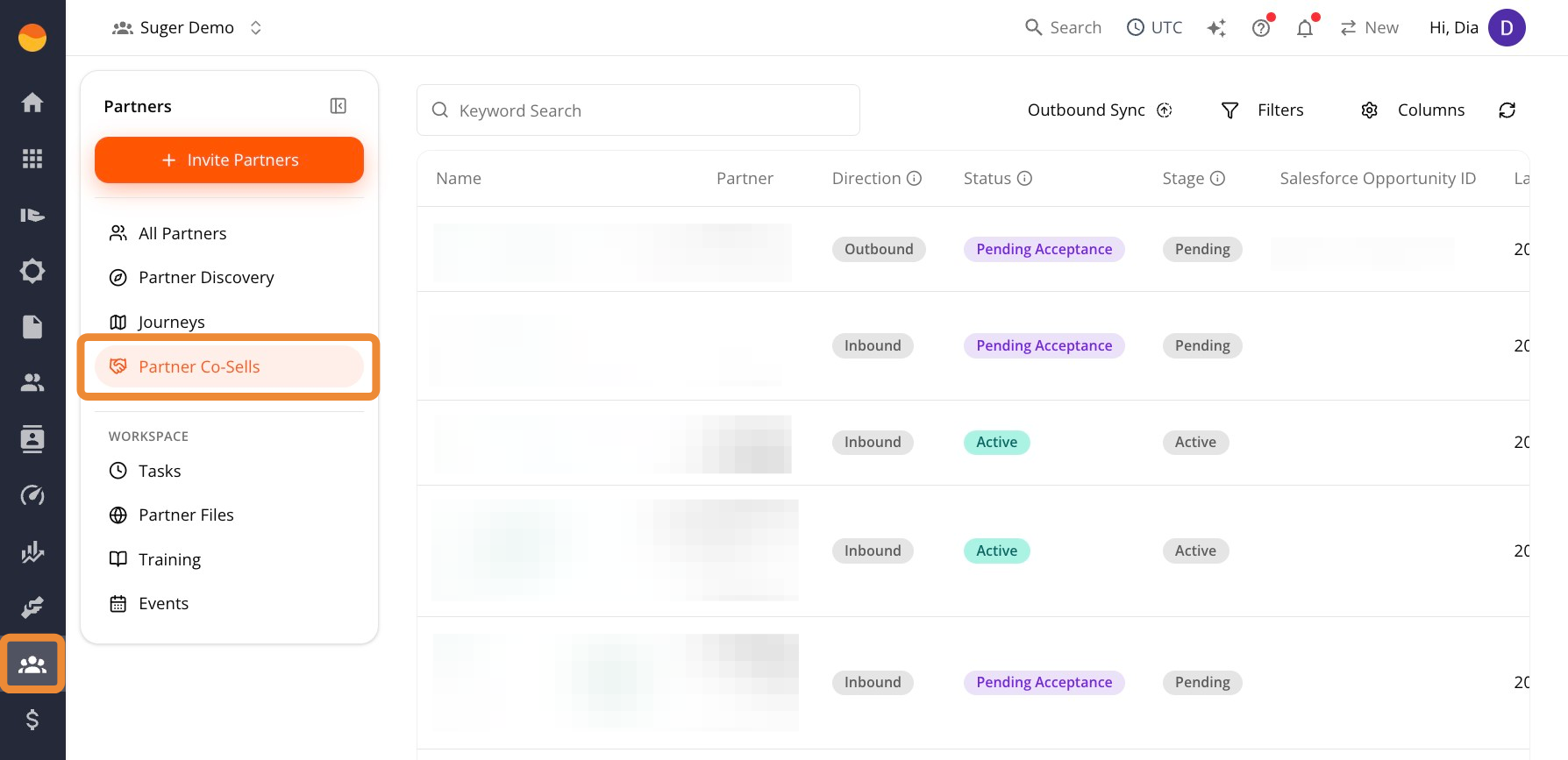
Go to Fours Console, then Partners.
-
Click Partner Co-Sells.
-
Use the Direction column to identify the type of deal:
- Outbound: You registered the deal with a partner.
- Inbound: A partner registered the deal with you.
-
Review the Status column to understand where the deal is in the process:
Pending Acceptance: An inbound deal waiting for you to accept or reject it.Active: A deal that has already been accepted and is moving through the pipeline.
Review Deal Registrations from Email
When members of your team email in deal registrations, Fours turns them into drafts for you to review. Drafts collect in a panel above the Partner Co-Sells list, headed N deal registrations from email. The panel is hidden when there’s nothing to review, and it starts collapsed so the list stays in view.
- Go to Fours Console, then Partners, and click Partner Co-Sells.
- Click N deal registrations from email to expand the panel. Each draft shows its Name, who it’s From, the Matched Partner Fours suggests, and when it was Received, newest first.
- Click a draft’s name. The co-sell form opens, prefilled from the email, with a Sent in by line naming the teammate who sent it.
- Under Register with Partner, keep the partner Fours matched, pick another, or choose Create new partner…. If the partner you pick has no confirmation contact on file, the form asks you to name the person there who should confirm the registration.
- Review the rest of the form and submit it.
Submitting registers the deal on the partner’s behalf. Fours asks the partner’s champion to confirm it, the same way Register a Deal on Partner’s Behalf does on a partner record. See Work a Partner Record.
To throw a draft away, click its trash icon and confirm Discard. A discarded draft is removed permanently.
Open a Draft from Fours’ Reply
Fours replies on the email thread the registration came from, so the person who sent it in knows where it stands:
- Details needed — Fours lists what’s missing and asks for it on the thread. When nobody outside your organization is on the thread, the reply carries a Complete in Fours → button.
- Ready to confirm — once Fours has what it needs, it sums up what it captured from the thread and carries a Review & confirm in Fours → button. If details are still missing after Fours has asked for them, the same reply is marked Needs your input and lists them. Everyone on the thread gets this reply, so a partner copied on it can reply to correct anything Fours captured.
Either button opens the draft itself, whichever organization you last had open in Fours:
- If you’re in the organization the draft belongs to, Fours switches you into it and opens Partner Co-Sells with the drafts panel expanded and the draft’s review form already open. If you’re signed out, you sign in first.
- If you’re one of that organization’s partners, Fours switches you into your own organization and opens your record of them, with a notice that they’re reviewing the deal registration. It appears in your co-sells once they confirm it.
- Anyone else sees You don’t have access to this deal registration, with a Go to your Fours home button.
If the draft has already been submitted or discarded, Fours says “This deal registration is no longer pending review.” instead of opening it. If the draft can’t be loaded, Fours says so and points you to the list.
Respond to an Inbound Deal
When a partner registers a deal with you as the seller, it appears as an Inbound co-sell with a status of Pending Acceptance.
Step 1: Review the Deal Before Responding
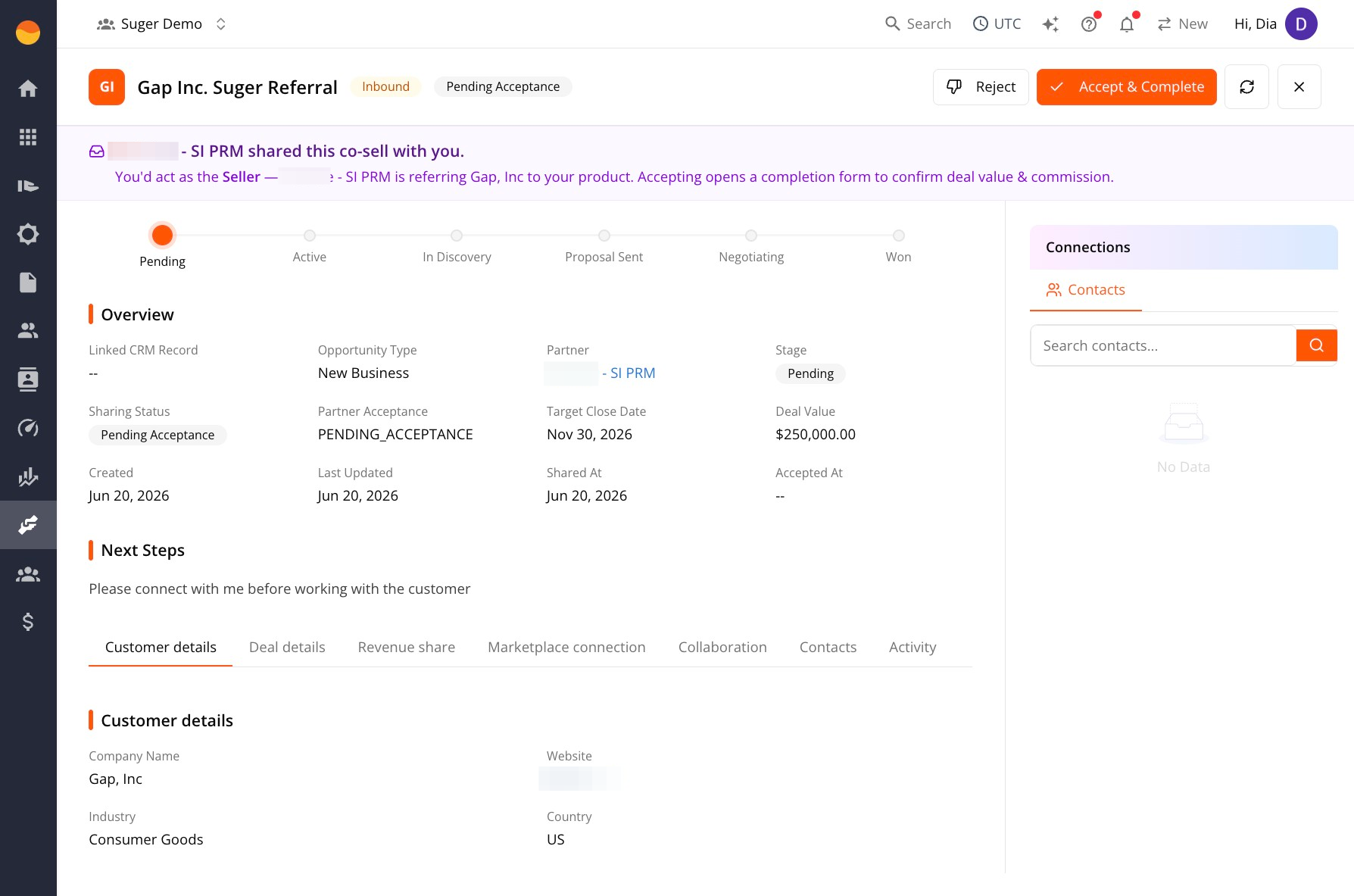
Open any pending deal to view its details.
- A banner at the top explains the relationship between the partner and the opportunity, such as a partner referring a customer to your product.
- The Overview section shows the opportunity type, target close date, the deal value estimated by the partner, and any notes they provided during registration.
Step 2: Accept or Reject the Deal
Accept and complete the deal
-
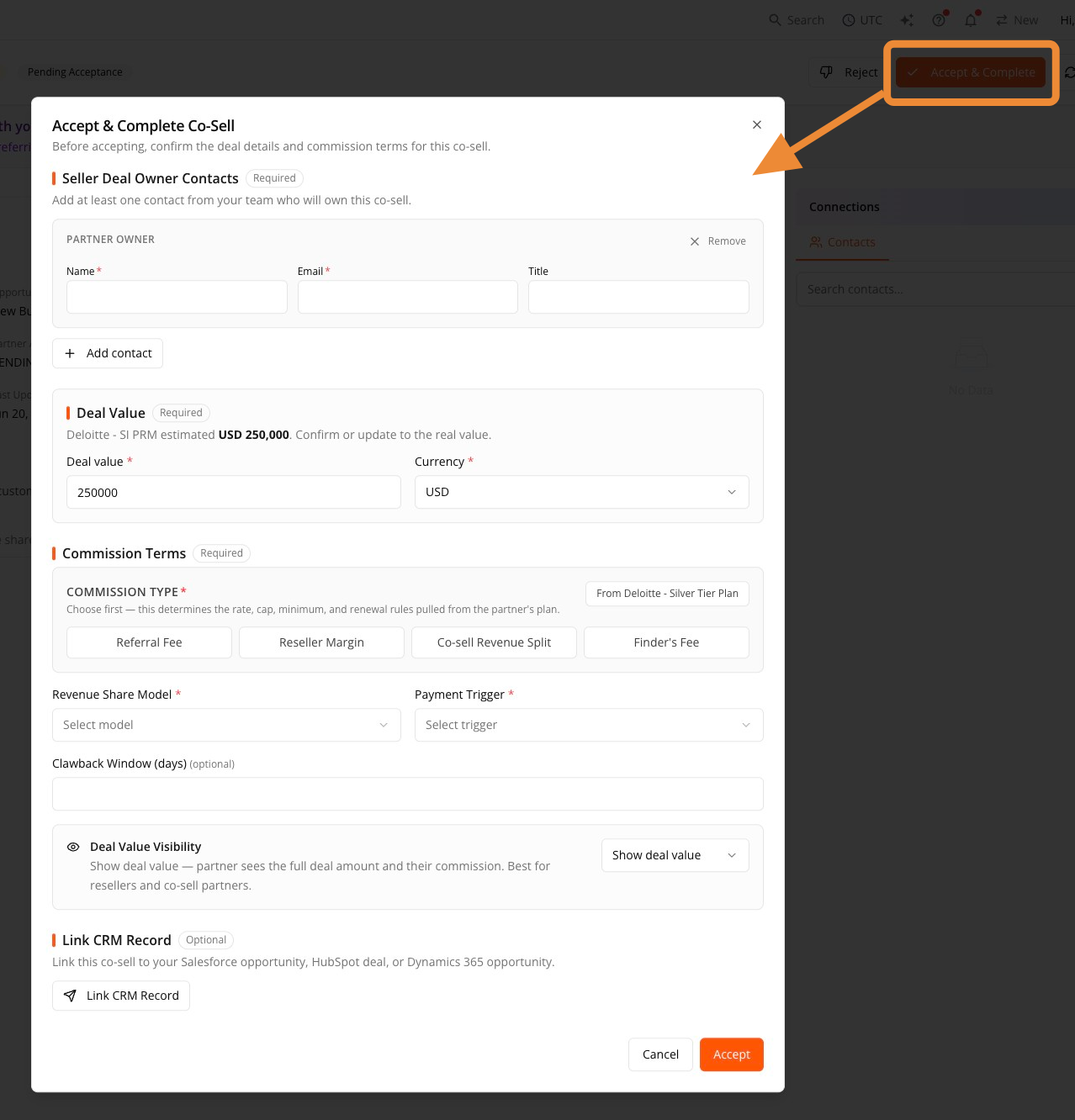
Click Accept & Complete in the top-right corner to open the Accept & Complete Co-Sell window.
-
Add at least one Seller Deal Owner Contact. Enter the contact’s name, email address, and optionally their title. At least one contact is required.
-
Confirm the Deal Value. The partner’s estimated amount carries over automatically, but you can update it and change the currency if needed.
-
Configure the Commission Terms:
- Choose a Commission Type. This pulls the rate, cap, minimum, and renewal rules from the partner’s Custom Plan if one exists, or your Standard Defaults if it doesn’t (shown as “From Default settings” when no custom plan applies).
- Confirm the Revenue Share Model and Payment Trigger.
- Optionally, set a Clawback Window in days.
- Set Deal Value Visibility — whether the partner sees the full deal amount and their commission.
-
Optionally, link the co-sell to a Salesforce opportunity, HubSpot deal, or Dynamics 365 opportunity.
-
Click Accept.
Reject the deal registration
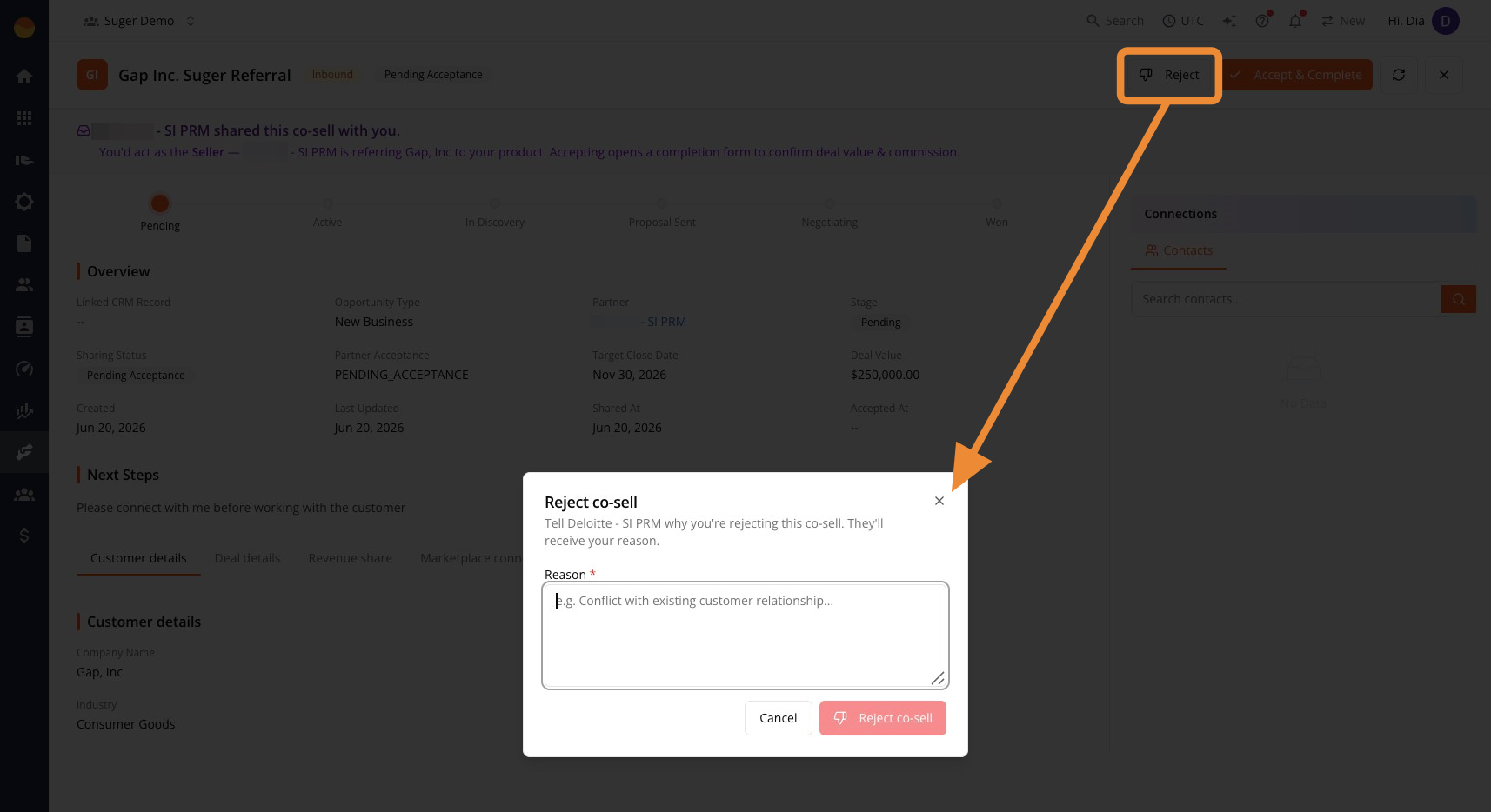
Click Reject instead if the deal isn’t a fit. This opens the Reject co-sell window.
- Enter a Reason (for example, “Conflict with existing customer relationship”). This is required, and it’s shown directly to the partner who registered the deal, so keep it factual and professional.
- Click Reject co-sell.
Act on a Co-Sell from Email
Co-sell emails can carry a button that lets you act on the deal straight from your inbox. Each recipient gets a button of their own:
| Button | When the email arrives | What the page asks for |
|---|---|---|
| Accept co-sell → | A partner registers a deal with you. | The deal value and currency, plus the commission terms when commissions apply. |
| Mark Closed Won → | The partner marks their copy of the deal Closed Won. | A deal value, but only if the deal doesn’t have one yet. |
| Mark Closed Lost → | The partner marks their copy of the deal Closed Lost. | A reason, which the partner reads. |
How the buttons work:
- Each button is personal. It was issued to one email address, works once, and expires after 24 hours.
- It needs an editing role. The person clicking must have the Admin or Editor role in your organization. Otherwise the page shows Sign In To Continue, and they take the action in the console instead.
- The page shows who you’re acting as. When it needs nothing more, it records the action as soon as it opens. The action is recorded under your name, exactly as if you had clicked it in the console. Accepting this way makes you the deal owner on your side.
- Reject isn’t offered from email. To reject a registration, use Reject on the deal in the console.
- A link that no longer applies says so. If it has expired, was already used, or the deal has moved on, the page tells you and points you to the console.
Check Each Party’s Status
A deal you share with partners exists as one copy per organization: yours, and one for each partner. Each side closes its own copy, so your copy can read Closed Lost while a partner’s reads Closed Won. The Partners & Status section on the deal lists every copy side by side, so you can see when the two sides disagree:
- Your organization comes first, marked You, with the role Seller and your own copy’s status. It has no Shared or Accept Date, because the deal was never shared with you.
- Then one row per partner, with its attribution role (Sourced, Influenced, or Transacted), its status, the date the deal was Shared with it, and its Accept Date.
The section appears once the deal has at least one partner. Partners see the same table from their side, with your row showing your status.
Remove a Partner from an Accepted Deal
A deal registration that has been accepted can still have a partner removed from it. The action is seller-only, sits on the partner’s own row in Partners & Status, and is confirmed with Remove & notify partner. The removal is then recorded on the deal’s Activity tab as Partner removed: {partner}, marked Removed, so your side keeps a record of it.
Three rules bound it, and the button is disabled with the reason when one applies:
| Rule | Why |
|---|---|
| Not after the deal is won | Removal is only possible while the outcome is still open. |
| Never leaves zero parties | The last remaining partner cannot be removed. |
| Not once commission is committed | Committed money is not unwound by removing someone from a record. |
Because removal is only possible before the deal is won, any commission shown on that partner’s tab is still a projection — so removing them destroys nothing already earned.
Track and Manage an Active Deal
Once a deal is accepted, or after you register an outbound deal, it moves through the same pipeline regardless of direction:
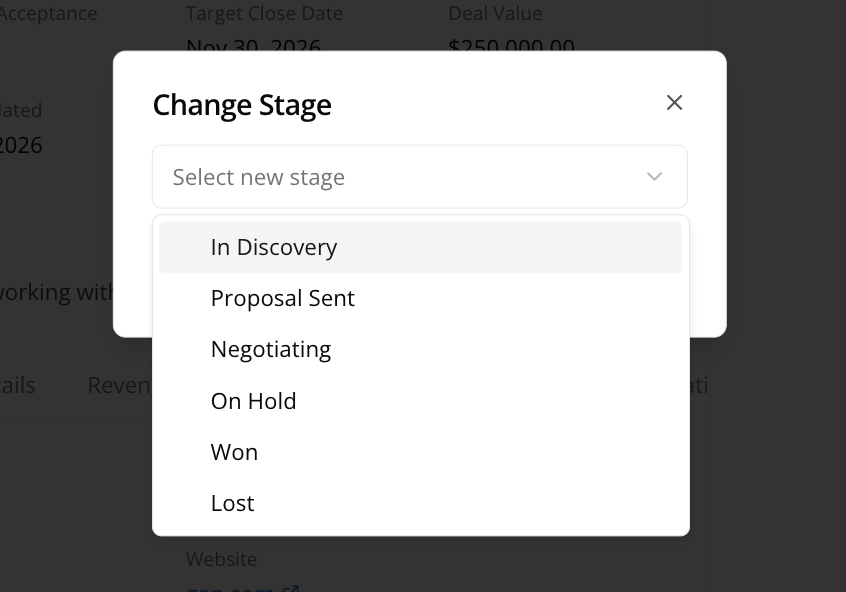
Pending → Active → In Discovery → Proposal Sent → Negotiating → Won
Two additional stages, On Hold and Lost, don’t appear in the visual pipeline but can still be assigned manually when you change stages.
Link a CPPO to the Deal
If a deal transacts through a CPPO with the partner, link that marketplace offer to the co-sell from the deal’s Marketplace connection tab.
On a deal you registered with a partner (Outbound), the tab shows:
- Linked CPPOs. Each linked offer is a card with the offer’s name, which opens the offer, the line Linked CPPO · {marketplace}, and the offer’s current status. A cancelled, expired, failed, or otherwise dead offer shows its status in red.
- Suggestions. When Fours finds a CPPO for this partner that isn’t linked to any co-sell yet, it asks: “A new CPPO was created for {customer}. Link it to this co-sell?” Click Link to connect it, or Dismiss to hide the suggestion. Dismissals are remembered in your browser.
- A way forward when nothing is linked. Once the partner has a cloud Account ID on file, the tab offers Create CPPO, which opens the CPPO form prefilled from the co-sell. Without one, it offers Configure partner, which opens the partner’s record so you can add it under Partner Details. See Work a Partner Record.
An offer can be linked to only one co-sell, and a link can’t be removed. If you try to link an offer that already belongs to another co-sell, Fours refuses and names that co-sell.
On an Inbound deal, the tab only reads “Awaiting ISV action — no marketplace offer is linked to this co-sell yet.”
Spotted something wrong or out of date on this page? Tell us and we'll correct it.