Metering
Track, report, and aggregate customer usage so Fours can bill it accurately across AWS, Azure, GCP, and Oracle.
Overview
After an entitlement is created, you report metric usage data to Fours in real time. Fours normalizes usage reporting across AWS, Azure, Google Cloud Platform (GCP), and Oracle Cloud Marketplace (OCI), so your team doesn’t have to maintain a separate billing API for each marketplace. This helps you prevent revenue leakage and stay compliant with contract terms.
Fours aggregates the reported data hourly and daily. When the billing cycle is over, Fours aggregates the total quantity of each billable dimension for the period, calculates the amount of each billable dimension from the aggregated data and the price model of the billable metric, and uses the total to generate the invoice.
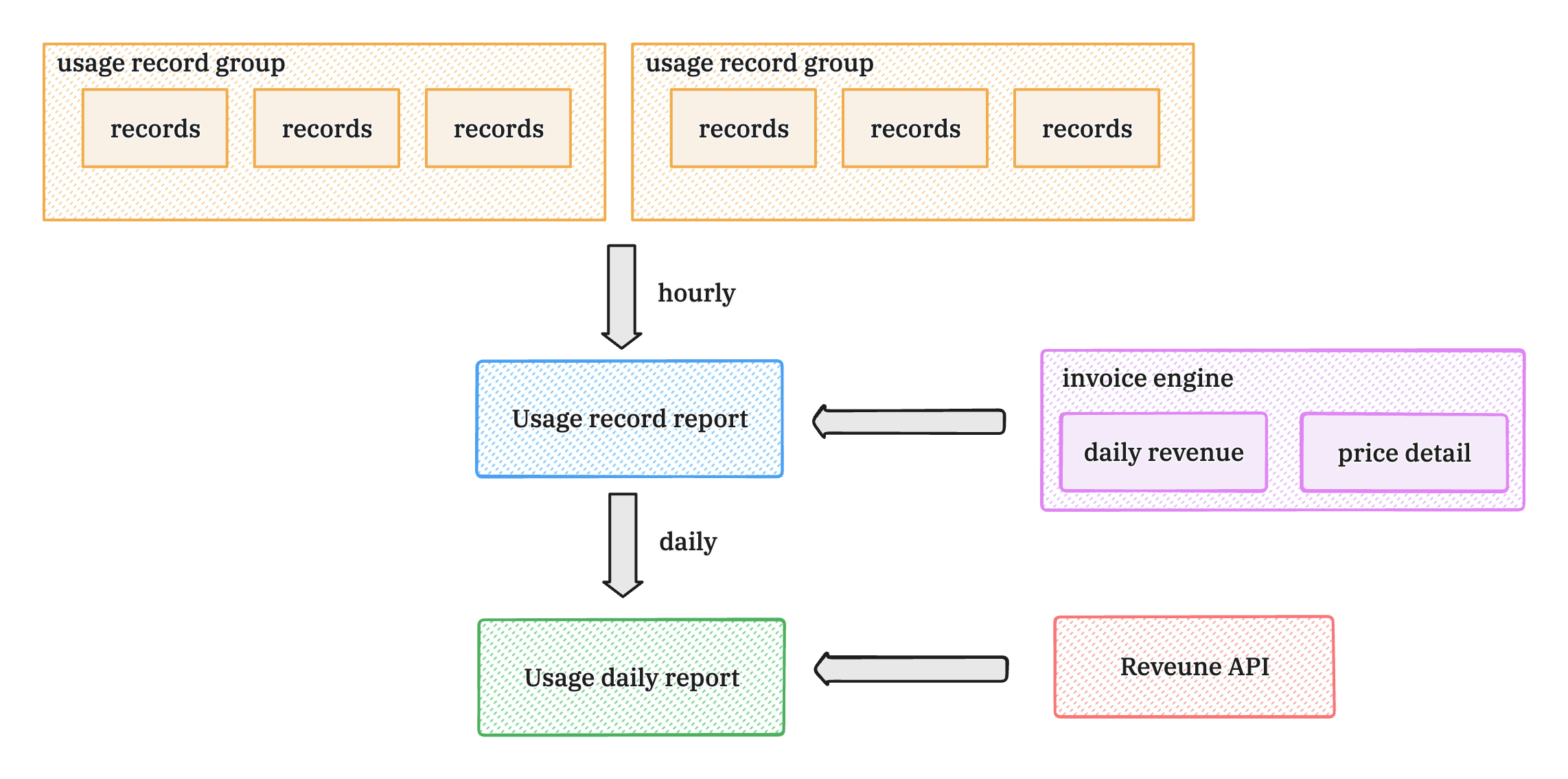
You can report usage in several ways:
- Fours Metering API — stream usage from your own backend services.
- Native billing integrations — connect Metronome, Orb, Lago, or Chargebee to route usage automatically.
- Console reporting — report a single event manually or batch-upload a CSV.
The reported usage data can be viewed on the entitlement details page in real time. To give a customer credit against its usage-based charges, see Usage Credit.
Report usage with the Fours Metering API
To report usage for an active buyer contract, your backend services submit a POST request to the Fours Metering API. Fours validates, aggregates, and forwards the records to the respective cloud provider in the format each platform requires.
Use the following APIs to report usage data:
A request carries its usage in one of two forms, never both:
records(v1) — a map from a marketplace usage-metering dimension to a quantity. This is the form Usage Metering walks through.billableRecords(v2) — one object per Fours billable metric, keyed by the billable metric’s id.
Request body example, in the billableRecords form:
{
  "id": "0f8b5c2e-4d7a-4b1e-9c3a-6e2d1f0a7b95",
  "organizationID": "your-suger-org-id",
  "entitlementID": "your-suger-entitlement-id",
  "billableRecords": [
    {
      "key": "billable-metric-id-of-the-entitlements-billable-dimension",
      "properties": {
        "custom-property-1": "val1",
        "custom-property-2": "val2"
      },
      "quantity": 10
    }
  ]
}idis optional — the UUID of this usage record group, up to 36 characters. If you leave it out, Fours generates one and returns it in the response.quantityis the numeric value of the billable metric for this record. Add one object tobillableRecordsper metric you report.
For the console path and which listing types Fours can meter on your behalf, see Usage Metering.
- The organizationID and entitlementID are required. Each request can only report one entitlement’s usage data.
- The billableRecords is an array, you can report multiple metrics in one request.
- The key is the billable metric id in the entitlement’s billable dimension.
- The properties is a map of the custom properties of the billable metric, they are used for filter or group by or unique count.
- The quantity is the number of the metric.
Enforce idempotency with a unique id
To prevent duplicate billing, always provide a unique id in the body of every report usageRecordGroup request.
- Fours uses this identifier to automatically de-duplicate incoming metering events.
- If you submit a payload with an
idFours already received for the same entitlement in the last 15 days, Fours rejects the submission with HTTP 409 Conflict and the messageusage record group already reported in the last 15 days: record id <id>. Every other validation error on this endpoint returns HTTP 400 Bad Request, so the status alone tells a duplicate from a bad request. - If the rejected request was a retry of one whose response you never received, the 409 means the first one was recorded: treat it as done. Send a new
idonly for new usage. - On AWS, when the integration’s Metering to Latest Renewal Entitlement switch sends a report against a cancelled entitlement on to its renewal, the check also covers that cancelled entitlement and the earlier renewals in its chain, and the response carries the renewal’s
entitlementID. See Usage Metering after an AWS Renewal. - The batch report endpoint takes no
id. Fours gives every group in a batch a new one, so a batch you send twice — a retry after a timeout, say — is reported twice, as is a CSV uploaded twice. To retry safely, report each group on its own, with anid.
Dimension key and name mapping
In the records form, each key you send can be either the marketplace Usage Metering Dimension Key or the Dimension Name. These values are stored under WorkloadEntitlement.info.dimensions for any activated buyer contract, so you can retrieve them there.
Reporting late usage
Fours does not re-date late usage into the hour it occurred: AWS and Azure receive it in the hour Fours reports it, GCP in an interval reaching back at most three hours, and Oracle with its original timestamps — see Reporting late usage.
Report usage from the console
Beyond the API, operations and finance teams can track, log, and audit usage directly on the Usage Metering page. The page’s section rail, on the left, switches between four usage views:
- Received Usages — raw, individual usage ingest logs as they stream into Fours.
- Hourly Reports, Daily Reports and Monthly Reports — aggregated, time-bucketed consumption summaries for reviewing baseline usage and overage trends.
Seller, reseller, and partner organizations also get Settings, below a divider at the bottom of the rail. It holds your Billable Metrics and the Usage Metering Configs for each marketplace: dimension mapping and the two commit options described in Usage Metering. Buyer organizations see only the four usage views.
Each section opens with its name and a one-line description; a section’s buttons, such as + Report Usage or + Add billable metric, sit at the right of that title row. The chevron at the top of the rail collapses it to icons, and the page remembers your choice. The rail stays on screen at every window width.
With no saved view open, each section — Received Usages, Hourly Reports, Daily Reports and Monthly Reports — remembers, in this browser, the date-range preset you last picked there and which columns show, in what order; on Received Usages and Hourly Reports, the columns are kept separately for each marketplace. Changing them in one section leaves the others as they were. A custom start and end date is kept only until you reload the page or open another section. The marketplace, the search box, the Status filter and the Daily Reports chart choice are not remembered: each section opens on AWS with an empty search. A saved view keeps most of these for you. The usage tables on a company’s or an entitlement’s page keep their own date range and column choices, separate from these sections.
To find specific records in Received Usages, type into Search by Record ID or Invoice ID. Fours searches every record in the marketplace and date range picked in the same row as the search box (the last 7 days by default), not only the rows already loaded. A term can be a whole ID or any part of one, in any letter case. It matches a record’s ID or an invoice ID the record carries: a Metronome, Orb, Stripe, or Chargebee invoice ID, a Lago subscription ID, or the ERP Invoice ID added when the usage was reported. Among Chargebee records, only those Fours writes when it settles a billing window against its invoice carry the invoice ID; the hourly records carry none. Separate up to 20 IDs with commas to find all of them at once.
The table’s Invoice ID column shows one invoice ID per record: the first one the record carries, in this order — the ERP Invoice ID added when the usage was reported, then the Orb, Metronome, Stripe, and Chargebee invoice IDs. A Lago record shows none there, because Lago stores only a subscription ID.
To reconcile the records against the invoices in your billing system, click Export CSV, at the right of the filter row. The console gathers every record that matches the section’s marketplace, date range, search and Status filter, from all pages, not only the rows on screen; click Cancel to stop. The dialog is titled with the count (Export 250 usage records, for example) and lists the open view, the filters, how many columns, and the file name, received_usages_ followed by today’s date. Click Download CSV. The file holds the columns the table shows, in the table’s order and under the same titles. Its Invoice ID column carries the one invoice ID the table shows for each record, so a Chargebee invoice ID is exported and a Lago subscription ID is not. When nothing matches, the console says Nothing matches the current filters.
Hourly Reports, Daily Reports and Monthly Reports have Columns and Export CSV too, and each exports the columns its table shows, in order, to a file named for the section (hourly_reports_, daily_reports_ or monthly_reports_, followed by the date).
Save a section as a view
A saved view is a named set of filters, search, and columns on one usage section, which everyone in your organization can open. Received Usages, Hourly Reports, Daily Reports, and Monthly Reports each keep their own views, listed at the foot of the rail under a heading that names the section — Saved views · Received Usages, for example. Settings has none.
To save one:
- Set the section the way you want it: the marketplace, the date range, the search, and the columns.
- Click Save view as, after the date range. It appears once you change something in the section.
- Type a Name and click Save view. Everyone in your organization can see and use the view.
A name is up to 60 characters and unique in that section, ignoring case. Once a section has 10 views for your organization, Save view as says so instead of saving: delete one of that section’s views, then save again. Clear filters, beside Save view as, resets the section’s filters and keeps your columns.
Click a view in the rail to open it. Once you change it, Save view opens Save your changes, where you update the view for everyone or click Save as new view to keep it as it was and save your changes under a new name; if your role can’t change that view, the filter row offers Save as new view instead. Revert changes (the ↺ icon) puts the view back the way it was saved. Each view’s ⋯ menu has Copy link, Rename view, and Delete view. Viewers can open views and copy their links; Editors and Admins can also save, rename, and delete them, but an Editor can’t save over or rename a view an Admin created.
On these sections, a view keeps:
- the marketplace;
- the date range, a custom start and end date included;
- the search box, on Received Usages and Monthly Reports;
- the Quantity or Amount $ chart choice, on Daily Reports;
- which columns show, and in what order.
It doesn’t keep the Status filter on Received Usages, so a view can’t hold a list of Report Failed records: open the view, then set Status. It doesn’t keep the sort or column widths either.
On the Usage Metering page, every column header except the first has a grip: drag it left or right, or focus it and use the arrow keys, to move the column. The order is kept with the section’s columns, in this browser or in the open view.
When you come back to a section, the console reopens the view you last used there. Click the section’s name in the rail to return to it without a view. Saved views work the same way on the console’s other lists; see Save and share a filtered list for the role table and what happens when you leave a list with unsaved changes.
Report a single usage event
For individual corrections or ad-hoc adjustments, enter a usage event manually:
- Click + Report Usage, at the right of the Received Usages title.
- Enter the details:
- Product
- Entitlement
- Record Date
- (Optional) Additional Metadata
- Usage records
- Click Report.
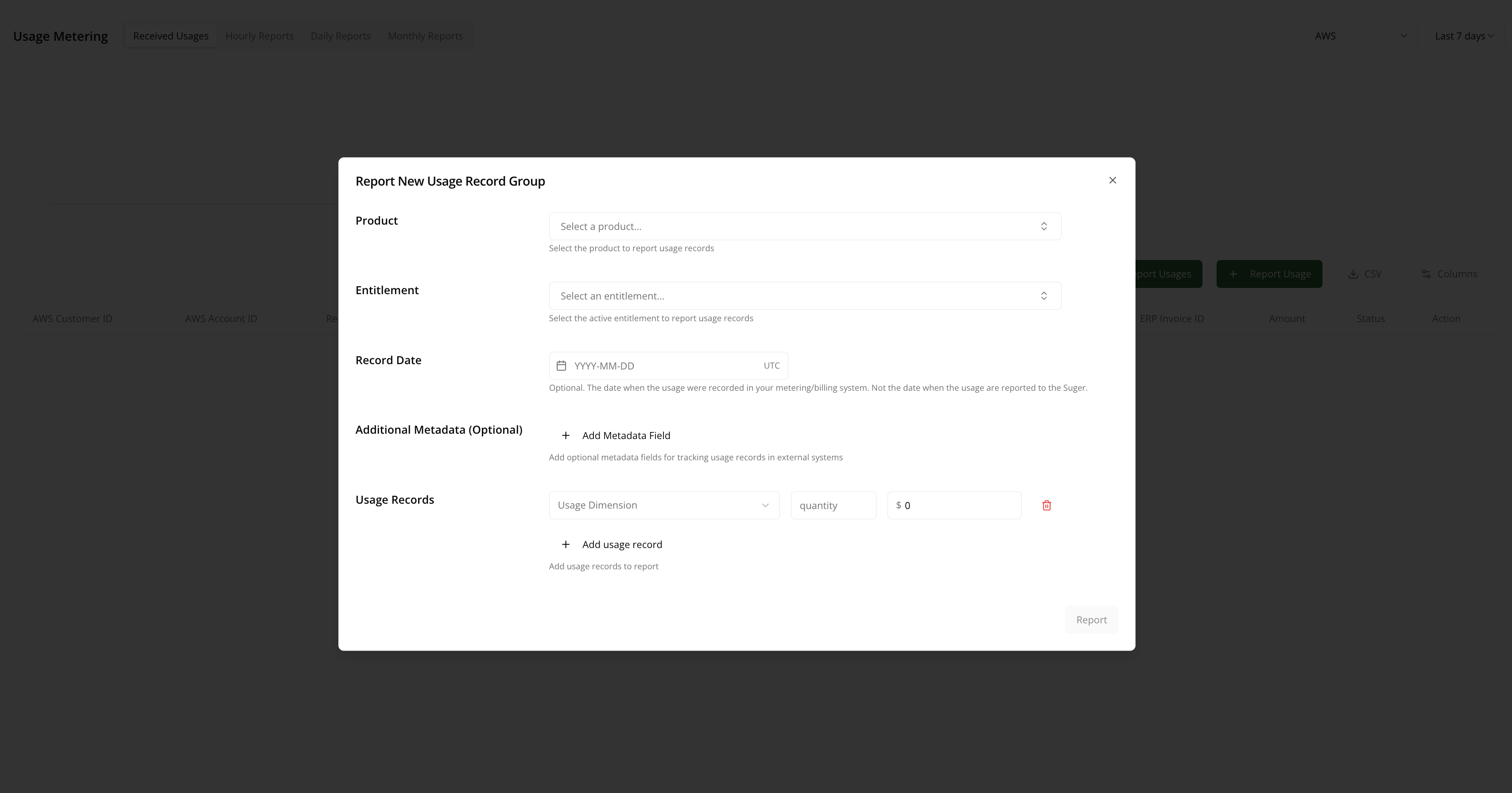
You can also report a one-off event directly from an entitlement. Open Entitlement in the left menu, choose the entitlement, select its Usage Metering tab, and specify the record date, usage dimension, and quantity. Make sure the total quantity matches the amount from your internal usage metrics.
Batch-upload a CSV
If you log usage for many customers at once, upload a single structured CSV to report thousands of entries at a time.
Your CSV needs a header row. The console reads these columns by their exact, case-sensitive names and ignores any other column:
| Column Header | Requirement | Purpose |
|---|---|---|
dimension | Required | The marketplace usage-metering Dimension Key (e.g. seats, data_gb) — not the Dimension Name. |
quantity | Required | The amount of usage for that dimension. |
sugerBuyerId, sugerExternalBuyerId, customerId, sugerEntitlementId or sugerExternalEntitlementId | One of them is required | Identifies the buyer or the entitlement the usage belongs to. |
timestamp | Optional | The ISO 8601 date/time the usage occurred (e.g. 2026-05-29T00:00:00Z). If blank, the report time is used. |
erpInvoiceID | Optional | An invoice reference from your ERP. Rows for the same entitlement are reported together per erpInvoiceID. |
Rows for the same entitlement and erpInvoiceID become one usage record group, with the quantities for each dimension
added together. The group takes the timestamp of its first row, so upload one period per file. When a buyer holds
more than one active entitlement, identify the entitlement (sugerEntitlementId or sugerExternalEntitlementId): a
buyer identifier resolves to only one of them.
To upload:
- Open the Usage Metering page from the left-hand console menu.
- Click Batch Report Usages, at the right of the Received Usages title, beside + Report Usage.
- Under Select CSV File, click Choose File and pick your CSV. Optionally, turn on the Auto Fix switch before you pick the file: it reports a row whose dimension the entitlement does not have against the entitlement’s first dimension instead of flagging it (Oracle listings are left as they are).
- Once the dialog lists the validated rows (see below), click Batch Report.
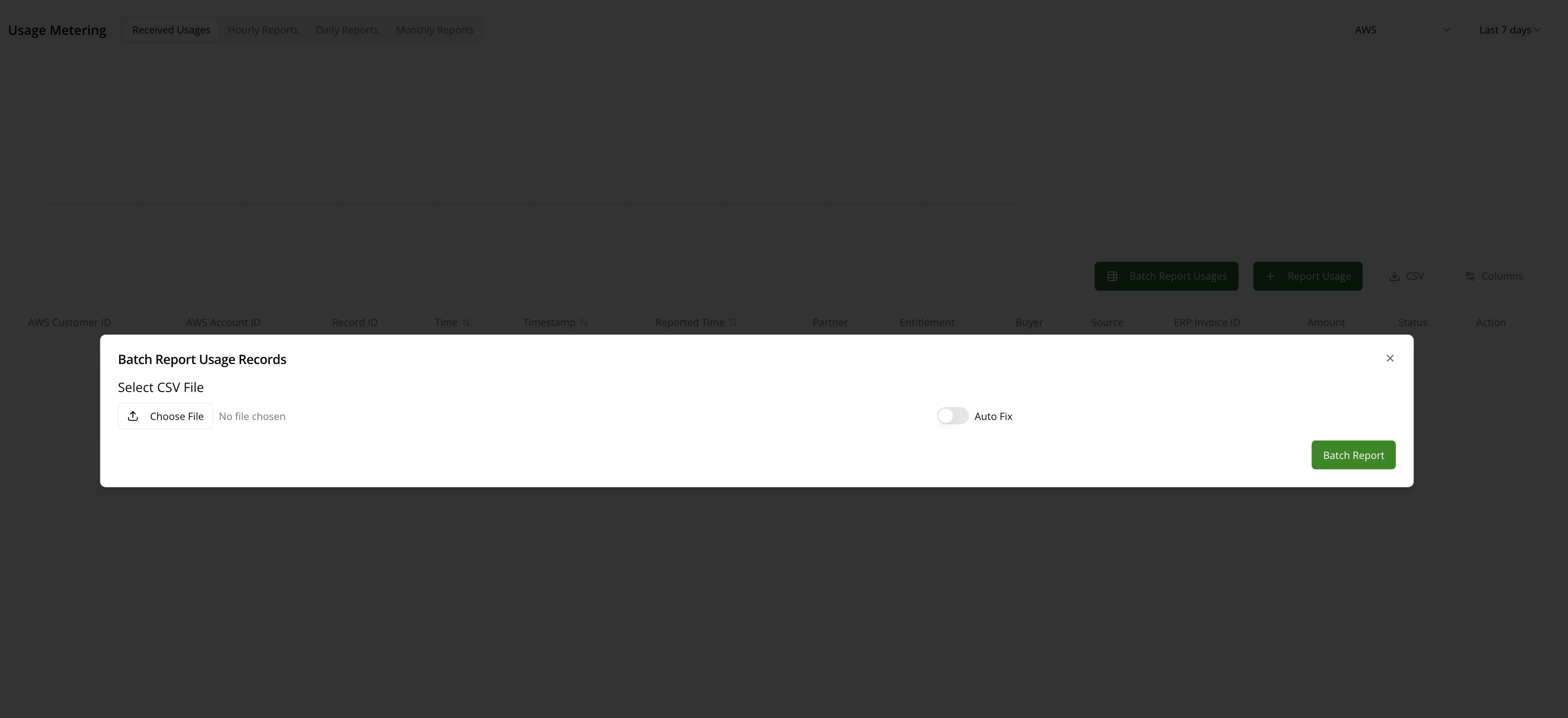
Once your file lands, Fours validates every row before sending anything to the marketplace:
- Clean rows pass validation and are queued for transmission.
- Flagged rows are set aside and listed under Invalid Usage Records with the reason, so you can fix them; only
the valid rows are reported. If the file has no
dimensionorquantitycolumn, or none of the identifier columns, every row is rejected with “Invalid usage record; missing dimension, quantity, customerId, sugerBuyerId, sugerExternalBuyerId, sugerEntitlementId or sugerExternalEntitlementId”. Otherwise a flagged row carries its own reason, such as “buyer is not found” or “usage dimension is not found”. A blankquantityis read as 0, not flagged.
You can also batch report from an entitlement: create a CSV of multiple usage events across multiple dates, upload it in the entitlement’s Usage Metering tab, and click Batch Report.
Automate usage with billing integrations
Fours offers native, code-free integrations with leading usage-based billing platforms:
- Metronome — stream transactional usage metrics to marketplace contracts.
- Orb — sync complex, aggregated multi-metric pricing dimensions.
- Lago — map open-source metering to compliant marketplace billing entries.
- Chargebee — report the metered overage Chargebee has already priced, as an amount, every hour.
- Fours APIs — for custom setups, stream consumption straight from your own backend.
Each connector has its own setup guide: see Billing Integrations.
To connect a platform:
- Go to Settings > Integration to view the available connectors.
- Find your billing platform (Metronome, Orb, Lago, or Chargebee) and click Connect.
- Provide the platform’s API credentials and complete the field-mapping step to bind your internal billing dimensions to your marketplace dimension keys.
- Once active, Fours retrieves usage from your billing platform on that connector’s schedule — hourly or daily, depending on the platform (see Billing Integrations) — and reports it to the marketplace.
Chargebee reports money rather than units, so it takes a few more steps:
- Its connect dialog asks only for your Chargebee site name and API key. Nothing is reported until you open the card’s Edit dialog and turn on Enable Auto Report Usage, which sets Billing Mode to
amount. - Every amount arrives on the single key
chargebee, in the entitlement’s currency, and that key has to land on a dimension the entitlement has. Either your product has a dimension keyed or namedchargebee, or you map it in the Settings section of the Usage Metering page: edit the row of each marketplace you sell through, turn on Enable Dimension Mapping, and map the source dimension keychargebeeto the dimension you bill overage through (see Metering dimension conversion). A record whose key matches no dimension is rejected. - Enter each buyer’s Chargebee customer ID on the buyer. Fours syncs only the buyers that carry one.
Fours then reads each linked buyer’s priced overage every hour, at 5 minutes past the hour, and the records it creates appear under Received Usages with the source CHARGEBEE. For how each Chargebee billing window is settled against its invoice, see Chargebee.
Advanced configuration
Metering dimension conversion
If your internal telemetry uses dimension names that differ from the ones configured in the cloud marketplaces, define Metering Dimension Conversion rules to map them automatically. You can also set a multiplier to scale metrics during conversion (for example, converting gigabytes to megabytes).
Divide a commit into periods (Divide Commit)
For a contract where the buyer prepays a large commitment but usage should be covered period by period (a monthly allowance out of a yearly commit, for example), divide the entitlement’s commit:
- Open the entitlement and, on its Overview tab, click Divide Commit at the right of a term’s Usage Dimensions (N) heading.
- Enter the start date of each period, or set Times and click Schedule to space them equally. Each period ends where the next one starts, and the last ends with the term. Click Divide.
- Each period becomes a
DivideCommitterm with an equal share of the commit as credit. Usage in a period is covered only by that period’s credit, and usage above it is billed as overage. The buyer’s payment schedule doesn’t change.
For the full steps, see Divide Entitlement Commit.
AWS usage allocation tags
For AWS Marketplace contracts, you can define custom Usage Allocation Tags to break out discrete cost categories in your offers.
- Tags use the
usageAllocationsmap array, binding quantities toUsageAllocationTagkey-value pairs. - Once reported, these allocations propagate to the buyer’s AWS Billing Console, letting enterprise customers view and reconcile usage charges by cost center, tag, or department.
Usage hourly report
Fours aggregates each entitlement’s reported usage data every hour, giving you a real-time view of usage.
- Every hour, Fours aggregates the reported usage data of the previous hour.
- If the billable metric is configured with filters, the usage data is filtered by those filters.
- After hourly aggregation completes, Fours generates the hourly report and marks the original usage data as reported.
- Hourly reports only aggregate the quantity of metrics based on the metric’s aggregation type; they do not calculate the corresponding amount, because the price model needs the total quantity of the whole billing cycle.
Aggregate logic
The aggregation logic is based on the billable metric’s aggregate type, which is set when the billable metric is created.
| Billable metric’s aggregate type | Hourly aggregation logic |
|---|---|
| COUNT | The number of report records within the hour |
| UNIQUE COUNT | The unique count of the specified property’s values in report records within the hour |
| SUM | The sum of quantity of report records within the hour |
| MAX | The maximum value of quantity of report records within the hour |
| LATEST | The most recent value of quantity of report records within the hour |
Aggregation with groupby
If the billable metric is configured with groupby attributes, the usage records are first divided into multiple groups based on the groupby attributes, then aggregated separately according to the aggregation type. The reason is that the billable dimension’s price model is applied to each group.
Aggregation with unique count
If the billable metric is configured with unique count aggregation type, the calculation is more complex.
- First, Fours gets a unique array of the target attribute values from the report records within that hour — in other words, the same value appears only once in the array.
- Then Fours reads all the unique arrays of the previous hourly reports today and removes duplicate values from the current hour’s unique array, making it smaller.
- Finally, the unique array represents the new values’ unique count in this hour of today.
The deduplicate target is only today’s data, so every first hour of each day is a little larger than the other hours.
The hourly reports can be viewed on the entitlement details page.
Usage daily report
Like the hourly report, the daily report of each entitlement is aggregated every day. The daily report is aggregated from the hourly reports instead of the original reported data.
| Billable metric’s aggregate type | Daily report aggregation logic |
|---|---|
| COUNT | The sum of all hourly reports’s counts |
| UNIQUE COUNT | The sum of all hourly reports’s unique counts |
| SUM | The sum of all hourly reports’s sum results |
| MAX | The largest value of all hourly reports’s results |
| LATEST | The value of the latest hourly report result |
The daily reports can be viewed on the entitlement details page.
Calculate usage invoice fee
When an entitlement’s billing cycle is over, Fours calculates the usage invoice, which requires aggregating all the report records of the entitlement in the billing cycle. The source of the calculation data is the hourly reports rather than the original reported data, since the hourly reports have already been aggregated.
- First, calculate the aggregated daily quantity of each billable metric within the invoice period based on the hourly report.
- Then calculate the final aggregated quantity of each billable metric based on daily aggregated data.
- Finally, calculate the final fee amount from the quantity according to the price model of each billable metric.
Aggregation with groupby
If the billable metric is configured with groupby attributes, the hourly and daily aggregation results, as well as the total quantity, are calculated for multiple results based on the combination of the groupby attributes.
Each group gets the aggregated quantity, and the price model is applied to each group. The final invoice amount is the sum of all the groups’ amounts.
Aggregation with unique count
If the billable metric is configured with unique count aggregation type, Fours calculates the unique count of the target attribute values from all the report records within the invoice period, still using the hourly reports because each hourly report has already been deduplicated.
- Daily data is aggregated from the hourly reports first. In this step Fours gets a unique array for today by merging all unique arrays of all hourly reports today.
- Then Fours merges and deduplicates all daily unique arrays in the invoice period.
- Finally Fours gets the unique array of the invoice period and its unique count.
Troubleshooting
| Issue | Cause | Resolution |
|---|---|---|
409 Conflict — usage record group already reported in the last 15 days | The same id was already received for this entitlement in the last 15 days. | If the request was a retry, the first one was recorded: treat it as done. Otherwise, make sure your service generates a unique identifier for every new usage event. |
400 Bad Request / dimension error | The key in the payload doesn’t match the marketplace schema. | Verify your keys match the dimension key or name in WorkloadEntitlement.info.dimensions, or configure a Metering Dimension Conversion map. |
| A record shows Report Failed | Fours accepted the usage, but the marketplace rejected the hourly report — most often because the buyer’s subscription, license, or billing is not active. | Look up the error and its fix in Report Failed Usage, then retry the record. |
| Usage appears in a later hour or month than it occurred | For AWS and Azure, Fours reports usage in the hour it sends it, not the hour of its timestamp. | Report usage to Fours as close to real time as you can, and before the month it belongs to ends. See Reporting late usage. |
FAQs
Can I use my internal telemetry names instead of the marketplace dimension keys? Yes. Configure Metering Dimension Conversion rules in Fours, and it maps your internal names to the correct marketplace dimension keys automatically — no need to change your application logic.
What happens if my backend reports the same usage record twice?
If you report it through report usageRecordGroup with a unique id (highly recommended), Fours rejects a second request with the same id within 15 days with 409 Conflict, so the customer isn’t double-billed. Two requests with the same id sent at the same moment can both be recorded, so don’t send one id in parallel. A batch request or a CSV upload carries no id and is not de-duplicated.
How does Fours handle delayed reporting?
Fours accepts it, however old its timestamp is, and sends it in the next hourly report: AWS and Azure receive it in the hour Fours reports it, GCP in an interval reaching back at most three hours, and Oracle with its original timestamps.
Can my customers see how their usage charges split across business units? Yes, for AWS Marketplace purchases. Implement AWS Usage Allocation Tags to bind metadata to usage records; the tags pass into the customer’s AWS Billing Console, letting them track charges by department or cost center.
Do we need to write code to connect Orb or Metronome? No. These are native, code-free integrations. Authenticate the connection with your billing platform’s API keys and map your usage dimensions.
Can we run an API integration alongside a native billing connector? Yes. Fours supports hybrid workflows — for example, Orb for standard metric counts and direct Fours API calls for ad-hoc professional-service milestones.
Spotted something wrong or out of date on this page? Tell us and we'll correct it.