Configuration
A co-sell configuration translates between your CRM and one cloud partner. It decides how a CRM record becomes a referral, which fields keep syncing, and how a partner’s referral is written back into your CRM. Set it up once, and your team shares and tracks referrals without re-entering data in each partner portal.
Configurations apply to the Fours Console and to the Fours app in your CRM. Click  History at any time to see who changed what. The button is in the Cosell Configs header (Co-Sell › Settings › Configs). It opens a timestamped log of every configuration change, with who made it.
Before you start:
- You need admin access in the Fours Console. Configuration is on the Settings tab of the Co-Sell page (open it).
- Connect your CRM (Salesforce, HubSpot or Dynamics 365) under Settings › Integrations.
- Connect your cloud partner under Settings › Integrations: AWS, Azure or Google Cloud.
Related pages:
- Referral Automations: auto-share, auto-enrich, auto-accept and the other switches on a configuration.
- Referral Syncing: how often each direction syncs.
Create a new configuration
Each configuration is a dedicated bridge between one CRM source and one cloud partner network.
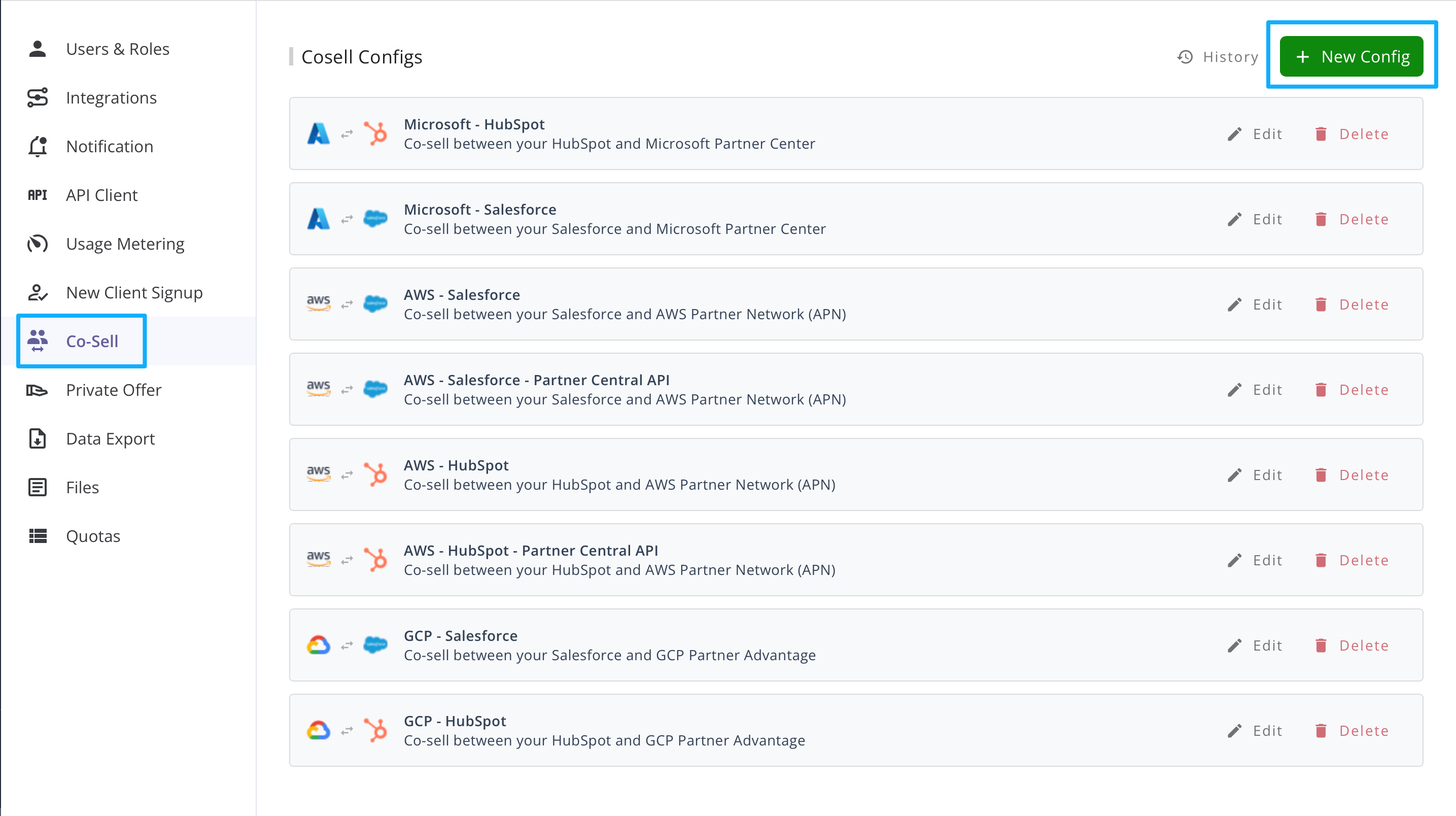
- Open the Co-Sell page and select its Settings tab (open it).
- Select the Configs sub-tab, and click the
New Configbutton in the Cosell Configs header.
-
Choose the CRM Partner and the Cloud Partner to proceed.
Picker Options CRM Partner SALESFORCE,HUBSPOT,DYNAMICS365Cloud Partner AWS,AZURE,GCP, andSUGEREach picker lists only the partners your organization has actually connected, so a CRM or cloud you have not integrated does not appear.
SUGERis offered as a cloud partner only when Partner Management (PRM) is enabled for your organization.
Outbound Setting
Outbound covers data from your CRM to the cloud partner.
Field Mapping
Field mapping configuration is used to control how fields are pre-filled when you create a new referral share from CRM to Cloud Partners. Auto-share uses it too.
It also applies to the Fours app in your CRM.
In the configuration table, the title of each row represents the field name in the Cloud Partner. You can use the search dropdown to select which CRM field should be mapped to it. You can add or remove Cloud Partner fields to customize your own mapping rules.
Each row is labelled with the partner’s field name, with the field’s API path beneath it. On
AWS and Azure configurations the rows are grouped into sections you can collapse — on AWS,
Customer information, Project information, Contacts, Lifecycle & revenue, and Software
revenue & contract terms. Each section heading counts its rows and, when some need fixing, how
many are left to review, for example Contacts (6 · 1 to review). Drag a row by its handle
(Drag to reorder) to move it; on AWS and Azure a row can only move within its own section. GCP
and Fours partner (SUGER) configurations show one list.
Some fields may be marked with an asterisk (*), which means they are required fields and must be filled in before submission.
Use Formula to define complex data-mapping rules, including conditional logic, value conversions, and cross-field mappings, and Picklist to translate a CRM field’s values into the partner’s own values.
See Formulas (Expression Mode) and Picklist Value Mapping for detailed documentation and examples.
For each partner field, choose where its value comes from. Each row offers up to four value-source buttons — Default, Formula, Picklist (only on fields with a fixed list of values) and AI (only on fields that support it). Leave all of them off to map the field directly from the CRM field you pick. Inbound rows work the same way. If you switch a row to another source and back before you save, it comes back as you left it; only the source that is active when you save is kept.
| Value source | Use case | Example |
|---|---|---|
| CRM field (no button pressed) | Links a CRM field 1:1 to a partner field. Best for standard fields like Close Date. | Opportunity.CloseDate → Partner.Target_Close_Date |
| Default Value (Default) | A hard-coded value sent for every referral. Best for information that’s mandatory for the partner but identical across your company — Partner ID, alliances team alias, sales-lead email, listing ID. | Sales_Lead_Email → alliances@company.com |
| Picklist | Maps each value of a CRM field to one of the partner’s values. Best for dropdowns, such as aligning deal stages to partner stages — map every active CRM value to a partner-approved value. See Picklist Value Mapping. | Discovery → Prospecting |
| Formula (Expression Mode) | A dynamic logic engine using Go Templates (text/template) syntax — calculations, concatenations, fallbacks, and cross-field lookups. Build one from a recipe, or write the template yourself. | {{- multiply .Amount 0.8 -}} (net revenue) or {{.Name}} {{.Account.Name}} (unique title) |
| AI Generate (AI) | Describe the value you want in a natural-language prompt and Fours generates it with AI when the referral is shared. You can reference source fields with {{.FieldName}}. Available on five supported AWS ACE fields: Industry Vertical, Partner Primary Need from AWS, Postal Code, Customer Business Problem, and Estimated AWS Monthly Recurring Revenue. | Write a business problem statement based on {{.Description}} |
Items that need attention
Every outbound configuration shows a summary line above its field list that says whether the partner would refuse a referral built from this mapping. When it wouldn’t, the line reads All N required fields ready (or Nothing needs attention when none of the mapped fields is one the partner requires). Otherwise it is headed with the partner and a count — for example AWS still needs 2 fields — and lists every issue, each with a Review link that scrolls to the row. The row itself gets an amber bar beside it and a one-line hint under its controls. Two things are flagged:
| Flagged row | Fix |
|---|---|
| A field the partner requires produces no value, whatever its value source — no CRM field mapped, an empty Default, an empty Formula, or an AI row with no prompt | Enter a value, or map a CRM field |
| A Picklist on a single-select field has value rows, but none of them maps to a value the partner accepts | Map at least one row to a value from the partner’s list |
An optional field is never flagged, whatever state it is in — an empty optional Default or an unfinished optional Formula is left alone. The summary updates as you edit; it is advisory and does not stop you saving. Problems that depend on a particular CRM record, such as a value the partner would reject, show up in Test Mapping instead.
New fields and unsaved changes
On AWS and Azure configurations, a field you add with Add AWS Field (Add Microsoft Field on Azure) waits in a New fields section at the end of the list — Added since the last save. Each moves into its own section when you save. On every outbound configuration, a single-select field you add opens on Picklist.
If you leave the page or reload it with edits you haven’t saved, Fours asks first. The Unsaved changes dialog offers Discard changes or Save; Save is the button already selected, so pressing Enter never throws your edits away, and closing the dialog keeps you on the page. On AWS configurations, switching between Outbound and Inbound with unsaved edits asks the same question. On Azure, GCP and Fours partner configurations, your outbound edits are kept when you switch direction, so only leaving or reloading asks.
Software revenue fields (AWS)
AWS accepts the five software-revenue fields only from organizations whose AWS ACE partner type is ISV Accelerator Program Partner or SaaS Revenue Recognition Program:
| Field | Target |
|---|---|
| Customer Software Value | SoftwareRevenue.Value.Amount |
| Customer Software Value CurrencyCode | SoftwareRevenue.Value.CurrencyCode |
| Procurement Type | SoftwareRevenue.DeliveryModel |
| Contract Start Date | SoftwareRevenue.EffectiveDate |
| Contract End Date | SoftwareRevenue.ExpirationDate |
For any other partner type, or none, a value mapped to these fields never reaches AWS. So on an AWS outbound configuration (from Salesforce, HubSpot, or Dynamics 365) those rows appear read-only under Software revenue fields (read-only), with a note naming your current partner type, and in the add-field list they are disabled with the hint Requires ISV Accelerator or SaaS Revenue Recognition partner type. To use them, set Partner Type on your AWS ACE integration under Settings > Integrations (see AWS Partner Central (ACE)). For an eligible partner type, Fours fills any of the five you leave blank — see Auto-filled / normalized by Fours.
Sync Fields
The Sync Fields configuration controls whether Fours will update an item to Cloud Partners at the next scheduled sync time when a corresponding field value changes in the CRM.
To enable syncing for a specific field, turn on the row’s sync toggle — the circular-arrows icon after the value-source buttons, whose tooltip reads Enable Syncing.
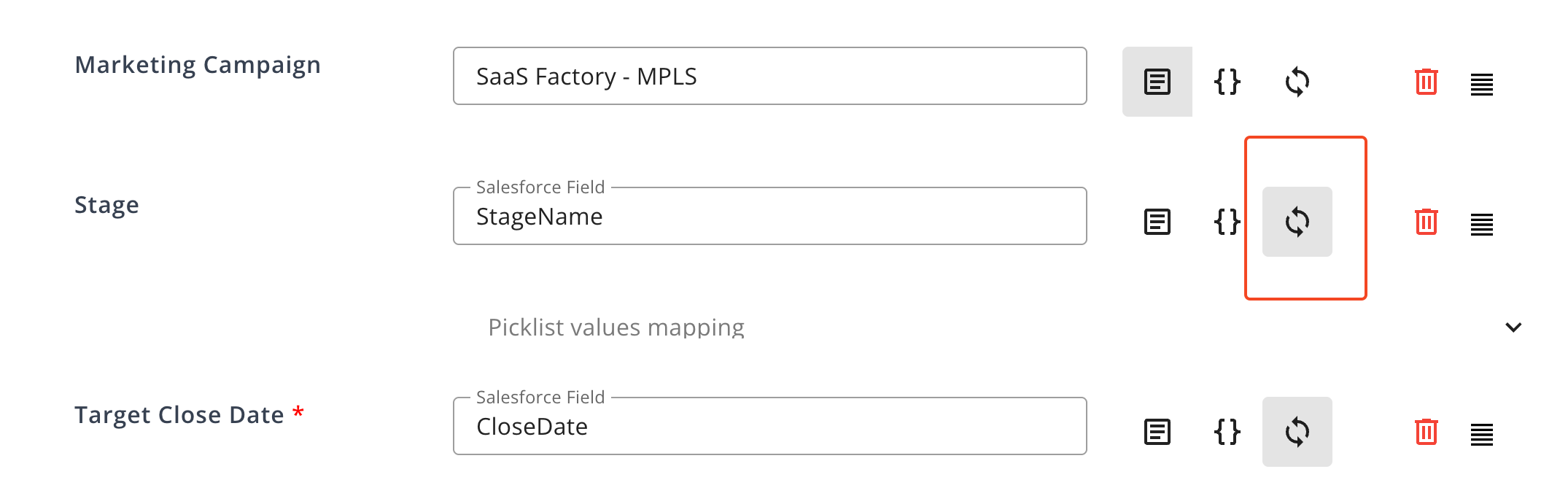
You can configure the following options:
- Conditional sync with Expression Mode: Click Formula on the row to set a conditional sync rule. See Formulas (Expression Mode).
- Picklist values mapping: Click Picklist on the row to define custom value mappings between CRM and Cloud Partner fields. See Picklist Value Mapping.
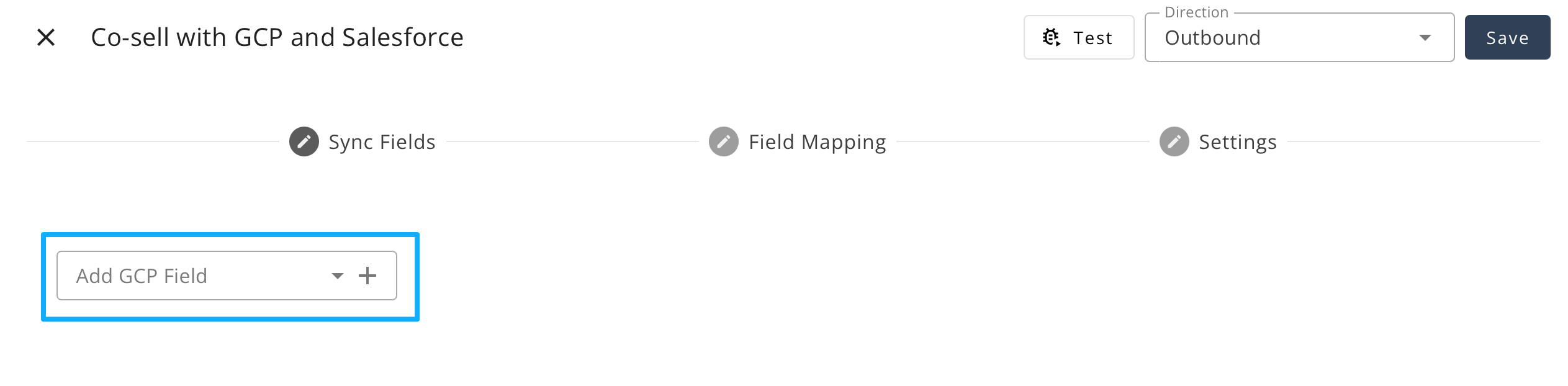
- Add a Cloud Partner field: Scroll to the bottom of the list and open the dropdown named for the partner (Add AWS Field, Add Microsoft Field, Add GCP Field). Search for the field and pick it to add it to the configuration list; see New fields and unsaved changes.
Inbound Setting
Inbound covers data from the cloud partner to your CRM. When a partner sends a referral, Fours writes it into the CRM objects on these tabs, using your mapping. Fours keeps applying the partner’s later changes too. Inbound sync runs for AWS, Azure and GCP.
The Setting tab holds the inbound automations: Auto-Accept, Auto-Delete and Auto-Sync Contacts. See Referral Automations.
Objects Tab
Each object tab, such as Opportunity or Deals, Account or Companies, and Contacts, controls how a referral from the cloud partner is written into that CRM object.
In the configuration table, the title of each row represents the field name in the CRM. You can use the search dropdown to select which Cloud Partner’s field should be mapped to it. You can add or remove CRM fields to customize your own mapping rules.
Each row has the same value-source buttons as an outbound row — Default, Formula and Picklist — and leaving them off maps the CRM field directly from the partner’s field you pick. Picklist is offered on Salesforce picklist and HubSpot dropdown (enumeration) fields, and Formula opens the same Build / Code editor as on outbound rows, built from the partner’s fields rather than your CRM’s. Use them to define complex data-mapping rules, including conditional logic, value conversions, and cross-field mappings.
See Picklist Value Mapping and Formulas (Expression Mode) for detailed documentation and examples.
Mapped values your CRM does not accept
A CRM dropdown field accepts only its own options. While you edit an inbound mapping into Salesforce or HubSpot, for AWS, Azure, or GCP, Fours checks what each field would receive against your CRM’s own field definitions and lists the values it will refuse in a These values may not reach your CRM panel. Each line names the field, the value, and the options the field accepts. It flags:
- a source field mapped straight to a dropdown with no picklist mapping, so the partner’s values are sent as-is;
- a picklist mapping, a Default Value, or an Expression Mode expression with no template fields, that sends a value the field doesn’t have.
The panel is advisory, and you can still save. The usual fix is a Picklist Value Mapping that translates the partner’s values into the field’s own.
When an inbound sync then writes a referral into your CRM, a value the field can’t accept is left out of that write rather than sent. The other mapped fields still land, where before one refused value could void a whole HubSpot write and leave every mapped field on the deal empty. Nothing already on the record is cleared.
| CRM | What Fours checks | What it doesn’t |
|---|---|---|
| HubSpot | Dropdown properties, against the options the property lists. A date property also receives a proper date rather than a raw timestamp. | Properties whose options HubSpot doesn’t list, including Deal Stage, whose values belong to the pipeline. |
| Salesforce | Restricted picklists. An inactive picklist value counts as not accepted. | Unrestricted picklists and text fields, which accept any value. |
Values are matched exactly, with no case folding and no label matching, so translate them with a picklist mapping rather than relying on a near match.
 Salesforce Only – Add Objects
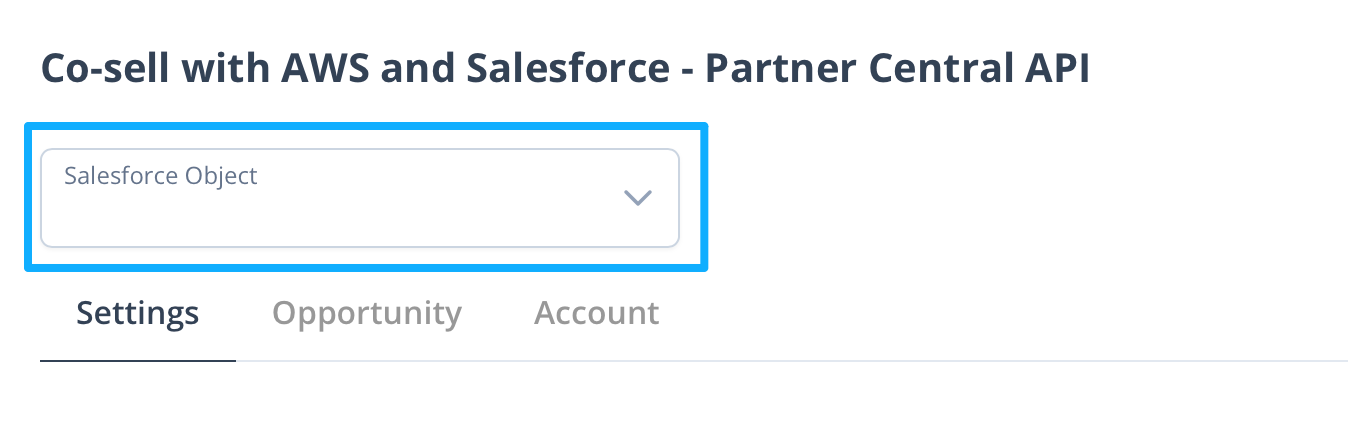
When syncing with Salesforce, you can use this field to search for and add more objects to sync, once the related field mappings have been completed. Mapping to custom Salesforce objects is supported, but typically requires a Solutions Engineering request to scope the trigger logic and data flow correctly. This isn’t available for HubSpot.
CRM-Specific Setup
Salesforce
Before configuring, confirm the Fours Salesforce package is installed and the Integration User is connected in your Fours Console:
- Integration User access: Salesforce must be connected to Fours with the Fours Integrator permission set, and that user needs Read and Edit access to any Salesforce fields you intend to map.
- Widget installation: The Fours Quick Panel must be added to your Opportunity page layout.
When defining outbound field mappings, pay special attention to these Salesforce fields:
- Owner attribution: Map
Owner.Emailso the correct sales rep is credited in the AWS/Azure/GCP portal. - Customer website:
Account.Websiteis used as the primary key for account matching and Auto-Enrich. - Customer location: AWS and Azure require valid country codes. Make sure
Billing.Countryis mapped correctly. - Close date:
CloseDate— partners reject dates in the past or more than two years in the future. - ACE IDs: The
Partner CRM Unique ID(Opportunity ID) is usually mapped by default and doesn’t require manual configuration. - Project details:
Descriptionmaps to “Customer Problem” — the primary field partner managers read.
Fields on related records. In the Salesforce field picker, a lookup field — such as the
opportunity’s account or its primary campaign source — has an arrow. Open it to list the fields of
the record it points to, and pick one of those to map a value such as Account.Website or
Campaign.Name; the picker shows each field’s path under its name. A lookup opens when it points to
a custom or external object, or to one of these standard objects: Account, Campaign, Case, Contact,
Content Document, Content Version, Contract, Lead, Opportunity, Opportunity Contact Role,
Opportunity Product, Order, Price Book, Quote, Record Type, or User. A lookup to any other object,
such as Opportunity History or Product, lists no fields.
 HubSpot
Before configuring, confirm HubSpot is connected and verified under Settings > Integrations, and that the Fours App is added to your HubSpot Deal “Default View” (see Set up the Fours App in HubSpot).
To let Fours record which cloud partners each deal has been shared with, set up a Referral State property. The steps below are the short version; HubSpot → Referral State has the full setup.
In HubSpot — create a property group (if needed):
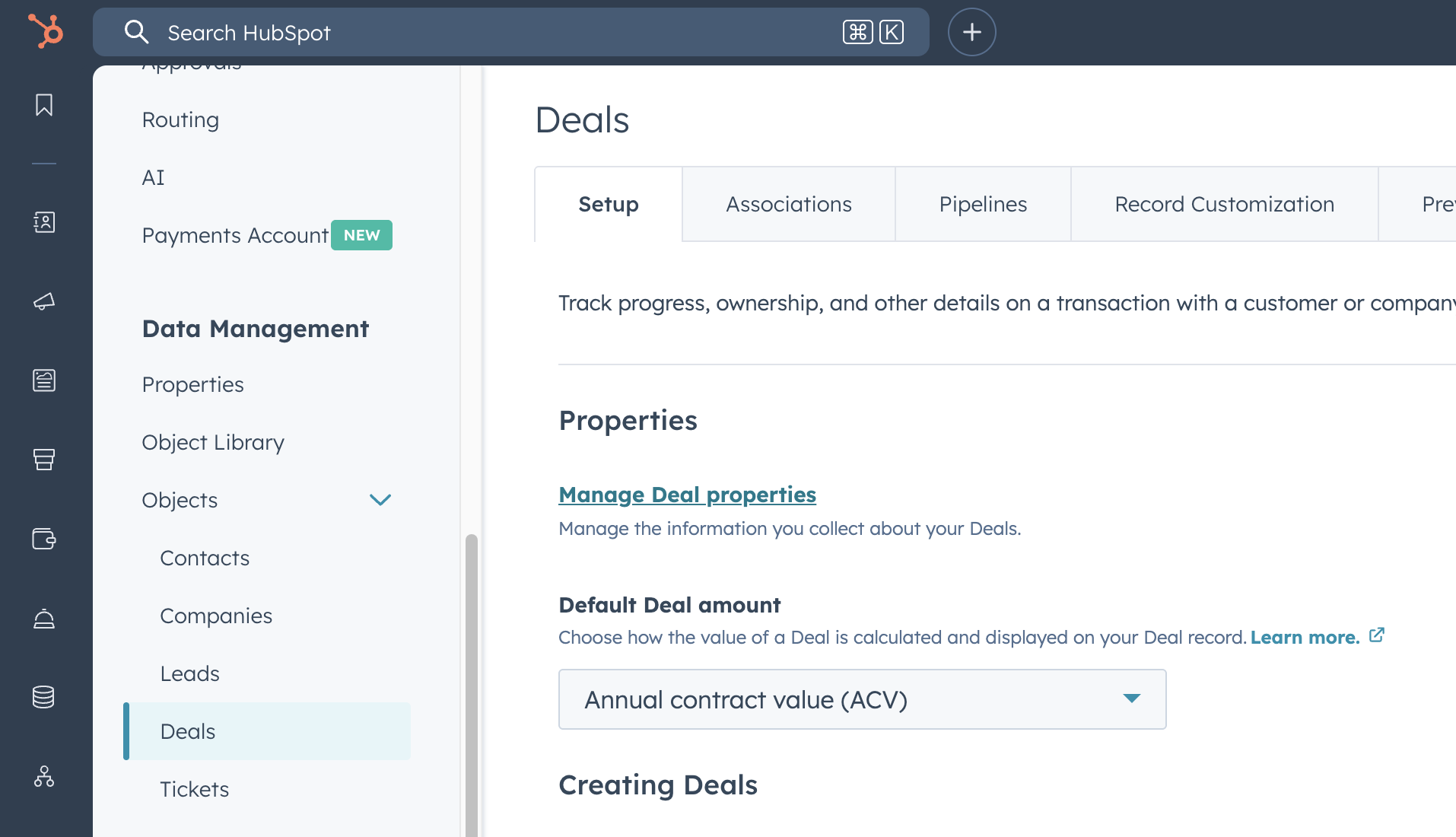
- Go to Settings, then Properties under Data Management.
- Select Deal properties from the object dropdown, then open the Groups tab.
- Reuse an existing group, or click New Group and create one.
In HubSpot — create the property:
- On the Properties tab, click New Property.
- Confirm the object type is Deal, and choose your group.
- Label the property “Referral State” (or any name you prefer).
- Set the field type to Multiple Checkboxes.
- Add at least three options whose internal values are exactly AWS, Azure, and GCP, including case — Verify checks for those three values.
- Click Create.
In the Fours Console — register the property:
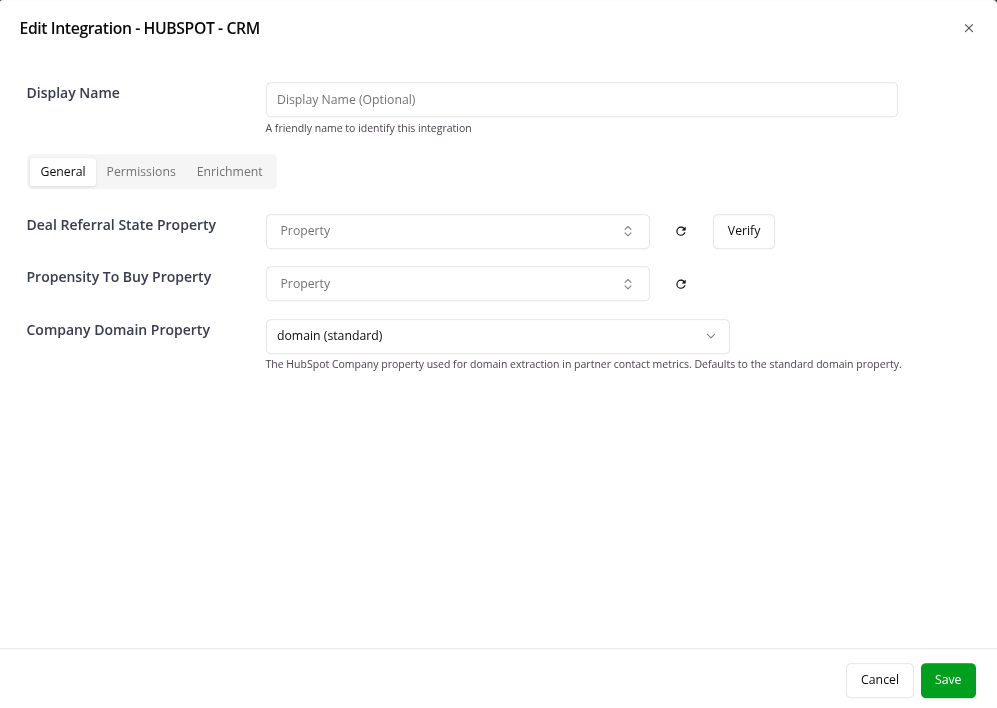
- Go to Settings > Integrations > HubSpot card, and click Edit.
- In the Advanced section, find Deal Referral State Property.
- Enter the property’s Label (not its Internal Name). If it isn’t listed, click the refresh icon to reload it.
- Click Verify, then Save.
- Back on the HubSpot integration, click Sync to populate the referral state on existing deals. This can take several minutes.
Customer contact. The default outbound mappings for AWS, Azure, and GCP fill the referral’s
customer contact from the deal’s contact properties (contacts.firstname, contacts.lastname,
contacts.email, …). A deal can carry several contacts, so Fours reads one. A deal with one
associated company, or none, uses its first contact. When the deal has two or more companies, Fours
reads the first contact on the deal that is associated with the deal’s primary company; if none of
the deal’s contacts is, Fours leaves the customer contact empty — associate the customer’s contact
with the deal’s primary company in HubSpot to fill it. See
Which deal contact becomes the customer contact.
Test Field Mapping
Use the  button to verify whether your field mapping configuration works as expected.
Test Mapping is available on the Outbound field-mapping step only. There is no equivalent test on the Inbound tabs, though they do flag mapped values your CRM will refuse while you edit — see Mapped values your CRM does not accept. To check anything else about inbound behaviour, watch what an actual inbound referral writes into your CRM.
Test Mapping opens the Test mapping dialog, which shows the referral the cloud partner
would receive for one of your CRM records — AWS, Microsoft, Google Cloud, or a Fours partner
(SUGER). Test Mapping is restricted to organization admins, because it runs live CRM queries
and your configuration’s code; anyone else sees a message saying so.
- Pick a record under Test with. The dialog opens on your most recent record, and the list holds your latest ones; type to search it. With Salesforce, the search also queries Salesforce by name, so you can reach older opportunities.
- Fours reads the record from your CRM, applies your current mapping, and checks the result the way the partner would. A mapping with AI fields can take several tens of seconds.
- Read the result. Preview lays it out as the partner’s own share form — for AWS, the sections of the Share to AWS form in order — in one scrolling column, with the form’s step rail beside it following your place; a step is checked when its section has nothing to fix. Fields your mapping fills that aren’t on the share form come last, under Not on the Share to AWS form (or the Microsoft or GCP form). Each value appears in a read-only box, and a contact list shows one box per contact detail. JSON switches to the raw source and target data.
A summary line at the top counts what needs fixing, for example 1 would be rejected · 2 would be rejected unless auto-fixed · 1 failed to map · 1 required and empty, followed by a Go to first problem link, or reads Nothing would be rejected or dropped. Each section heading carries its own N to review count. Under every field the preview names any problem, then where the value came from — a CRM field (from …), a Default value, Generated by AI, or a formula, with value mapping added when a picklist mapping applies. An empty value shows as —. When there is a specific correction for a problem, the line also says what to change, worded for the row’s value source — for example, to switch the field to Picklist and map the CRM value to one the partner accepts.
| Problem line | Meaning |
|---|---|
| Rejected | The value is rejected as mapped, and the automatic fix Fours applies when you share will not repair it. Today this is AWS’s Estimated AWS Monthly Recurring Revenue, whose line reads AWS needs a monthly revenue above 0. — see Estimated AWS Monthly Revenue |
| Rejected unless auto-fixed | The partner’s validator rejects the value as mapped |
| Dropped | The partner’s validator would silently remove or cut the value, so it doesn’t arrive as mapped |
| Not mapped | The mapping for this field failed; the line gives the reason |
| Required | The partner requires the field, and it is empty |
| Reformatted | Informational: the value is rewritten into an equivalent form — nothing is lost |
| Auto-fixed | Informational: the partner’s strict check refuses the mapped value, but the automatic fix Fours applies when you share repairs it, so the line names the value that is sent instead |
| Not sent | Informational: the value is removed because of another field on the referral, which the line names — your mapping is right |
| Sent on update | Informational: the partner’s create request has no place for the field, so Fours sends it with the next update instead. Today this is Microsoft’s Sales Stage, which must be one of Microsoft’s stages and cannot move to an earlier stage except Lost |
The four informational lines are not counted as problems. Problems that belong to no single field, such as a failure of the whole configuration, appear under Other problems.
The preview is stricter than a real share. When you share, Fours tries to fix rejected values
first — AWS and GCP referrals get an automatic AI fix, and Microsoft referrals have some invalid
values corrected — so a field marked Rejected unless auto-fixed may still go through. Fix the
mapping anyway rather than rely on the repair. A field marked Rejected will not go through: the
automatic fix never supplies a monthly revenue, because it can’t see your CRM deal and any amount it
wrote would be a guess. A Fours partner (SUGER) configuration has no
partner validator, so its preview reports only mapping failures and empty required fields.
Picklist Value Mapping
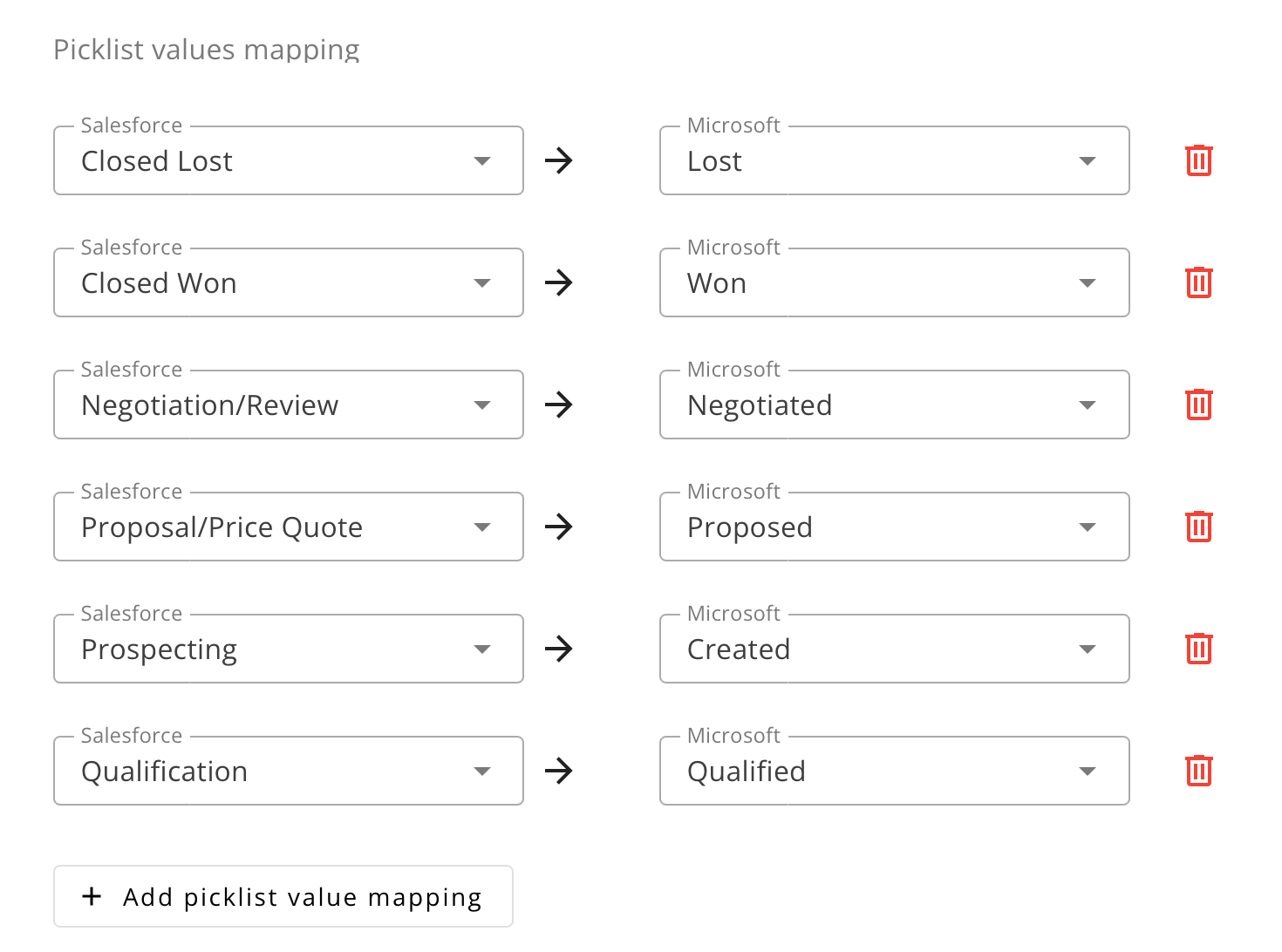
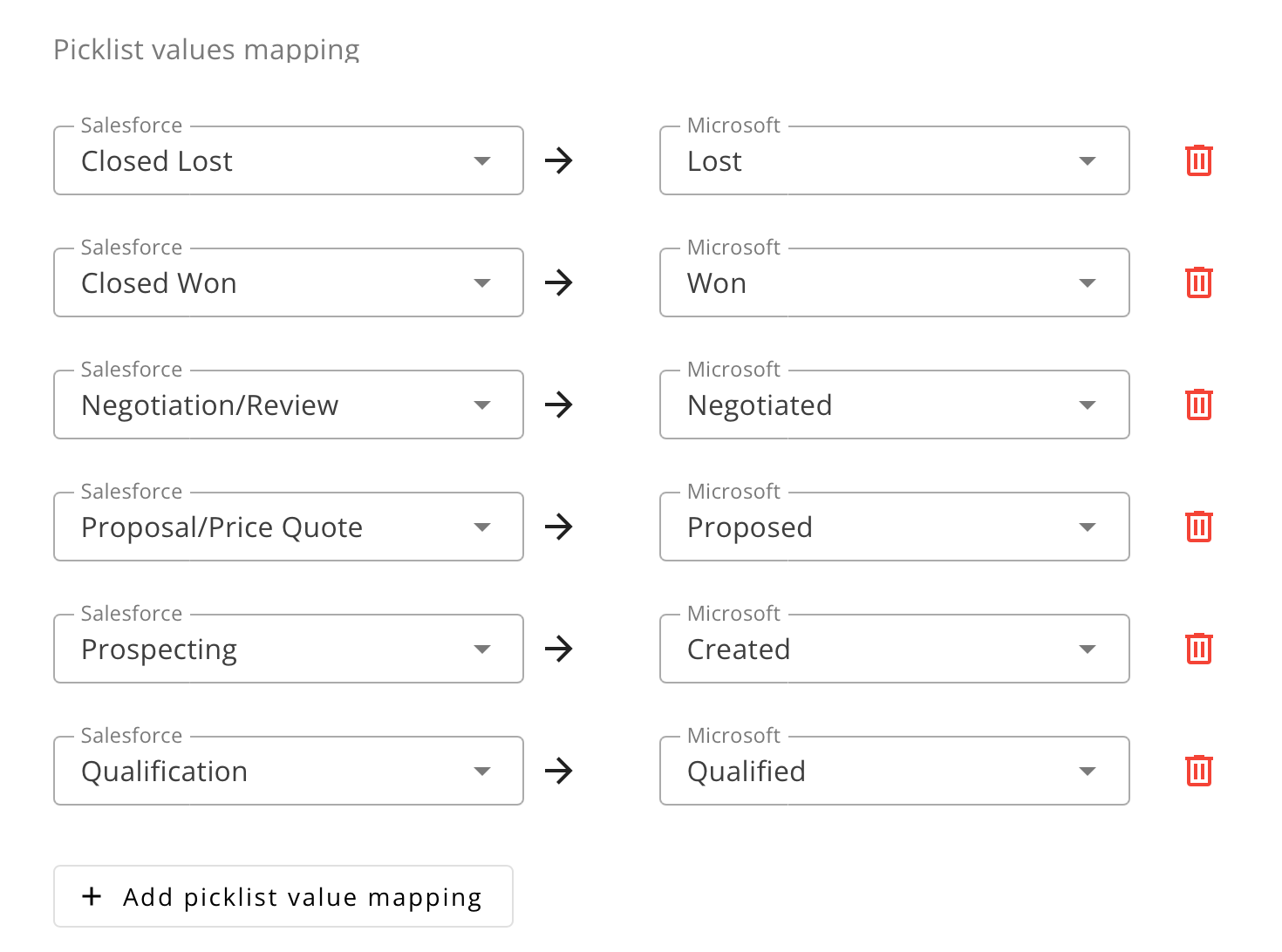
Some fields support Picklist Value Mapping, which allows you to define value correspondences between your CRM and Cloud Partner Platform.
This feature is used to create simple one-to-one mappings between different picklist values.
For example, the image above shows a Stage Name mapping where Salesforce stages are mapped to their corresponding Microsoft stages.
In other fields, you may need to enter values manually instead of selecting them from dropdown lists.
Users can add or remove mapping rows as needed to customize how each value aligns between the CRM and Cloud Partner.
Where to find it. Click Picklist on the row — on outbound and inbound rows alike. Pick the source field under Map values from, then map each of its values. Picklist is offered only when the target field has a fixed list of values. On a single-select field, a mapping row whose target isn’t on the field’s list gets a line saying the partner doesn’t accept that value, so a referral sending it is rejected; pick a value from the list instead.
Prevent a duplicate Closed Won
A stage-mapping row can carry an optional Validation rule that runs before the stage transition is applied. Today one rule is offered: Prevent duplicate Closed Won.
It guards against a deal being counted as won twice — once in one cloud’s co-sell portal, and again in another — when the same CRM opportunity has already transacted elsewhere.
Where to set it. In the outbound configuration for AWS, open the stage picklist mapping
(Picklist on the stage row) and find the row whose target stage is Launched (AWS’s closed-won equivalent). A
Validation rule dropdown appears next to that row, defaulting to None. Set it to
Prevent duplicate Closed Won. The dropdown is offered only on that row: it does not appear on
other stage rows, on inbound configurations, or on clouds that do not support the rule.
What it does. When a referral is about to move into the guarded stage, Fours looks for an accepted offer in a different cloud — AWS, Azure, or GCP — attached to the same CRM record as this referral. If it finds one, the stage update is skipped.
Three things are worth knowing about that skip:
- It is silent. Nothing is persisted, no outbound sync runs, and no error is returned — the request looks like it succeeded. The referral simply stays in its previous stage.
- It needs a CRM link. A referral not linked to a Salesforce opportunity, HubSpot deal, or Dynamics 365 opportunity has no record to match on, so the rule cannot run and the update proceeds normally.
- It is configuration-only. There is no row action or picklist entry for it in the referral list — you enable it here and observe it there.
Because the skip is silent, the referral detail page raises a Cross Cloud Conflict banner naming the conflicting offer. That banner is how you find out. See Status & Stage for how to read and resolve it.
Formulas (Expression Mode)
A formula sets a field’s value with logic instead of a straight copy. Use one for conditional rules, value transforms, fallbacks, simple calculations and cross-field lookups. Formulas work on outbound and inbound rows.
Formulas are also called Expression Mode. They use Go templates (text/template).
To translate a field’s values one for one, use a Picklist mapping instead.
Open the formula editor
Click Formula on the row. The editor has two tabs:
- Build: put the formula together from a recipe, without writing a template.
- Code: write the Go template yourself. Insert Salesforce field (named for your CRM) adds a field reference for you.
On an inbound row, the formula reads the partner’s fields instead of your CRM’s.
Build a formula from a recipe
On the Build tab, choose a Recipe:
| Recipe | What it does |
|---|---|
| Transform a field | Take a CRM field as it is, multiplied by, divided by, plus or minus a number, or with text before or with text after it. Add field adds another part. Join with sets what goes between parts: a space, a comma, a dash or nothing. |
| IF / THEN rules | IF a field equals, does not equal, contains, is greater than, is less than or is not empty, Then send a value. Add rule adds an ELSE IF. Otherwise send sets the value when no rule matches. |
Two limits stop a formula from sending something the partner can’t use:
- Single-select fields. A new formula on a field that takes one value from the partner’s list uses IF / THEN rules only. Then send and Otherwise send pick from that list.
- Arithmetic needs a number. On a Salesforce field, multiplied by, divided by, plus and minus appear only when the field holds a number (currency, percent or number). Pick another field type, and the step goes back to as it is.
Both recipes produce the same kind of Go template you would write on Code.
Hand-written code pauses the builder. If you wrote a formula on Code, Build says so and offers Use the builder. It first asks Clear the hand-written code? Choose Keep the code to leave it, or Clear code and use builder to replace it. Opening a configuration never rewrites a saved formula.
Write a formula in code
Common uses:
- Conditional mapping (if / else)
- A default value when a field is empty
- String and number transforms, and simple calculations
- Reading one field to fill another
| Example | Template |
|---|---|
| Net revenue | {{- multiply .Amount 0.8 -}} |
| Unique title | {{.Name}} {{.Account.Name}} |
| Currency conversion | Multiply the CRM amount by a rate, the same way as net revenue. |
Set a default country when empty. This writes the company country if there is one. Otherwise it writes USA.
{{- if .companies.country -}}
  {{ .companies.country }}
{{- else -}}
  USA
{{- end -}}
Formulas on Sync Fields
On the Sync Fields step, a formula sets a conditional sync rule for the row.
Check a formula
- Invalid template syntax makes the sync fail for that field.
- Use Test Mapping to see the output before you save.
- Make sure each path you reference, such as
.companies.country, exists in the payload. - A hand-written template can only be edited on Code. Using the builder on that field replaces it.
- Each formula applies to one field. Other fields keep their own mapping.
| Error | Cause | Fix |
|---|---|---|
| “unsupported partner: X” | Wrong capitalization of a partner name | Use all caps: AWS, AZURE, GCP. |
| Field highlighted in red on the share page | The value doesn’t match the partner’s data type, such as text in a date field | Use a formula to reformat it, or map a source field of the right type. |
Troubleshooting
| Issue | Cause | Fix |
|---|---|---|
| Can’t create a second config for the same partner | Only one active configuration is allowed per cloud partner | Edit the existing config, or deactivate it first. |
| “This configuration was modified by another user…” when saving | Someone else saved the same configuration first | Reload, reapply your edit and save again. To avoid it, agree who owns a configuration before a joint editing session. |
| “This field is already synced by another filler” | Two field fillers claim sync on the same partner field | Turn sync off on one of them. |
| Field empty on the share page | The mapped CRM field is blank on that record | Fill it in the CRM and reload, or add a Default value. |
| Sync failed after a stage change | A CRM stage has no picklist mapping | Map every active CRM stage on the Stage row. |
| Referral status not updating in HubSpot | The Referral State property Label in Fours doesn’t match HubSpot | Re-enter the property’s Label (not its Internal Name) under Integrations › HubSpot › Advanced › Deal Referral State Property. |
| One mapped field stays empty after an inbound sync | The partner’s value isn’t one the CRM field accepts | Check the These values may not reach your CRM panel, then add a picklist mapping. |
| “Couldn’t load HubSpot fields” or “Couldn’t load Salesforce fields” on an AWS configuration | Fours can’t read your CRM’s field list. The connection usually needs reauthorizing. | Reauthorize the CRM under Settings › Integrations, then reopen the configuration. Until then, the rest of the mapping still shows but the CRM field pickers are empty. Save stays disabled, so the incomplete form can’t overwrite your mapping. |
| “Couldn’t load this configuration” or “Couldn’t load this field mapping”, and Save is disabled | The saved mapping didn’t load, so the form on screen isn’t your real mapping | Reload the page. Save stays disabled so an empty form can’t overwrite the mapping you saved. |
For formula errors, see Formulas (Expression Mode). For automation problems, see Referral Automations. For failed referrals, see Status & Stage.
FAQ
What happens if I delete a configuration? It is deleted at once, with its mapping logic and access tokens. You can’t recover it.
How do I handle different field names in different CRMs? A configuration pairs one CRM with one cloud partner. Define the mapping for each pair.
Can I map from custom Salesforce objects? Yes, but it usually needs a Solutions Engineering request to scope the trigger logic. It isn’t available for HubSpot.
Do Fours roles inherit from Salesforce or HubSpot? No. Fours roles are set in the console under Settings › Users & Roles.
Spotted something wrong or out of date on this page? Tell us and we'll correct it.