Refunds and Cancellations
AWS Marketplace now offers sellers a streamlined self-service process for refunds and agreement cancellations, reducing the time and effort required to process these requests. This new capability eliminates the need to file support tickets, and gives sellers full visibility into the latest status of each request.
Overview
With this launch, sellers can:
- Request refunds or cancellations directly from the Entitlements page in the Fours Console
- Pre-populated requests — Refund and cancellation requests are automatically pre-populated with agreement and invoice data
- Track every request from submission through completion
Seller Self-Service Refunds
Sellers can now process refunds directly without contacting AWS support.
How It Works
-
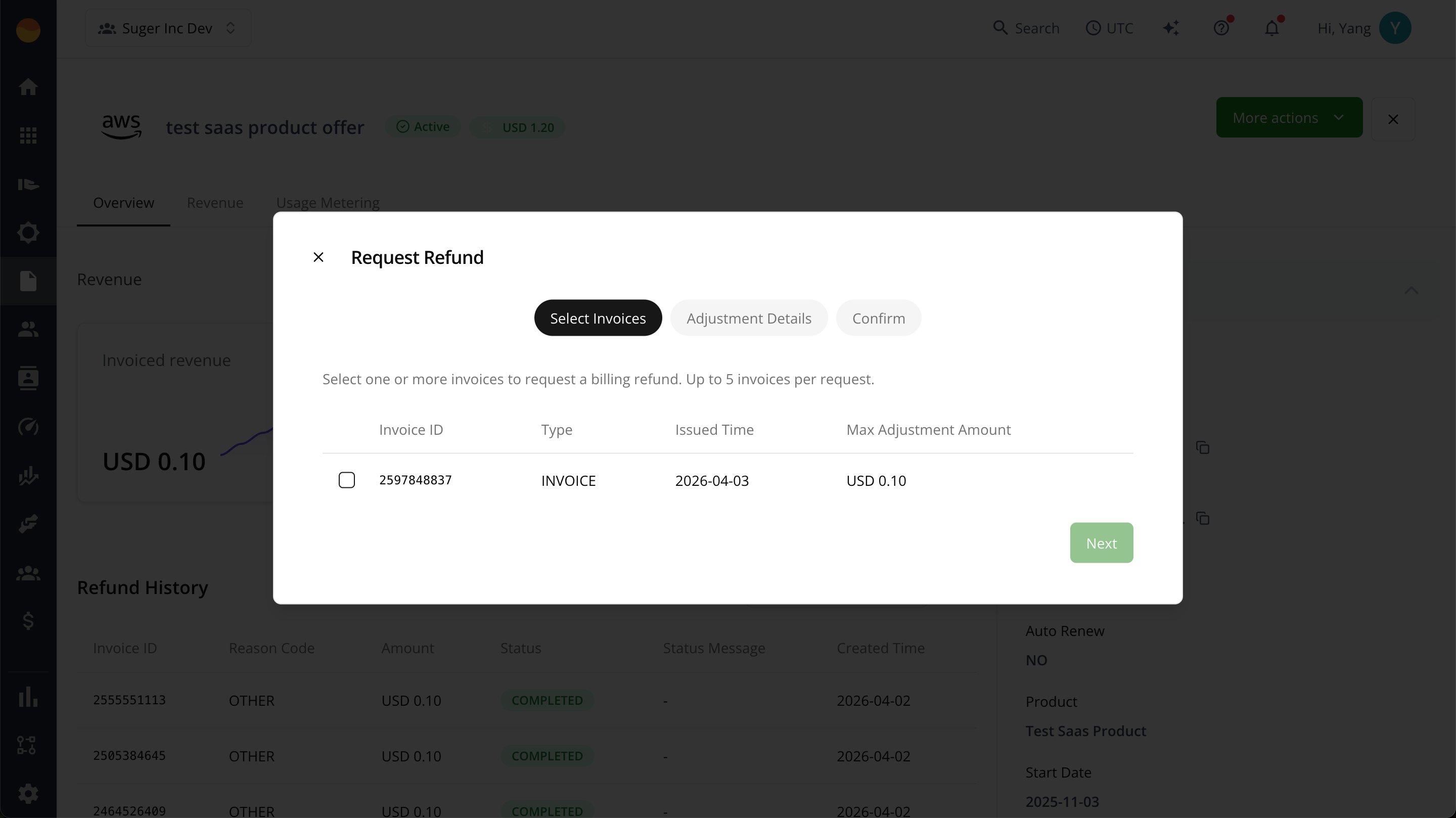
Submit refund request — Sellers request refunds from the Entitlements page in the Fours Console
-
Automatic processing — Billing adjustments are processed automatically
-
Flexible options — Sellers can:
- Refund charges on paid invoices
- Reduce outstanding balances on unpaid invoices
Invoices you must refund in the AWS console
Some invoices cannot be refunded through Fours at all, and Fours tells you before you try rather than after AWS rejects the request.
For invoices issued in jurisdictions where AWS applies KYC rules — most commonly those invoiced by Amazon Web Services EMEA SARL — AWS requires the refund to be submitted by a KYC-verified user with MFA. Fours submits through an assumed integration role, which by design can never be a verified human user, so those refunds have to be made by a person in the AWS Marketplace console.
In the Billing Adjustment dialog, such an invoice is listed like any other, but its checkbox is disabled and the row says why: “Issued by AWS EMEA SARL — AWS requires a KYC-verified user to adjust it.”, followed by a Must be adjusted in AWS ↗ link. If every invoice on the billing term is restricted, the dialog title reads Billing Adjustment — KYC required and the same explanation appears above the table with a Complete adjustment in AWS Partner Central ↗ link, so you know immediately that this term cannot be adjusted from Fours.
Each of these links opens the agreements list of the AWS Marketplace Management Portal in a new tab. It is an ordinary link — Fours does not sign you in — so sign in as your KYC-verified AWS user, open the agreement, and make the adjustment there.
A small number of other jurisdictions carry the same requirement without being flagged in advance. For those, Fours submits the request, and when AWS refuses it for this reason the request fails with: “This invoice can only be adjusted by a KYC-verified user with MFA. Please submit the billing adjustment in the AWS Marketplace console.” The entitlement’s Adjustment History table shows each request’s full Status Message, and when AWS refused a request for KYC or MFA reasons, the row adds the same explanation and Must be adjusted in AWS ↗ link. You can also use the AWS refund form below.
Agreement Cancellations
Sellers can now submit cancellation requests directly.
How It Works
-
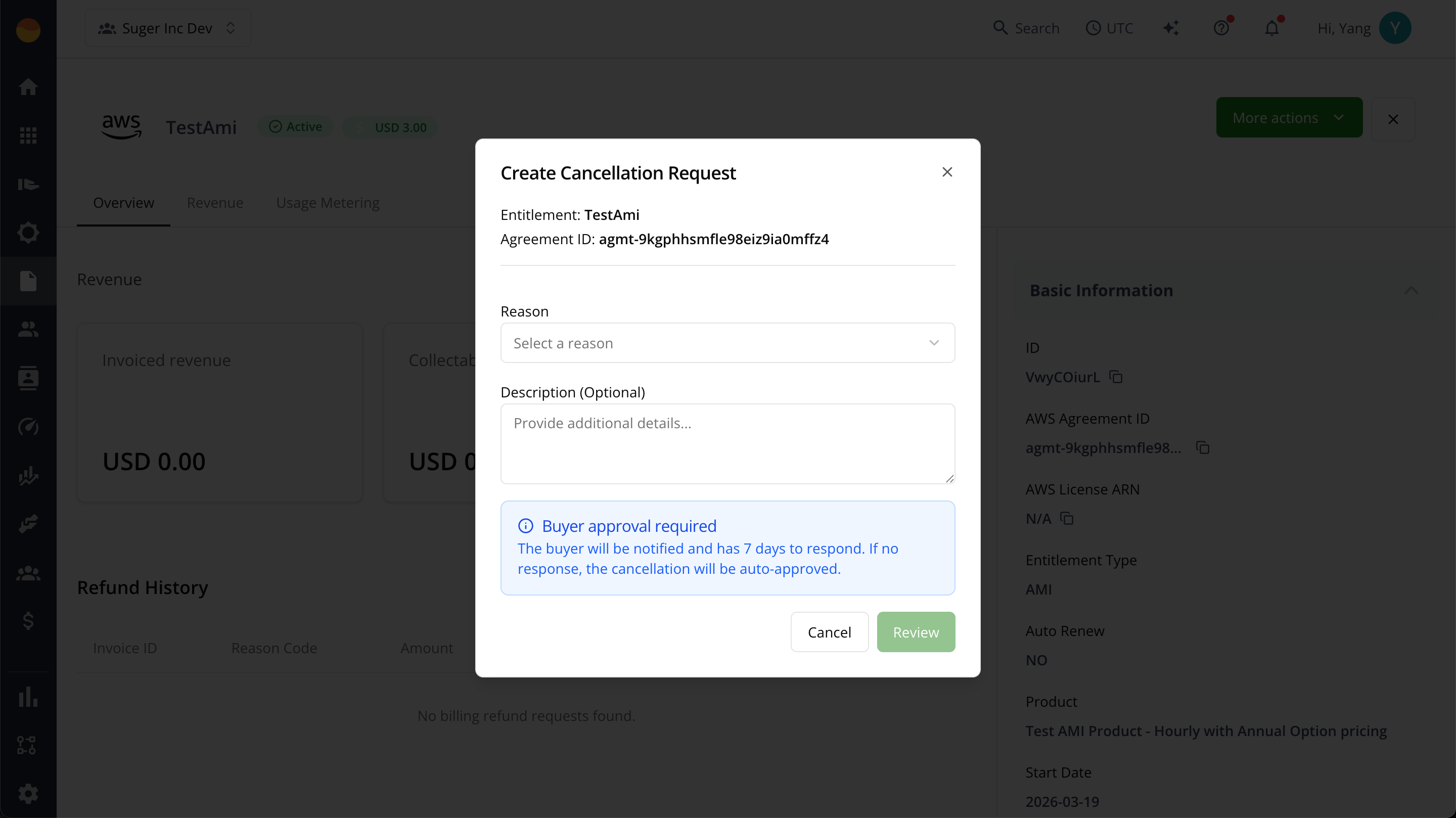
Submit cancellation request — Seller submits a cancellation request from the Entitlements page
-
Buyer notification — The buyer receives a notification and has seven (7) days to respond
-
Auto-proceed — If there is no response within 7 days, the cancellation proceeds automatically
Submit a Refund or Cancellation via the AWS Refund Form
If you cannot use the self-service flow above, refunds and contract cancellations can also be handled by the AWS Customer Service team through the AWS refund/cancellation form.
As the seller (the ISV for a standard private offer, or the channel partner for a CPPO), you initiate the refund and/or contract cancellation request via the AWS refund/cancellation form. A walkthrough video covers the entire process.
Enter the following details on the form:
- Buyer account ID — Found in the offer detail or on the Billed Revenue Dashboard. This must be the subscriber account ID.
- Seller account ID — The seller’s AWS account ID used to create the private offer.
- Product ID — Found in the offer detail or on the Billed Revenue Dashboard (Legacy Product ID column).
- Billing date — Found in the offer detail or on the Billed Revenue Dashboard (Usage Begin Period column).
- Refund amount — If a refund is not required, set this to $0.
- Additional details — For a contract cancellation, include text such as
Please cancel account X's subscription to offer-X. For a refund, specifying the buyer’s AWS invoice ID here helps Customer Support (for example,This refund targets invoice ID 123) — it is helpful but not mandatory.
Related Documentation
Spotted something wrong or out of date on this page? Tell us and we'll correct it.