OpenAI
Connect your own OpenAI API key so Fours’ AI features run on your OpenAI account.
Overview
By integrating your OpenAI account with Fours, you can utilize your own OpenAI API key. This allows you to access certain AI-powered features within Fours, with billing for API usage handled directly by OpenAI. For how Fours meters AI requests that run on your own key, see What is metered.
Org-Level vs User-Level
Fours supports two levels of OpenAI integration:
- Org-Level: Uses OpenAI API key for org-wide access. Suitable for GPT model access across your organization. API usage is billed to the organization.
- User-Level: Either your personal OpenAI API key, or a Codex sign-in for personal workspace access. Suitable for individual developers who want AI features to run on their own OpenAI account.
Create Integration
- Navigate to the Fours Console Integration page.
- Find the OpenAI integration and click the
Connectbutton. - In the dialog that appears, provide the following information:
- API Key: Your OpenAI API key for accessing GPT models.
- Organization ID (Optional): Your OpenAI organization ID, if you belong to multiple organizations.
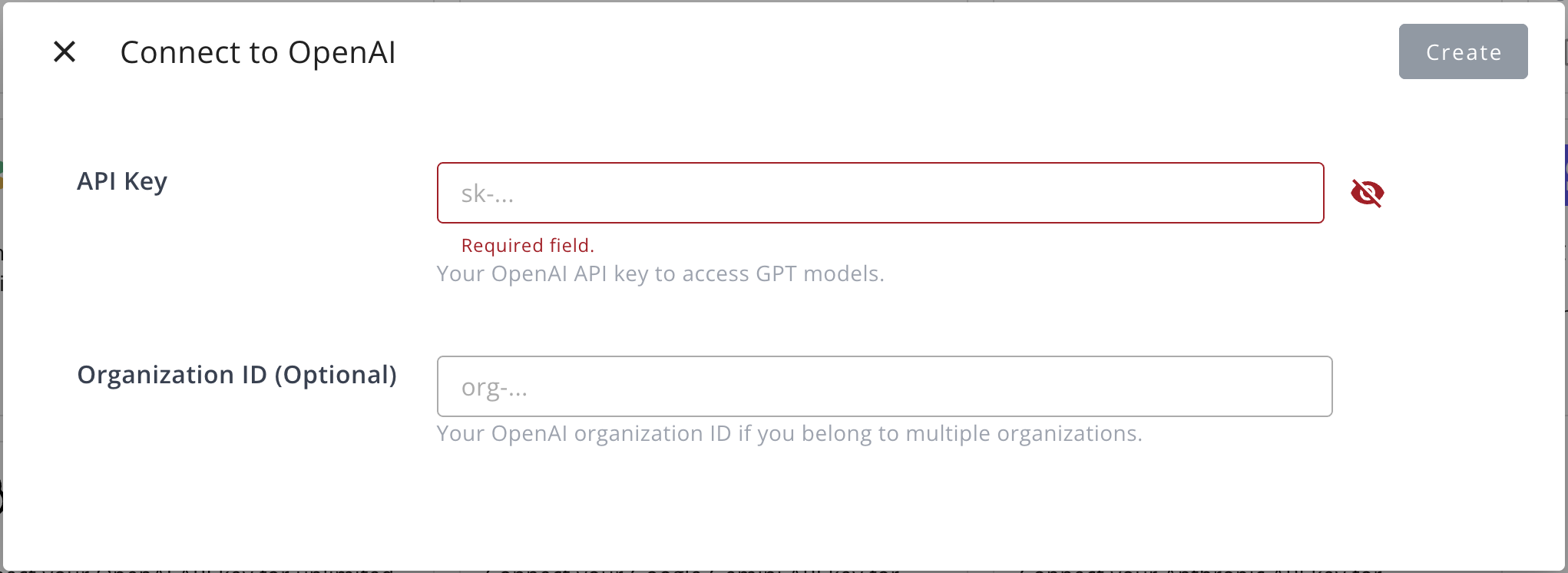
Edit Integration
You can edit the existing integration to update the following field:
- Organization ID (Optional): Your OpenAI organization ID.
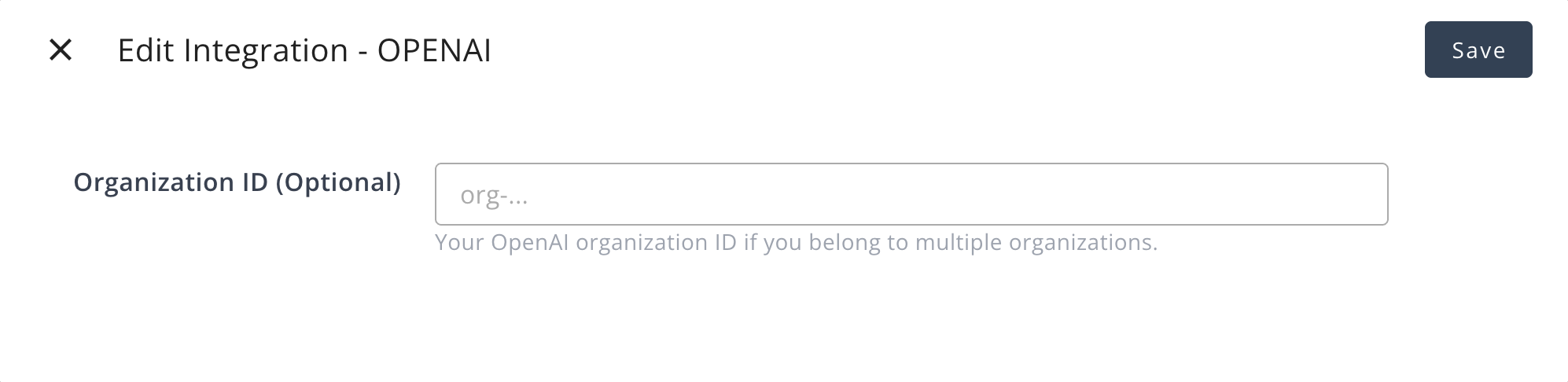
Editing the API key is not supported. To change the API key, you must delete the current integration and create a new one.
Delete Integration
You can delete the OpenAI integration at any time. Please be aware that this action is irreversible and will permanently remove the integration credentials.
Create User Integration (API key)
Use this when you have an OpenAI API key of your own.
- Find the OpenAI card in the User Integrations section and click
Connect Now. - Enter your personal OpenAI API key.
- Return to Fours to confirm connection.
Create User Integration (Codex)
Use user-level integration when you want to use Codex for your personal workspace. Codex connects with a device code: Fours shows a code, and you enter it on OpenAI’s verification page.
- Find the Codex card in the User Integrations section and click
Connect Now. - The dialog shows a device code. Copy it (the copy button sits beside it), then click Open verification page.
- Sign in to OpenAI if prompted, and enter the code there.
- Back in Fours, the dialog keeps checking (Waiting for authorization…) and reports that Codex is connected once you finish.
Spotted something wrong or out of date on this page? Tell us and we'll correct it.