Google Workspace SSO
Sign in with Google Workspace, and let three Google groups decide who is in your Fours organization.
Overview
A Google Workspace SSO connection lets your employees sign in to Fours with their Google Workspace account. Turning on Directory Sync for the connection goes further: your Google directory decides who belongs to your Fours organization and with which role, so you manage access in Google Workspace instead of inviting people one by one.
Supported features:
- Single sign-on with Google Workspace accounts, through a dedicated login link for your organization.
- Directory Sync, which makes your organization’s members follow three Google groups:
- Add members: a direct member of one of the three Google groups gets access without an invitation.
- Change roles: moving someone to another of the groups changes their Fours role.
- Remove members: someone who leaves all three groups, or is suspended or deleted in Google Workspace, loses access.
Google Workspace does not push changes to Fours. Fours reads your directory on a schedule instead:
A change you make in Google Workspace therefore reaches Fours within about an hour and a half: up to 30 minutes for the directory read, then up to an hour for Fours to apply it. To apply a change sooner, click Sync now in the Directory Sync panel: Fours applies group membership a few minutes after that read finishes. Once applied, a role change or a removal takes effect without the member signing out.
Roles come from three Google groups
Create these groups in Google Workspace with exactly these names (capitalization does not matter):
| Google group | Fours role |
|---|---|
Fours Admins | Admin |
Fours Editors | Editor |
Fours Viewers | Viewer |
- Highest role wins. Someone in more than one of the groups gets the highest of their roles.
- Add people directly. Only direct members count. A group nested inside one of them is not read, so its members get no access.
- Primary domain only. Only accounts whose primary email address is on the domain you entered for the connection are added. Users on secondary domains or domain aliases are not.
Members Directory Sync manages
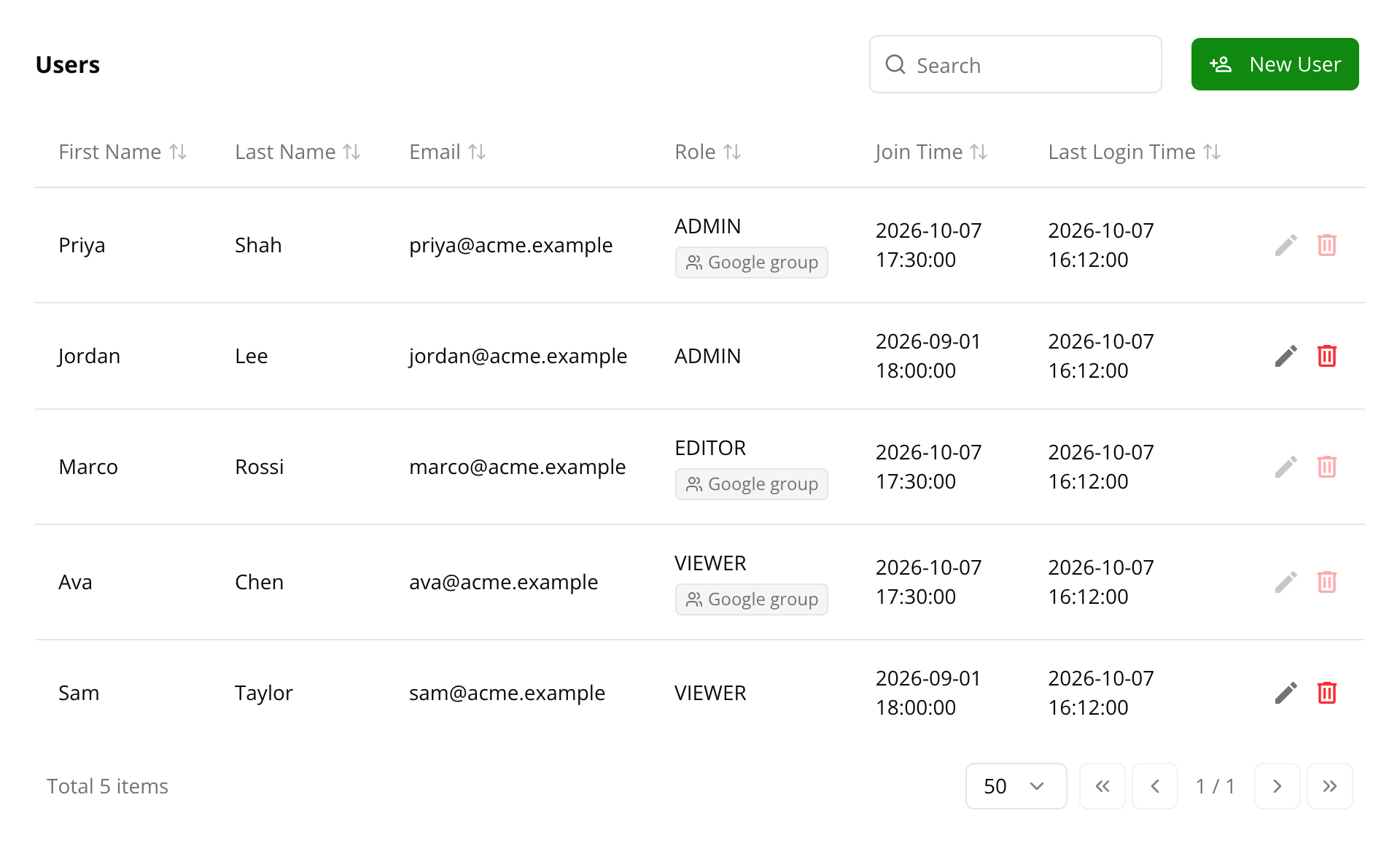
A member added or adopted by Directory Sync shows a Google group badge under their role in Settings > Users & Roles; hover over it to see which group manages them. Their role and their membership come from Google Workspace, so the edit and remove buttons are turned off for them in Fours: change their group membership in Google Workspace instead.
Members you invited yourself are left alone — unless they are also in one of the groups. Directory Sync then takes them over: they get the group’s role, even if it is lower than their current one, and are managed from then on, including removal when they leave the groups.
Configuration Steps
Step 1: Create the Google OAuth client
The connection signs your employees in through an OAuth client that you own. In the Google Cloud project that will own it:
- Enable the Admin SDK API. Directory Sync reads your users and groups through it.
- On the OAuth consent screen, set the user type to Internal.
- Create an OAuth client ID of type Web application, and note its Client ID and Client Secret. You add its redirect URIs in Step 4.
The Set up SSO dialog in Step 3 lists the same steps under Using Google Workspace? Prepare an OAuth client first, together with the JavaScript origins and redirect URIs to register, so you can also register them on the OAuth client right away.
Step 2: Create the three groups
In Google Workspace, create the groups Fours Admins, Fours Editors and Fours Viewers, and add people to them directly.
Step 3: Create the SSO connection
-
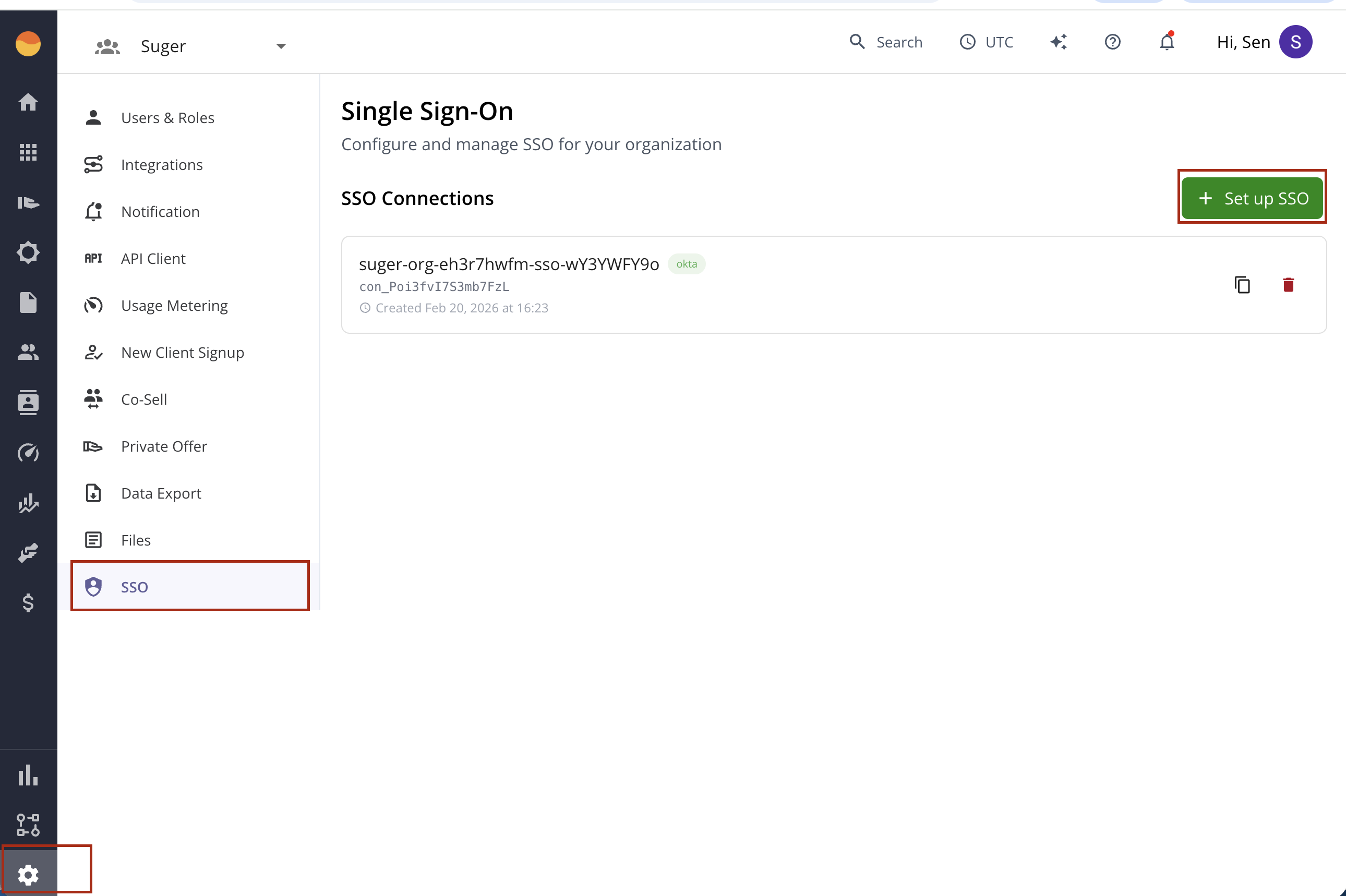
In the Fours console, go to Settings > SSO and click Set up SSO.
-
Optionally enter a Connection Name, then click Continue. Fours opens the SSO setup wizard in a new tab.
-
Choose Google Workspace (OIDC), then enter your Google Workspace domain and the Client ID and Client Secret from Step 1.
-
Test the connection with a Google Workspace account and enable it.
Back in Settings > SSO, the connection now appears with a Directory Sync button.
Step 4: Turn on Directory Sync
-
On the connection, click Directory Sync to open its panel.
-
Register the URLs the panel lists on the OAuth client from Step 1 — all of the Authorized JavaScript origins and all of the Authorized redirect URIs. Each has a copy button. After you enable Directory Sync, the same list stays available under Google OAuth client settings.
-
Click Enable Directory Sync.
-
A Google Workspace super admin clicks Grant admin consent, signs in with their super admin account and clicks Allow. This gives read-only access to your users and groups. The panel shows Admin consent granted once it is done.
-
Click Sync now to read the directory for the first time.
After you click Sync now, the panel says Directory Sync is active. Once the first read finishes, the panel lists the three groups with their member counts (all direct members of each group, so the count can be higher than the number of Fours members). From now on the directory is read automatically about every 30 minutes.
Step 5: Share the login link
Give your employees the Employee login link shown at the bottom of the Directory Sync panel. The people in the groups become members of your organization a few minutes after the first sync finishes — before they ever sign in.
What happens when someone leaves
For members Directory Sync manages:
| In Google Workspace | In Fours |
|---|---|
| Removed from all three groups | Removed from your organization |
| Deleted | Removed from your organization |
| Moved to another of the groups | Their role changes |
A suspended account is treated differently: it is removed from your organization — and from any other Fours organization it belongs to — even if you invited the person yourself. If the account is reactivated and is still in one of the groups, Directory Sync adds it back. Memberships the groups did not manage are not restored.
The changes in the table reach Fours within about an hour and a half, or a few minutes after you click Sync now — and so does the removal of a suspended account that Directory Sync manages. The rest of a suspension — removing the account from any other Fours organization it belongs to, and from memberships you invited yourself — is done by an hourly cleanup, also within about an hour and a half, which Sync now does not start. Once someone is removed, their existing session no longer works in your organization, and signing in again does not bring them back.
Disable Directory Sync
Once Directory Sync is active, its panel has a Disable button: click it, then Disable Directory Sync to confirm. Fours stops reading your Google Workspace directory. Everyone keeps their access and role, and becomes an ordinary member you manage in Settings > Users & Roles.
Deleting the SSO connection does the same for its members: they stay in your organization as ordinary members, but can no longer sign in through that connection.
Limits
- Directory size: Directory Sync reads only the members of the three groups, so the size of the rest of your directory does not matter.
- Safety stop: if a single run would remove more than 5 members and more than a fifth of the members Directory Sync manages, Fours makes no changes for that connection — no additions, role changes or removals — and keeps skipping every hourly run until fewer removals are pending. This guards against a group deleted by mistake. If you meant to remove that many people, contact support@suger.io.
Troubleshooting
| What you see | What to do |
|---|---|
| The panel asks a super admin to open the consent link | A Google Workspace super admin must click Grant admin consent and Allow. |
| The panel says to contact support for the consent link | Contact support@suger.io for the consent link. |
| Sync now says no sync was started because admin consent is still missing | Grant admin consent first, then click Sync now again. |
| Consent is granted but the sync still fails | Enable the Admin SDK API in the Google Cloud project that owns the OAuth client, then click Sync now. Fours cannot check this setting for you. |
redirect_uri_mismatch when an employee signs in | Register every JavaScript origin and redirect URI listed under Google OAuth client settings in the Directory Sync panel on the OAuth client. |
| An employee lands on Join an Organization | They signed in with the plain Continue with Google button; or they are not a direct member of one of the groups; or their primary email is outside the connection’s domain; or the change has not reached Fours yet (allow about an hour and a half, or click Sync now and wait a few minutes). Send them the employee login link, and check their group membership. |
| A group shows “not found in the directory” | Create the group with the exact name, or wait for the next directory read after creating it. |
| A group shows “more than one group has this name; this role is skipped” | Two Google groups share one of the three names. Rename or delete the extra group. While the names are ambiguous, Fours removes no one and lowers no one’s role. |
| The last sync shows failed | Read the error shown under the last sync time and fix it in Google Workspace. One known cause is two groups whose names differ only in capitalization (for example Fours Viewers and fours viewers): rename or delete one. |
| Someone left the groups but is still a member | Allow about an hour and a half, or click Sync now and wait a few minutes. If it takes longer, the safety stop under Limits may be holding all changes back. |
Spotted something wrong or out of date on this page? Tell us and we'll correct it.