Buyer
Buyer management.
When using Fours’ metering and billing service, you’ll need to create a buyer profile for your customer. This differs from marketplace connections, where buyer profiles are managed by the marketplace.
Before creating a buyer, ensure you have connected to a billing integration - currently, Stripe is the supported integration platform.
Manage buyer
Create buyer
Enter the buyer’s basic and company information.
Choose a partner
Select a partner for the buyer. Currently, only Stripe is supported.
Integration information
- Customer ID: The customer ID from your internal system.
- Stripe Customer ID: If this buyer already exists in Stripe, Fours will connect the buyer to the Stripe customer. Otherwise, Fours will create a new customer in Stripe for this buyer.
Payment configuation
Set the buyer’s payment configuration:
- Select Currency: Choose the currency the buyer will use for payments. Currently supported currencies: USD, EUR, GBP.
- Allowed Payment Methods: Choose the payment methods based on the currency.
- Different currencies support different payment methods. For example, with USD, ACH Debit (US Bank Account) is available. If not selected, the buyer cannot use ACH Debit.
- Cards are always enabled by default.
- Credit can also be enabled (details below).
| Currency | Allowed payment methods |
|---|---|
| USD | Card, ACH Debit (US Bank Account), Credit |
| EUR | Card, SEPA Debit, Credit |
| GBP | Card, BACS Debit, Credit |
Edit buyer
Open the buyer from Companies and click its Edit action, or open its company page and choose More actions → Edit info. Every buyer on the Companies page, including buyers that come from a cloud marketplace, is edited in the same Edit Buyer panel.
Most of the buyer’s information can be modified, except for:
- Partner
- Stripe Customer ID
- Currency
The panel’s optional Integration Information section links the buyer to its record in your other systems:
| Field | What it links |
|---|---|
| Stripe customer ID | The buyer’s customer in Stripe. It can’t be changed for a buyer whose partner is Stripe. |
| Chargebee customer ID | The buyer’s customer in Chargebee. Fours’ hourly Chargebee usage sync picks up only buyers that carry one, and reports that Chargebee customer’s priced overage as usage on the buyer’s entitlement. See Connect Chargebee Customer. |
| Metronome customer ID | The buyer’s customer in Metronome, for usage metering. |
| Orb customer ID | The buyer’s customer in Orb, for usage metering. |
| Lago customer ID | The buyer’s customer in Lago, for usage metering. |
| Customer ID | The buyer’s ID in your own system. It can identify the buyer in a CSV of usage you batch-report. |
Share buyer portal
Fours generates a dedicated buyer portal for each buyer. To get its URL, open the buyer’s company page (Company in the console navigation — see Companies), select More actions, then choose Share buyer portal. The portal opens in a new tab; copy its URL and share it with the buyer.
Buyer portal url will be in the format https://console.suger.io/spa/buyer?token=xxx
Buyers can view their offers, entitlements, invoices, and manage payment methods on this portal.
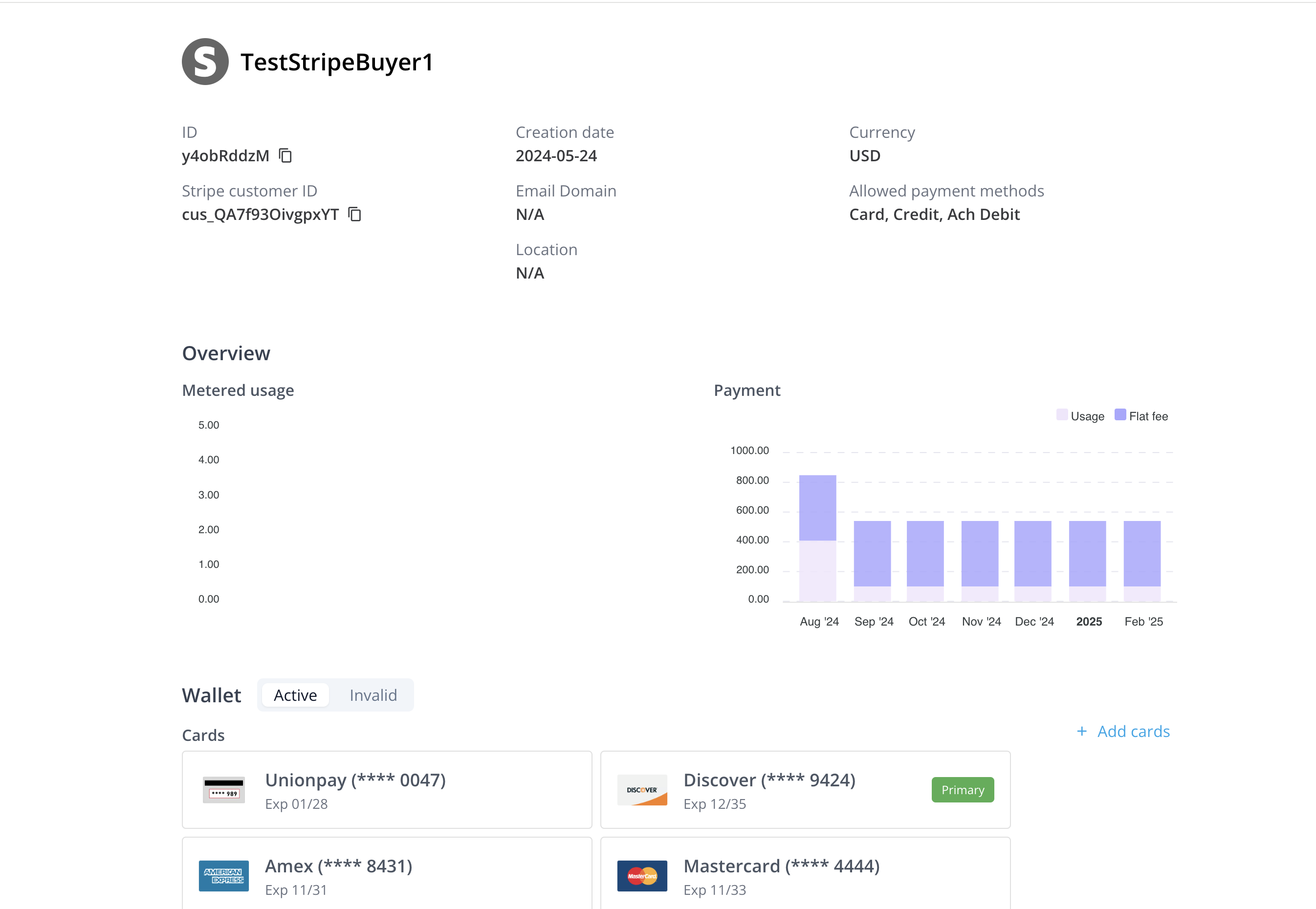
Manage wallet
After the buyer is created, you can help to set up payment methods to ensure automatic invoice payments in the future.
Stripe payment method
For buyers who’s partner is Stripe, payments are processed through Stripe. Fours supports the following payment methods through Stripe:
- Card (all currencies)
- SEPA Debit (EUR only)
- BACS Debit (GBP only)
Learn more: Stripe Documentation
Add new payment method
Fours uses the Stripe SDK to securely collect payment method details. These details will be stored in Stripe to process payments in the future, you only need to add the payment method once.
Learn more: Stripe Documentation
Click here to see the details about payment method collection.
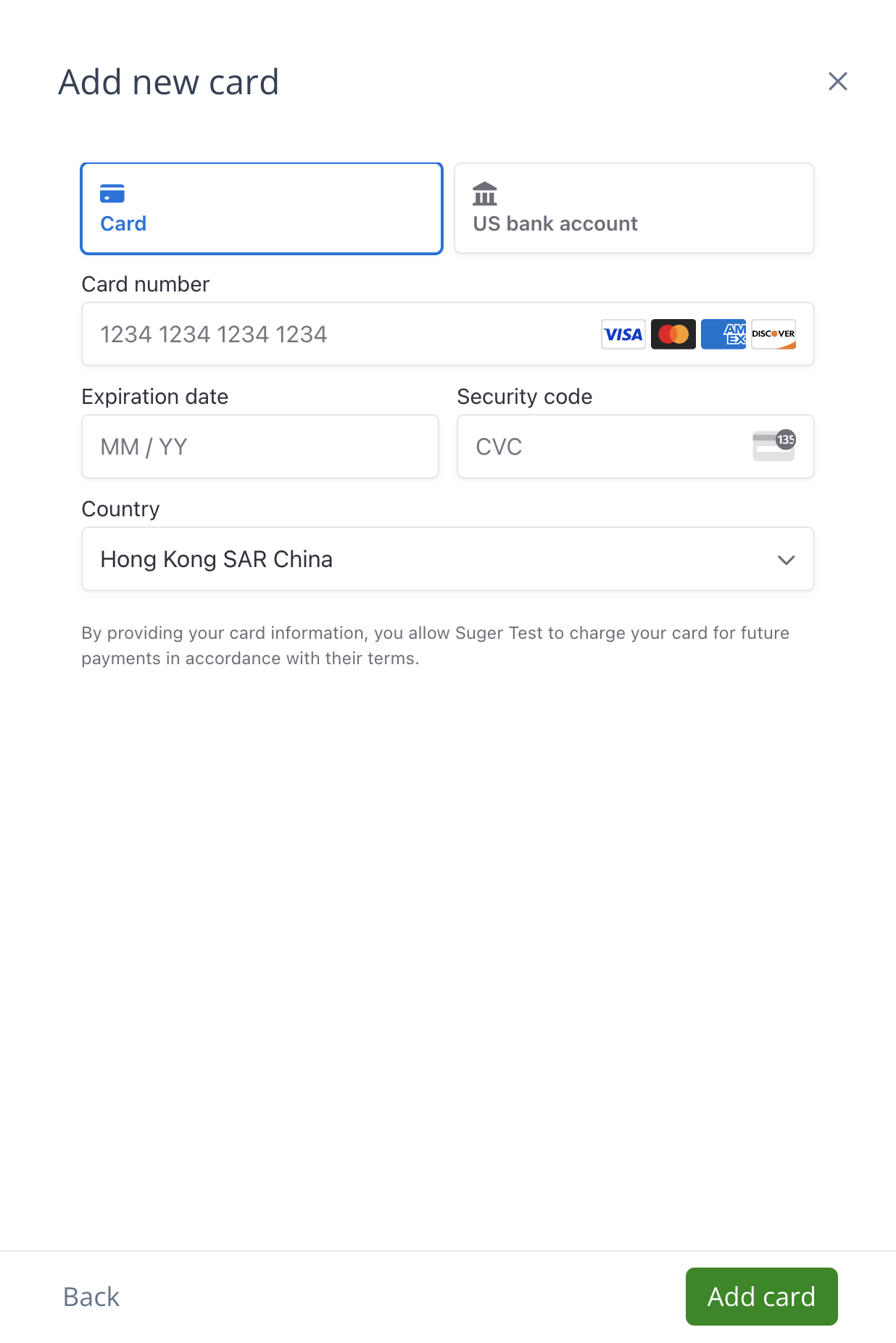
- Add card
Adding a card is straightforward, but some cards may not be eligible for addition due to restrictions.
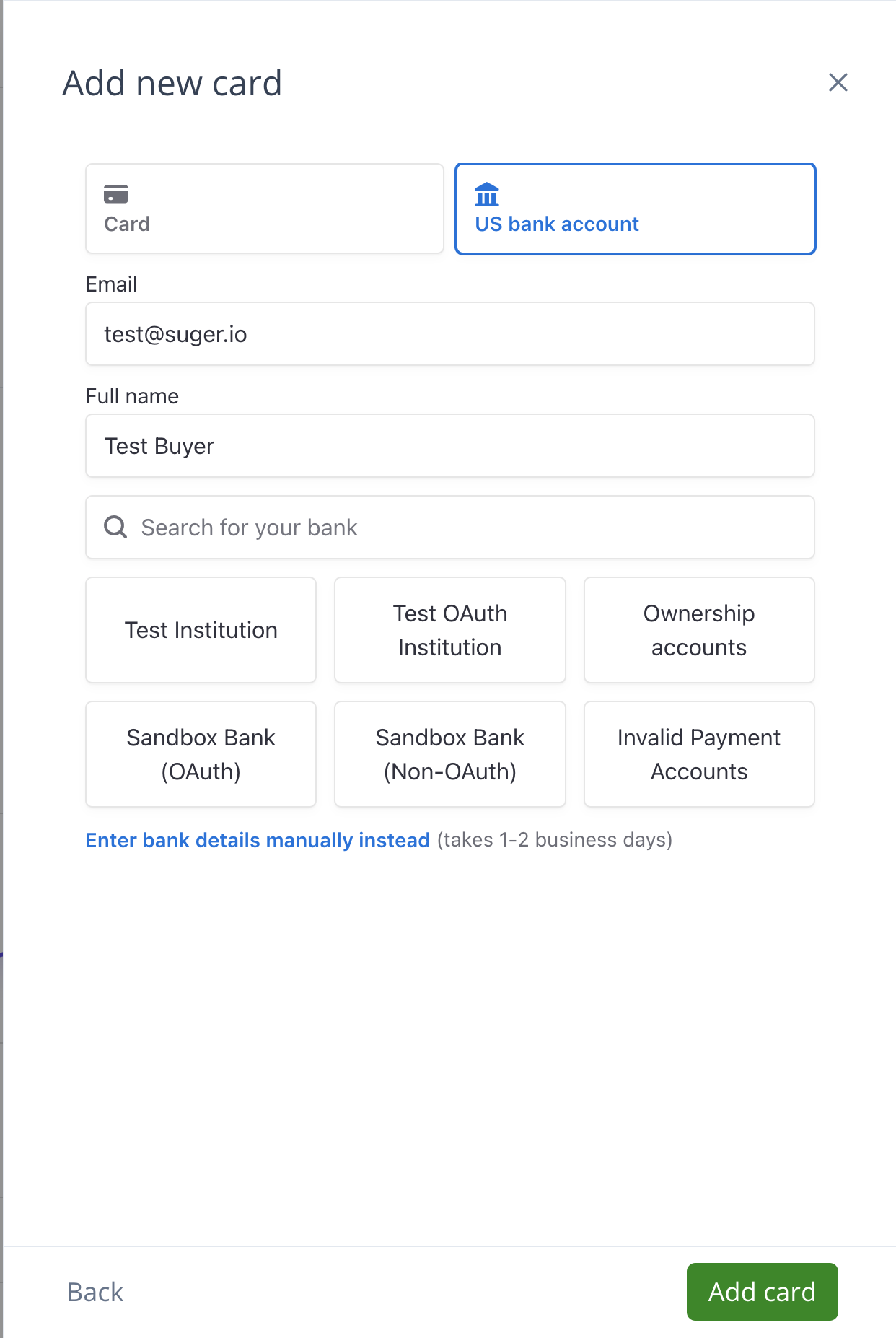
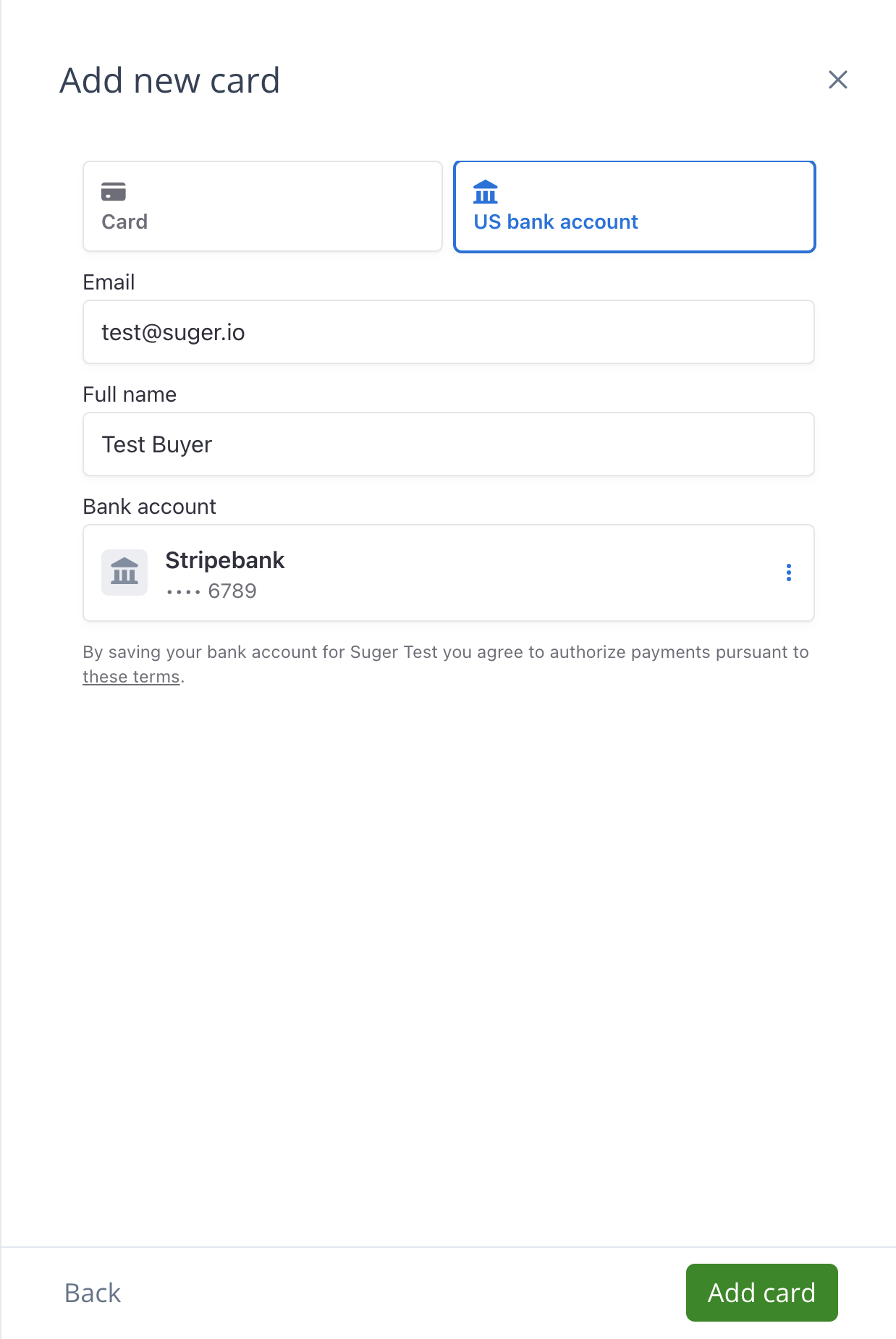
- Add a US Bank Account
Adding a bank account is a little more complex. Stripe guides the user through the bank-linking process.
Set default payment method
You can set a payment method as default, Fours will use this method first for invoice payments.
Delete payment method
Payment methods can be deleted but cannot be modified.
Credit
Credits are managed by Fours. You can assign some credits to a buyer to pay for their invoices. Credits are currency-specific and works like a wallet balance.
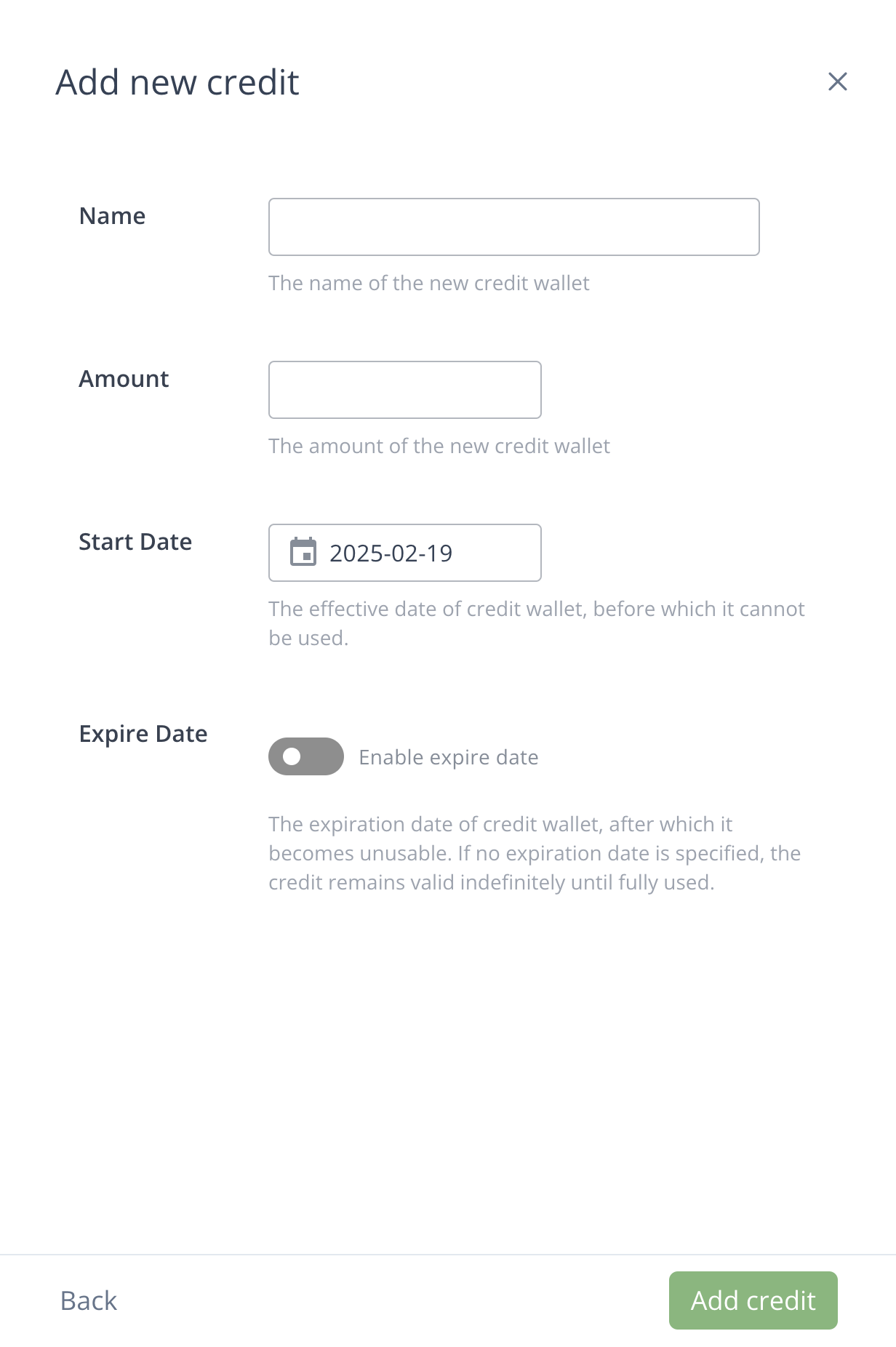
Create credit
Each credit can have its own active period.
Close credit
You can close a credit before its active period ends. Once closed, the credit will be unusable.
Credit use and refund
- Credits within their validity period are automatically applied during invoice payments.
- Credits can be deducted multiple times, but the total usage cannot exceed their original amount.
- Multiple credits can be used for a single invoice payment.
- Credits can be refunded, and the corresponding amount will be restored.
Spotted something wrong or out of date on this page? Tell us and we'll correct it.