The Insulin Desktop
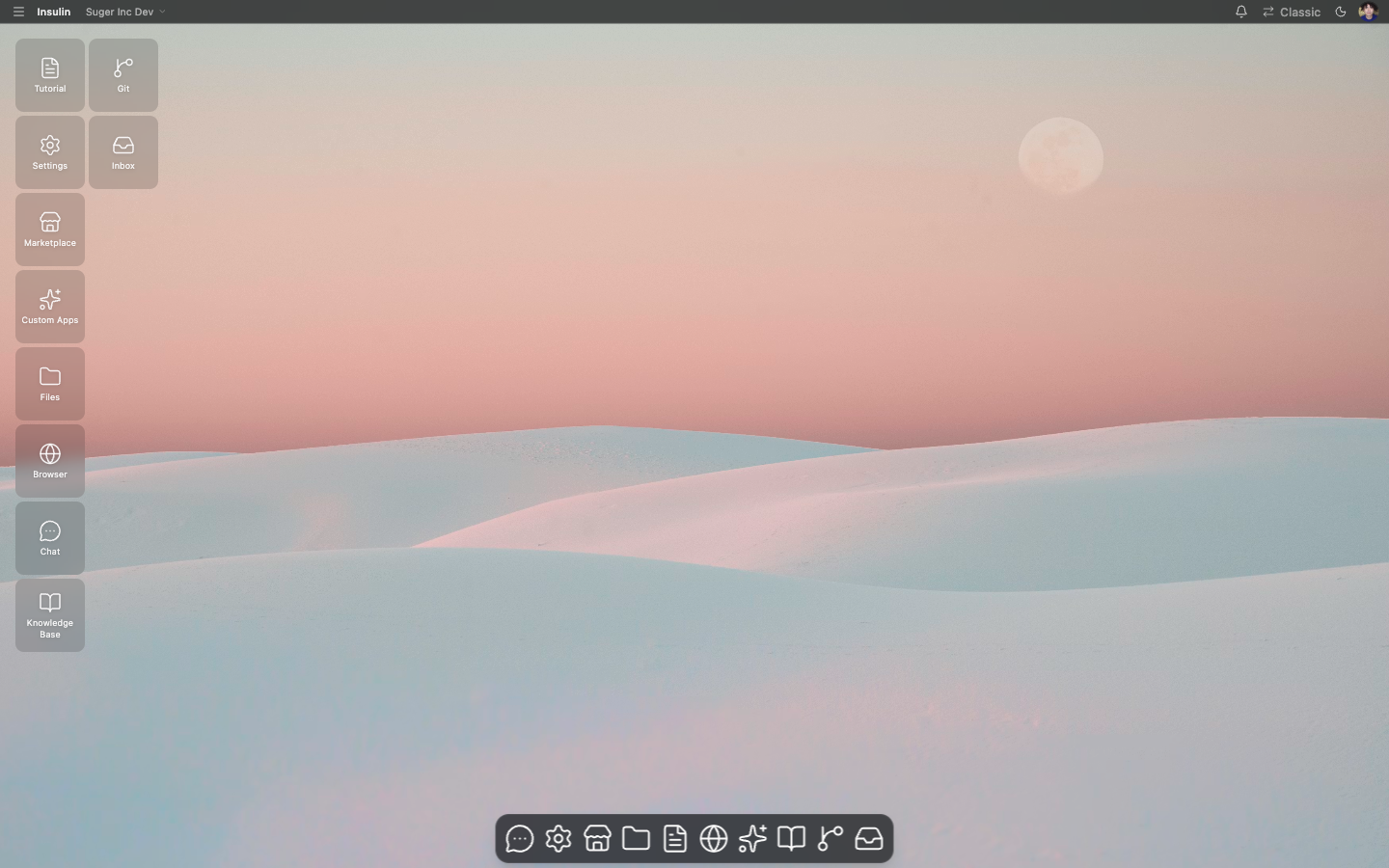
Insulin is a desktop-OS workspace, not a single chat page. Every feature is its own app that opens in a resizable, movable window on a full-screen desktop.
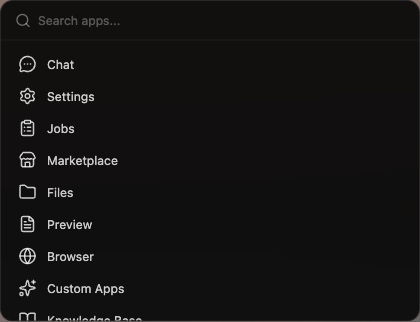
- System Bar (top) — Runs across the top of the workspace, the same in both desktop looks. At its left, Applications opens a menu: Search apps… opens the app launcher, as Cmd/Ctrl + Space does, and below it is every app you can open. Next to it is a button for each app you have open, in the order you opened them. An app with one window shows that window’s title: click it to bring the window to the front, restoring it if it was minimized, or to minimize it if it is already in front. An app with several windows shows its name and how many are open, and opens a menu to pick one of them or Close N windows. On the right are the fours wordmark (back to the classic console), your notifications, the organization switcher, and your avatar, whose menu holds Appearance (Light or Dark — Light is unavailable while a dark-only theme is picked under Settings → Preference — and Automatically hide the Dock) and Log out.
- Desktop (center) — A full-screen wallpaper with desktop icons. Double-click an icon to open that app.
- Dock (bottom) — Your pinned apps, plus a tile for every app you have open — see The Dock.
- Windows — Each app opens in its own window that you can move, resize, minimize, zoom, or take full screen. Multiple windows can be open at once.
The Dock comes pinned with eight apps: Chat, Apps (formerly Custom Apps), Files, Inbox, Marketplace, Tax, Revenue, and Settings. The desktop starts with an icon for each of them and for four more: Preview, Browser, Knowledge Base, and Git.
Two more built-in apps have neither a Dock pin nor a desktop icon by default — Jobs and AWS Support. Open either from the app launcher; to keep one in the Dock, choose Keep in Dock on its tile while it is open.
Revenue opens Fours’ Revenue workspace in its own window — the same pages as the console’s Revenue section, listed down the left side of the window in three groups — Operations, Analytics and Settings — from Overview to Configuration. Reading it needs Revenue access, which the standard ADMIN, EDITOR, and VIEWER organization roles all include; a custom role needs it granted. The action controls on Bank Reconciliation, Revenue Recognition, and Configuration appear only when your role may also change revenue data — ADMIN and EDITOR may, VIEWER may not. Without Revenue access, the window says access is unavailable instead of showing figures.
Tax audits your marketplace revenue against the tax records in Avalara, writes the corrections you approve back to the provider, and tracks discrepancies in already-filed periods as amended returns. Every member of the organization can open it; changing anything needs the ADMIN or EDITOR role. It is documented under Revenue → Tax.
The Dock
Every app you open gets a tile in the Dock — after your pins, past a divider, if it isn’t pinned. A custom app gets a tile of its own, marked with its initials in a color of its own, and each App Builder window gets one too, marked with a wand. A mark under a tile means the app is running, a number on it counts its windows, and a dimmed tile has every window minimized.
- Click a tile to open the app, or to bring its window to the front, restoring it if it was minimized. Click the app that is already in front to minimize it; when it has several windows, each click moves to the next one.
- Right-click a tile, or press Shift + F10 on it, for its menu: the app’s open windows, New window (for Preview and Browser, which can open more than one), Show all windows, Keep in Dock or Remove from Dock, and Close (Close N windows when it has several).
- Drag a pinned tile along the Dock to reorder your pins. From the keyboard, the arrow keys move between tiles and Space picks a pinned tile up to move it.
Your pins and their order are saved to your account, so they follow you to every device. An app you built has one pin, shared by its running tile and its App Builder tile — and by its card on the console’s Insulin Apps page, so pinning it there pins it here too.
To give windows the full height of the screen, turn on Automatically hide the Dock, in the desktop right-click menu or under Appearance in your avatar menu. The Dock then slides out of view, and windows, zoom and snapping use the space it took. It slides back while the pointer is at the bottom edge beneath it, while keyboard focus is in it, while one of its menus is open, and while you drag a pin. The setting is remembered in this browser. On a device that can’t hover, such as a touch-only screen, nothing could bring a hidden Dock back, so the option stays off and can’t be turned on.
Windows and full screen
A window’s title bar carries three controls: close, minimize, and full screen — the green one in the macOS look, □ in the Windows 11 look. Full screen fills the page with that one window: the System Bar, the Dock and the other windows give way, and the window’s title bar slides back in when you move the pointer to the top edge. To leave, press Esc (after closing any menu or dialog the app has open), click the control again, or bring another window forward. To zoom a window to fill the desktop instead, keeping the System Bar and the Dock, Option-click (Alt-click) the control or double-click the title bar.
Closing a window first lets its app finish: the App Builder sends any edits that have not reached the app’s draft yet, and asks before discarding them if it can’t; Preview asks before discarding a file you have edited.
The desktop right-click menu
Right-click empty space on the desktop for a menu of things you can make and change:
| Item | What it does |
|---|---|
| New Chat | Opens the Chat app. |
| New Folder | Drops a new folder icon on the desktop, named New Folder until you rename it. |
| New Link… | Adds an icon that opens a web address you supply, in a new tab. Only http and https addresses are accepted; one typed without a scheme, such as example.com, is treated as https. |
| Wallpaper → Choose File… | Sets the desktop background from an image on your computer. |
| Wallpaper → From URL… | Sets the desktop background from an image address. |
| Wallpaper → Reset to Default | Appears once you’ve set a custom wallpaper; puts the original back. |
| Theme | Switches the desktop theme. The active one is marked. |
| Automatically hide the Dock | Hides the Dock until you move the pointer to the bottom edge beneath it — see The Dock. Marked when it’s on; unavailable on a device that can’t hover. |
| Settings | Opens the Settings app. |
| Developer Mode | Toggles developer mode, the same as Cmd/Ctrl + . — it overlays the icon grid so you can line icons up. Marked when it’s on. |
Right-click an icon instead and you get Rename and Delete for that item.
Folders work the way you’d expect: drag an icon onto a folder to file it away, and drag two loose icons together to make a folder from them. Rest the pointer on a folder for a moment and a preview of its contents opens; drag an icon out of the preview onto the desktop to take it out again. Click a folder to open it in its own window, which shows how many items it holds, a search box for finding an item in that folder, and a grid/list switch that remembers your choice — click an item there to open it. Folders don’t nest — a folder can’t go inside another folder.
Keyboard Shortcuts
| Shortcut | Action |
|---|---|
| Cmd/Ctrl + Space | Open or close the app launcher |
| Cmd/Ctrl + K | Open or close the app launcher — the same launcher, not a second one |
| Cmd/Ctrl + W | Close the focused window |
| Alt + Tab | Cycle focus to the next window |
| Alt + Shift + Tab | Cycle focus to the previous window |
| F11 | Toggle fullscreen |
| Esc | Leave a window’s full screen |
| Cmd/Ctrl + . | Toggle developer mode |
Spotted something wrong or out of date on this page? Tell us and we'll correct it.