Insulin Settings
Open the Settings app from the Dock. Tabs are split into two groups:
- Personal — AI Sandbox (formerly Sandboxes), Memory (what agents remember about you and your work), and Theme: an Appearance section for light or dark color mode and font size; a Theme section that sets the colors, font and corner style of the console and of the controls inside Insulin’s app windows (a few themes are dark only, and while one is picked Light is unavailable); and a Background — a preset wallpaper or an image you upload (PNG, JPG, WebP or AVIF) — shown behind the Insulin desktop and the console’s Home page, which stays plain until you pick one. These apply only to you, and the same Personal tabs are also available from the classic console’s Settings. (The Theme tab was formerly Preference, and older links to the Appearance or Home Page tabs open it automatically.)
- Organization — Integration, AI Gateway (formerly AI Model Policy), AI Sandbox (formerly Sandboxes), User & Role, Notification, API Client, and more. Most Organization tabs are visible to every member but only an org ADMIN can change them; a few, such as AI Sandbox, are hidden from non-admins entirely.
AI Gateway
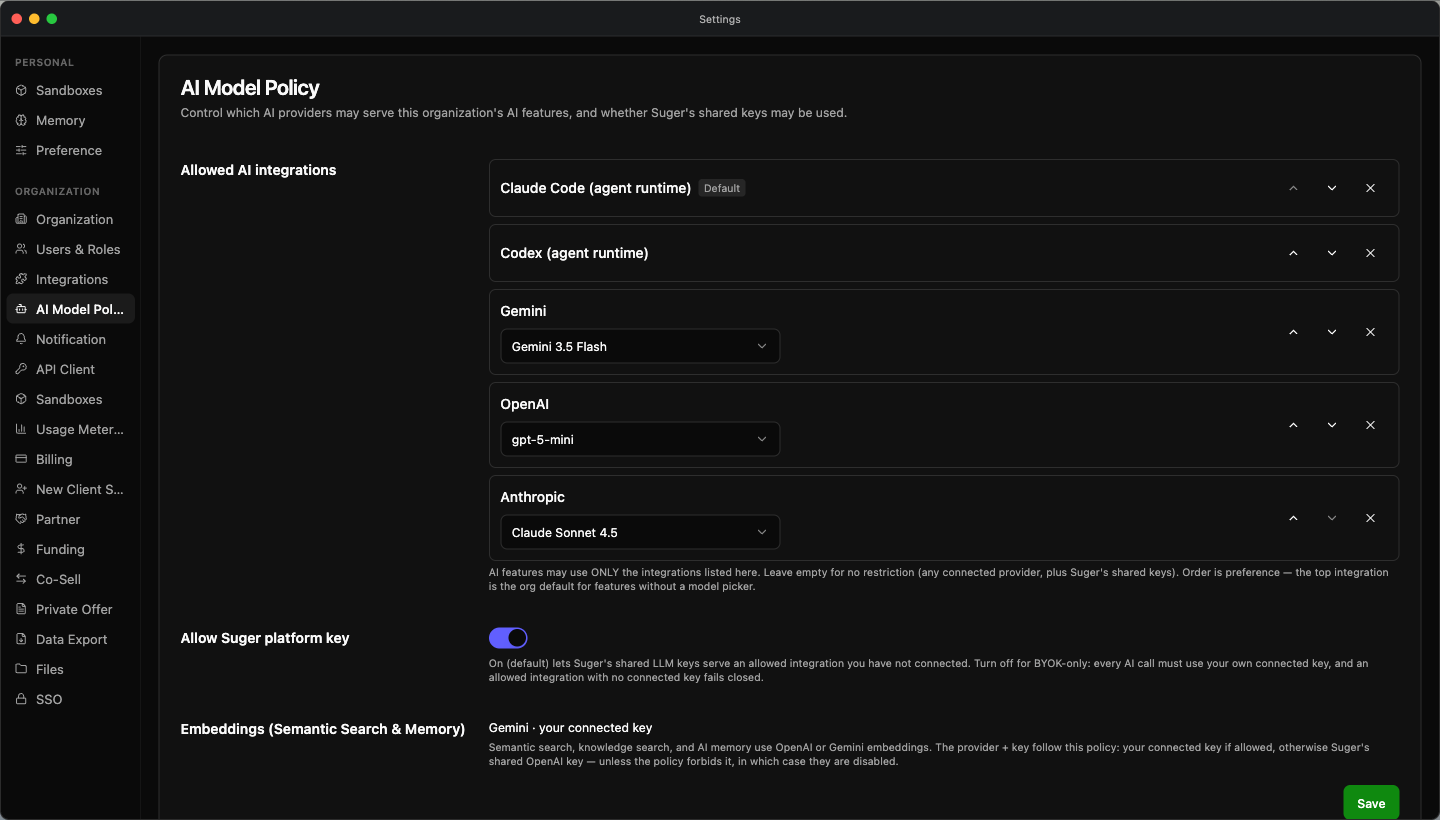
Settings → Organization → AI Gateway (formerly AI Model Policy) decides which AI providers are allowed to serve your organization, and in what order. It answers two questions your organization probably has an opinion about: which vendors may see our prompts, and may Fours’ own keys be used at all.
Allowed AI integrations is an ordered allow-list. AI features may use only the integrations listed here — and because the list is ordered by preference, the entry at the top is the organization default for any feature that has no model picker of its own.
- Pick a provider from the Add integration dropdown to put it on the list
- Use Move up and Move down on a row to change the order — the top row is the default
- Use Remove to take a provider off the list entirely
- Click Save
The first row carries a Default badge so the top of the list is never ambiguous. While Allow Suger platform key (below) is off, the top row must be a provider your organization has connected and verified. For OpenAI, Anthropic, and Gemini the tab checks this as you edit: a row without a verified connection is marked not connected, and if it is the top one, Save is disabled, with a note telling you to connect and verify it, list a connected provider first, or turn Allow Suger platform key back on. Cloudflare Workers AI and DigitalOcean GradientAI rows do not show this marker; if either is the top row, its connection is checked when you click Save, and the save is refused unless it is verified. Leave the list empty for no restriction at all — the tab says so directly: “No restriction — every connected provider is allowed.”
Allow Suger platform key is a switch, and it is on by default. (This label and Suger Hosted (DeepInfra) still carry Fours’ former name.) Left on, Fours’ shared keys can serve an allowed provider that your organization has not connected its own key for. Turn it off to make the organization bring-your-own-key only: every AI call must then use one of your own connected keys, and an allowed provider with no connected key fails closed rather than quietly falling back to Fours. That is the point of the switch — it is a guarantee, not a preference, so plan for the allow-list and your connected keys to line up before you turn it off.
The switch also decides what a knowledge base can embed with: the Fours-hosted embedding models are offered only while it is on. See Choosing an embedding model.
AI Sandbox (Organization)
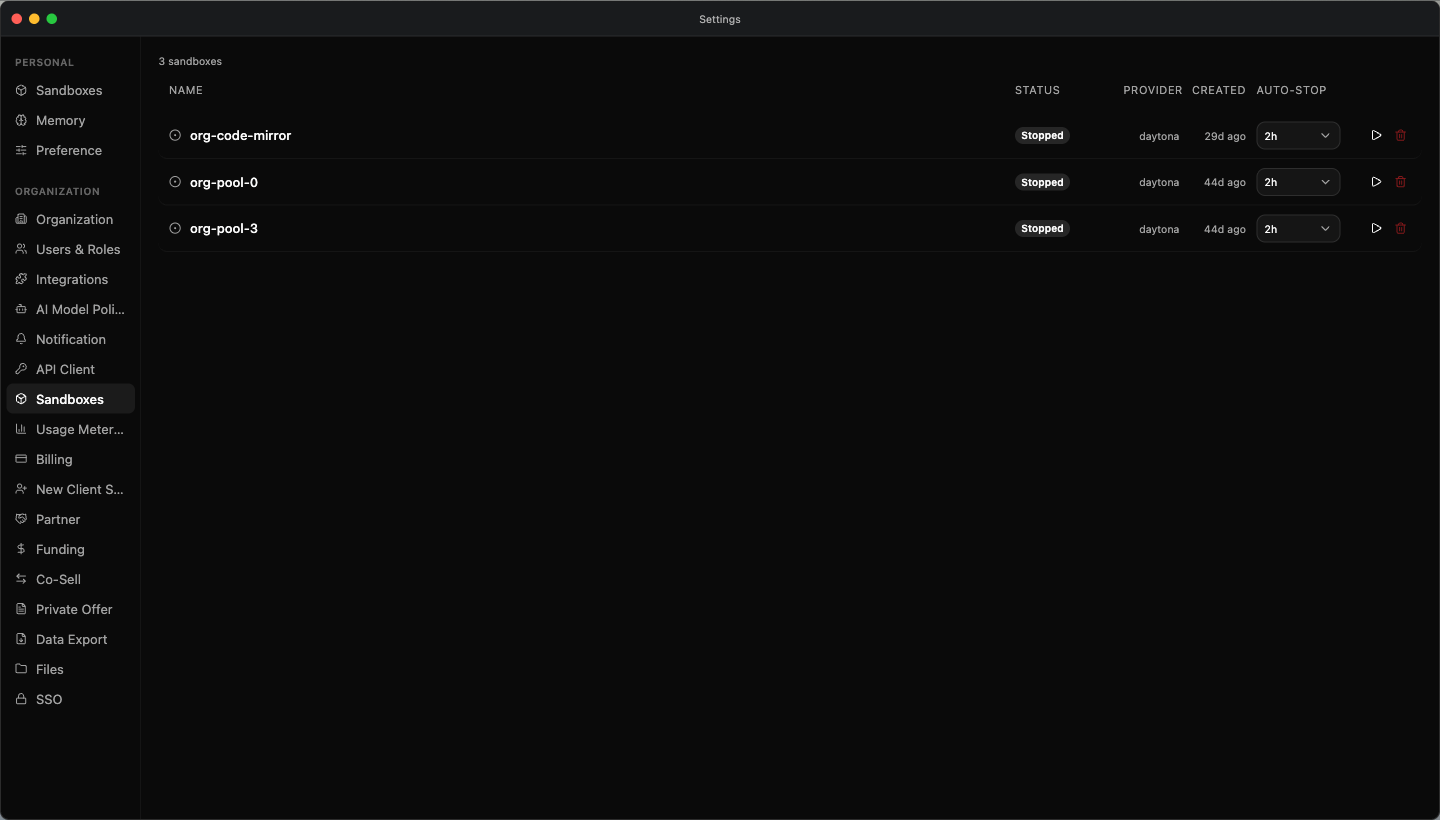
Settings → Organization → AI Sandbox (formerly Sandboxes) manages the shared sandbox pool your organization’s own agents work in — in chat, in goals and in jobs alike, rather than on the personal sandbox of whoever is talking to them. This tab is org-admin only — it does not appear for other members, and a non-admin who reaches it is told so and pointed at Personal → AI Sandbox for their own boxes instead.
Organization sandboxes are provisioned automatically the first time an organization-owned agent needs one, so there is nothing to create here. A pool sandbox is shared: each person’s conversations with organization agents get a working folder of their own on it, and each job gets one too. Each row shows:
| Column | What it shows |
|---|---|
| Name | The sandbox’s name in the pool. |
| Status | Running, Stopped, Failed, or Not provisioned for a slot that hasn’t been built yet. |
| Provider | The sandbox provider backing it. |
| Created | When the sandbox was created. |
| Auto-stop | When an idle sandbox shuts itself down. |
The actions on each row are icon buttons — hover one for its label — and each appears only when it applies:
- Start — Bring a stopped or failed sandbox up. On a slot that is not provisioned, Start builds it for the first time.
- Stop — Shut a running sandbox down.
- Destroy — Remove the sandbox. Offered whenever it is not running — stop a running one first; a sandbox that is still serving a run refuses to be destroyed.
- View Files — Open a running sandbox in the Files app to see what organization agents have left in it. The view is read-only, and only org admins can open it.
A sandbox’s working folders are scratch space: a later run may land on a different sandbox in the pool. What organization agents keep lives in the organization’s Drive, which the Files app lists, marked Org, beside your own Drive. Every member can read the organization’s Drive; only an org ADMIN can change what is in it.
When a connection expires
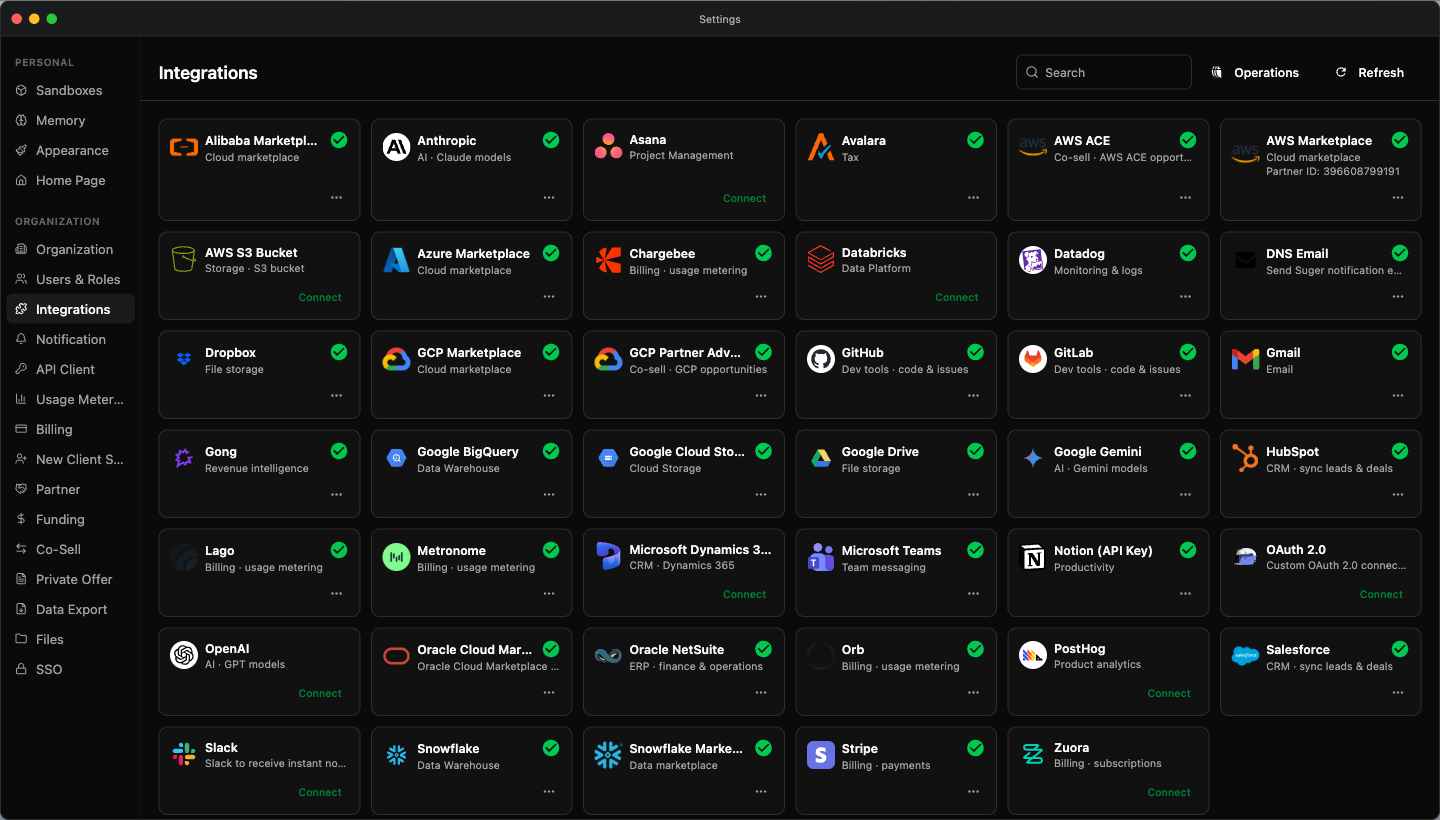
A green check on an integration card means a connection exists — but a sign-in can lapse long before you notice. For your personal Claude Code and Codex connections, Fours therefore verifies the stored credential itself rather than trusting the card.
If the credential no longer works — the sign-in expired, or you revoked it at the provider — the card shows an orange alert in place of the green check, reading Connection expired — reconnect to keep using it, and a Reconnect button appears on the card. Reconnect runs the same connect flow you used originally; you do not need to disconnect first, and the alert clears once the new connection is in place.
Spotted something wrong or out of date on this page? Tell us and we'll correct it.