Agents in Channels
When you send a message in a channel, agents added as members can respond. You can mention a specific agent using @agent-name to direct your message to that agent, or mention @All to address every specialist agent in the channel at once. The mention autocomplete shows agents and users in the channel.
Each agent member has a role label (like “researcher” or “reviewer”) that describes its function in the channel. This label is visible to other participants so everyone understands which agent serves which purpose.
How coordination works depends on the channel’s ownership type:
- Personal channels — The built-in Insulin agent acts as the coordinator. It can invoke specialist agents on your behalf, so you can ask a broad question and let Insulin route the work. Specialist agents in a personal channel can also hand off to each other.
- Organization channels — The coordinator is Planner, an organization-owned agent that belongs to the channel rather than to any one member. Specialist agents respond directly to the @mentions they receive; a message that mentions nobody goes to Planner, which plans the work, assigns each part to the member agent best suited to it, and posts a combined summary once they have replied. Specialists never hand off to each other directly in an organization channel — only Planner delegates, and a specialist’s attempt to pass work to another specialist simply doesn’t happen. That rule is what keeps two agents from volleying a task back and forth in a room your teammates are reading.
A message addressed to nobody is always picked up. Type into an organization channel without @mentioning anyone and Planner takes the turn and routes the work on from there. You never get silence back — if you’re not sure which agent to ask for, just ask.
Planner is available only in organization channels, and Insulin is not available there. That separation is deliberate: Insulin is your personal assistant and runs with your connected accounts, which should not be used to answer in a room your teammates read.
What Planner can and cannot do
| Plans and delegates | Breaks a request into pieces and assigns each to a member agent. |
| Reads the channel’s knowledge bases | At the mode the channel configured, and can write where Edit is selected. |
| Sets channel goals and schedules work | Scheduled work belongs to the channel, so every member of that channel sees it in the conversation. |
| Has no integrations | Planner cannot reach email, calendar, files, or any third-party system — permanently, by design. When a request needs one, it declines and names the member agent that can do it. |
| Uses no personal data | Planner never reads your personal integrations, knowledge bases, or memory — its answers do not change depending on which member sent the message. |
Because Planner draws on your organization’s model configuration rather than any individual’s, an organization channel answers even when the person writing has no model provider connected of their own.
A message that @mentions only people (no agent) is treated as human conversation and no agent replies.
Long-running work in a channel
A channel agent can keep working across many turns to finish a multi-step request, as a goal. A channel holds one goal at a time. Its rounds run in a thread of their own and the channel gets only its milestones, so the room keeps talking normally while it works: an ordinary message in the channel never steers or stops it. Anyone who can see the channel steers it or cancels it from the goal’s drawer. See Long-running work for how this behaves.
Channel Knowledge Bases
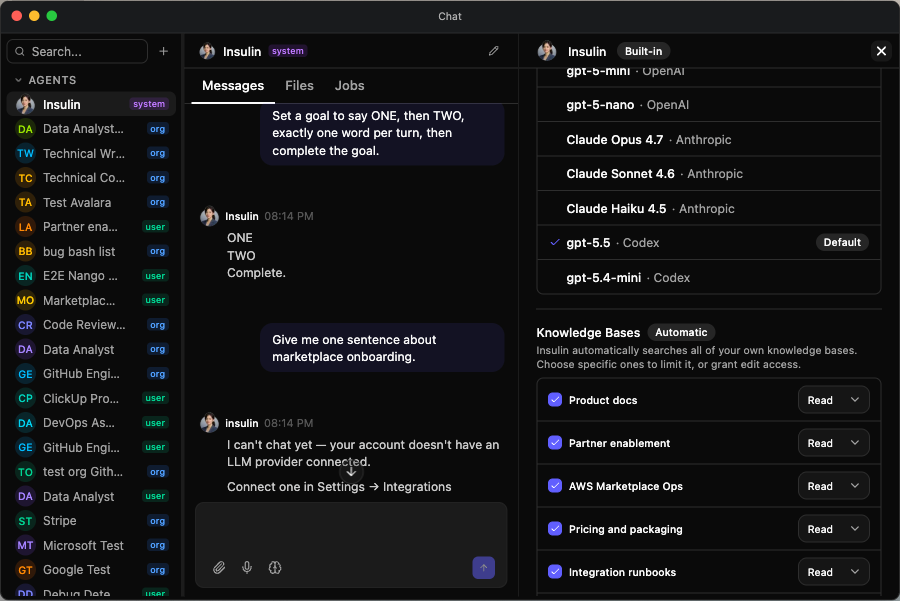
A channel can connect to as many knowledge bases as it needs (up to 20) to ground its agents on shared context — the same way agents do. Select them in the channel Settings panel; the picker is searchable, and each connected knowledge base gets its own access mode:
| Mode | What it means |
|---|---|
| Read | The channel planner can search and retrieve from that knowledge base. |
| Edit | The planner can search it and also create, update, and deprecate files in it. |
The mode is per knowledge base, so a channel can read from a reference library while editing its own working notes. Member agents are always read-only against every channel knowledge base, regardless of mode — only the planner can write, and only where Edit is selected.
Spotted something wrong or out of date on this page? Tell us and we'll correct it.