Model Selection
Insulin selects the model for you — there is no per-conversation model picker. Each agent runs on the models available to it and fails over automatically: if a model call fails — a provider outage, a usage limit, or a rejected key — the turn retries on your next connected provider, so a single provider problem doesn’t stall the conversation.
Most agents can also draw on the Fours-hosted models, so nothing has to be connected before you start. What the agent’s ownership decides is whose connected providers join that pool:
- The built-in Insulin assistant and Personal (only-you) agents add the providers you have connected under Settings → Integration (bring-your-own-key). They never reach the organization’s keys.
- Organization agents add the providers the organization has connected.
In both cases your own connected models are preferred and the Fours-hosted ones are the fallback the turn degrades to.
How a turn resolves to a model
Two organization settings sit between an agent and the hosted pool, and a third threshold quietly changes which hosted models are on offer:
Both organization settings live on Settings → Organization → AI Gateway (formerly AI Model Policy) and are described in Getting Started. The spend threshold is not a setting at all — it is a Fours-set figure your organization cannot configure, described under the Fours-hosted tier step-down.
When nothing survives that chain, the model list is simply empty — you are told “No models are available right now,” which may be temporary or may mean no provider is connected yet, with a link to connect your own.
A turn that has no model to run on stops, and what you see depends on where you are chatting:
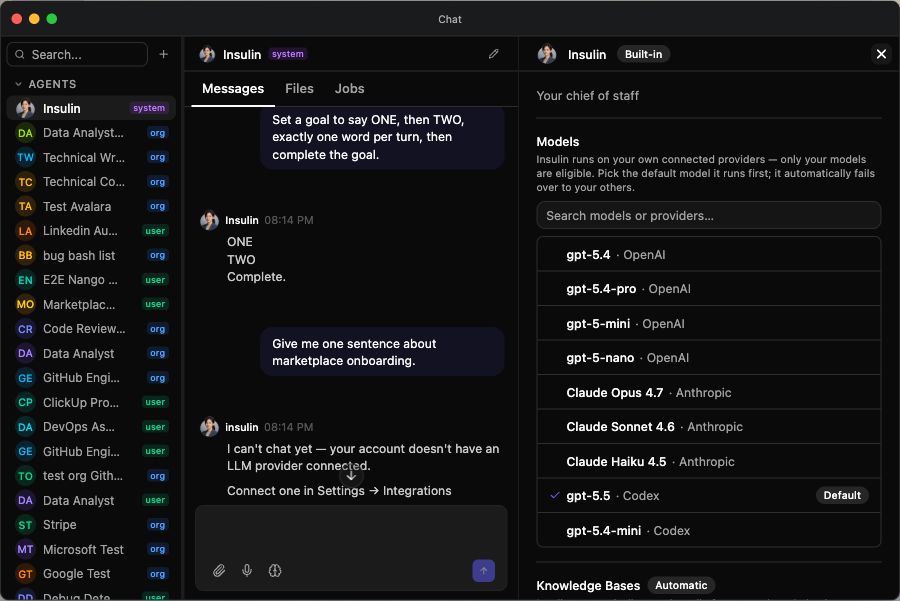
- The built-in Insulin assistant, outside an Insulin channel — a one-on-one chat on the web, a Slack DM or @mention, or a Teams DM — replies in the conversation rather than showing an error: “I can’t chat yet — your account doesn’t have an LLM provider connected.” It asks you to connect one in Settings → Integration (Anthropic, OpenAI, Codex, Claude Code, or Gemini) and then send your message again. It gives this reply whatever emptied the model list.
- Any other agent, in a one-on-one chat, stops with an error card that names the cause. It reads either “No model available for your account: your organization has disabled Suger’s hosted models and you have no personal AI provider connected. Connect one in Console → Settings → Integrations, or ask an org admin to allow Suger’s hosted models.” or “No model available right now: Suger’s hosted models could not be reached and you have no personal AI provider connected. This is on Suger’s side — retry in a moment. Connecting your own provider is optional.” Both messages still use Fours’ former name.
- In an Insulin channel, there is no friendly reply — not even from the Insulin assistant. If any agent the channel needs cannot get a model, the whole turn stops with an error card that shows the same cause, prefixed with that agent’s name and a colon, and none of the channel’s other agents answer it.
See Creating a Custom Agent for how an agent’s ownership and its configured Default model determine which models it uses.
Where you set the model
There is no picker in the composer, but you do still choose the model — just once, not per message.
For the built-in Insulin assistant: open a chat with Insulin and click the pencil button in the conversation header (its accessible label reads Insulin model settings). A panel slides out with a Models section listing the Fours-hosted models plus every model your own connected providers make available.
- Search or scroll to the model you want
- Click its row — that makes it Insulin’s default
- The row you picked now carries a Default badge
Insulin runs that model first, then fails over to the others from there. On a workspace that has not restricted its model policy you do not need to connect anything to get started, because the Fours-hosted models are in the list already; whether they are offered at all is decided by the chain in How a turn resolves to a model. Connecting your own provider under Settings → Integration adds its models, and they take priority over the hosted ones.
If the panel reads “No models are available right now,” nothing has resolved for this agent — either temporarily, or because no provider is connected and the hosted pool is not available to it. The panel offers a link straight to Settings → Integration to connect your own.
For a custom agent: the model is a field on the agent itself. Set Default model in the agent’s own settings — see Creating a Custom Agent.
When a model fails over
Failover is surfaced, not silent. When a turn switches models and then succeeds, the reply carries a short italic note at the end naming both models, in this form:
first-modelhit its usage limit — continued withsecond-model.
The note reads was unavailable instead of hit its usage limit when the switch was caused by an error — a provider outage or a rejected key — rather than a quota.
When there is nothing left to fail over to, the turn stops and says why:
- One model is out of quota. A usage-limit card appears in the thread — “You’ve hit the usage limit for
<model>.” — plus “Your limit resets at<time>” when the provider reports one. The card links to that provider’s usage page, or points you at Settings when the model was Fours-hosted. - Every connected model is limited. You get a message naming the model you hit first, listing the others that are limited too, and the time the first limit resets, with a suggestion to check your providers’ usage pages or try again once a limit clears.
- Some models were busy or at their limit, and the rest failed for a reason Insulin doesn’t recognize. You’re told “The AI models are busy or at their usage limit right now, so this request could not be completed. Please try again in a few minutes.” That is a capacity problem on the providers’ side, not a broken connection, so there is nothing to reconnect. When a failure is recognized — a rejected key, a model that can’t be reached, a provider outage — the message names that cause instead.
A single model call has limits of its own. A call is stopped if it runs longer than eight minutes, if its reply reaches the model’s output limit, or if it breaks off partway through a tool call. The turn then ends with a reply that says which — This reply took too long, so it was stopped., This reply grew too long, so it was stopped., or This reply broke off before it finished, so it was stopped. — followed by Anything the model was still working on was not carried out. Try again, or ask for a smaller piece of the work. What the turn did before that is kept. These endings are not failed over to another model or retried, because the same request would run just as long on the next one.
Picking the turn back up
A failed turn carries its own buttons, so you do not have to retype what you asked:
- Retry re-sends the message that failed — the user message immediately above that error card, not whatever you typed most recently. Scroll back to an old error and Retry still re-sends the right turn.
- Switch model opens the agent’s model settings so you can pick a different one before trying again.
Switch model is only offered when Insulin knows what went wrong, because a model change is only the fix for some causes:
| How the failure was classified | Retry | Switch model |
|---|---|---|
| Usage limit — that model’s quota is spent | Yes | No |
| Provider auth — the key was rejected | Yes | Yes |
| Model unavailable — the model itself could not be reached | Yes | Yes |
| Provider unavailable — the provider is down | Yes | Yes |
| Interrupted — the reply stream ended before the turn finished | Yes | No |
| Unclassified — the cause is not known | Yes | No |
The usage-limit card described above carries the same buttons rather than a separate set.
One card leaves Retry out on purpose: a failed CRM action run in the Inbox chat rail. The CRM write may already have happened, so the card asks you to check the record in your CRM, or the action’s outcome, before running it again — see Inbox.
An interrupted card means the reply stopped arriving before the turn finished — for example “The response stream ended before this turn finished. Retry to run it again.” It is provisional, because the turn may still have finished on the server. If it did, the card is withdrawn and the reply is loaded in its place. If that reply then cannot be loaded, the card is replaced by the note “This turn finished, but its reply could not be loaded here. Reload the conversation to see it.” — reload the conversation rather than retrying, because the work is already done.
Streaming Responses
Agent responses stream token by token as they are generated. You can read the response as it appears without waiting for the full message to complete.
Extended Thinking
When extended thinking is enabled, the agent shows its reasoning process before delivering a final answer. The thinking steps appear in a collapsible section above the response, and it starts collapsed — Thinking… while the answer is still streaming, Thought process once it is saved — so the answer is what you read first. Click either to expand it. This helps you understand the agent’s logic and verify its approach on complex tasks.
Toggle thinking on or off with the Brain button in the composer. The setting applies to the session and is remembered in your browser.
Spotted something wrong or out of date on this page? Tell us and we'll correct it.