Knowledge Base Settings
Open the Settings (gear) panel from a knowledge base’s detail view to adjust how it is described, chunked, and searched.
| Setting | What it controls |
|---|---|
| Name | The knowledge base’s display name |
| Description | Optional summary of its contents |
| Chunk strategy | Fixed size or Semantic — how new documents are split before indexing |
| Search mode | Hybrid (vector + keyword), Vector only, or Keyword only |
| Top K results | The persisted default number of results (1–50) |
| Vector weight | For hybrid search, how much to favor vector vs. keyword matches (0–1) |
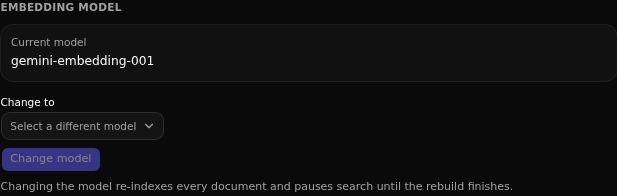
| Embedding model | The knowledge base’s Current model, with a Change model control to switch to another eligible model (re-indexes every document — see Changing the embedding model) |
Changing the embedding model
The Embedding model section of Settings shows the knowledge base’s Current model. To switch it, choose another model under Change to and click Change model. The list offers only models other than the current one, scoped to the knowledge base’s owner (see Choosing an embedding model); if no other eligible model is available, the panel says so.
A knowledge base always has a model from the moment you create it — Insulin picks a Fours-hosted one when you don’t choose, and asks you to choose when your organization only allows its own providers. If you ever see a knowledge base with no model set (an older one, created before models were recorded), it can neither index nor be searched until you pick one here; documents wait as Pending and searches say so rather than returning nothing. Choosing a model starts indexing them.
Because switching is a heavy operation, Insulin asks you to confirm:
Change embedding model? Switching to <model> re-embeds all <N> documents in this knowledge base, which takes provider time and spend. Until a document has been re-embedded it will not appear in search results; the ones already done keep working throughout.
Once you confirm:
- The knowledge base re-embeds its documents onto the new model, one at a time, and the section shows how many are ready —
3 of 42 documents searchable. A document that can’t be processed is marked Failed and the rest continue; re-index it from the tab it came from (Files, Websites or Connectors) once you have fixed the cause, or use Index them now in the progress panel to retry every outstanding document at once. - Search keeps working. It answers from the documents already on the new model and hides the rest, so results are never mixed across two models. An agent searching mid-rebuild is told how much of the knowledge base it actually covered, so a thin answer is never mistaken for an empty knowledge base.
- You can change the model again at any point, including mid-rebuild — the new choice supersedes the one in progress and re-queues the documents.
- The switch is complete when every document reports ready. Retired (deprecated) documents are skipped; each is re-indexed if you restore it later.
- If progress stops before every document is ready — a worker restart, an interrupted rebuild — Restart indexing in the same panel picks up exactly what is outstanding. It never re-embeds a document that already finished, so it is safe to use at any time.
The Danger Zone at the bottom of Settings holds Delete Knowledge Base, which removes the knowledge base and all of its documents, chunks, and embeddings. This cannot be undone.
Spotted something wrong or out of date on this page? Tell us and we'll correct it.