Tools and Approvals
Agents act through tools: querying data, calling APIs, running code. Every call shows in the transcript as it runs, a call that other people would see stops for your approval first, multi-step work shows a plan checklist, and the built-in Insulin assistant can draw answers about your Fours data as charts.
Tool Calls
Agents can execute tools — external actions like querying data, calling APIs, or running code. When a tool is invoked during a conversation, you see:
- Running — The tool call is in progress, with a spinner and the tool name displayed.
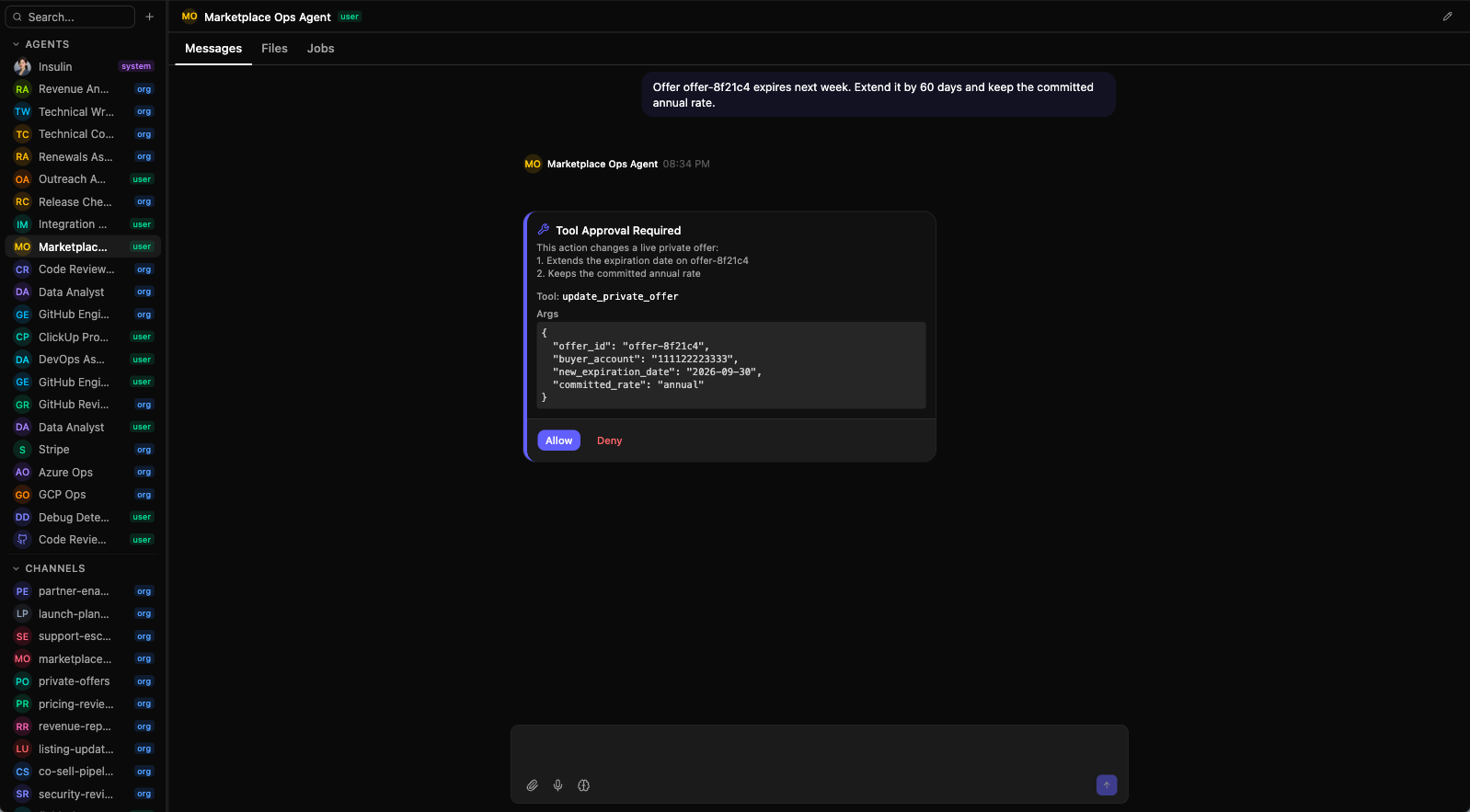
- Awaiting approval — A pause icon instead of the spinner: the call is waiting on a Tool Approval Required card, and nothing has run yet.
- Success — The tool completed and its output is shown inline.
- Error — The tool failed, with the error message displayed.
- Denied — You denied the call on its approval card, so the tool never ran. It shows a muted icon rather than the red error mark, because nothing failed.
Tool call details are expandable so you can inspect inputs and outputs.
A turn has a tool-call budget. In a one-on-one conversation, a single turn can make up to 50 tool calls, and no more than 10 in a row to the same tool (50 for reading a file). A turn that goes over stops there: the reply and tool calls so far are kept, and it ends with Stopped here: this turn made more tool calls than one turn allows. Its work so far is above; send a smaller next step to continue. The AppBuilder has no such budget.
When the agent hands part of the work to another agent, the hand-off gets a chip of its own, marked with a robot icon instead of the wrench and named after that agent: Co-sell Agent (see Handing co-sell work to the Co-sell Agent), or general-purpose for the built-in helper agent. Each tool the Co-sell Agent runs gets its own chip, titled Co-sell Agent › followed by the tool, both while it runs and in the saved conversation. The helper’s own working notes are not shown — only its tool calls, and then the reply the agent writes from its answer.
Every agent — the Insulin assistant, your custom agents, agents in channels and jobs, and the App Builder — can also search the Fours documentation, shown as a fours_search tool call. Ask how a Fours feature, integration or API works and the agent looks it up and cites the pages it used, rather than answering from memory. It searches only Fours’ public documentation: not your organization’s records, your knowledge bases, or the open web.
Tool Approvals
Some tool calls pause for your explicit approval before they run: posting a message to Slack, since other people can read it the moment it is sent — whether you asked in the web workspace, a Slack DM or a Slack channel (see What Insulin can do when mentioned in a channel). That includes a Slack post the Co-sell Agent wants to make while it works for Insulin, which pauses Insulin’s whole turn. When one does, a Tool Approval Required card appears in the thread. It names the tool, shows the arguments it would be called with, and explains why it stopped to ask. Two buttons:
- Allow — the tool runs and the turn carries on.
- Deny — the tool is not called.
Once you answer, the card keeps a badge recording what you chose: Approved or Rejected. If you leave it alone, the request times out after about three minutes, the card is marked Expired, and nothing is sent.
Plan Progress
When an agent works through a multi-step plan, it shows you the steps and their progress as a checklist it writes for itself. Its header shows the label, a done / total count, and a thin progress bar; collapse it and the card becomes that single header row. It updates in real time as the agent works.
A step here is in one of three states:
| Status | Meaning |
|---|---|
| Pending | Step has not started yet |
| In progress | Step is currently executing |
| Completed | Step finished successfully |
A step that started but was never closed out — because the run ended, errored, or simply answered without updating its checklist — is shown as unfinished once the run is over, rather than spinning forever in a conversation you reopen weeks later.
Charts and Dashboards from Your Fours Data
The built-in Insulin assistant answers questions about figures in your Fours data — revenue, offers, entitlements, products, buyers, co-sell referrals and leads, and AWS billing events — by querying your organization’s analytics. It reads them as you: it sees only the data your organization role lets you see. It needs no Fours MCP connection for this, so it answers these questions before you grant access, in Slack and Teams too.
In the Chat app, the Fours console’s chat and the Inbox chat rail, it can also draw the answer:
- A chart card, for an answer that reads better as a chart. A chart it has just saved for the organization carries a Saved badge.
- A dashboard card, with a dashboard’s filters and charts as the assistant set them. A dashboard it put together for the answer without saving it carries a Not saved badge; a saved one has an Open dashboard button, which opens the live dashboard full-window.
Where it can’t draw cards, such as in Slack or Teams, it answers in words or a table.
Ask it to save a chart or a dashboard, or to change or delete a saved one, and it does so for the whole organization; saving and changing need an organization ADMIN or EDITOR role. A chart whose data you are not allowed to read says You don’t have access to the data behind this chart. Once your organization’s Analytics app is set up, the console’s Analytics page shows its saved dashboards and charts.
Spotted something wrong or out of date on this page? Tell us and we'll correct it.