How Channels Work
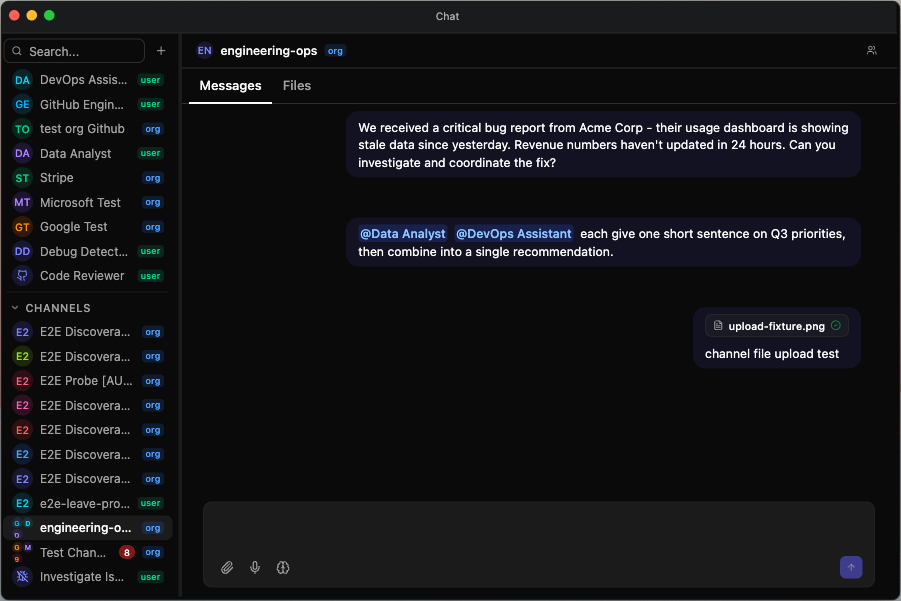
A channel is a persistent group chat within Insulin. Unlike a standard conversation, which is between you and one agent, a channel brings together multiple team members and multiple agents into a single thread. Everyone in the channel sees the same messages, can ask questions, and can interact with agents that have been added.
Channels are useful when a task requires input from several people or benefits from multiple specialized agents working together. Inside a channel you get the same Messages, Files, and Jobs tabs as a one-on-one conversation. Its Jobs tab lists the jobs belonging to the agents that are members of the channel, and only the ones you are allowed to see. In an organization channel, work that Planner schedules belongs to the channel itself, and every member sees it in the conversation — see What Planner can and cannot do. Sending messages requires the USER role or higher — VIEWER members can read but not send.
Creating a Channel
- Click the + button next to Channels in the sidebar
- Enter a channel name and optional description
- Choose the ownership type:
- Personal (only you) — The channel is private to you. Only your own user-level agents can be added.
- Organization (shareable) — The channel belongs to the organization and can be shared with team members. Only org-level agents can be added as members.
- Under Agents, search for an agent by name or description and pick it from the list, then give it a short role label describing its function
- On an organization channel, also add teammates under People — search by name or email and choose each person’s access role (ADMIN, EDITOR, USER, or VIEWER)
- Click Create
Changing the ownership type clears any agents and people you already picked, because the two types draw from different sets.
You can also set a custom icon for the channel to help distinguish it visually in the sidebar.
Ownership cannot be changed after a channel is created.
Use Cases
- Deal review — Add a sales agent, a data analyst agent, and your sales team to review a deal together.
- Incident response — Bring together operations, engineering, and an alert-monitoring agent to coordinate a response.
- Weekly reporting — Set up a channel with a reporting agent and stakeholders who need visibility into weekly metrics.
- Cross-functional collaboration — Combine agents with different specializations (CRM, marketplace data, revenue analysis) in one thread so the team gets multi-domain answers without switching contexts.
Spotted something wrong or out of date on this page? Tell us and we'll correct it.