App Ownership and Sharing
Apps can be user-level or organization-level.
| Ownership | Behavior |
|---|---|
| User | Private to the creator (labeled Personal app in the builder), and it can never be shared. Use this for personal tools or drafts. |
| Organization | Shareable with teammates, and created shared with the whole organization, so every member can see and run it until you change that. Use this for team workflows and shared dashboards. |
Who can create which kind of app depends on your organization role:
- An organization ADMIN can create organization or personal apps; the wizard preselects the organization app.
- An EDITOR can create personal apps only — the wizard’s Other people will use it too option reads Only organization admins can create apps for the organization.
- A VIEWER can’t create apps: New app is hidden, and the wizard says You can’t create apps.
Sharing an app
Only organization-level apps can be shared, and the two ways to share combine:
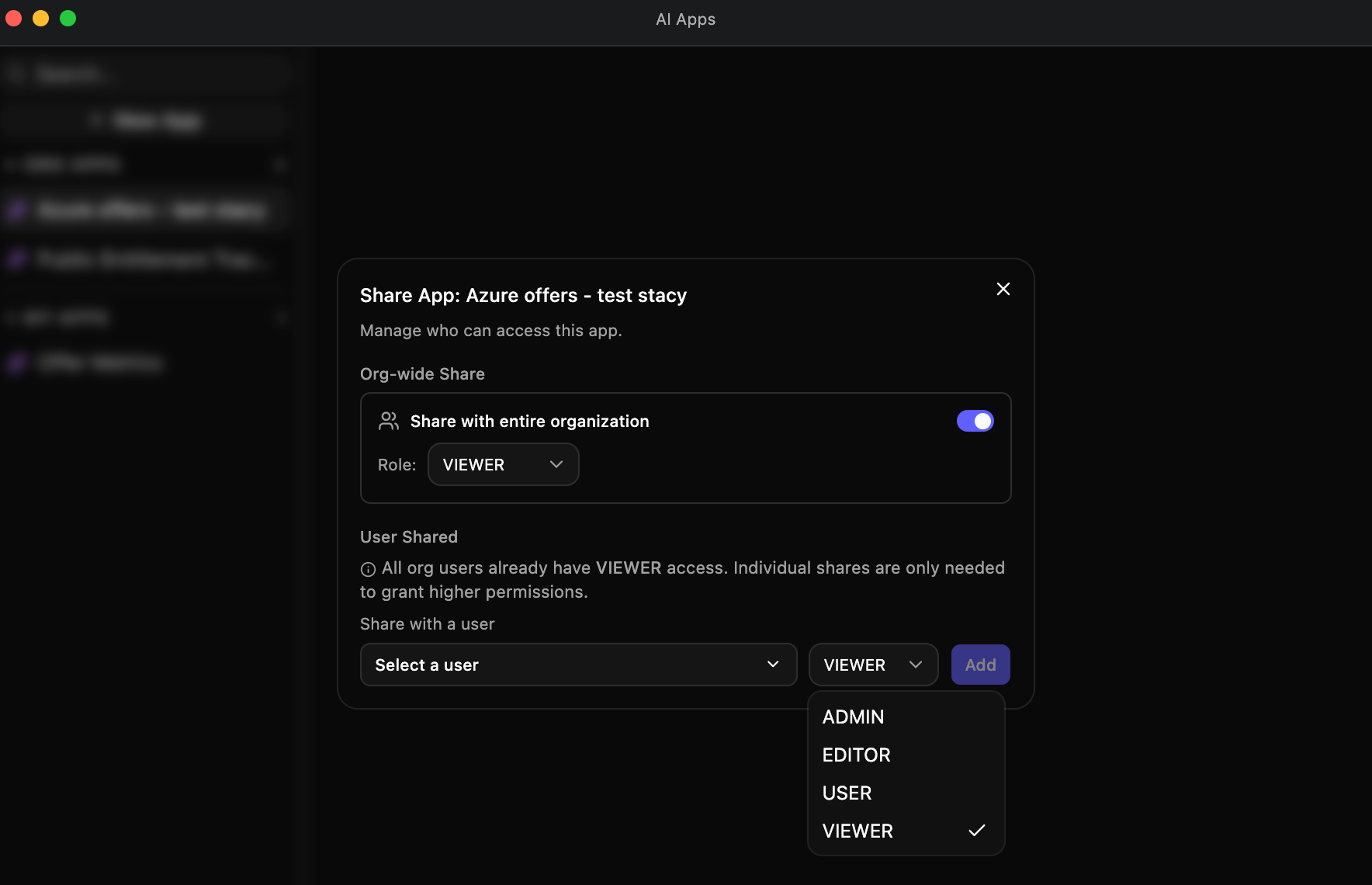
- Share with the entire organization — turn on Share with entire organization and pick a default role for every member. Org-wide sharing offers Editor, User, or Viewer. A new organization app starts out shared this way, as User; turn it off to keep the app to the people you share it with individually.
- Share with specific users — select a user and assign a role. Individual sharing offers Admin, Editor, User, or Viewer — Admin only when you are an organization ADMIN yourself. For anyone else the role picker leaves it out, and the server refuses the grant.
A member’s effective access is the higher of the two, so you can share an app org-wide as Viewer and grant Editor or Admin to the few people who maintain it.
| Role | Run & interact | Edit & save | Manage sharing | Delete |
|---|---|---|---|---|
| Owner | Yes | Yes | Yes | Yes |
| Admin | Yes | Yes | Yes | Yes |
| Editor | Yes | Yes | No | No |
| User | Yes | No | No | No |
| Viewer | View only | No | No | No |
The Owner is the app’s creator, or whoever ownership was transferred to (see Transferring ownership). A personal app can be deleted only by its owner; an organization app can also be deleted by anyone who holds Admin on it. Being an organization ADMIN does not count by itself: an org ADMIN who did not create the app needs an Admin share on it to delete it.
When you open an app shared with you, its run panel shows an owner-and-role banner — even before the app has been built — and anyone below Editor (a User or Viewer) sees it read-only. See Working with a Shared Resource.
An app’s source is for its editors. The AppBuilder, with the app’s code, its saved versions and the project download, opens only for someone with Editor or above on the app. A User or Viewer who opens it in the builder sees Only editors can open this app in the builder, with You can use the published app. and an Open app button — or, if the app is not published yet, This app isn’t published yet, so there is nothing to open.
Transferring ownership
An organization app’s Share App dialog opens with an Owner row naming the app’s owner. Only the owner sees Transfer ownership beside it:
- Click Transfer ownership
- Pick the new owner from Select new owner… — the list shows only organization ADMINs other than you
- Click Transfer
You keep Admin on the app, so you can still edit it, manage its sharing, and delete it. A personal app has no Owner row and cannot be transferred. If you are no longer an organization ADMIN yourself, the transfer is refused and the message says why.
Sending someone a direct link
The Share App dialog also carries a Copy link button. It copies a deep link that opens the app’s window straight away in the recipient’s own Insulin workspace, so you can drop it into a message or an email instead of talking someone through where to click. The link also names the app’s organization, so it opens Insulin in that organization even if the recipient usually works in another. Someone who isn’t a member of it sees This app’s organization is unavailable or you do not have access to it. and an Open Insulin without this app button.
Finding and managing your apps
The Apps window shows your apps as a grid of cards. The rail on its left, headed Apps, switches between All apps, My apps (the apps you own, organization or personal) and Shared with me, each with its count, and its Search apps… box filters by name or description; All apps shows both groups, each with the most recently edited first. New app is at the top right, for anyone allowed to create one.
Each card says where the app has got to — Draft (not published yet), Team only (published Console-only, for signed-in members of your organization who have access to it) or Public (published, for anyone with its URL) — and when it was last edited. Clicking a card opens a published app; a draft opens in the builder if you can edit it. Edit on the card opens the builder either way.
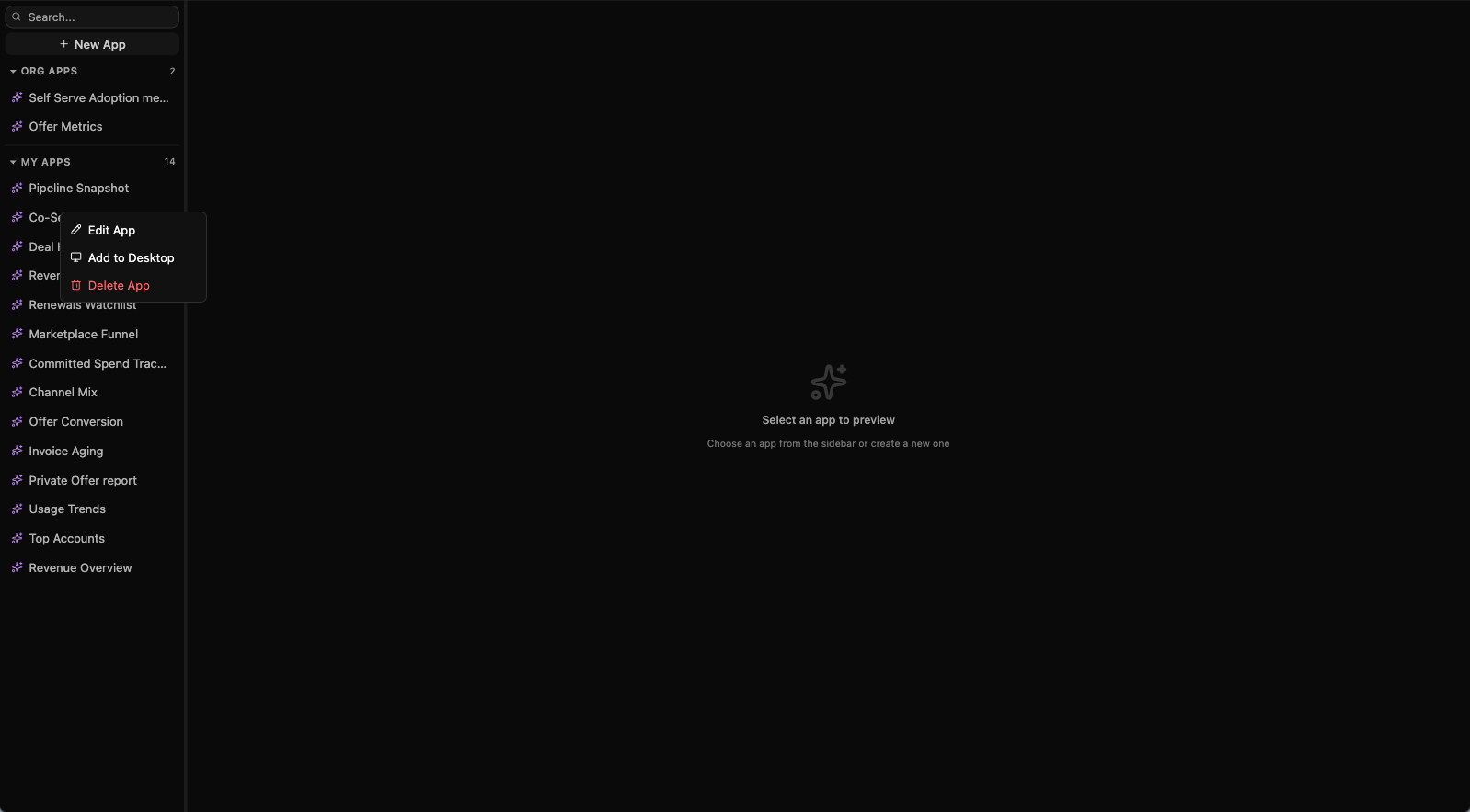
The card’s ⋯ button, or a right-click on the card, opens its actions. Which ones appear depends on your role on that app and in the organization, so the same menu is shorter on an app someone else owns:
| Action | What it does | When it appears |
|---|---|---|
| Edit App | Opens the app in the builder. | Editor or above on the app, for an organization ADMIN or EDITOR. |
| Add to desktop | Puts an icon on the Insulin desktop that opens the running app. | Published apps only. |
| Share App | Opens the Share dialog. | Organization apps only, and only for an admin or the owner. |
| Delete App | Permanently removes the app. | The owner; on an organization app, also an Admin. |
That is why a personal app you created offers Edit App and Delete App — and Add to desktop once it is published — but never Share App, while an organization app you are only a member of may have no actions at all, and so no ⋯ button.
Deleting an app starts a cleanup of everything it had — its source and saved versions, its database and data, and the published app.
Spotted something wrong or out of date on this page? Tell us and we'll correct it.