Sharing Agents
Only Organization agents can be shared. Personal (user-level) agents are private to you, and their Share button is disabled.
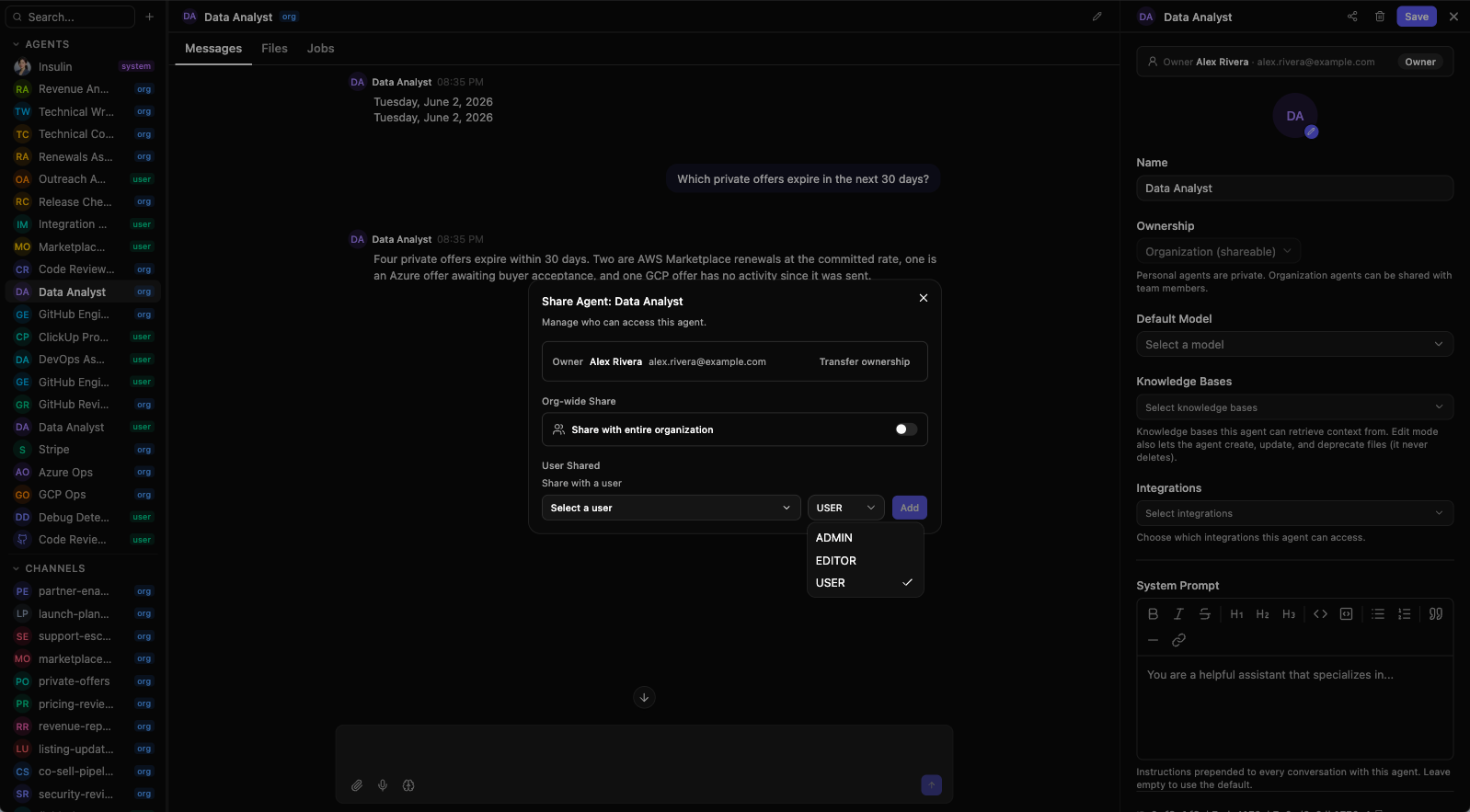
Share an Organization agent with specific teammates using role-based access control. Each shared user is assigned one of the following roles (see Roles and Permissions for the full model):
| Role | Permissions |
|---|---|
| ADMIN | Edit agent configuration and manage sharing (invite/revoke members, assign roles). The role picker offers ADMIN only to organization ADMINs |
| EDITOR | Edit the agent’s configuration (system prompt, default model, knowledge bases, and — for org admins — the integration allowlist) |
| USER | Use the agent in conversations |
To share an agent:
- Open the agent’s settings
- Click Share
- Add team members and assign roles
When a teammate opens an agent shared with them, its settings show an owner-and-role banner, and anyone below Editor (a USER/Member) sees the configuration read-only. See Working with a Shared Resource.
Org-Wide Sharing
Instead of inviting people one at a time, you can share an Organization agent with your entire organization. Org-wide sharing grants either EDITOR or USER (never ADMIN); everyone in the organization then gets that role automatically without an individual invite.
Transferring Ownership
Only an Organization agent can change hands, and only its owner can hand it over — the Share dialog shows Transfer ownership beside the Owner row to the owner and to no one else.
- Open the agent’s settings and click Share
- Click Transfer ownership next to the Owner row
- Choose the new owner from Select new owner… — only organization ADMINs are listed
- Click Transfer
The new owner receives full ownership and control of the agent. You drop to USER: you can still use the agent, but the new owner has to grant you EDITOR or higher if you should keep editing it. If you are no longer an organization ADMIN yourself, the transfer is refused, and the message says why.
Agents in Channels and Jobs
Agents can be reused across Insulin:
- Add agents to Channels when multiple people and agents need to collaborate in a shared thread.
- Assign agents to Jobs when work should run manually, on a schedule, or from an event.
- Use agents with Apps when a workflow needs both an AI builder and an interactive UI.
Spotted something wrong or out of date on this page? Tell us and we'll correct it.