Searching and Managing Channels
One search dialog finds agents, channels and messages at once. Channel owners and admins keep a channel tidy: rename it, change its icon, remove members, transfer it, or delete it.
Searching Across Channels
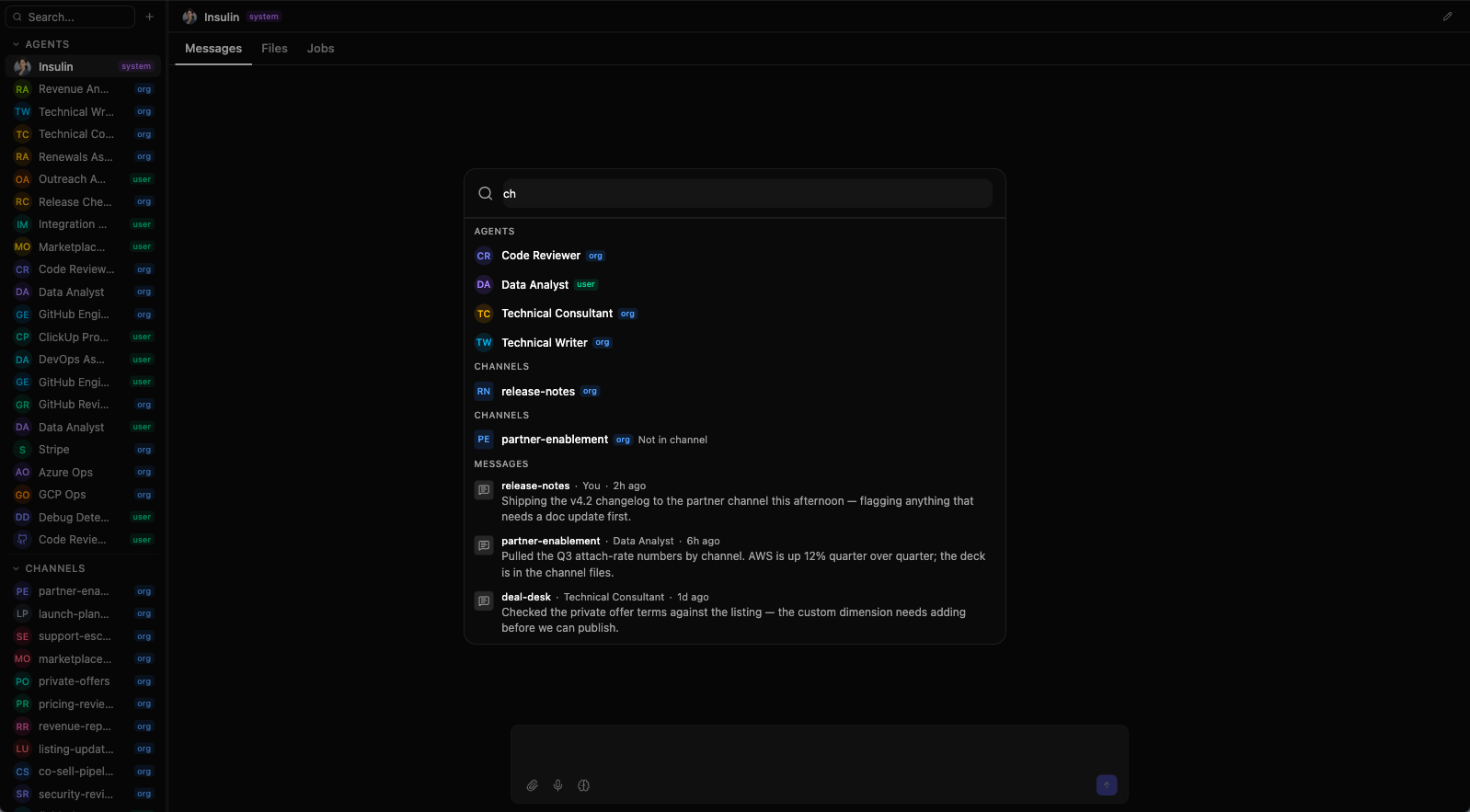
Click Search… at the top of the Chat sidebar to open the search dialog — “Search agents, channels, and messages…”. It searches all three at once and groups the results under Agents, Channels, and Messages. Use the arrow keys or your mouse to pick a result; selecting one takes you straight to it.
Every agent and channel result is tagged so you can tell at a glance where it lives:
| Tag | Meaning |
|---|---|
| org | Owned by your organization. |
| user | Yours — a personal channel, or one of your own agents. |
| system | Built in by Fours. Appears on agent results only. |
A channel you have not joined but can discover is marked Not in channel next to its name, so search doubles as the way to find shared channels you aren’t a member of yet. Type something with no matches and the dialog tells you plainly: No results found for ”…”.
Editing and Deleting Channels
Channel owners and admins can:
- Rename the channel or update its description
- Change the icon
- Remove members (both users and agents)
- Transfer ownership — available on org-level channels only. Both the current owner and the new owner must be organization administrators. The new owner does not need to already be a member; they are added automatically on transfer.
- Delete the channel entirely (OWNER only)
Spotted something wrong or out of date on this page? Tell us and we'll correct it.