How Apps Work
An app is a reusable interface, dashboard, form, or workflow tool you build and edit in the AppBuilder, Insulin’s app builder. Build one when a workflow needs more structure than a chat answer, such as a revenue dashboard, a deal review tool, a co-sell tracker, or an internal operations screen.
The AppBuilder builds a real, browser-native app. When you approve a project, it mounts a self-contained npm project — its own package.json, framework configuration, and editable source — and runs it live in your browser, so the preview you see is the working app rather than a static mock. When a saved version is ready, you publish it to production, which gives the app its own live URL for the people you choose.
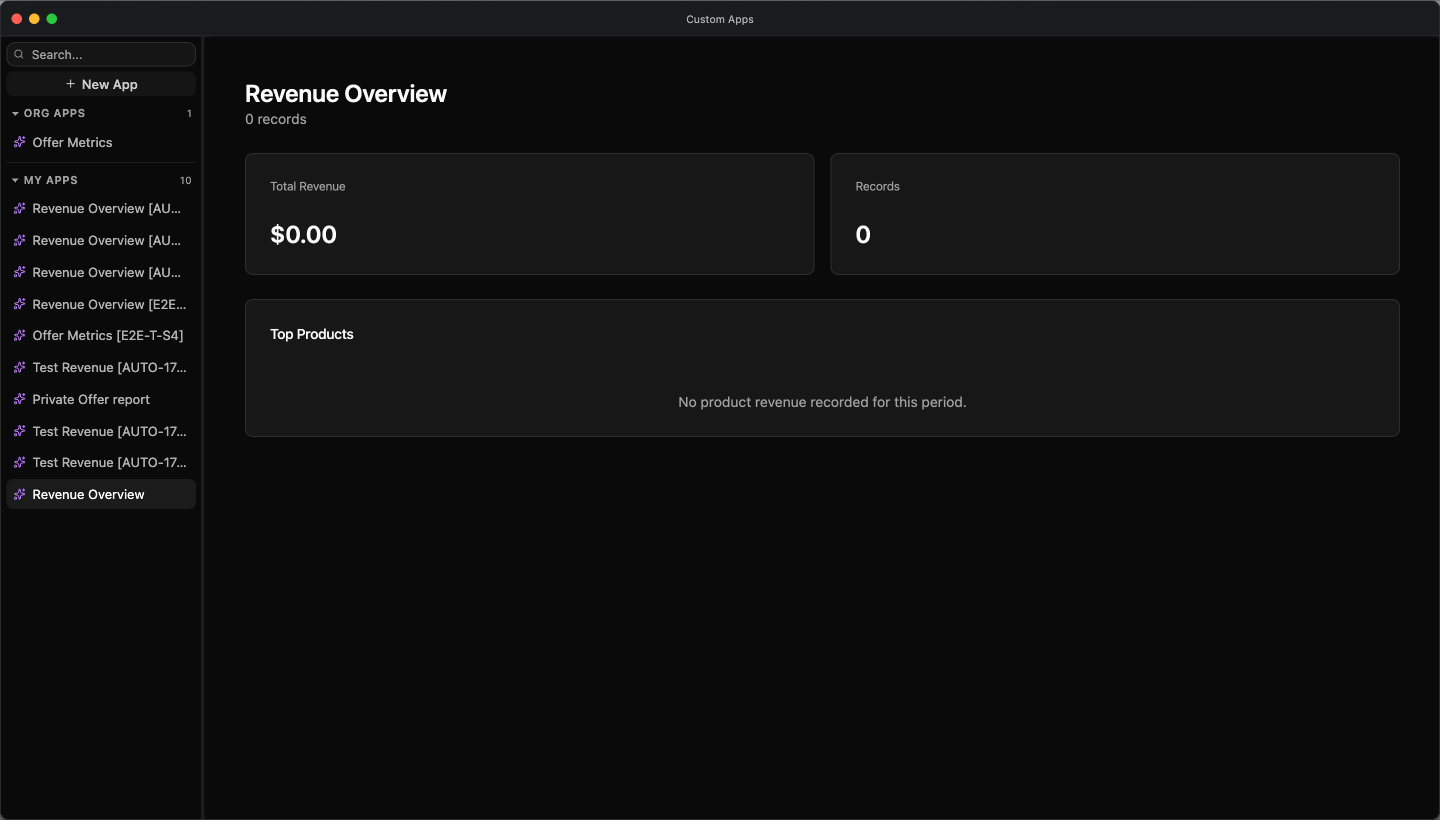
The apps you build are different from built-in Insulin apps such as Chat, Jobs, Marketplace, Knowledge Base, Inbox, Settings, Files, Browser, or Git. Built-in apps are part of the Insulin workspace. The apps in the Apps window are the ones your team creates, runs, edits, and shares.
How the pieces fit together
You build an app in the AppBuilder, whose assistant writes the app’s code into an npm project held on the
server, and the live preview runs that project in your
browser. Saving records a version. Publishing a version builds it on a fresh
build machine, applies its database changes and deploys it: a Public app answers at its insulin.host
address or a custom domain, and a Console-only app opens in the console under your own sign-in. Either way,
its server code reaches your connected integrations and your Fours data through Fours, and no credential is
pasted into it (see App Integrations and Data).
When to Use an App
Build an app when you want to:
- Turn a repeated marketplace workflow into a reusable interface
- Build a dashboard or report from connected systems
- Create a form-like tool for sales, operations, or partner workflows
- Share an internal app with teammates without building a separate product
For one-off questions, use Chat. For repeatable background work, use Jobs. For packaged expertise, use Agents and Marketplace.
Build Dashboards with AI
Apps are the recommended way to build dashboards and reports in Insulin.
The console’s legacy Analytics dashboards have been retired, and the dashboards Fours migrated from them are apps in Insulin Apps. The console’s Analytics page is now your organization’s Analytics app, running inside the console. An organization admin sets it up from that page with Set up Analytics, which creates a Console-only app named Analytics from the Analytics template, shares it with everyone in the organization as Viewer, adds the built-in dashboards and publishes it; until then the page says where the migrated dashboards are. See Analytics. Beyond those dashboards, you can create dashboards tailored to your own marketplace workflows using AI.
You can create a dashboard by simply describing what you need in natural language. For example:
- “Show my top customers by marketplace revenue over the last 90 days.”
- “List overdue marketplace payments.”
- “Build an AWS Marketplace revenue dashboard.”
- “Track offer acceptance rates and pending private offers.”
The AI builder generates an interactive dashboard that you can continue refining through conversation or by editing the generated app.
Migration from Analytics
Your migrated dashboards are apps like any other: find them on the console’s Insulin Apps page, or in the Apps window in Insulin, and pin the ones you use most. If a dashboard you used before is missing, or you have questions about the migration, contact your Customer Success Manager or support@suger.io.
How Apps Fit With Insulin
Apps work best alongside the rest of Insulin:
- Use Agents to define the expertise behind a workflow
- Use Marketplace to install reusable agents or skills before building
- Use Jobs for scheduled or event-triggered runs
- Use Channels when teammates need to discuss app output with agents
- Use knowledge bases and connected systems to ground the app in your organization’s data
Spotted something wrong or out of date on this page? Tell us and we'll correct it.