# Create and manage a private offer
Easily create private offers from Salesforce opportunities using the Fours App within your Salesforce Console, then manage them — extend, cancel, notify contacts, or download the EULA — without leaving Salesforce.
---
## Overview
A private offer is a custom deal you send to a specific buyer through a cloud marketplace — AWS, Azure, or GCP. It includes your negotiated pricing, contract terms, and expiration date. Think of it as sending a quote: once the buyer accepts it, the contract is live and billing starts automatically through the marketplace.
After adding the Fours App to your Salesforce Console, you can create these private offers directly from opportunities — no need to switch to the Fours Console. You can also create Agreement-Based Offers (ABO) from Salesforce. Once an offer has been created, you can manage it from the same **Fours Widget** on the opportunity — extend the expiry date, cancel it, notify contacts, and download the EULA file.
## Prerequisites
- The Fours App must be installed, connected, and set up with the Fours widget on your opportunity pages.
- You need the **Suger User**, **Suger User - Marketplace**, or a cloud-specific marketplace permission set assigned to your Salesforce account. If you can't see the **New Offer** button on an opportunity, your permission set is likely missing or incorrect — see [Permission Sets](/salesforce-app/salesforce-app-permission-sets/).
- The product you want to create an offer for must already exist in Fours. If it doesn't, create it in the Fours Console first before continuing.
## Create a private offer
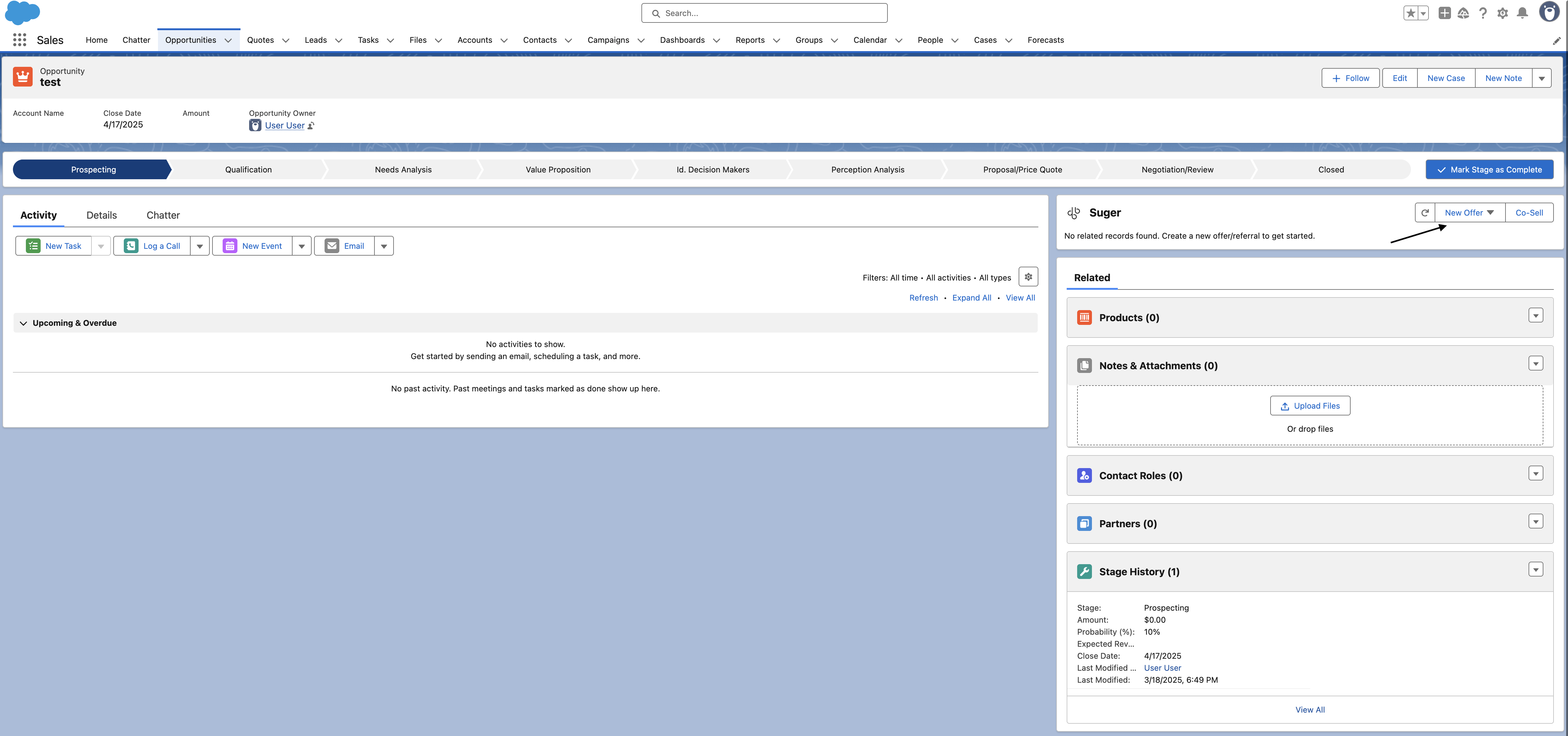
1. Navigate to the opportunity's detail page and click the **New Offer** dropdown button at the top of the Fours App. If you don't see the widget, it may not be added to your page layout yet — see [Add Fours widgets and buttons to Salesforce pages](/salesforce-app/salesforce-app-page-components/).
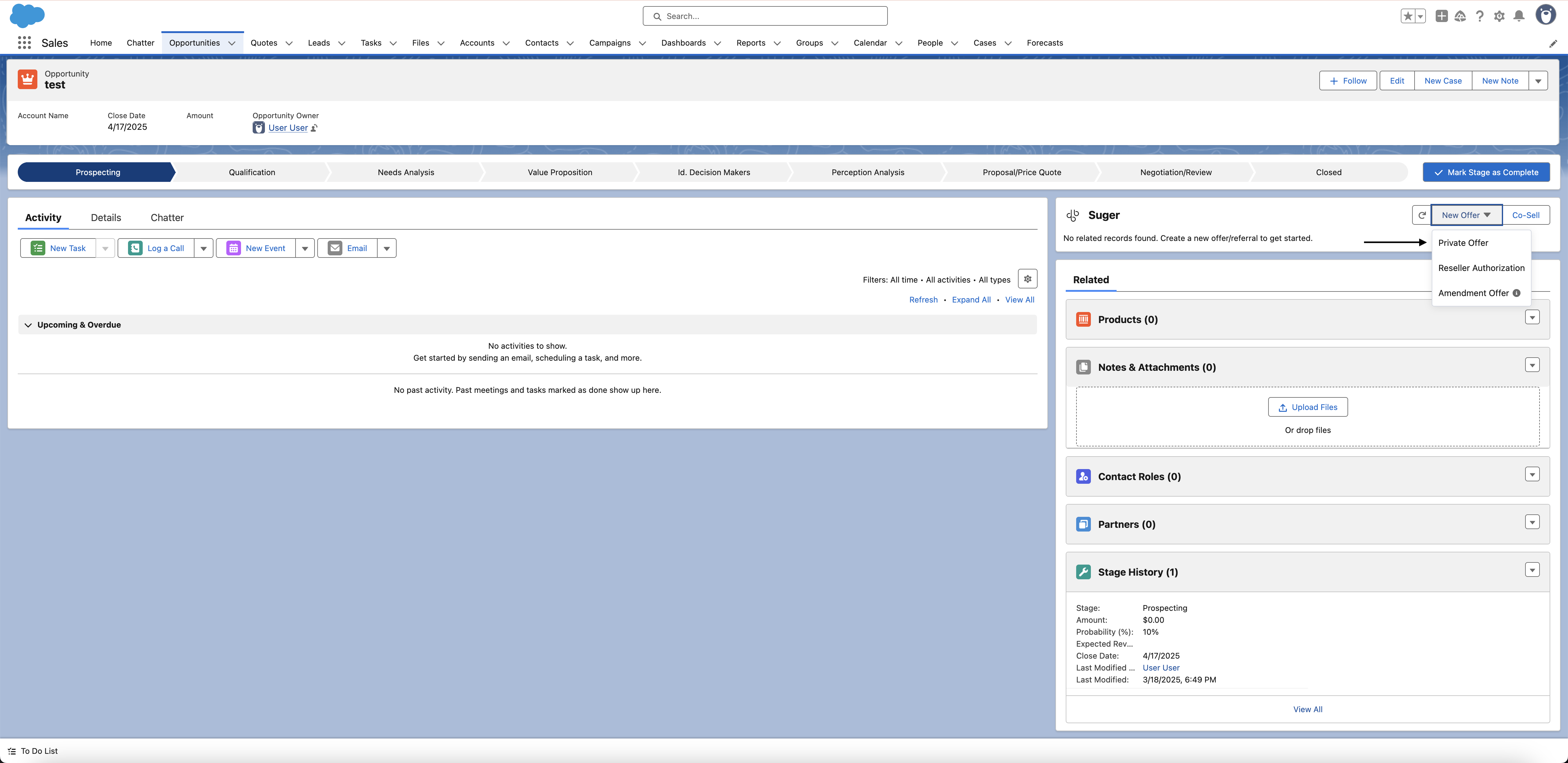
>  2. Locate and click the **"Private Offer"** button.
>
2. Locate and click the **"Private Offer"** button.
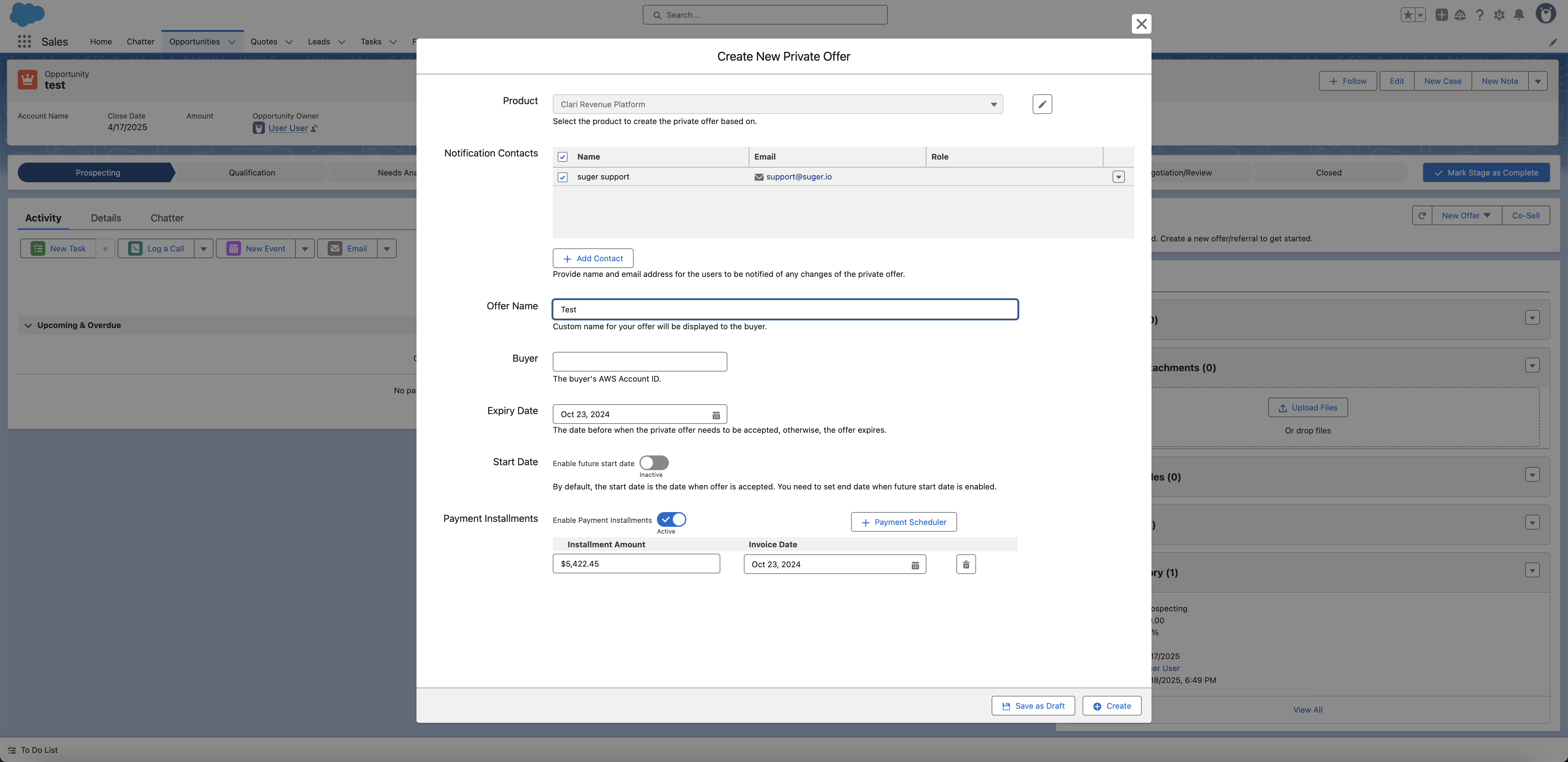
>  3. Choose the product on which the private offer will be based and complete the required fields in the form. Note that the required fields may vary depending on the cloud marketplace and the type of offer.
- The product list shows only the products available in your Fours account.
- If you are assigned a cloud-specific permission set (for example, Suger Marketplace - AWS), you will only see products for that cloud.
>
3. Choose the product on which the private offer will be based and complete the required fields in the form. Note that the required fields may vary depending on the cloud marketplace and the type of offer.
- The product list shows only the products available in your Fours account.
- If you are assigned a cloud-specific permission set (for example, Suger Marketplace - AWS), you will only see products for that cloud.
>  :::tip
If field mapping has been configured, the form will be prefilled with corresponding fields from the Salesforce opportunity, making the offer creation process faster and easier. Review the prefilled values for accuracy before submitting.
:::
4. Once all necessary information is filled in, submit the form to create the offer.
>
:::tip
If field mapping has been configured, the form will be prefilled with corresponding fields from the Salesforce opportunity, making the offer creation process faster and easier. Review the prefilled values for accuracy before submitting.
:::
4. Once all necessary information is filled in, submit the form to create the offer.
> 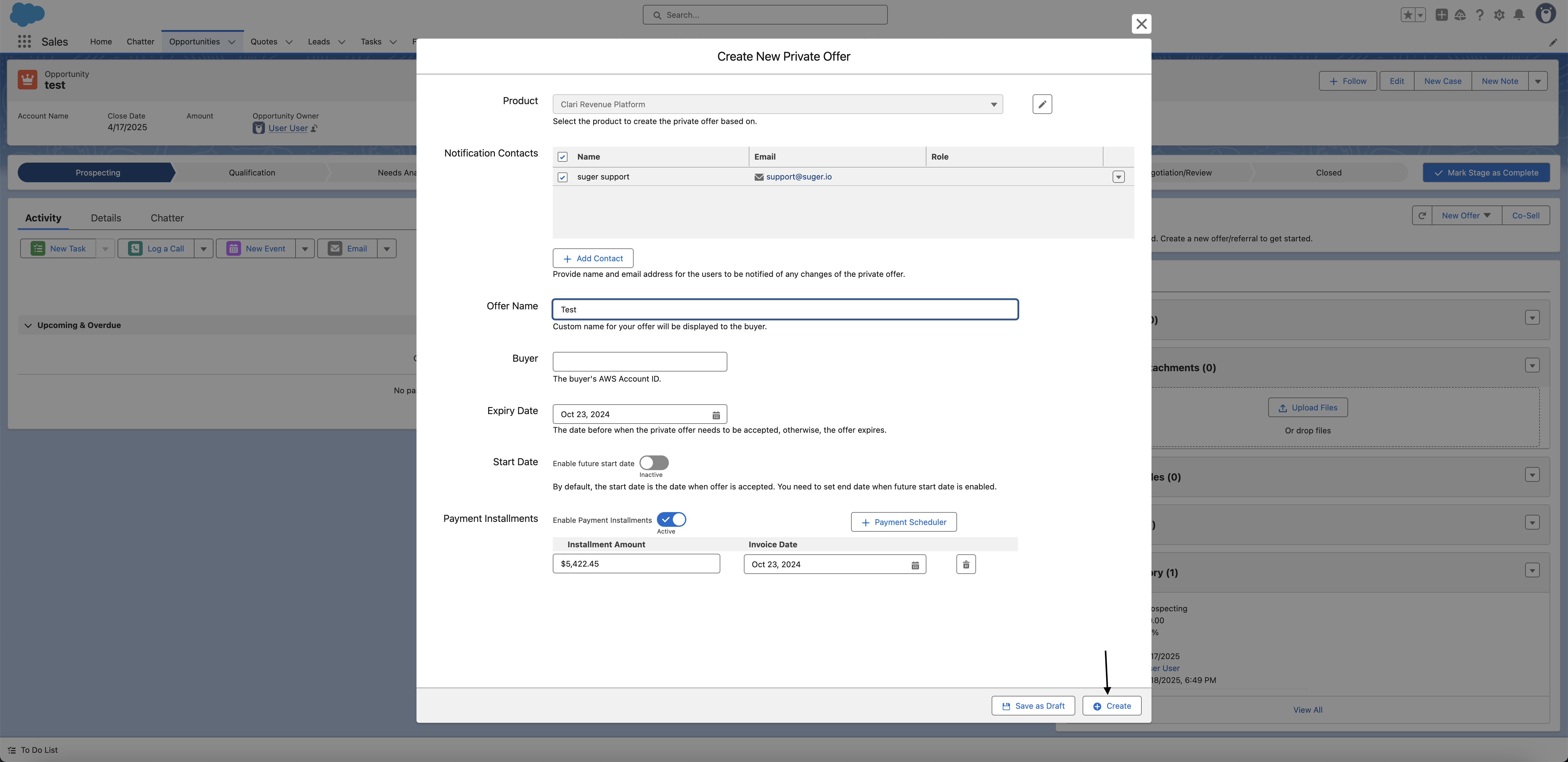 5. You are all set!
### If the product's pricing could not be loaded
The **AWS**, **AWS Container**, and **GCP** create forms show a red banner at the top when Fours could not load the selected product's specification. Submitting is refused with:
> Cannot create this offer: the product info could not be loaded. *{detail}*
A related message appears when the product loaded but has no pricing plans to choose from:
> Please select a pricing plan. If the dropdown is empty, this product's pricing could not be loaded.
Both mean the same thing in practice: pick a different product, or fix the product's pricing in the Fours Console, then reopen the form. There is no field on the form to correct.
### GCP prepay: what happens to unused commitment
A **GCP prepay** offer's create form carries an **Unused commitment rule** selector above the installment schedule, with three choices:
| Rule | What it does |
| --- | --- |
| **Rollover** | An installment's unused balance carries into the next installment. |
| **Expire** | The unused balance is discarded at the end of the installment — the carried-over commitment **and** any partner-sponsored free credit. |
| **Custom** | Set the behaviour installment by installment. |
Once the offer exists, the installment table on the offer detail page shows the resulting rule as a read-only **Unused Commitment** column, worded exactly as the GCP producer portal words it, so the two can be compared side by side:
- **Rollover to next commitment**
- **Expire all unused balance**
- **Expire all at offer end date** — the final installment, where the term ends and nothing can roll further.
### GCP usage pricing models
When the plan you select is a GCP usage plan, the form asks for a **Usage Pricing Model**. Each choice shows, beneath it, the hint GCP's Producer Portal gives for it:
| Usage Pricing Model | Hint shown beneath it |
| --- | --- |
| **Commitment discount with additional usage at list price** | *The customer promises to pay a discounted amount. All usage, including overages, is list price.* |
| **Commitment with all usage discounted** | *The customer promises to pay an amount. All usage, including overages, is discounted.* |
| **Usage-based discount only** | *The customer pays a discounted amount for what they use* |
On a **replacement** offer the model is filled in from the offer being replaced — prepay offers and offers created in GCP's Producer Portal included. Keep it: GCP refuses a replacement offer that changes the usage pricing model.
The one exception is a replacement opened from a Salesforce record whose [private offer field mapping](#configure-crm-field-mapping-for-private-offers) sets a model. If the mapped value is one of `CUD_LIST_PRICE`, `CUD_ALL_USAGE_DISCOUNTED` or `USAGE_DISCOUNT_ONLY` and differs from the replaced offer's, the form opens with the mapped model instead — a label such as *Usage-based discount only* is ignored. A mapped model also resets **Payment Recurrence** to match, and **Commitment discount with additional usage at list price** clears the discounts carried over from the replaced offer, since that model prices usage at list price. Because GCP refuses a changed model, check a mapped model against the replaced offer before you submit.
### Proration (GCP, monthly billing)
A GCP private offer — on the plain private offer form or the **GCP Professional Services** form — whose **Payment Recurrence** is **Monthly** has a **Proration** switch in its pricing section:
| Setting | What GCP does |
| ------- | ------------- |
| **Off** (the default) | Installments follow the offer's anniversary date. |
| **On** | GCP prorates the first installment against the start date, so billing lines up with calendar months. |
The switch appears only for **Monthly** recurrence, and never when the usage pricing model is **Usage-based discount only**, which has no commitment installment to prorate.
### AWS net payment terms
For an AWS private offer, choose **Customer's net terms with AWS** to leave the custom term empty, or choose Net 15, 30, 45, 60, 90, or 120 after agreeing the term with the buyer. The buyer does not choose this value in Fours. Agreement-Based Offers are treated as new offers, so this selection starts empty.
For a CPPO resale authorization, the ISV selects the **maximum** buyer net payment term. For the downstream CPPO, the channel partner can inherit that maximum or select a shorter term, but cannot select a longer one. If the authorization has no maximum, a custom downstream term is unavailable. Cloning any supported AWS offer or authorization copies its current value into the new-offer form. Released values are read-only.
:::warning
**Wait 3–5 minutes before copying the offer link.** Fours sends the offer data to the cloud marketplace immediately, but the marketplace takes a few minutes to process it. The **Copy Offer URL** button on the offer record won't work until the offer is fully created on the marketplace side. Refresh the page after a few minutes and the URL will be ready.
:::
### Configure renewal terms (AWS)
AWS contract offers can carry **pre-authorized renewal terms**, so the agreement renews on terms the buyer already agreed to instead of requiring a new offer each cycle. When the offer qualifies, a **Configure renewal terms** section appears on the AWS offer form.
Whether the section appears depends on the product's **commits**. It is not a setting you can turn on, and usage dimensions on the same product do not hide it:
| Offer form | The section appears when |
| ---------- | ------------------------ |
| **AWS SaaS** | The product carries at least one commit. |
| **AWS Container** | The product carries at least one commit, and the offer is priced with commits — not usage-only, and not free. |
| **AWS AMI** | Never. An AMI offer cannot carry renewal terms, so the section is not shown whatever the product's pricing. |
| **AWS Professional Services** | The product carries at least one commit. |
If the offer stops qualifying after you set renewal terms — for example, you switch to a product with no commits — the terms are removed from the offer automatically, so they are never sent to AWS on an offer that cannot carry them.
Pick one of three renewal options:
| Option | What it does |
| ------ | ------------ |
| **No price uplift** | Renew at the same price each cycle. |
| **Price uplift** | Increase pricing by a fixed percentage, or within a pre-negotiated range, each cycle. |
| **No renewal** | Do not include auto-renewal terms with this offer. |
Choosing **Price uplift** reveals a **Price uplift type**:
| Uplift type | Fields |
| ----------- | ------ |
| **Fixed percentage** | **Price increase percentage** — 0 to 100, in steps of 0.01. |
| **Percentage range** | **Minimum uplift percentage**, **Maximum uplift percentage**, and **Default uplift percentage**, each 0 to 100 in steps of 0.01, plus an **Adjustment deadline** — the number of days before agreement expiration by which you must settle the uplift. The final figure inside the range is chosen later, per renewal. |
Selecting **No price uplift** or **Price uplift** opens that option's card, and both carry the same three settings:
| Setting | What it does |
| ------- | ------------ |
| **Renewal decision deadline (optional)** | The number of days before the agreement expires after which neither party can opt out of the renewal. Leave it blank to use the agreement expiration date itself. The deadline must fall inside the contract term; if it does not, the form names the date it lands on and the term it misses, for example *Renewal decision deadline (800 days) falls on 2025-07-23, which is not inside the contract term (2026-10-01 → 2027-10-01).* A percentage range's **Adjustment deadline** is checked the same way. |
| **Renewal count** | **Definite** renews a set **Number of renewals**; **Indefinite** keeps renewing. |
| **Renewal payment schedule** | Optional. Turn on **Enable renewal payment schedule** to invoice each renewal cycle in installments — up to **86**, totaling 100%. |
**The schedule starts from your offer's own installments.** When you turn the schedule on, each of the offer's **Payment Installments** becomes a row carrying its share of the total, timed from the agreement start; installments on the same date merge into one row. Rows are counted in months, each keeping its own day of the month, unless two installments fall in the same month — then the whole schedule is counted in exact days. The rows follow the offer's installments until you edit them; after that they are yours. An offer with no installments starts with a single 100% row.
To lay out a schedule yourself, click **Renewal Payment Scheduler**: choose a **Payment frequency** (Monthly, Quarterly, Semi-annually, Annually, or Custom), a **Due date calculation** (**By month** or **By exact days**), the **Number of installments**, and optionally a **Day of month**, check the **Plan preview**, and click **Create**. **New payment installment** adds a single row.
Each row has its offset — the column reads **Months after agreement start** or **Days after agreement start** — an optional **Day of month**, and a **Percentage of TCV**, and the footer shows how much is **Allocated** and **Remaining**. When the offer has priced payment installments, the schedule also states the **Original contract total** and **Contract duration**, and each row shows an **Estimated first renewal cycle payment amount** — its share of the contract total after one cycle of uplift.
Once the offer exists, the terms read back as a **Renewal terms** card on the offer detail page. Managing a renewal *after* the buyer accepts — adjusting the uplift inside an agreed range, or opting out — happens on the entitlement, not here; see [pre-authorized auto-renewal](/aws-marketplace/pre-authorized-auto-renewal/).
### Auto-Activation (Azure)
Azure SaaS offers can carry an **Auto-Activation** toggle — *Automatically activate the subscription on purchase*:
- **On** — Azure activates the SaaS subscription automatically once the customer purchases the private offer.
- **Off** — your team activates the subscription. **Fours does not activate it for you** on these integrations, because the integration manages subscription activation itself.
The toggle appears only when both are true: the Azure integration is set to **self-managed subscription activation**, and the offer uses **V2 pricing** (`newCustomizedPlans`). V1 offers cannot carry the setting at all, so it is hidden rather than shown disabled.
### Notification contacts on an Azure offer
On an Azure private offer, the people you select in the form's **Notification Contacts** section are saved as the offer's Fours contacts — the same list the **Notification Contacts** card shows once the offer exists (see [Notify contacts](#notify-contacts)). They are no longer sent to Microsoft as the Azure offer's own notification contacts; Fours emails them only through the **Offer Notification Contacts** rule in your [email notification settings](/settings/email-notification/#email-an-offers-contacts).
### Attach your own EULA files
When the offer uses your own EULA, the form's **EULA** section lists every PDF you attach, and Fours merges them into one document **in the order shown**. Use the arrows beside each file — **Move up in merge order** and **Move down in merge order** — to change its position before you submit.
- If you also tick **Attach Standard Contract for … Marketplace**, or the checkbox that attaches your public offer's default EULA, that document is appended **last**, after your own files.
- On an **Agreement-Based Offer** that uses **Append to Existing EULA**, the base agreement's existing EULA stays **first**, and the files you upload follow it in the order shown.
- The **AWS Reseller** and **AWS Professional Services** forms have no standard contract to attach, so their files merge in the order shown.
#### Choose PDFs from a related record
Besides uploading a file, the **EULA** section can pull PDFs that are already in Salesforce: **Select from Opportunity Attachments**, and **Select from Quote Attachments** when the offer is tied to a Quote. Your admin can add one more source — a record your starting record looks up to, such as an Agreement a Quote points at. When that is set up, the section shows a **Select from *{lookup field}* files** button that lists the Salesforce Files attached to that related record.
```d2
direction: right
start: "Record you start the offer from\nfor example a Quote"
related: "Related record\nfor example an Agreement"
files: "Its Salesforce Files"
eula: "Offer EULA\nPDFs you pick"
start -> related: "the lookup your\nadmin configured"
related -> files
files -> eula: "Select from … files"
```
- The button appears only when you start the offer from a record of the object your admin configured it for. Started from any other object, it is not shown.
- When the lookup on your record is empty, or points at a record you cannot see, the button is disabled with *No related record found.*
- Pick one or more PDFs. The picker states the limit — **20 MB** per file on the AWS forms, **3.5 MB** on the Azure and GCP forms — and asks you to deselect anything larger. A related record with no files reads *No files available on this record.*
- Fours checks your own Salesforce access to the record and the file before attaching it, so you can attach only what you could open yourself.
- The files join the EULA list like any upload and merge in the order shown.
The button is on the AWS (SaaS, Container and AMI, Machine Learning, and Professional Services), Azure, and GCP (private, Professional Services, and replacement) offer forms. The AWS Reseller form and the reseller authorization forms do not have it.
If the button cannot be used, its message says why:
| Message | What it means |
| ------- | ------------- |
| *No related record found.* | The lookup on the record you started from is empty, or the related record is not visible to you. |
| *Unable to access this document source. Contact your Salesforce administrator.* | Salesforce refused access to the lookup or the record. |
| *Document source configuration: …* | The configured lookup no longer exists on the object, or is not a direct lookup to a single object. Ask your admin to fix the setting. |
| *Select a PDF within the size limit shown on the offer.* | The file you picked is not a PDF, or is over the limit. |
| *The file is no longer available on this document source.* | The file was removed from the related record after the picker opened. Open the picker again. |
### Snowflake: attach PDFs for the buyer
A Snowflake private offer has an **Attachments** section for PDF files the customer can download while viewing the offer — up to **5** files, **5 MB** each.
1. Click **Attach file** to add a row, then choose a PDF for it.
2. Repeat for up to five files. **Attach file** disappears once five rows exist, and the trash icon on a row removes it.
A file over 5 MB is refused with *The file size is too large.*, and a file that is not a PDF with *The file type is not supported.* Once the offer exists, the offer page lists the attached file names under **Attachments**.
### Oracle: when billing starts
An Oracle private offer sets when billing starts in its **Billing Start** section:
| Option | What happens |
| ------ | ------------ |
| **On acceptance** (the default) | Billing starts when the buyer accepts the offer. |
| **Specify date** | A date field appears, and billing starts on the date you pick. |
**Offer Expiration Date** — the buyer's deadline to accept — defaults to 30 days after creation, or to the day before the billing start date if that is sooner. When you specify a start date, the expiration date must fall before it. The form refuses to submit with:
- *Billing start date is required when billing starts on a specific date.*
- *Offer expiration (accept-by) date must be before the billing start date.*
### What happens next
After you submit the offer:
- Fours creates the offer record in your Salesforce org, linked to the opportunity.
- The offer is sent to the cloud marketplace (AWS, Azure, or GCP) for processing.
- Once the marketplace confirms the offer, the offer status updates and the offer URL becomes available.
- You can then copy the offer URL from the offer record and send it to the buyer — they use it to review and accept the offer in their cloud marketplace account.
:::tip
For best practices, a full field breakdown, and the complete private offer lifecycle, see [Private Offer Best Practices](/aws-marketplace/offer-best-practices/).
:::
## Track private offer status
After creating a private offer, you can track its progress directly from the Opportunity page via the embedded Fours widget. All offer and entitlement data synced from the marketplace is displayed in real time within the widget — no need to switch platforms.
1. Once you click **Create**, you're returned to the Opportunity detail page. The Fours widget immediately displays the new offer with the status **`PENDING_CREATE`**.

2. Wait up to **5 minutes**, then refresh the widget. The offer status updates to one of the following:
- **`Create Success`** — the offer was successfully created in the marketplace but has **not yet been sent** to the buyer.
- **`Pending Acceptance`** — the offer has been **pushed to the marketplace** and the buyer has been notified.

- **`Create Failed`** — Fours could not complete the offer's creation on the marketplace. The marketplace may have refused it **before anything was created** — its shape, term, or replacement target was rejected pre-flight — or the create may have failed partway through and left something behind. Open the offer: the error Fours recorded, when there is one, is shown on the offer page. If **Edit Draft** is offered, use it to correct the offer and submit it again. Offers refused pre-flight in the past may show **`Invalid`** instead; to try again, **Clone** the offer and create the copy.
3. When the buyer accepts the offer, the widget updates to show **`Accepted`**, and you'll see the corresponding **Offer object** linked within the widget.

4. Click the offer directly in the widget to open a detailed view, including pricing, contact information, term details, and entitlement data.
## What's on the offer detail page
Beyond the standard offer fields, the offer detail page shows a few sections only when they apply to that offer. If you don't see one below, it means the condition for it wasn't met — not that data is missing.
### Buyer payment term (AWS)
**AWS** offers carry a **Buyer payment term** row in **Offer Information**, showing the term as its friendly label (*Net 30*) rather than its raw duration. On a **reseller authorization or CPPO** — inbound or outbound — the same row is relabelled **Maximum buyer net payment term**, because on those the value is the ceiling the ISV set rather than the term the buyer actually gets.
The row is hidden on non-AWS offers, and on an AWS offer where the buyer is using their AWS account default, so it never renders as a bare dash.
### Renewal offers (AWS and Azure)
An offer is recognized as renewing an existing agreement on both AWS and Azure — AWS marks it on the offer's metadata, Azure through the private offer's customer contract renewal flag. Whichever cloud it came from, the offer reads as a renewal wherever the app shows renewal status.
### Replaced Offer ID and Replaced Offer (GCP)
**GCP** replacement and amendment offers carry two extra rows in **Offer Information**, so you can trace the new offer back to the one it supersedes:
| Row | What it shows |
| --- | ------------- |
| **Replaced Offer ID** | The marketplace ID of the offer this one replaces. |
| **Replaced Offer** | A link straight to the replaced offer's record in Salesforce. |
Both rows appear only on GCP replacement and amendment offers. **Replaced Offer** is additionally omitted until Fours has resolved the replaced offer into a record it can link to — if you see the ID but not the link, the replaced offer hasn't synced yet.
### GCP dates in Pacific time
GCP's Producer Portal shows a private offer's dates on the Pacific clock, and so does the offer page. On a **GCP** offer, dates read as a Pacific date and time with the **PST** or **PDT** label — for example `8/31/2026, 11:45:00 PM PDT` — so everyone sees the same value whatever their own timezone.
| Row | What it shows |
| --- | ------------- |
| **Expire Date** | 11:45 PM Pacific on the last day the buyer can accept — the time GCP itself displays. |
| **Acceptance Date** | When the buyer accepted. |
| **Start Date**, **End Date** | GCP only: the offer's term start and end. Each row is hidden until the offer has that value — a pending offer may have no start yet, and a pay-as-you-go offer has no end. |
Offers on other marketplaces keep showing the date alone.
### Note for Buyer (GCP)
- A **GCP** offer that carries a note for the buyer shows a **Note for Buyer** row in **Offer Information**. It is hidden on non-GCP offers, and on a GCP offer that has no note, so it never renders empty.
### Universal PAYG discount banner
When a GCP offer was priced with a single discount across all usage rather than per-dimension rates, a banner sits at the top of **Offer Information** stating the discount — for example, **20% off all usage**, captioned *Universal PAYG discount*. It is there so a reviewer doesn't read the absence of a per-dimension breakdown as missing pricing.
### Dimension Tags (read-only)
If your organization uses **dimension tagging** to build discounts (see [Dimension-tag discounts](#dimension-tag-discounts-gcp-aws-azure) below), the offer detail page shows the tag configuration the offer was built with, as a read-only **Dimension Tags** section directly above the pricing section. You cannot edit it here — this is the record of how the offer was priced.
| Cloud | Where it appears |
| ----- | ---------------- |
| **AWS** | One panel at the offer level, above **Usage Dimensions**. |
| **GCP** | One panel at the offer level, above **Usage Dimensions**. For **prepay** offers, tag groups are set per payment installment, so you get one panel per installment. |
| **Azure** | One panel **per plan**, above **Azure Pricing** — matching the way Azure offers configure discounts per plan. A plan with no dimensions shows nothing. |
:::note
The section only renders when your org has dimension tagging enabled, the offer is priced in **USD**, and the offer actually used a configured tag group. An offer priced dimension-by-dimension by hand has no Dimension Tags section.
:::
## Clone a private offer
You can quickly create a new offer based on an existing one.
1. Open the **Opportunity** that contains the existing offer.
2. In the **Fours widget**, click the offer you want to clone.
3. In the top-right corner of the offer view, locate the **arrow-down button** next to the **Refresh** icon.
4. Click the dropdown and select **Clone**.
5. A new offer form opens with pre-filled details from the original offer. Make any necessary changes and click **Create** to submit.

:::note
**Clone is not offered on every offer.** Reseller authorizations and the resale offers made under them (`CPPO` and `CPPO_IN`) cannot be cloned — a CPPO is reseller-owned and an inbound resale authorization is a read-only object the provider synchronizes. Agreement-Based Offers cannot be cloned either, because the agreement details are not carried into the copy.
:::
**What a GCP clone copies.** Cloning a GCP private offer carries the original's negotiated terms into the new form — customer and provider details, notes, deal type, payment recurrence and schedule, duration, features, and proration setting — including when the original was created in GCP's Producer Portal. The original's error messages, notifications, acceptance date, and marketplace-side offer identity are cleared, so a clone of a failed offer opens without the original's error. A resale authorization (`CPPO_OUT`) is cloned through the resale-authorization form instead, and this cleanup does not apply to it.
:::tip
For steps on canceling, extending, notifying contacts, and more, see [Private Offers](/console/private-offers/).
:::
### GCP replacement offers: term and cancellation
Cloning a **GCP** offer produces a replacement offer, and its form carries two controls that decide how the new offer relates to the one it replaces.
1. **Change Offer Duration** — a toggle whose own help text reads: *"Off keeps the replaced offer's end time (coterm). Turn on to set your own term via Offer Duration."*
- **Off** (the default) — the replacement **coterms** to the replaced offer: it ends on the same date, and the form shows that date as a read-only **Offer End Date**.
- **On** — an **Offer Duration** field appears and you set the term yourself. Its unit follows the **Payment Recurrence** you selected.
2. **Cancel the existing offer at the publishing of this offer** — a checkbox in the **Existing offer** card. When checked, the original offer is cancelled automatically once the new offer reaches **pending acceptance** status. This only affects whether the original offer is still visible and acceptable; it does **not** touch an existing subscription if the buyer had already accepted the original offer.
On a **Monthly** replacement offer, the [Proration](#proration-gcp-monthly-billing) switch is shown read-only. GCP does not allow the proration policy to change on an amendment, so the form carries over the replaced offer's setting: **On**, **Off**, or **Not set (GCP default)** when GCP created the original offer under its own default.
## Manage an existing offer
Once a private offer has been created from an opportunity, you can manage it without leaving Salesforce. Open the **Opportunity** that contains the offer, then click the offer in the **Fours Widget** to open the Offer Page. From there you can extend the expiry date, cancel the offer, notify contacts, and download the EULA file.
:::tip
For steps on canceling, cloning, extending, notifying contacts, and more, see the full [Private Offers](/console/private-offers/) guide in the Fours Console.
:::
### Extend a private offer
**Extend** is offered only where the marketplace accepts the change, so the action is absent rather than failing:
| Marketplace | Can extend? |
| ----------- | ----------- |
| **AWS** | Yes — except a **resale authorization (CPPO_OUT)**. AWS rejects any change to a released resale authorization. |
| **Azure** | Only on **V2 / V3 pricing** (`newCustomizedPlans`, `saasNewCustomizedPlans`, `vmSoftwareReservations`). Not on V1. |
| **Oracle** | No — Oracle Marketplace does not support extending an offer's expiry date. |
| **GCP and the rest** | Yes. |
The offer must also be in **Pending acceptance**, **Expired**, or **Update failed**. An offer the buyer has already accepted has an agreement behind it, and its expiry date no longer governs anything.
1. Open the **Opportunity** that contains the private offer.
2. In the **Fours Widget**, click the offer you want to extend.
3. Click the **arrow-down button** next to the **Refresh** icon in the top-right corner.
4. Select **Extend** from the dropdown menu.
5. Update the **Expiry Date** to a new future date, then save.

### Cancel a private offer
1. Open the **Opportunity** that contains the private offer.
2. In the **Fours Widget**, click the offer you want to cancel.
3. Click the **arrow-down button** next to the **Refresh** icon in the top-right corner.
4. Select **Cancel** from the dropdown menu.
5. Confirm the cancellation when prompted.

### Notify contacts
1. Open the **Opportunity** that contains the private offer.
2. In the **Fours Widget**, click the offer you want to notify contacts about.
3. Find the **Notification Contacts** card on the right side of the Offer Page.
4. Click **Add Contact**.
5. Choose the contact(s) you want to notify and confirm. The picker opens on **Create Suger Contact**, where you type a new person's name and email; to pick someone who already exists, switch to **Salesforce Contacts**, **Salesforce Users**, or **Suger Platform Contacts**.

Whether Fours' notification email actually goes out is decided by your organization's email notification settings in the Fours console: it is sent only while **Enable Email Notification** is on and the **Notify offer contacts** row is enabled, and the contacts you pick reach it through that row's **Offer Notification Contacts** rule. See [Notify contacts](/console/private-offers/#notify-contacts).
### Download the EULA file
1. Open the **Opportunity** that contains the private offer.
2. In the **Fours Widget**, click the offer you want to review.
3. Scroll down to the bottom of the Offer Page.
4. The **EULA** file is available in the last section of the Offer Page.

Once an offer is past **Draft**, clicking its EULA opens the file in a new browser tab. Fours fetches a current download link at the moment you click, rather than reusing the link saved on the offer, which can expire — so allow pop-ups for Salesforce. If the file cannot be opened, an **Unable to open EULA** message gives the reason: *Allow popups for Salesforce, then try again.* when the browser blocked the new tab, *The EULA download link is unavailable. Please try again.* when Fours returned no usable link, or the error Fours reported.
## Configure CRM field mapping for private offers
Configuring Salesforce private offer field mapping lets you auto-generate private offer fields from your CRM, so information is pre-populated when sending offers from Salesforce. This saves time and reduces manual entry errors during deal submission. Field mapping is set up in the Fours Console by your Salesforce admin.
1. **Access the Fours Console** — the central hub for managing configurations and settings.
2. **Navigate to the Settings tab.**
3. **Select the Private Offer setting.**
4. **Create a new configuration.**
5. **Choose the Cloud partner and associated CRM** for which you want to configure the field mapping.
6. **Map Salesforce fields** to the fields relevant to private offers. For example, associate offer names with opportunities, the buyer AWS account ID with the corresponding field, and offer expiration dates with the relevant fields.
7. **Save the configuration.**
### Skip the entitlement picker on an amendment
**New Offer** → **Amendment Offer** (and the **New Amendment Offer via Suger** quick action) normally opens **Suggested Entitlements** so you can pick the entitlement to amend. To skip that step, map `metaInfo.baseEntitlementExternalId` in your private offer field mapping to a Salesforce field that holds the entitlement's marketplace ID — for example `Suger__Entitlement_External_ID__c`. The form then opens straight on the AWS agreement-based offer, Azure upgrade offer, or GCP replacement offer for that entitlement.
Only the mapping for the cloud your **Cloud Partner Selection** script returns counts. If the mapped entitlement can't be found or can't be amended, a *Mapped entitlement can't be amended* warning gives the reason and the picker opens as usual.
When the form opens straight on the entitlement, the amendment-offer banner naming it ends with a **Change** link that reopens the entitlement picker, so you can pick a different one — on the AWS, Azure, and GCP amendment forms.
### Add a related record as a EULA source
The **Salesforce** block of the same **Private Offer** settings holds **Offer Created From** — the Salesforce object a private offer is created from and your field mapping reads, such as Opportunity or Quote — and, beneath it, an optional **EULA Document Source**. Setting it is what adds the [Select from … files](#choose-pdfs-from-a-related-record) button to the offer forms.
1. In the Fours Console, go to **Settings** → **Private Offer**, and find the **Salesforce** block.
2. Check **Offer Created From** is the object your team starts offers from.
3. In **EULA Document Source**, pick one lookup field on that object. The list holds the object's direct lookups to a single other object — lookups to User are left out — and **Related object:** below it names the object the lookup points at. If a field you just created in Salesforce is missing, click the refresh icon beside the list.
4. Click **Save**.
Choose **None** to remove the source. Changing **Offer Created From** clears it, because a lookup belongs to one object. If a saved lookup no longer exists, the block says *Configured lookup {field} is unavailable. Select another lookup or clear it.*, and an object with nothing to pick reads *No supported lookup fields on this object.*
Only one direct lookup is supported. To reach an Agreement through an Opportunity's primary Quote, start offers from the Quote and configure the Quote's Agreement lookup. Changing the setting never alters the EULA files on offers you have already created. The rest of these settings are covered in [Private Offer Field Mapping](/settings/private-offer-mapping/).
### AWS private offer required fields
| Field Name | Source | Description / Purpose |
| --- | --- | --- |
| Salesforce Opportunity ID | Salesforce Field (`Id`) | Identifies the Opportunity associated with the offer. Required for linking the private offer to the correct Salesforce record. |
| Renewal Offer Type | Salesforce Field | Indicates whether the offer is new or a renewal. |
| Product ID | Salesforce Field (Fours Product Id) | Maps the Fours product to the AWS listing product ID. Required for AWS to recognize which listing the offer belongs to. |
| Offer Name | Expression: `{{ .Name }} - {{ .Account.Name }}` | Defines the custom name for the offer as it appears in AWS Marketplace. Usually combines Opportunity and Account names. |
| Buyer AWS Account ID | Salesforce Field | The buyer's AWS Account ID — needed so AWS can associate and allow that buyer to view and accept the private offer. |
| Contacts | Salesforce Field / Manual Entry | Contact names and emails of people who should be notified when the offer is ready. Can include the Opportunity owner and additional internal contacts (for example, `{{ .Owner.Name }}`, `{{ .Owner.Email }}`, or manually added users like your teammate). |
| EULA Type | Salesforce Field | Specifies which End User License Agreement (EULA) to attach — for example, "Standard AWS Terms" or a custom EULA. |
| Offer Expiry Date | Salesforce Field | The date before which the offer must be accepted, or it expires (format: `YYYY-MM-DD`). |
| Offer End Date | Salesforce Field | The date when the offer will officially end or expire (format: `YYYY-MM-DD`). |
| Start Date | Salesforce Field | The start date for the offer (by default, the acceptance date). |
| Script (Optional) | Custom Script | Used to fill any remaining fields not mapped above. Optional but useful for automation or custom rules. |
## Troubleshooting
| Issue | Possible cause | Resolution |
| --- | --- | --- |
| No **New Offer** button visible on the opportunity | Fours permission set not assigned, or the Fours widget is not on the page | Check your permission set assignment, and add the widget if it's missing. |
| Product list is empty | No products have been set up in Fours, or your permission set restricts which clouds you can see | Confirm that products exist in the Fours Console. A cloud-specific permission set only shows products for that cloud. |
| Form fields are blank — not pre-filled from the opportunity | Field mapping has not been configured | Field mapping is an optional admin setup. Contact your Salesforce admin to configure it. |
| **Copy Offer URL** button does nothing after the offer is created | The marketplace hasn't finished processing the offer yet | Wait 3–5 minutes, then refresh the page. The URL appears once the marketplace confirms the offer. |
| Offer was created but doesn't appear on the opportunity | Sync between Fours and Salesforce is delayed | Offer records sync on a schedule. Refresh after a few minutes. If it still doesn't appear, check the Fours Console to confirm the offer was created successfully. |
| **Unable to open EULA** when you click an offer's EULA | The browser blocked the tab the EULA opens in, or Fours could not return a current download link | For *Allow popups for Salesforce, then try again.*, allow pop-ups for your Salesforce domain and click the EULA again. For *The EULA download link is unavailable. Please try again.*, try again in a moment, and contact support@suger.io if it keeps failing. |
| **Invalid offer** — *Could not determine the offer being replaced. Reload the entitlement and try again.* — when you create a GCP replacement (amendment) offer | Fours could not tell which GCP offer the new one replaces: neither the entitlement nor its offer names it | Reload the entitlement and create the replacement again. If the message persists, contact support@suger.io. |
| The GCP offer's expiry date won't accept a date more than **3 months** out | GCP's three-month acceptance window. The GCP offer forms and the **Extend Private Offer Expiry Date** dialog now block dates more than three months out — and dates before the offer's start or end — directly in the date picker, with an inline hint, so the limit is enforced before you submit. The create API still enforces it as a backstop. | Pick an expiry date within the three-month window shown in the picker's hint. |
## Frequently asked questions
**Can I create offers for AWS, Azure, and GCP from the same place?**
Yes — as long as you have products set up for each cloud in Fours and the right permission set assigned. The product selector in the offer form shows products across all clouds you have access to.
**Can I create an Agreement-Based Offer (ABO) from Salesforce?**
Yes. Agreement-Based Offers are supported from Salesforce — you don't need to use the Fours Console for this.
**What is field mapping and do I need it?**
Field mapping is an optional configuration that automatically pre-fills offer form fields with data from the Salesforce opportunity — like buyer name, contract value, or close date. Your Salesforce admin sets this up. You can still create offers without it, but you'll need to fill in all fields manually.
**The offer was created successfully but the buyer can't find the link. What do I do?**
Open the offer record in Salesforce and click **Copy Offer URL**, then send that link directly to the buyer. Make sure at least 3–5 minutes have passed since the offer was created, otherwise the URL may not be available yet.
**Will the offer show up in the Fours Console too?**
Yes. Any offer created from Salesforce is also visible in the Fours Console under your offers list.
## Dimension-tag discounts (GCP, AWS, Azure)
When your organization has **dimension tagging** enabled (configured in the Fours web console), the discount step of a private offer shows a tag-based discount panel in place of the per-dimension rate table, for **GCP**, **AWS**, and **Azure** offers:
- **Build a rule** from tag conditions (e.g. `region` contains `us-east`) and apply one discount to every matching dimension at once.
- **Apply a saved discount group** from your org library, then set its discount %.
- **Override** individual dimensions, and set a default for everything untagged.
- The dimension list is searchable and paginated, so it stays responsive even for products with many dimensions.
**GCP amendment (replacement) offers.** Tag-based discounts are no longer limited to new offers. A GCP **amendment** offer priced **postpay** shows the same tag-discount panel, and reopening one re-applies the tag rules that were saved with it rather than flattening them back to per-dimension rates.
**Configuration rule library.** The discount panel has a **rule library** modal for reusing rules already saved in your org: select rules individually or with a select-all control, and a rule already applied to this offer carries an **Applied** badge so you do not add it twice.
### Percent vs. Absolute pricing (AWS & Azure)
AWS and Azure offers can price a dimension either as a **percentage** off the product list rate or as an **absolute** negotiated price. A **Percent / Absolute** toggle switches between the two faces without losing the entered values:
- **Percent** — the tag-filter discount panel; the final rate is `list × (1 − discount%)`.
- **Absolute** — a flat fixed-price editor; you enter the negotiated price directly and the panel shows the equivalent discount for reference.
When you reopen a hand-priced (legacy) offer whose rates differ from the current product list, it opens in **Absolute** so your negotiated prices are preserved exactly.
### Azure per-plan configuration
Azure offers configure discounts **per plan**: each absolute-priced plan gets its own collapsible section, so plans that share a meter can be discounted independently, and a single offer can mix percentage plans with absolute plans.
For GCP **prepay** offers with multiple installments, each editable installment is configured independently; already-charged (locked) installments are shown read-only and are never changed.
Dimension tagging does **not** apply to AWS Machine Learning, AWS Professional Service, AWS Reseller, or Azure Application / Virtual Machine offers — those keep their standard pricing.
Any user who can create an offer can also **save a rule as a reusable discount group** to the org library. Applying discounts to the current offer never requires saving a group.
:::note
Dimension tags and the discount-group library are created and managed in the Fours web console. The Salesforce app consumes them when building offers; the discount actually applied to the offer is always reflected in the offer's native per-dimension prices.
:::
5. You are all set!
### If the product's pricing could not be loaded
The **AWS**, **AWS Container**, and **GCP** create forms show a red banner at the top when Fours could not load the selected product's specification. Submitting is refused with:
> Cannot create this offer: the product info could not be loaded. *{detail}*
A related message appears when the product loaded but has no pricing plans to choose from:
> Please select a pricing plan. If the dropdown is empty, this product's pricing could not be loaded.
Both mean the same thing in practice: pick a different product, or fix the product's pricing in the Fours Console, then reopen the form. There is no field on the form to correct.
### GCP prepay: what happens to unused commitment
A **GCP prepay** offer's create form carries an **Unused commitment rule** selector above the installment schedule, with three choices:
| Rule | What it does |
| --- | --- |
| **Rollover** | An installment's unused balance carries into the next installment. |
| **Expire** | The unused balance is discarded at the end of the installment — the carried-over commitment **and** any partner-sponsored free credit. |
| **Custom** | Set the behaviour installment by installment. |
Once the offer exists, the installment table on the offer detail page shows the resulting rule as a read-only **Unused Commitment** column, worded exactly as the GCP producer portal words it, so the two can be compared side by side:
- **Rollover to next commitment**
- **Expire all unused balance**
- **Expire all at offer end date** — the final installment, where the term ends and nothing can roll further.
### GCP usage pricing models
When the plan you select is a GCP usage plan, the form asks for a **Usage Pricing Model**. Each choice shows, beneath it, the hint GCP's Producer Portal gives for it:
| Usage Pricing Model | Hint shown beneath it |
| --- | --- |
| **Commitment discount with additional usage at list price** | *The customer promises to pay a discounted amount. All usage, including overages, is list price.* |
| **Commitment with all usage discounted** | *The customer promises to pay an amount. All usage, including overages, is discounted.* |
| **Usage-based discount only** | *The customer pays a discounted amount for what they use* |
On a **replacement** offer the model is filled in from the offer being replaced — prepay offers and offers created in GCP's Producer Portal included. Keep it: GCP refuses a replacement offer that changes the usage pricing model.
The one exception is a replacement opened from a Salesforce record whose [private offer field mapping](#configure-crm-field-mapping-for-private-offers) sets a model. If the mapped value is one of `CUD_LIST_PRICE`, `CUD_ALL_USAGE_DISCOUNTED` or `USAGE_DISCOUNT_ONLY` and differs from the replaced offer's, the form opens with the mapped model instead — a label such as *Usage-based discount only* is ignored. A mapped model also resets **Payment Recurrence** to match, and **Commitment discount with additional usage at list price** clears the discounts carried over from the replaced offer, since that model prices usage at list price. Because GCP refuses a changed model, check a mapped model against the replaced offer before you submit.
### Proration (GCP, monthly billing)
A GCP private offer — on the plain private offer form or the **GCP Professional Services** form — whose **Payment Recurrence** is **Monthly** has a **Proration** switch in its pricing section:
| Setting | What GCP does |
| ------- | ------------- |
| **Off** (the default) | Installments follow the offer's anniversary date. |
| **On** | GCP prorates the first installment against the start date, so billing lines up with calendar months. |
The switch appears only for **Monthly** recurrence, and never when the usage pricing model is **Usage-based discount only**, which has no commitment installment to prorate.
### AWS net payment terms
For an AWS private offer, choose **Customer's net terms with AWS** to leave the custom term empty, or choose Net 15, 30, 45, 60, 90, or 120 after agreeing the term with the buyer. The buyer does not choose this value in Fours. Agreement-Based Offers are treated as new offers, so this selection starts empty.
For a CPPO resale authorization, the ISV selects the **maximum** buyer net payment term. For the downstream CPPO, the channel partner can inherit that maximum or select a shorter term, but cannot select a longer one. If the authorization has no maximum, a custom downstream term is unavailable. Cloning any supported AWS offer or authorization copies its current value into the new-offer form. Released values are read-only.
:::warning
**Wait 3–5 minutes before copying the offer link.** Fours sends the offer data to the cloud marketplace immediately, but the marketplace takes a few minutes to process it. The **Copy Offer URL** button on the offer record won't work until the offer is fully created on the marketplace side. Refresh the page after a few minutes and the URL will be ready.
:::
### Configure renewal terms (AWS)
AWS contract offers can carry **pre-authorized renewal terms**, so the agreement renews on terms the buyer already agreed to instead of requiring a new offer each cycle. When the offer qualifies, a **Configure renewal terms** section appears on the AWS offer form.
Whether the section appears depends on the product's **commits**. It is not a setting you can turn on, and usage dimensions on the same product do not hide it:
| Offer form | The section appears when |
| ---------- | ------------------------ |
| **AWS SaaS** | The product carries at least one commit. |
| **AWS Container** | The product carries at least one commit, and the offer is priced with commits — not usage-only, and not free. |
| **AWS AMI** | Never. An AMI offer cannot carry renewal terms, so the section is not shown whatever the product's pricing. |
| **AWS Professional Services** | The product carries at least one commit. |
If the offer stops qualifying after you set renewal terms — for example, you switch to a product with no commits — the terms are removed from the offer automatically, so they are never sent to AWS on an offer that cannot carry them.
Pick one of three renewal options:
| Option | What it does |
| ------ | ------------ |
| **No price uplift** | Renew at the same price each cycle. |
| **Price uplift** | Increase pricing by a fixed percentage, or within a pre-negotiated range, each cycle. |
| **No renewal** | Do not include auto-renewal terms with this offer. |
Choosing **Price uplift** reveals a **Price uplift type**:
| Uplift type | Fields |
| ----------- | ------ |
| **Fixed percentage** | **Price increase percentage** — 0 to 100, in steps of 0.01. |
| **Percentage range** | **Minimum uplift percentage**, **Maximum uplift percentage**, and **Default uplift percentage**, each 0 to 100 in steps of 0.01, plus an **Adjustment deadline** — the number of days before agreement expiration by which you must settle the uplift. The final figure inside the range is chosen later, per renewal. |
Selecting **No price uplift** or **Price uplift** opens that option's card, and both carry the same three settings:
| Setting | What it does |
| ------- | ------------ |
| **Renewal decision deadline (optional)** | The number of days before the agreement expires after which neither party can opt out of the renewal. Leave it blank to use the agreement expiration date itself. The deadline must fall inside the contract term; if it does not, the form names the date it lands on and the term it misses, for example *Renewal decision deadline (800 days) falls on 2025-07-23, which is not inside the contract term (2026-10-01 → 2027-10-01).* A percentage range's **Adjustment deadline** is checked the same way. |
| **Renewal count** | **Definite** renews a set **Number of renewals**; **Indefinite** keeps renewing. |
| **Renewal payment schedule** | Optional. Turn on **Enable renewal payment schedule** to invoice each renewal cycle in installments — up to **86**, totaling 100%. |
**The schedule starts from your offer's own installments.** When you turn the schedule on, each of the offer's **Payment Installments** becomes a row carrying its share of the total, timed from the agreement start; installments on the same date merge into one row. Rows are counted in months, each keeping its own day of the month, unless two installments fall in the same month — then the whole schedule is counted in exact days. The rows follow the offer's installments until you edit them; after that they are yours. An offer with no installments starts with a single 100% row.
To lay out a schedule yourself, click **Renewal Payment Scheduler**: choose a **Payment frequency** (Monthly, Quarterly, Semi-annually, Annually, or Custom), a **Due date calculation** (**By month** or **By exact days**), the **Number of installments**, and optionally a **Day of month**, check the **Plan preview**, and click **Create**. **New payment installment** adds a single row.
Each row has its offset — the column reads **Months after agreement start** or **Days after agreement start** — an optional **Day of month**, and a **Percentage of TCV**, and the footer shows how much is **Allocated** and **Remaining**. When the offer has priced payment installments, the schedule also states the **Original contract total** and **Contract duration**, and each row shows an **Estimated first renewal cycle payment amount** — its share of the contract total after one cycle of uplift.
Once the offer exists, the terms read back as a **Renewal terms** card on the offer detail page. Managing a renewal *after* the buyer accepts — adjusting the uplift inside an agreed range, or opting out — happens on the entitlement, not here; see [pre-authorized auto-renewal](/aws-marketplace/pre-authorized-auto-renewal/).
### Auto-Activation (Azure)
Azure SaaS offers can carry an **Auto-Activation** toggle — *Automatically activate the subscription on purchase*:
- **On** — Azure activates the SaaS subscription automatically once the customer purchases the private offer.
- **Off** — your team activates the subscription. **Fours does not activate it for you** on these integrations, because the integration manages subscription activation itself.
The toggle appears only when both are true: the Azure integration is set to **self-managed subscription activation**, and the offer uses **V2 pricing** (`newCustomizedPlans`). V1 offers cannot carry the setting at all, so it is hidden rather than shown disabled.
### Notification contacts on an Azure offer
On an Azure private offer, the people you select in the form's **Notification Contacts** section are saved as the offer's Fours contacts — the same list the **Notification Contacts** card shows once the offer exists (see [Notify contacts](#notify-contacts)). They are no longer sent to Microsoft as the Azure offer's own notification contacts; Fours emails them only through the **Offer Notification Contacts** rule in your [email notification settings](/settings/email-notification/#email-an-offers-contacts).
### Attach your own EULA files
When the offer uses your own EULA, the form's **EULA** section lists every PDF you attach, and Fours merges them into one document **in the order shown**. Use the arrows beside each file — **Move up in merge order** and **Move down in merge order** — to change its position before you submit.
- If you also tick **Attach Standard Contract for … Marketplace**, or the checkbox that attaches your public offer's default EULA, that document is appended **last**, after your own files.
- On an **Agreement-Based Offer** that uses **Append to Existing EULA**, the base agreement's existing EULA stays **first**, and the files you upload follow it in the order shown.
- The **AWS Reseller** and **AWS Professional Services** forms have no standard contract to attach, so their files merge in the order shown.
#### Choose PDFs from a related record
Besides uploading a file, the **EULA** section can pull PDFs that are already in Salesforce: **Select from Opportunity Attachments**, and **Select from Quote Attachments** when the offer is tied to a Quote. Your admin can add one more source — a record your starting record looks up to, such as an Agreement a Quote points at. When that is set up, the section shows a **Select from *{lookup field}* files** button that lists the Salesforce Files attached to that related record.
```d2
direction: right
start: "Record you start the offer from\nfor example a Quote"
related: "Related record\nfor example an Agreement"
files: "Its Salesforce Files"
eula: "Offer EULA\nPDFs you pick"
start -> related: "the lookup your\nadmin configured"
related -> files
files -> eula: "Select from … files"
```
- The button appears only when you start the offer from a record of the object your admin configured it for. Started from any other object, it is not shown.
- When the lookup on your record is empty, or points at a record you cannot see, the button is disabled with *No related record found.*
- Pick one or more PDFs. The picker states the limit — **20 MB** per file on the AWS forms, **3.5 MB** on the Azure and GCP forms — and asks you to deselect anything larger. A related record with no files reads *No files available on this record.*
- Fours checks your own Salesforce access to the record and the file before attaching it, so you can attach only what you could open yourself.
- The files join the EULA list like any upload and merge in the order shown.
The button is on the AWS (SaaS, Container and AMI, Machine Learning, and Professional Services), Azure, and GCP (private, Professional Services, and replacement) offer forms. The AWS Reseller form and the reseller authorization forms do not have it.
If the button cannot be used, its message says why:
| Message | What it means |
| ------- | ------------- |
| *No related record found.* | The lookup on the record you started from is empty, or the related record is not visible to you. |
| *Unable to access this document source. Contact your Salesforce administrator.* | Salesforce refused access to the lookup or the record. |
| *Document source configuration: …* | The configured lookup no longer exists on the object, or is not a direct lookup to a single object. Ask your admin to fix the setting. |
| *Select a PDF within the size limit shown on the offer.* | The file you picked is not a PDF, or is over the limit. |
| *The file is no longer available on this document source.* | The file was removed from the related record after the picker opened. Open the picker again. |
### Snowflake: attach PDFs for the buyer
A Snowflake private offer has an **Attachments** section for PDF files the customer can download while viewing the offer — up to **5** files, **5 MB** each.
1. Click **Attach file** to add a row, then choose a PDF for it.
2. Repeat for up to five files. **Attach file** disappears once five rows exist, and the trash icon on a row removes it.
A file over 5 MB is refused with *The file size is too large.*, and a file that is not a PDF with *The file type is not supported.* Once the offer exists, the offer page lists the attached file names under **Attachments**.
### Oracle: when billing starts
An Oracle private offer sets when billing starts in its **Billing Start** section:
| Option | What happens |
| ------ | ------------ |
| **On acceptance** (the default) | Billing starts when the buyer accepts the offer. |
| **Specify date** | A date field appears, and billing starts on the date you pick. |
**Offer Expiration Date** — the buyer's deadline to accept — defaults to 30 days after creation, or to the day before the billing start date if that is sooner. When you specify a start date, the expiration date must fall before it. The form refuses to submit with:
- *Billing start date is required when billing starts on a specific date.*
- *Offer expiration (accept-by) date must be before the billing start date.*
### What happens next
After you submit the offer:
- Fours creates the offer record in your Salesforce org, linked to the opportunity.
- The offer is sent to the cloud marketplace (AWS, Azure, or GCP) for processing.
- Once the marketplace confirms the offer, the offer status updates and the offer URL becomes available.
- You can then copy the offer URL from the offer record and send it to the buyer — they use it to review and accept the offer in their cloud marketplace account.
:::tip
For best practices, a full field breakdown, and the complete private offer lifecycle, see [Private Offer Best Practices](/aws-marketplace/offer-best-practices/).
:::
## Track private offer status
After creating a private offer, you can track its progress directly from the Opportunity page via the embedded Fours widget. All offer and entitlement data synced from the marketplace is displayed in real time within the widget — no need to switch platforms.
1. Once you click **Create**, you're returned to the Opportunity detail page. The Fours widget immediately displays the new offer with the status **`PENDING_CREATE`**.

2. Wait up to **5 minutes**, then refresh the widget. The offer status updates to one of the following:
- **`Create Success`** — the offer was successfully created in the marketplace but has **not yet been sent** to the buyer.
- **`Pending Acceptance`** — the offer has been **pushed to the marketplace** and the buyer has been notified.

- **`Create Failed`** — Fours could not complete the offer's creation on the marketplace. The marketplace may have refused it **before anything was created** — its shape, term, or replacement target was rejected pre-flight — or the create may have failed partway through and left something behind. Open the offer: the error Fours recorded, when there is one, is shown on the offer page. If **Edit Draft** is offered, use it to correct the offer and submit it again. Offers refused pre-flight in the past may show **`Invalid`** instead; to try again, **Clone** the offer and create the copy.
3. When the buyer accepts the offer, the widget updates to show **`Accepted`**, and you'll see the corresponding **Offer object** linked within the widget.

4. Click the offer directly in the widget to open a detailed view, including pricing, contact information, term details, and entitlement data.
## What's on the offer detail page
Beyond the standard offer fields, the offer detail page shows a few sections only when they apply to that offer. If you don't see one below, it means the condition for it wasn't met — not that data is missing.
### Buyer payment term (AWS)
**AWS** offers carry a **Buyer payment term** row in **Offer Information**, showing the term as its friendly label (*Net 30*) rather than its raw duration. On a **reseller authorization or CPPO** — inbound or outbound — the same row is relabelled **Maximum buyer net payment term**, because on those the value is the ceiling the ISV set rather than the term the buyer actually gets.
The row is hidden on non-AWS offers, and on an AWS offer where the buyer is using their AWS account default, so it never renders as a bare dash.
### Renewal offers (AWS and Azure)
An offer is recognized as renewing an existing agreement on both AWS and Azure — AWS marks it on the offer's metadata, Azure through the private offer's customer contract renewal flag. Whichever cloud it came from, the offer reads as a renewal wherever the app shows renewal status.
### Replaced Offer ID and Replaced Offer (GCP)
**GCP** replacement and amendment offers carry two extra rows in **Offer Information**, so you can trace the new offer back to the one it supersedes:
| Row | What it shows |
| --- | ------------- |
| **Replaced Offer ID** | The marketplace ID of the offer this one replaces. |
| **Replaced Offer** | A link straight to the replaced offer's record in Salesforce. |
Both rows appear only on GCP replacement and amendment offers. **Replaced Offer** is additionally omitted until Fours has resolved the replaced offer into a record it can link to — if you see the ID but not the link, the replaced offer hasn't synced yet.
### GCP dates in Pacific time
GCP's Producer Portal shows a private offer's dates on the Pacific clock, and so does the offer page. On a **GCP** offer, dates read as a Pacific date and time with the **PST** or **PDT** label — for example `8/31/2026, 11:45:00 PM PDT` — so everyone sees the same value whatever their own timezone.
| Row | What it shows |
| --- | ------------- |
| **Expire Date** | 11:45 PM Pacific on the last day the buyer can accept — the time GCP itself displays. |
| **Acceptance Date** | When the buyer accepted. |
| **Start Date**, **End Date** | GCP only: the offer's term start and end. Each row is hidden until the offer has that value — a pending offer may have no start yet, and a pay-as-you-go offer has no end. |
Offers on other marketplaces keep showing the date alone.
### Note for Buyer (GCP)
- A **GCP** offer that carries a note for the buyer shows a **Note for Buyer** row in **Offer Information**. It is hidden on non-GCP offers, and on a GCP offer that has no note, so it never renders empty.
### Universal PAYG discount banner
When a GCP offer was priced with a single discount across all usage rather than per-dimension rates, a banner sits at the top of **Offer Information** stating the discount — for example, **20% off all usage**, captioned *Universal PAYG discount*. It is there so a reviewer doesn't read the absence of a per-dimension breakdown as missing pricing.
### Dimension Tags (read-only)
If your organization uses **dimension tagging** to build discounts (see [Dimension-tag discounts](#dimension-tag-discounts-gcp-aws-azure) below), the offer detail page shows the tag configuration the offer was built with, as a read-only **Dimension Tags** section directly above the pricing section. You cannot edit it here — this is the record of how the offer was priced.
| Cloud | Where it appears |
| ----- | ---------------- |
| **AWS** | One panel at the offer level, above **Usage Dimensions**. |
| **GCP** | One panel at the offer level, above **Usage Dimensions**. For **prepay** offers, tag groups are set per payment installment, so you get one panel per installment. |
| **Azure** | One panel **per plan**, above **Azure Pricing** — matching the way Azure offers configure discounts per plan. A plan with no dimensions shows nothing. |
:::note
The section only renders when your org has dimension tagging enabled, the offer is priced in **USD**, and the offer actually used a configured tag group. An offer priced dimension-by-dimension by hand has no Dimension Tags section.
:::
## Clone a private offer
You can quickly create a new offer based on an existing one.
1. Open the **Opportunity** that contains the existing offer.
2. In the **Fours widget**, click the offer you want to clone.
3. In the top-right corner of the offer view, locate the **arrow-down button** next to the **Refresh** icon.
4. Click the dropdown and select **Clone**.
5. A new offer form opens with pre-filled details from the original offer. Make any necessary changes and click **Create** to submit.

:::note
**Clone is not offered on every offer.** Reseller authorizations and the resale offers made under them (`CPPO` and `CPPO_IN`) cannot be cloned — a CPPO is reseller-owned and an inbound resale authorization is a read-only object the provider synchronizes. Agreement-Based Offers cannot be cloned either, because the agreement details are not carried into the copy.
:::
**What a GCP clone copies.** Cloning a GCP private offer carries the original's negotiated terms into the new form — customer and provider details, notes, deal type, payment recurrence and schedule, duration, features, and proration setting — including when the original was created in GCP's Producer Portal. The original's error messages, notifications, acceptance date, and marketplace-side offer identity are cleared, so a clone of a failed offer opens without the original's error. A resale authorization (`CPPO_OUT`) is cloned through the resale-authorization form instead, and this cleanup does not apply to it.
:::tip
For steps on canceling, extending, notifying contacts, and more, see [Private Offers](/console/private-offers/).
:::
### GCP replacement offers: term and cancellation
Cloning a **GCP** offer produces a replacement offer, and its form carries two controls that decide how the new offer relates to the one it replaces.
1. **Change Offer Duration** — a toggle whose own help text reads: *"Off keeps the replaced offer's end time (coterm). Turn on to set your own term via Offer Duration."*
- **Off** (the default) — the replacement **coterms** to the replaced offer: it ends on the same date, and the form shows that date as a read-only **Offer End Date**.
- **On** — an **Offer Duration** field appears and you set the term yourself. Its unit follows the **Payment Recurrence** you selected.
2. **Cancel the existing offer at the publishing of this offer** — a checkbox in the **Existing offer** card. When checked, the original offer is cancelled automatically once the new offer reaches **pending acceptance** status. This only affects whether the original offer is still visible and acceptable; it does **not** touch an existing subscription if the buyer had already accepted the original offer.
On a **Monthly** replacement offer, the [Proration](#proration-gcp-monthly-billing) switch is shown read-only. GCP does not allow the proration policy to change on an amendment, so the form carries over the replaced offer's setting: **On**, **Off**, or **Not set (GCP default)** when GCP created the original offer under its own default.
## Manage an existing offer
Once a private offer has been created from an opportunity, you can manage it without leaving Salesforce. Open the **Opportunity** that contains the offer, then click the offer in the **Fours Widget** to open the Offer Page. From there you can extend the expiry date, cancel the offer, notify contacts, and download the EULA file.
:::tip
For steps on canceling, cloning, extending, notifying contacts, and more, see the full [Private Offers](/console/private-offers/) guide in the Fours Console.
:::
### Extend a private offer
**Extend** is offered only where the marketplace accepts the change, so the action is absent rather than failing:
| Marketplace | Can extend? |
| ----------- | ----------- |
| **AWS** | Yes — except a **resale authorization (CPPO_OUT)**. AWS rejects any change to a released resale authorization. |
| **Azure** | Only on **V2 / V3 pricing** (`newCustomizedPlans`, `saasNewCustomizedPlans`, `vmSoftwareReservations`). Not on V1. |
| **Oracle** | No — Oracle Marketplace does not support extending an offer's expiry date. |
| **GCP and the rest** | Yes. |
The offer must also be in **Pending acceptance**, **Expired**, or **Update failed**. An offer the buyer has already accepted has an agreement behind it, and its expiry date no longer governs anything.
1. Open the **Opportunity** that contains the private offer.
2. In the **Fours Widget**, click the offer you want to extend.
3. Click the **arrow-down button** next to the **Refresh** icon in the top-right corner.
4. Select **Extend** from the dropdown menu.
5. Update the **Expiry Date** to a new future date, then save.

### Cancel a private offer
1. Open the **Opportunity** that contains the private offer.
2. In the **Fours Widget**, click the offer you want to cancel.
3. Click the **arrow-down button** next to the **Refresh** icon in the top-right corner.
4. Select **Cancel** from the dropdown menu.
5. Confirm the cancellation when prompted.

### Notify contacts
1. Open the **Opportunity** that contains the private offer.
2. In the **Fours Widget**, click the offer you want to notify contacts about.
3. Find the **Notification Contacts** card on the right side of the Offer Page.
4. Click **Add Contact**.
5. Choose the contact(s) you want to notify and confirm. The picker opens on **Create Suger Contact**, where you type a new person's name and email; to pick someone who already exists, switch to **Salesforce Contacts**, **Salesforce Users**, or **Suger Platform Contacts**.

Whether Fours' notification email actually goes out is decided by your organization's email notification settings in the Fours console: it is sent only while **Enable Email Notification** is on and the **Notify offer contacts** row is enabled, and the contacts you pick reach it through that row's **Offer Notification Contacts** rule. See [Notify contacts](/console/private-offers/#notify-contacts).
### Download the EULA file
1. Open the **Opportunity** that contains the private offer.
2. In the **Fours Widget**, click the offer you want to review.
3. Scroll down to the bottom of the Offer Page.
4. The **EULA** file is available in the last section of the Offer Page.

Once an offer is past **Draft**, clicking its EULA opens the file in a new browser tab. Fours fetches a current download link at the moment you click, rather than reusing the link saved on the offer, which can expire — so allow pop-ups for Salesforce. If the file cannot be opened, an **Unable to open EULA** message gives the reason: *Allow popups for Salesforce, then try again.* when the browser blocked the new tab, *The EULA download link is unavailable. Please try again.* when Fours returned no usable link, or the error Fours reported.
## Configure CRM field mapping for private offers
Configuring Salesforce private offer field mapping lets you auto-generate private offer fields from your CRM, so information is pre-populated when sending offers from Salesforce. This saves time and reduces manual entry errors during deal submission. Field mapping is set up in the Fours Console by your Salesforce admin.
1. **Access the Fours Console** — the central hub for managing configurations and settings.
2. **Navigate to the Settings tab.**
3. **Select the Private Offer setting.**
4. **Create a new configuration.**
5. **Choose the Cloud partner and associated CRM** for which you want to configure the field mapping.
6. **Map Salesforce fields** to the fields relevant to private offers. For example, associate offer names with opportunities, the buyer AWS account ID with the corresponding field, and offer expiration dates with the relevant fields.
7. **Save the configuration.**
### Skip the entitlement picker on an amendment
**New Offer** → **Amendment Offer** (and the **New Amendment Offer via Suger** quick action) normally opens **Suggested Entitlements** so you can pick the entitlement to amend. To skip that step, map `metaInfo.baseEntitlementExternalId` in your private offer field mapping to a Salesforce field that holds the entitlement's marketplace ID — for example `Suger__Entitlement_External_ID__c`. The form then opens straight on the AWS agreement-based offer, Azure upgrade offer, or GCP replacement offer for that entitlement.
Only the mapping for the cloud your **Cloud Partner Selection** script returns counts. If the mapped entitlement can't be found or can't be amended, a *Mapped entitlement can't be amended* warning gives the reason and the picker opens as usual.
When the form opens straight on the entitlement, the amendment-offer banner naming it ends with a **Change** link that reopens the entitlement picker, so you can pick a different one — on the AWS, Azure, and GCP amendment forms.
### Add a related record as a EULA source
The **Salesforce** block of the same **Private Offer** settings holds **Offer Created From** — the Salesforce object a private offer is created from and your field mapping reads, such as Opportunity or Quote — and, beneath it, an optional **EULA Document Source**. Setting it is what adds the [Select from … files](#choose-pdfs-from-a-related-record) button to the offer forms.
1. In the Fours Console, go to **Settings** → **Private Offer**, and find the **Salesforce** block.
2. Check **Offer Created From** is the object your team starts offers from.
3. In **EULA Document Source**, pick one lookup field on that object. The list holds the object's direct lookups to a single other object — lookups to User are left out — and **Related object:** below it names the object the lookup points at. If a field you just created in Salesforce is missing, click the refresh icon beside the list.
4. Click **Save**.
Choose **None** to remove the source. Changing **Offer Created From** clears it, because a lookup belongs to one object. If a saved lookup no longer exists, the block says *Configured lookup {field} is unavailable. Select another lookup or clear it.*, and an object with nothing to pick reads *No supported lookup fields on this object.*
Only one direct lookup is supported. To reach an Agreement through an Opportunity's primary Quote, start offers from the Quote and configure the Quote's Agreement lookup. Changing the setting never alters the EULA files on offers you have already created. The rest of these settings are covered in [Private Offer Field Mapping](/settings/private-offer-mapping/).
### AWS private offer required fields
| Field Name | Source | Description / Purpose |
| --- | --- | --- |
| Salesforce Opportunity ID | Salesforce Field (`Id`) | Identifies the Opportunity associated with the offer. Required for linking the private offer to the correct Salesforce record. |
| Renewal Offer Type | Salesforce Field | Indicates whether the offer is new or a renewal. |
| Product ID | Salesforce Field (Fours Product Id) | Maps the Fours product to the AWS listing product ID. Required for AWS to recognize which listing the offer belongs to. |
| Offer Name | Expression: `{{ .Name }} - {{ .Account.Name }}` | Defines the custom name for the offer as it appears in AWS Marketplace. Usually combines Opportunity and Account names. |
| Buyer AWS Account ID | Salesforce Field | The buyer's AWS Account ID — needed so AWS can associate and allow that buyer to view and accept the private offer. |
| Contacts | Salesforce Field / Manual Entry | Contact names and emails of people who should be notified when the offer is ready. Can include the Opportunity owner and additional internal contacts (for example, `{{ .Owner.Name }}`, `{{ .Owner.Email }}`, or manually added users like your teammate). |
| EULA Type | Salesforce Field | Specifies which End User License Agreement (EULA) to attach — for example, "Standard AWS Terms" or a custom EULA. |
| Offer Expiry Date | Salesforce Field | The date before which the offer must be accepted, or it expires (format: `YYYY-MM-DD`). |
| Offer End Date | Salesforce Field | The date when the offer will officially end or expire (format: `YYYY-MM-DD`). |
| Start Date | Salesforce Field | The start date for the offer (by default, the acceptance date). |
| Script (Optional) | Custom Script | Used to fill any remaining fields not mapped above. Optional but useful for automation or custom rules. |
## Troubleshooting
| Issue | Possible cause | Resolution |
| --- | --- | --- |
| No **New Offer** button visible on the opportunity | Fours permission set not assigned, or the Fours widget is not on the page | Check your permission set assignment, and add the widget if it's missing. |
| Product list is empty | No products have been set up in Fours, or your permission set restricts which clouds you can see | Confirm that products exist in the Fours Console. A cloud-specific permission set only shows products for that cloud. |
| Form fields are blank — not pre-filled from the opportunity | Field mapping has not been configured | Field mapping is an optional admin setup. Contact your Salesforce admin to configure it. |
| **Copy Offer URL** button does nothing after the offer is created | The marketplace hasn't finished processing the offer yet | Wait 3–5 minutes, then refresh the page. The URL appears once the marketplace confirms the offer. |
| Offer was created but doesn't appear on the opportunity | Sync between Fours and Salesforce is delayed | Offer records sync on a schedule. Refresh after a few minutes. If it still doesn't appear, check the Fours Console to confirm the offer was created successfully. |
| **Unable to open EULA** when you click an offer's EULA | The browser blocked the tab the EULA opens in, or Fours could not return a current download link | For *Allow popups for Salesforce, then try again.*, allow pop-ups for your Salesforce domain and click the EULA again. For *The EULA download link is unavailable. Please try again.*, try again in a moment, and contact support@suger.io if it keeps failing. |
| **Invalid offer** — *Could not determine the offer being replaced. Reload the entitlement and try again.* — when you create a GCP replacement (amendment) offer | Fours could not tell which GCP offer the new one replaces: neither the entitlement nor its offer names it | Reload the entitlement and create the replacement again. If the message persists, contact support@suger.io. |
| The GCP offer's expiry date won't accept a date more than **3 months** out | GCP's three-month acceptance window. The GCP offer forms and the **Extend Private Offer Expiry Date** dialog now block dates more than three months out — and dates before the offer's start or end — directly in the date picker, with an inline hint, so the limit is enforced before you submit. The create API still enforces it as a backstop. | Pick an expiry date within the three-month window shown in the picker's hint. |
## Frequently asked questions
**Can I create offers for AWS, Azure, and GCP from the same place?**
Yes — as long as you have products set up for each cloud in Fours and the right permission set assigned. The product selector in the offer form shows products across all clouds you have access to.
**Can I create an Agreement-Based Offer (ABO) from Salesforce?**
Yes. Agreement-Based Offers are supported from Salesforce — you don't need to use the Fours Console for this.
**What is field mapping and do I need it?**
Field mapping is an optional configuration that automatically pre-fills offer form fields with data from the Salesforce opportunity — like buyer name, contract value, or close date. Your Salesforce admin sets this up. You can still create offers without it, but you'll need to fill in all fields manually.
**The offer was created successfully but the buyer can't find the link. What do I do?**
Open the offer record in Salesforce and click **Copy Offer URL**, then send that link directly to the buyer. Make sure at least 3–5 minutes have passed since the offer was created, otherwise the URL may not be available yet.
**Will the offer show up in the Fours Console too?**
Yes. Any offer created from Salesforce is also visible in the Fours Console under your offers list.
## Dimension-tag discounts (GCP, AWS, Azure)
When your organization has **dimension tagging** enabled (configured in the Fours web console), the discount step of a private offer shows a tag-based discount panel in place of the per-dimension rate table, for **GCP**, **AWS**, and **Azure** offers:
- **Build a rule** from tag conditions (e.g. `region` contains `us-east`) and apply one discount to every matching dimension at once.
- **Apply a saved discount group** from your org library, then set its discount %.
- **Override** individual dimensions, and set a default for everything untagged.
- The dimension list is searchable and paginated, so it stays responsive even for products with many dimensions.
**GCP amendment (replacement) offers.** Tag-based discounts are no longer limited to new offers. A GCP **amendment** offer priced **postpay** shows the same tag-discount panel, and reopening one re-applies the tag rules that were saved with it rather than flattening them back to per-dimension rates.
**Configuration rule library.** The discount panel has a **rule library** modal for reusing rules already saved in your org: select rules individually or with a select-all control, and a rule already applied to this offer carries an **Applied** badge so you do not add it twice.
### Percent vs. Absolute pricing (AWS & Azure)
AWS and Azure offers can price a dimension either as a **percentage** off the product list rate or as an **absolute** negotiated price. A **Percent / Absolute** toggle switches between the two faces without losing the entered values:
- **Percent** — the tag-filter discount panel; the final rate is `list × (1 − discount%)`.
- **Absolute** — a flat fixed-price editor; you enter the negotiated price directly and the panel shows the equivalent discount for reference.
When you reopen a hand-priced (legacy) offer whose rates differ from the current product list, it opens in **Absolute** so your negotiated prices are preserved exactly.
### Azure per-plan configuration
Azure offers configure discounts **per plan**: each absolute-priced plan gets its own collapsible section, so plans that share a meter can be discounted independently, and a single offer can mix percentage plans with absolute plans.
For GCP **prepay** offers with multiple installments, each editable installment is configured independently; already-charged (locked) installments are shown read-only and are never changed.
Dimension tagging does **not** apply to AWS Machine Learning, AWS Professional Service, AWS Reseller, or Azure Application / Virtual Machine offers — those keep their standard pricing.
Any user who can create an offer can also **save a rule as a reusable discount group** to the org library. Applying discounts to the current offer never requires saving a group.
:::note
Dimension tags and the discount-group library are created and managed in the Fours web console. The Salesforce app consumes them when building offers; the discount actually applied to the offer is always reflected in the offer's native per-dimension prices.
:::