# HubSpot
Sync leads & opportunities with HubSpot for co-sell
---
:::info
Fours was formerly named Suger. Inside HubSpot, the app — its marketplace listing, the **Suger** deal card and tab, and labels such as **Suger Predicted Engagement Score** — still uses the name Suger until the app is renamed.
:::
## Overview
Integration with HubSpot enables the bi-directional referral & syncing between HubSpot opportunities and other partners like [APN Customer Engagements Program](https://aws.amazon.com/partners/programs/ace/) and thus makes co-selling possible.
### How the integration works
| | |
| --- | --- |
| **Direction** | Two-way. Referrals raised in HubSpot are pushed to the cloud partner programs; referral and marketplace state flows back onto the HubSpot records. |
| **Source of truth** | HubSpot owns the deal and company records. Fours owns referrals, offers and marketplace state, and writes them onto the linked HubSpot records. |
| **Scope** | Organization-level — one HubSpot connection per Fours organization, authorized through OAuth. |
| **Scheduled jobs** | CRM enrichment every **2 hours**, processing at most **10,000 records** per run by default. |
| **Credentials** | An OAuth authorization granting the scopes listed below. Fours requests a fixed set of required scopes plus optional ones that unlock individual features — a missing optional scope disables just that feature rather than the whole connection. |
### When something fails
- **[Referral-state](#referral-state) sync is on-demand, not scheduled.** Unlike enrichment, it runs only when you press **Sync**. If a write fails, the state does not repair itself on a later pass — press Sync again.
- **Enrichment writes go out in batches of 100 and a failed batch does not stop the run.** Failures are counted and the next batch proceeds, so one rejected record cannot block the rest of your deals. HubSpot's per-record errors inside a partially-successful batch are captured individually.
- **HubSpot API calls are not retried.** Requests have a 90-second timeout and a failure surfaces immediately rather than being retried in the background — deliberate for write paths, where a blind retry risks duplicating records. Enrichment activities themselves retry 2 to 3 times with backoff.
- **A very large search returns partial results rather than an error.** Paging stops after 100 pages (up to 20,000 records) and the result is flagged as truncated. Narrow the filter if you expect more.
- **Referrals are de-duplicated by HubSpot deal ID, and contacts by email**, so re-running a sync does not create a second copy of something Fours already linked.
### Which deal contact becomes the customer contact
A HubSpot deal can carry several contacts, and HubSpot has no way to mark one of them as the deal's primary contact. So when a co-sell field mapping reads a deal's contact properties, Fours reads **one** contact per deal. The default outbound mappings do this for the referral's customer contact: AWS and Microsoft read `contacts.firstname`, `contacts.lastname`, `contacts.email`, `contacts.phone` and `contacts.jobtitle`; Google Cloud reads the same properties except `contacts.jobtitle`. The contact is chosen like this:
1. **Check how many companies the deal has.** A deal with one associated company, or none, uses its first contact — there is no company check.
2. **With two or more companies, find the deal's primary company** — the company marked **Primary** on the deal, or the first company listed when none is marked.
3. **Take the first contact on the deal that belongs to that company** — the first, in the order HubSpot lists the deal's contacts, that is itself associated with the primary company.
4. **Otherwise send no customer contact.** If no contact on the deal is associated with the primary company, the customer contact fields stay empty. Fours does not fall back to another contact: on a multi-company deal such as a reseller deal, that contact is usually the reseller's, not the end customer's.
```d2
direction: down
deal: "HubSpot deal"
has_company: "Deal has two or more\nassociated companies?" { shape: diamond }
first_contact: "Customer contact =\nthe deal's first contact"
primary: "Primary company =\nthe one marked Primary,\nelse the first listed"
match: "Any deal contact associated\nwith the primary company?" { shape: diamond }
chosen: "Customer contact =\nthe first such contact"
none: "No customer contact\nfields left empty"
deal -> has_company
has_company -> first_contact: "no"
has_company -> primary: "yes"
primary -> match
match -> chosen: "yes"
match -> none: "no"
```
The same rule applies everywhere Fours fills a referral from a HubSpot deal — the pre-filled referral form in the Fours HubSpot app (see [Create Co-Sell](/hubspot-app/hubspot-app-cosell/)), referrals shared automatically, and **Test Field Mapping** in [co-sell configuration](/cosell/cosell-configuration/#test-field-mapping).
:::tip
If the customer contact comes up empty, open the deal in HubSpot and associate the end customer's contact with the deal's primary company, then open the co-sell form again — a new referral's form re-reads the deal each time it opens. You can also type the contact into the form before you submit it.
:::
## Prerequisite
It is strongly recommended that you create a user that is dedicated for integration purpose, either for Fours alone or for all integrations.
After integration, all Fours' operation on your HubSpot will be performed by this user.
We need the following permissions:
- `crm.schemas.companies.read`
- `crm.schemas.companies.write`
- `crm.schemas.contacts.read`
- `crm.schemas.contacts.write`
- `crm.schemas.deals.read`
- `crm.schemas.deals.write`
- `crm.objects.companies.read`
- `crm.objects.companies.write`
- `crm.objects.contacts.read`
- `crm.objects.contacts.write`
- `crm.objects.deals.read`
- `crm.objects.deals.write`
- `crm.objects.owners.read`
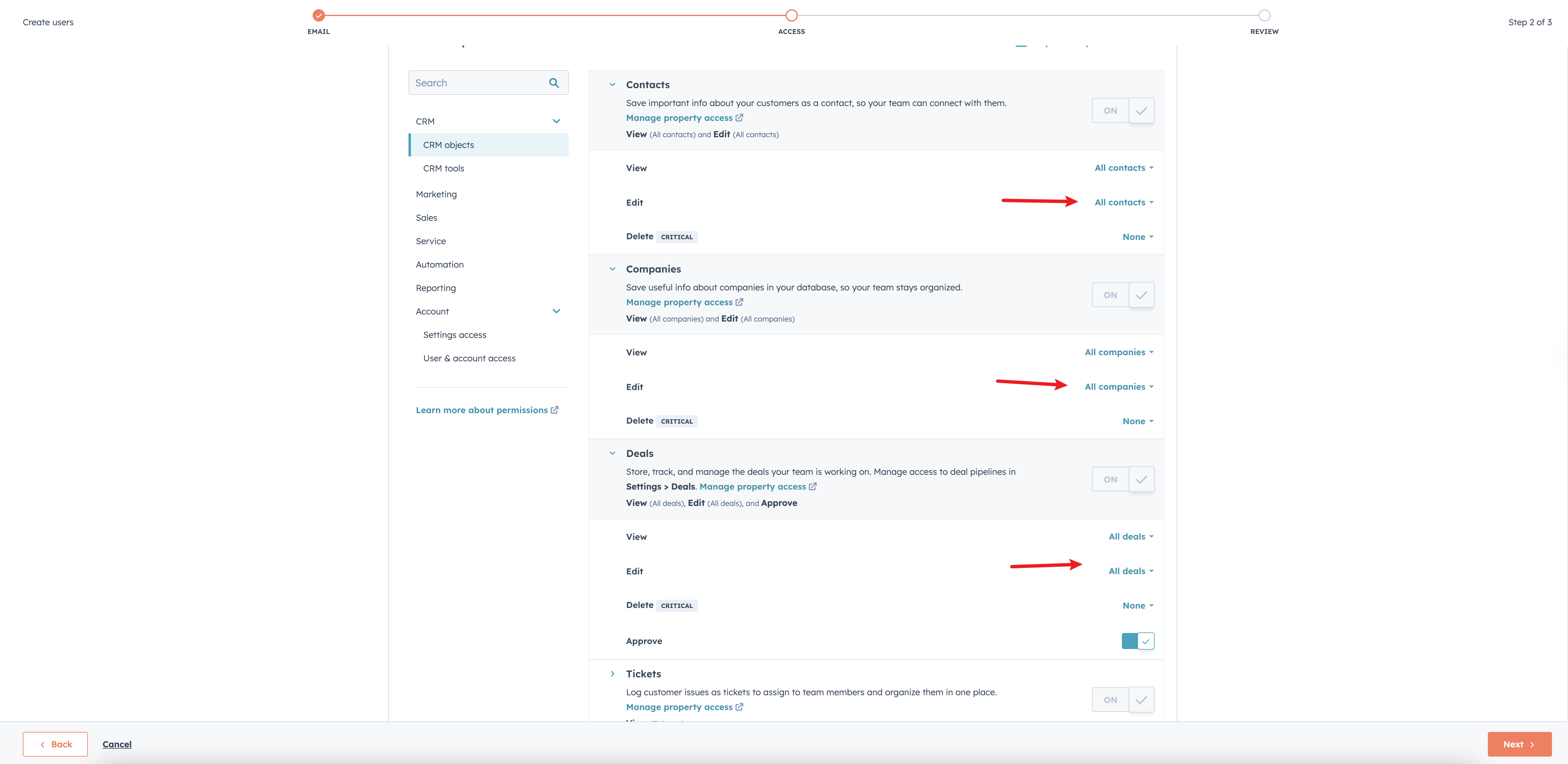
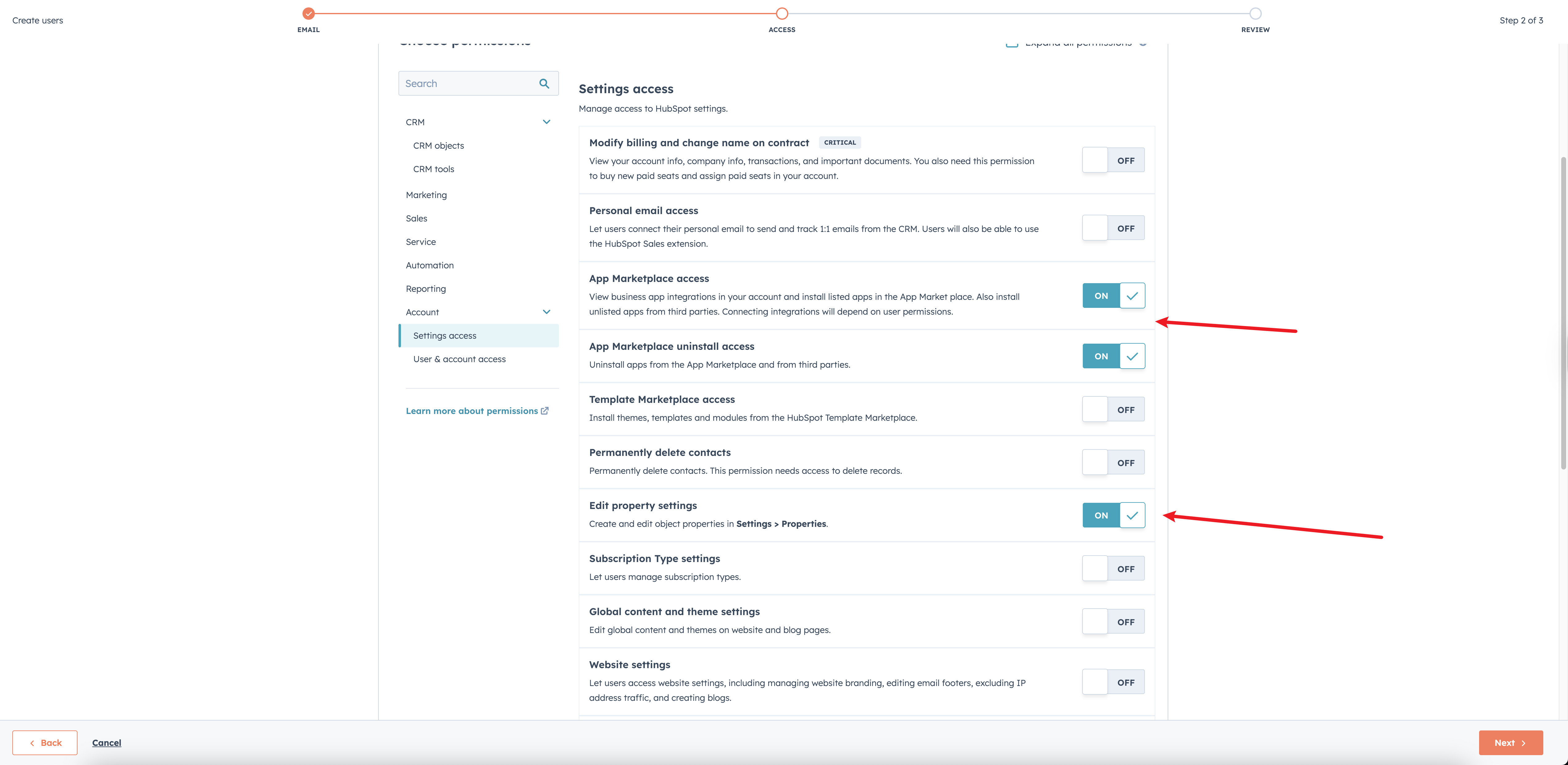
To satisfy this requirement, you need to ensure the delegation user
has "view" and "edit" permissions on CRM contacts, companies, and deals,
as well as permission to "edit property settings" and "App Marketplace access" for installing the app.
For example, the following permission set would suffice:
>  >
>  ## Create Integration
We created a HubSpot App called "Suger". You can easily complete the integration with the following steps:
1. Click the "Connect" button on the "Integrations" page.
2. HubSpot authorization page will open up in a new tab, asking you to login (if you haven't yet), and select an account to start the integration.
>
## Create Integration
We created a HubSpot App called "Suger". You can easily complete the integration with the following steps:
1. Click the "Connect" button on the "Integrations" page.
2. HubSpot authorization page will open up in a new tab, asking you to login (if you haven't yet), and select an account to start the integration.
>  3. Login and select your account, and click "Choose Account".
4. Review the permissions, and click "Connect App".
5. The integration status will become "Created". Now locate the HubSpot integration in the view, and click "Verify".
>
3. Login and select your account, and click "Choose Account".
4. Review the permissions, and click "Connect App".
5. The integration status will become "Created". Now locate the HubSpot integration in the view, and click "Verify".
> 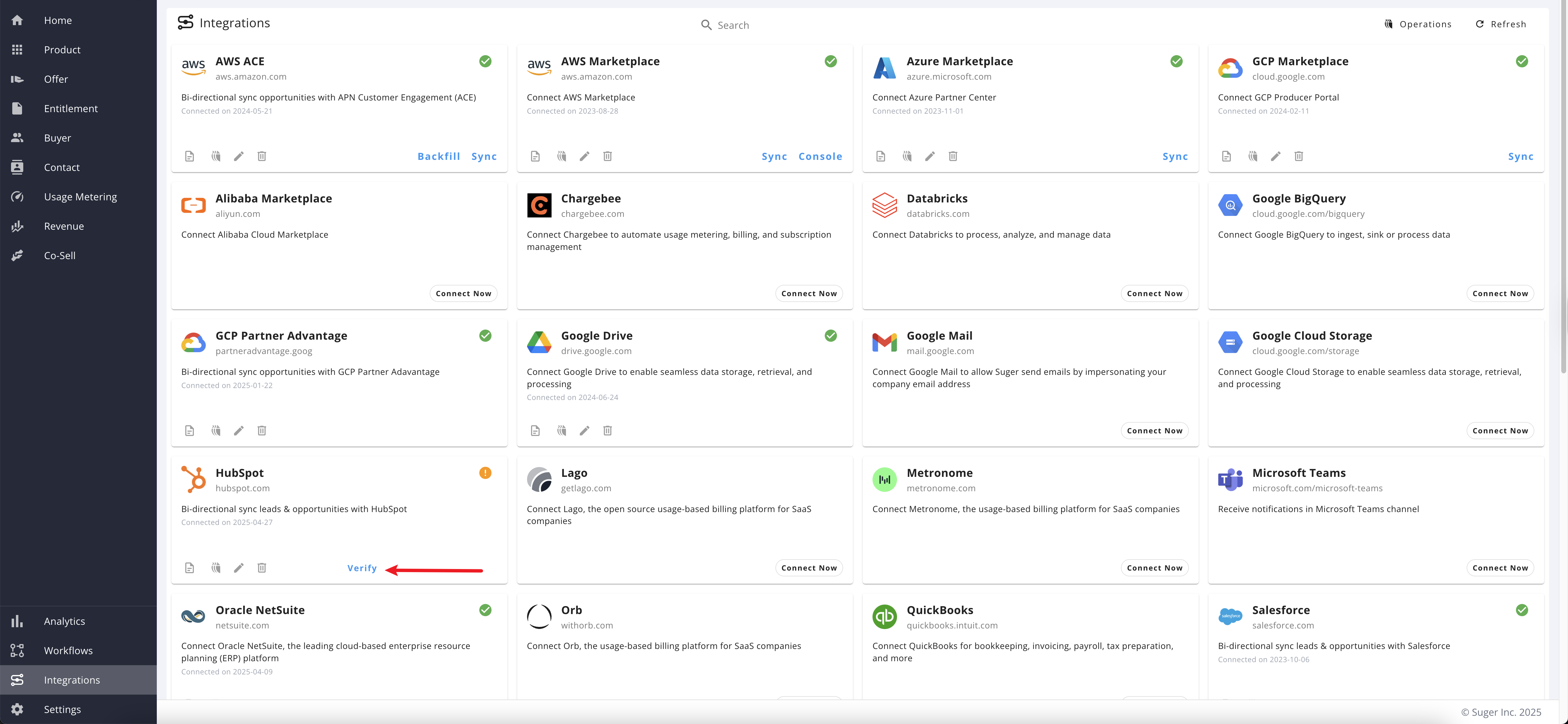 6. Fours will attempt to read a few opportunities to verify the connection, after which the status will become "Verified" and start working.
7. Now you are all set!
## Referral State
**The Referral State property is a custom HubSpot deal property that records which cloud partners (AWS, Azure, GCP) a deal has already been shared with for co-sell.** Once it is configured, Fours keeps it in sync, so you can filter your HubSpot deals by their referral state directly in the Fours Console.
Setting this up has three parts: create the custom property in HubSpot, configure it in Fours, then use it to filter your deals.
### Create the Custom Property in HubSpot
Before configuring the property in Fours, create a custom property in HubSpot. If you already have a suitable property, you can skip this section.
#### Step 1: Create a property group
1. In HubSpot, go to **Settings** and open the **Properties** menu under **Data Management** in the left sidebar.
2. Select **Deal** object properties and click the **Groups** tab.
3. If an existing group meets your needs, use it. Otherwise, click **New Group** to create one.

#### Step 2: Create the new property
1. In **Settings**, open the **Properties** menu under **Data Management** and select **Deal** object properties.
2. Switch to the **Properties** tab and click **New Property**.
3. Ensure the object type is set to **Deal** and choose the appropriate group (the one you created earlier, if applicable).
4. Label the property **Referral State** (or any name you prefer).
5. Set the field type to **Multiple Checkboxes** with at least three options: **AWS**, **Azure**, and **GCP**.
6. Click **Create**. Your new property now appears in the property list.
:::warning
Each option's internal value must be exactly **AWS**, **Azure**, or **GCP**, including case. **Verify** checks for those three values, and the property must be a **Multiple Checkboxes** field.
:::
### Configure in Fours
#### Step 1: Set the Deal Referral State property
1. Edit the HubSpot integration in the [Fours Console](https://console.suger.io/settings?tab=integrations).
2. In the **Advanced** section, find the **Deal Referral State Property** option.
3. Enter the label of the property you created in HubSpot.
4. If the property is not listed, click the refresh button to reload it.
5. Click **Verify**. If everything is correct, click **Save** to apply the settings.

#### Step 2: Sync referral state with HubSpot
1. Click the **Sync** button on the HubSpot integration.
2. It takes several minutes to update the referral state of all deals.
### Use the Property in Fours
Once the referral state is syncing, you can filter your HubSpot deals in the Fours Console based on whether they have already been shared.
#### Filter out deals that were shared before
1. Click **Co-Sell** in the left sidebar and switch to the **HubSpot** tab.
2. Click **Filters** and add a new filter.
3. Set the field name to **Referral State** (or your own property name if different).
4. Set the operator to **IS NULL**.

#### Filter deals already shared with cloud partners
1. Click **Co-Sell** in the left sidebar and switch to the **HubSpot** tab.
2. Click **Filters** and add a new filter.
3. Set the field name to **Referral State** (or your own property name if different).
4. Set the operator to **IS IN** and select the cloud partners (AWS, Azure, GCP) you want to include.

## CRM Enrichment
CRM Enrichment allows you to automatically enrich HubSpot records with intelligence signals from Fours. This feature syncs valuable marketplace and engagement data directly to your CRM records, giving your sales team actionable insights without leaving HubSpot.
### Overview
With CRM Enrichment, you can:
- **Automatically populate CRM properties** with intelligence signals (engagement scores, marketplace metrics)
- **Configure multiple record types** (e.g., Deals, Companies) with different enrichment rules
- **Use JSON queries** to target specific records for enrichment
- **Map intelligence fields** to custom HubSpot properties
### Prerequisites
Before configuring enrichment, ensure you have:
1. **Custom properties created** in HubSpot to store the intelligence data
### Creating Custom Properties in HubSpot
You need to create custom properties in HubSpot to store the intelligence signals. For each signal you want to sync:
1. Go to **Settings** → **Data Management** → **Objects** → Select your object (e.g., Deals)
>
6. Fours will attempt to read a few opportunities to verify the connection, after which the status will become "Verified" and start working.
7. Now you are all set!
## Referral State
**The Referral State property is a custom HubSpot deal property that records which cloud partners (AWS, Azure, GCP) a deal has already been shared with for co-sell.** Once it is configured, Fours keeps it in sync, so you can filter your HubSpot deals by their referral state directly in the Fours Console.
Setting this up has three parts: create the custom property in HubSpot, configure it in Fours, then use it to filter your deals.
### Create the Custom Property in HubSpot
Before configuring the property in Fours, create a custom property in HubSpot. If you already have a suitable property, you can skip this section.
#### Step 1: Create a property group
1. In HubSpot, go to **Settings** and open the **Properties** menu under **Data Management** in the left sidebar.
2. Select **Deal** object properties and click the **Groups** tab.
3. If an existing group meets your needs, use it. Otherwise, click **New Group** to create one.

#### Step 2: Create the new property
1. In **Settings**, open the **Properties** menu under **Data Management** and select **Deal** object properties.
2. Switch to the **Properties** tab and click **New Property**.
3. Ensure the object type is set to **Deal** and choose the appropriate group (the one you created earlier, if applicable).
4. Label the property **Referral State** (or any name you prefer).
5. Set the field type to **Multiple Checkboxes** with at least three options: **AWS**, **Azure**, and **GCP**.
6. Click **Create**. Your new property now appears in the property list.
:::warning
Each option's internal value must be exactly **AWS**, **Azure**, or **GCP**, including case. **Verify** checks for those three values, and the property must be a **Multiple Checkboxes** field.
:::
### Configure in Fours
#### Step 1: Set the Deal Referral State property
1. Edit the HubSpot integration in the [Fours Console](https://console.suger.io/settings?tab=integrations).
2. In the **Advanced** section, find the **Deal Referral State Property** option.
3. Enter the label of the property you created in HubSpot.
4. If the property is not listed, click the refresh button to reload it.
5. Click **Verify**. If everything is correct, click **Save** to apply the settings.

#### Step 2: Sync referral state with HubSpot
1. Click the **Sync** button on the HubSpot integration.
2. It takes several minutes to update the referral state of all deals.
### Use the Property in Fours
Once the referral state is syncing, you can filter your HubSpot deals in the Fours Console based on whether they have already been shared.
#### Filter out deals that were shared before
1. Click **Co-Sell** in the left sidebar and switch to the **HubSpot** tab.
2. Click **Filters** and add a new filter.
3. Set the field name to **Referral State** (or your own property name if different).
4. Set the operator to **IS NULL**.

#### Filter deals already shared with cloud partners
1. Click **Co-Sell** in the left sidebar and switch to the **HubSpot** tab.
2. Click **Filters** and add a new filter.
3. Set the field name to **Referral State** (or your own property name if different).
4. Set the operator to **IS IN** and select the cloud partners (AWS, Azure, GCP) you want to include.

## CRM Enrichment
CRM Enrichment allows you to automatically enrich HubSpot records with intelligence signals from Fours. This feature syncs valuable marketplace and engagement data directly to your CRM records, giving your sales team actionable insights without leaving HubSpot.
### Overview
With CRM Enrichment, you can:
- **Automatically populate CRM properties** with intelligence signals (engagement scores, marketplace metrics)
- **Configure multiple record types** (e.g., Deals, Companies) with different enrichment rules
- **Use JSON queries** to target specific records for enrichment
- **Map intelligence fields** to custom HubSpot properties
### Prerequisites
Before configuring enrichment, ensure you have:
1. **Custom properties created** in HubSpot to store the intelligence data
### Creating Custom Properties in HubSpot
You need to create custom properties in HubSpot to store the intelligence signals. For each signal you want to sync:
1. Go to **Settings** → **Data Management** → **Objects** → Select your object (e.g., Deals)
> 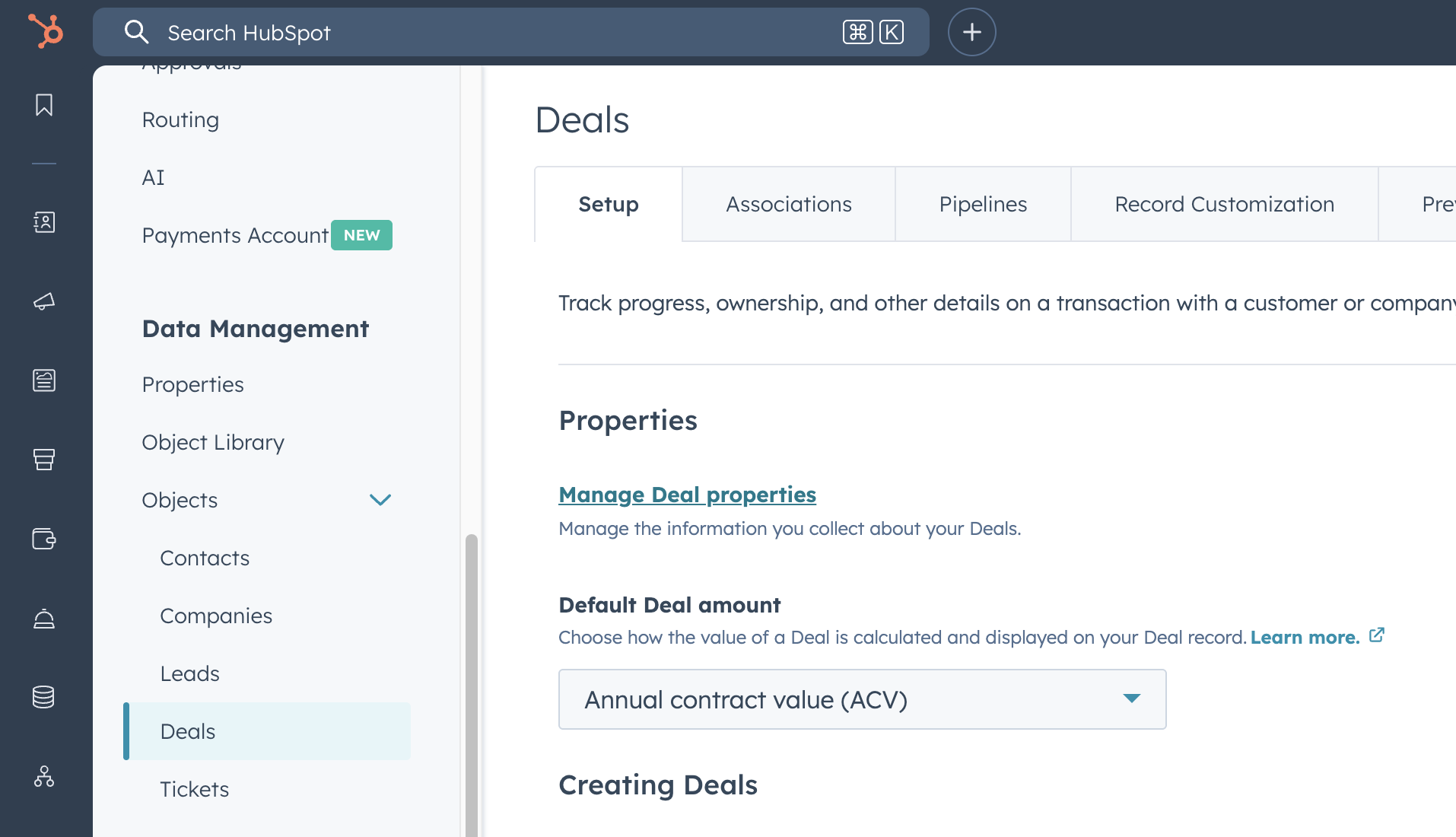 2. Click **Manage Deal properties** (or the equivalent for your object)
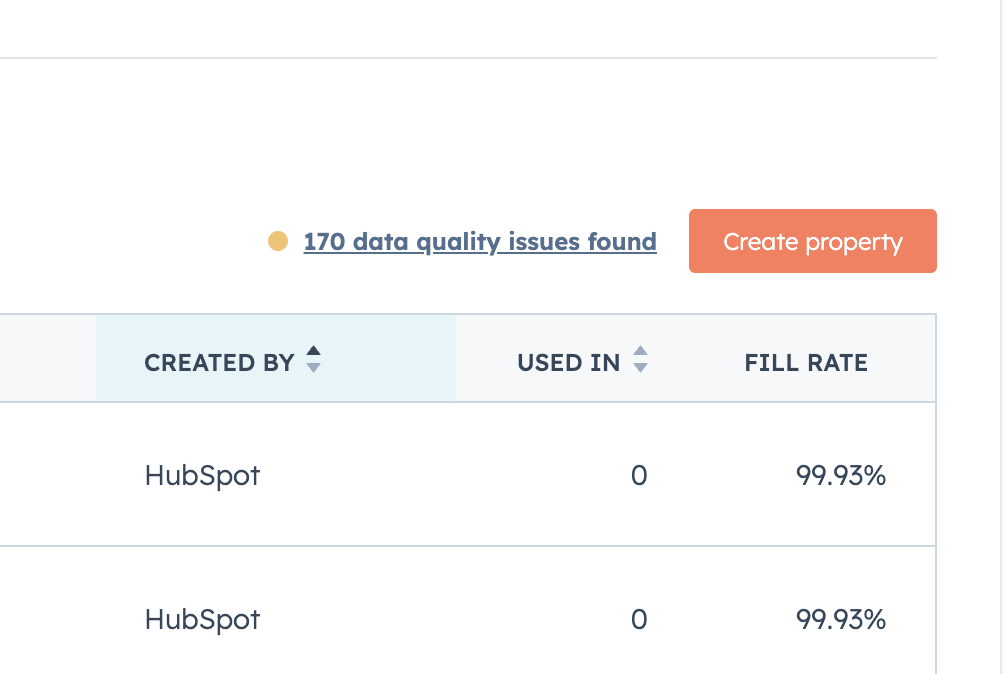
3. Click **Create property**
>
2. Click **Manage Deal properties** (or the equivalent for your object)
3. Click **Create property**
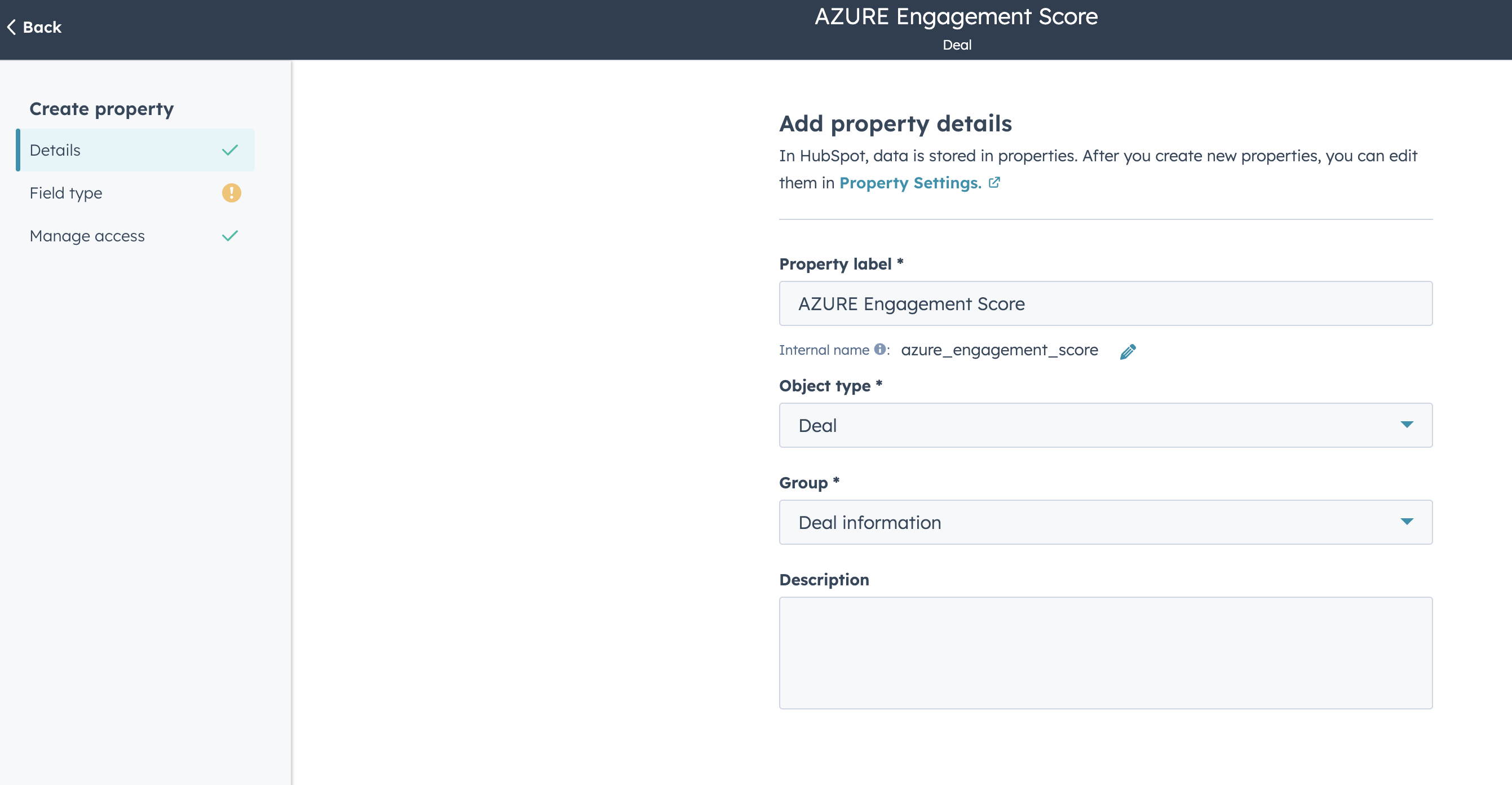
>  4. Enter a **Property label** (e.g., "AZURE Engagement Score") and select the **Object type** and **Group**
>
4. Enter a **Property label** (e.g., "AZURE Engagement Score") and select the **Object type** and **Group**
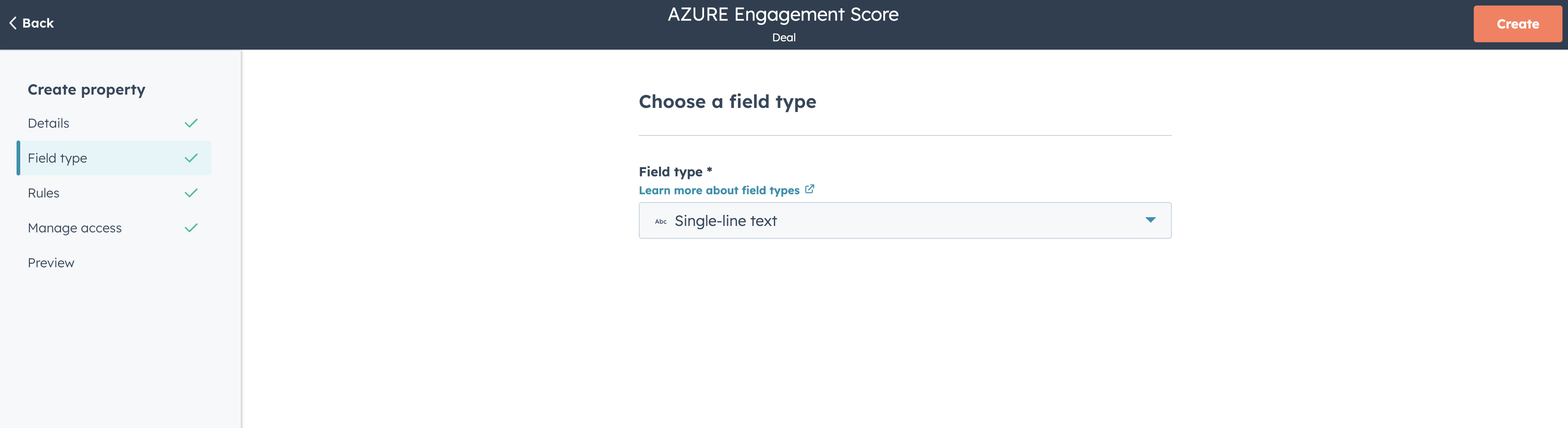
>  5. Choose the appropriate **Field type** (e.g., **Single-line text** for scores and general data)
>
5. Choose the appropriate **Field type** (e.g., **Single-line text** for scores and general data)
>  6. Click **Create** to save the property
### Configuring Enrichment
1. Navigate to **Fours Console** → **Settings** → **Integrations** → **HubSpot**
2. Click **Edit** to open the integration settings
3. Go to the **Enrichment** tab
4. Click **Add CRM Record** to create a new enrichment rule
>
6. Click **Create** to save the property
### Configuring Enrichment
1. Navigate to **Fours Console** → **Settings** → **Integrations** → **HubSpot**
2. Click **Edit** to open the integration settings
3. Go to the **Enrichment** tab
4. Click **Add CRM Record** to create a new enrichment rule
> 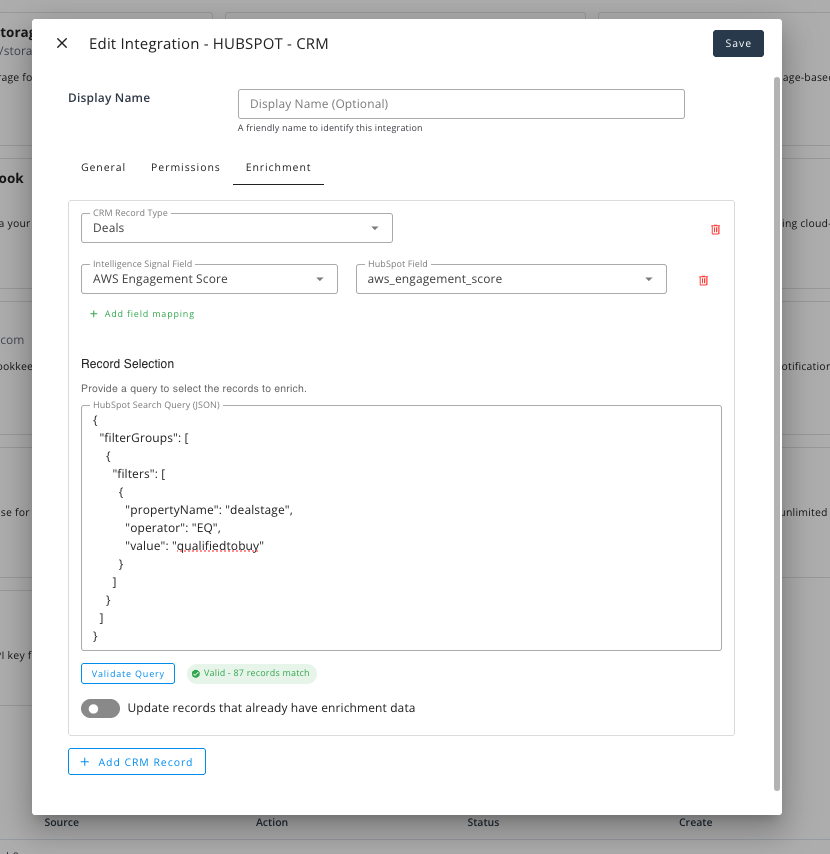 For each configuration, specify:
| Setting | Description |
|---------|-------------|
| **CRM Record Type** | The HubSpot object to enrich (e.g., Deals, Companies) |
| **Field Mappings** | Map intelligence fields to your custom HubSpot properties |
| **HubSpot Search Query (JSON)** | JSON query to filter which records to enrich |
| **Update records that already have enrichment data** | Controls when previously enriched records are refreshed: **Never**, **Immediately**, or **Every N days** (default: 30 days) |
| **Max Records Per Sync** | Maximum number of records to process per sync run (default: 10,000, minimum: 1,000) |
After entering your query, click **Validate Query** to verify it is valid and see how many records match. This helps ensure your enrichment rule targets the right set of records before saving.
### Available Intelligence Fields
Intelligence signals are derived from multiple data sources:
- **Cloud partner data** — Engagement scores sourced directly from cloud partner programs (e.g., AWS Partner Network, Azure Partner Center, Google Cloud Partner Network).
- **Marketplace activity** — Public marketplace metrics such as listing counts, review counts, and purchase history across AWS, Azure, and GCP marketplaces.
The following intelligence signals can be mapped to your CRM properties:
**AWS Signals**
- AWS Engagement Score
- AWS Marketplace Count
- AWS Marketplace Review Count
- AWS Marketplace Purchase Count
**Azure Signals**
- Azure Engagement Score
- Azure Event Score
- Azure Usage Score
- Azure Marketplace Count
- Azure Marketplace Review Count
- Azure Marketplace Purchase Count
**GCP Signals**
- GCP Engagement Score
- GCP Marketplace Count
- GCP Marketplace Review Count
- GCP Marketplace Purchase Count
### Example Configuration
To enrich Deals in the "Qualified to Buy" stage with AWS engagement data:
1. **CRM Record Type**: Deals
2. **Field Mappings**:
- `AWS Engagement Score` → `aws_engagement_score`
3. **HubSpot Search Query (JSON)**:
```json
{
"filterGroups": [
{
"filters": [
{
"propertyName": "dealstage",
"operator": "EQ",
"value": "qualifiedtobuy"
}
]
}
]
}
```
### How Enrichment Works
#### Sync Schedule
Fours runs a scheduled enrichment sync **every 2 hours**. During each sync, Fours automatically processes all configured enrichment rules for your organization.
#### Enrichment Process
Each sync goes through the following steps:
1. **Query your HubSpot account** using the configured JSON search query to identify records that need enrichment.
2. **Look up intelligence data** for each matching record based on the company's domain.
3. **Update the mapped properties** in HubSpot with the latest intelligence values.
#### Update Mechanism
Fours uses a smart two-step approach to ensure efficient and complete data coverage:
- **Step 1 — Enrich new records**: Every sync prioritizes records that have **not been enriched yet** (where the mapped properties are still empty). This ensures newly added or previously missed records receive intelligence data first.
- **Step 2 — Refresh existing records**: Once all new records have been enriched, Fours begins a **refresh cycle** — rotating through previously enriched records in batches to keep data up to date. This rotation continues across multiple syncs until all records have been refreshed, then a new cycle begins.
The **Update records that already have enrichment data** setting controls how the refresh cycle behaves:
| Setting | Behavior |
|---------|----------|
| **Never** | Only enrich records that have not been enriched before. Previously enriched records are never updated. |
| **Immediately** | Continuously rotate through all records, refreshing data without delay between cycles. |
| **Every N days** | Wait N days after completing a full refresh cycle before starting the next one (default: 30 days). |
#### Records Per Sync
Each sync processes up to a configurable maximum number of records. For HubSpot, the default and maximum is **10,000**. The minimum configurable value is **1,000**.
If your query matches more records than the configured limit, the remaining records are handled automatically:
- **New records (Step 1)**: Unenriched records will be picked up in the next sync since they still have empty fields — no progress tracking is needed.
- **Refresh cycle (Step 2)**: Fours tracks its cursor position across syncs to rotate through all records. For example, with 30,000 records and a limit of 10,000 per sync, the refresh cycle completes in 3 runs. Once a full cycle finishes, the next one starts based on your **Update records that already have enrichment data** setting.
#### Tracking Enrichment Progress
To monitor the status of your enrichment sync:
1. Go to the enrichment configuration for your record type
2. Expand **Advanced Configuration**
3. Click **Check Progress**
The progress panel shows:
| Field | Description |
|-------|-------------|
| **Status** | Current state — *Active* (only enriching new records, refresh disabled), *Not Started*, *In Progress*, or *Waiting* (cycle completed, waiting for next refresh interval) |
| **Cycle Progress** | Percentage of records processed in the current refresh cycle |
| **Records Processed** | Number of records processed out of total matching records |
| **Last Run** | When the last sync ran and how many records it processed |
| **Estimated Runs Remaining** | Approximate number of syncs needed to complete the current cycle |
#### Disabling Enrichment
To stop enrichment for a specific record type, toggle it **off** in the enrichment configuration. This removes the enrichment rule, and no further syncs will process that record type.
To temporarily pause enrichment without removing the configuration, set **Update records that already have enrichment data** to **Never** — this will only enrich new records with empty fields and skip all previously enriched records.
## Fours AI Tools
Fours AI uses a **middleware** strategy — wrapping the HubSpot CRM API directly.
> **Org-level only**: HubSpot tools use the org-level integration credentials.
**Contacts**
| Tool | Description |
|------|-------------|
| `hubspot_list_contacts` | List contacts with pagination |
| `hubspot_get_contact` | Get a contact by ID |
| `hubspot_create_contact` | Create a new contact |
| `hubspot_update_contact` | Update contact properties |
**Companies**
| Tool | Description |
|------|-------------|
| `hubspot_list_companies` | List companies with pagination |
| `hubspot_get_company` | Get a company by ID |
| `hubspot_create_company` | Create a new company |
| `hubspot_update_company` | Update company properties |
**Deals**
| Tool | Description |
|------|-------------|
| `hubspot_list_deals` | List deals with pagination |
| `hubspot_get_deal` | Get a deal by ID |
| `hubspot_create_deal` | Create a new deal |
| `hubspot_update_deal` | Update deal properties |
**Search & Associations**
| Tool | Description |
|------|-------------|
| `hubspot_search` | Search any CRM object type with filters |
| `hubspot_get_associations` | Get associations between CRM objects |
## Delete Integration
To delete the integration, simply click the 🗑️ button in the "Integrations" HubSpot card. We will remove any credentials in our system.
You can also stop the integration by uninstalling the Suger App in your HubSpot account settings.
For each configuration, specify:
| Setting | Description |
|---------|-------------|
| **CRM Record Type** | The HubSpot object to enrich (e.g., Deals, Companies) |
| **Field Mappings** | Map intelligence fields to your custom HubSpot properties |
| **HubSpot Search Query (JSON)** | JSON query to filter which records to enrich |
| **Update records that already have enrichment data** | Controls when previously enriched records are refreshed: **Never**, **Immediately**, or **Every N days** (default: 30 days) |
| **Max Records Per Sync** | Maximum number of records to process per sync run (default: 10,000, minimum: 1,000) |
After entering your query, click **Validate Query** to verify it is valid and see how many records match. This helps ensure your enrichment rule targets the right set of records before saving.
### Available Intelligence Fields
Intelligence signals are derived from multiple data sources:
- **Cloud partner data** — Engagement scores sourced directly from cloud partner programs (e.g., AWS Partner Network, Azure Partner Center, Google Cloud Partner Network).
- **Marketplace activity** — Public marketplace metrics such as listing counts, review counts, and purchase history across AWS, Azure, and GCP marketplaces.
The following intelligence signals can be mapped to your CRM properties:
**AWS Signals**
- AWS Engagement Score
- AWS Marketplace Count
- AWS Marketplace Review Count
- AWS Marketplace Purchase Count
**Azure Signals**
- Azure Engagement Score
- Azure Event Score
- Azure Usage Score
- Azure Marketplace Count
- Azure Marketplace Review Count
- Azure Marketplace Purchase Count
**GCP Signals**
- GCP Engagement Score
- GCP Marketplace Count
- GCP Marketplace Review Count
- GCP Marketplace Purchase Count
### Example Configuration
To enrich Deals in the "Qualified to Buy" stage with AWS engagement data:
1. **CRM Record Type**: Deals
2. **Field Mappings**:
- `AWS Engagement Score` → `aws_engagement_score`
3. **HubSpot Search Query (JSON)**:
```json
{
"filterGroups": [
{
"filters": [
{
"propertyName": "dealstage",
"operator": "EQ",
"value": "qualifiedtobuy"
}
]
}
]
}
```
### How Enrichment Works
#### Sync Schedule
Fours runs a scheduled enrichment sync **every 2 hours**. During each sync, Fours automatically processes all configured enrichment rules for your organization.
#### Enrichment Process
Each sync goes through the following steps:
1. **Query your HubSpot account** using the configured JSON search query to identify records that need enrichment.
2. **Look up intelligence data** for each matching record based on the company's domain.
3. **Update the mapped properties** in HubSpot with the latest intelligence values.
#### Update Mechanism
Fours uses a smart two-step approach to ensure efficient and complete data coverage:
- **Step 1 — Enrich new records**: Every sync prioritizes records that have **not been enriched yet** (where the mapped properties are still empty). This ensures newly added or previously missed records receive intelligence data first.
- **Step 2 — Refresh existing records**: Once all new records have been enriched, Fours begins a **refresh cycle** — rotating through previously enriched records in batches to keep data up to date. This rotation continues across multiple syncs until all records have been refreshed, then a new cycle begins.
The **Update records that already have enrichment data** setting controls how the refresh cycle behaves:
| Setting | Behavior |
|---------|----------|
| **Never** | Only enrich records that have not been enriched before. Previously enriched records are never updated. |
| **Immediately** | Continuously rotate through all records, refreshing data without delay between cycles. |
| **Every N days** | Wait N days after completing a full refresh cycle before starting the next one (default: 30 days). |
#### Records Per Sync
Each sync processes up to a configurable maximum number of records. For HubSpot, the default and maximum is **10,000**. The minimum configurable value is **1,000**.
If your query matches more records than the configured limit, the remaining records are handled automatically:
- **New records (Step 1)**: Unenriched records will be picked up in the next sync since they still have empty fields — no progress tracking is needed.
- **Refresh cycle (Step 2)**: Fours tracks its cursor position across syncs to rotate through all records. For example, with 30,000 records and a limit of 10,000 per sync, the refresh cycle completes in 3 runs. Once a full cycle finishes, the next one starts based on your **Update records that already have enrichment data** setting.
#### Tracking Enrichment Progress
To monitor the status of your enrichment sync:
1. Go to the enrichment configuration for your record type
2. Expand **Advanced Configuration**
3. Click **Check Progress**
The progress panel shows:
| Field | Description |
|-------|-------------|
| **Status** | Current state — *Active* (only enriching new records, refresh disabled), *Not Started*, *In Progress*, or *Waiting* (cycle completed, waiting for next refresh interval) |
| **Cycle Progress** | Percentage of records processed in the current refresh cycle |
| **Records Processed** | Number of records processed out of total matching records |
| **Last Run** | When the last sync ran and how many records it processed |
| **Estimated Runs Remaining** | Approximate number of syncs needed to complete the current cycle |
#### Disabling Enrichment
To stop enrichment for a specific record type, toggle it **off** in the enrichment configuration. This removes the enrichment rule, and no further syncs will process that record type.
To temporarily pause enrichment without removing the configuration, set **Update records that already have enrichment data** to **Never** — this will only enrich new records with empty fields and skip all previously enriched records.
## Fours AI Tools
Fours AI uses a **middleware** strategy — wrapping the HubSpot CRM API directly.
> **Org-level only**: HubSpot tools use the org-level integration credentials.
**Contacts**
| Tool | Description |
|------|-------------|
| `hubspot_list_contacts` | List contacts with pagination |
| `hubspot_get_contact` | Get a contact by ID |
| `hubspot_create_contact` | Create a new contact |
| `hubspot_update_contact` | Update contact properties |
**Companies**
| Tool | Description |
|------|-------------|
| `hubspot_list_companies` | List companies with pagination |
| `hubspot_get_company` | Get a company by ID |
| `hubspot_create_company` | Create a new company |
| `hubspot_update_company` | Update company properties |
**Deals**
| Tool | Description |
|------|-------------|
| `hubspot_list_deals` | List deals with pagination |
| `hubspot_get_deal` | Get a deal by ID |
| `hubspot_create_deal` | Create a new deal |
| `hubspot_update_deal` | Update deal properties |
**Search & Associations**
| Tool | Description |
|------|-------------|
| `hubspot_search` | Search any CRM object type with filters |
| `hubspot_get_associations` | Get associations between CRM objects |
## Delete Integration
To delete the integration, simply click the 🗑️ button in the "Integrations" HubSpot card. We will remove any credentials in our system.
You can also stop the integration by uninstalling the Suger App in your HubSpot account settings.