# Create CPPO
Create a reseller authorization (CPPO) directly from a HubSpot deal using the Fours App.
---
## Overview
A reseller authorization — also called a Channel Partner Private Offer (CPPO) — is how you give a reseller or channel partner permission to sell your product on a cloud marketplace on your behalf. In plain terms:
- You (the ISV) create a reseller authorization that sets the price you're willing to give the reseller. On Azure you can instead grant a standing [resale authorization](#azure-grant-a-resale-authorization), which carries no price.
- The reseller then creates their own private offer to the end customer, using your authorization as the basis — at whatever markup they choose.
- The end customer buys from the reseller through the marketplace, and billing flows through accordingly.
:::info
A reseller authorization is not sent to an end customer — it is sent to the reseller. Make sure the deal you create it from is associated with a reseller, not the end customer.
:::
For more details, see [Channel Partner Private Offers (CPPO)](/aws-marketplace/cppo/) for AWS and [Azure CPPO](/azure-marketplace/cppo/) for Azure.
## Prerequisites
- The Fours App must be set up in HubSpot and the Fours app card must be visible on your deal pages. If you haven't done that yet, see [Set up the Fours App in HubSpot](/hubspot-app/hubspot-app-configuration/).
- The product you want to authorize must already exist in Fours. If it doesn't, create it in the Fours Console first before continuing.
## Create a reseller authorization
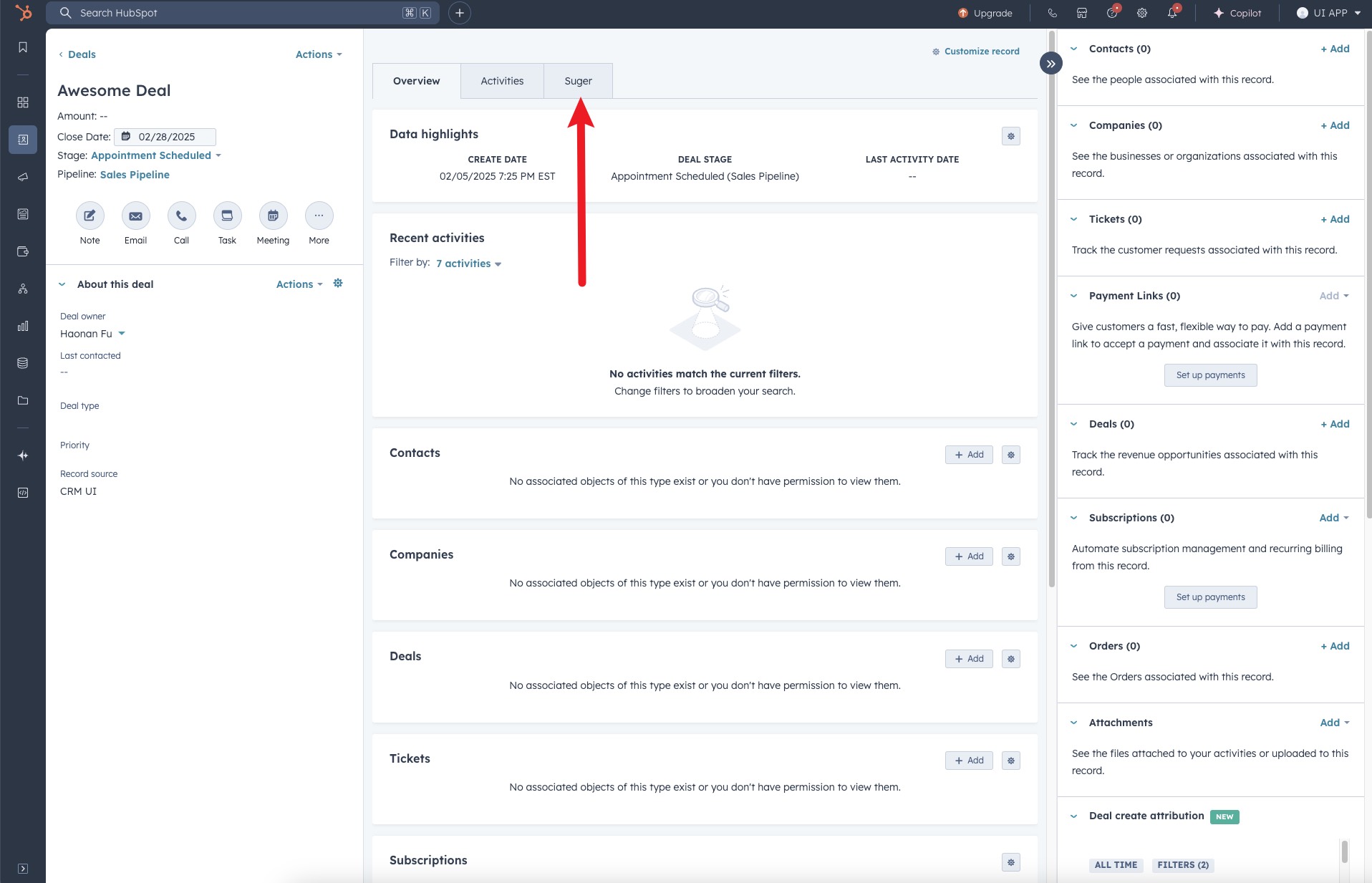
1. Open the HubSpot **Deal** record associated with your reseller, then click the **"Suger"** tab at the top of the deal page.
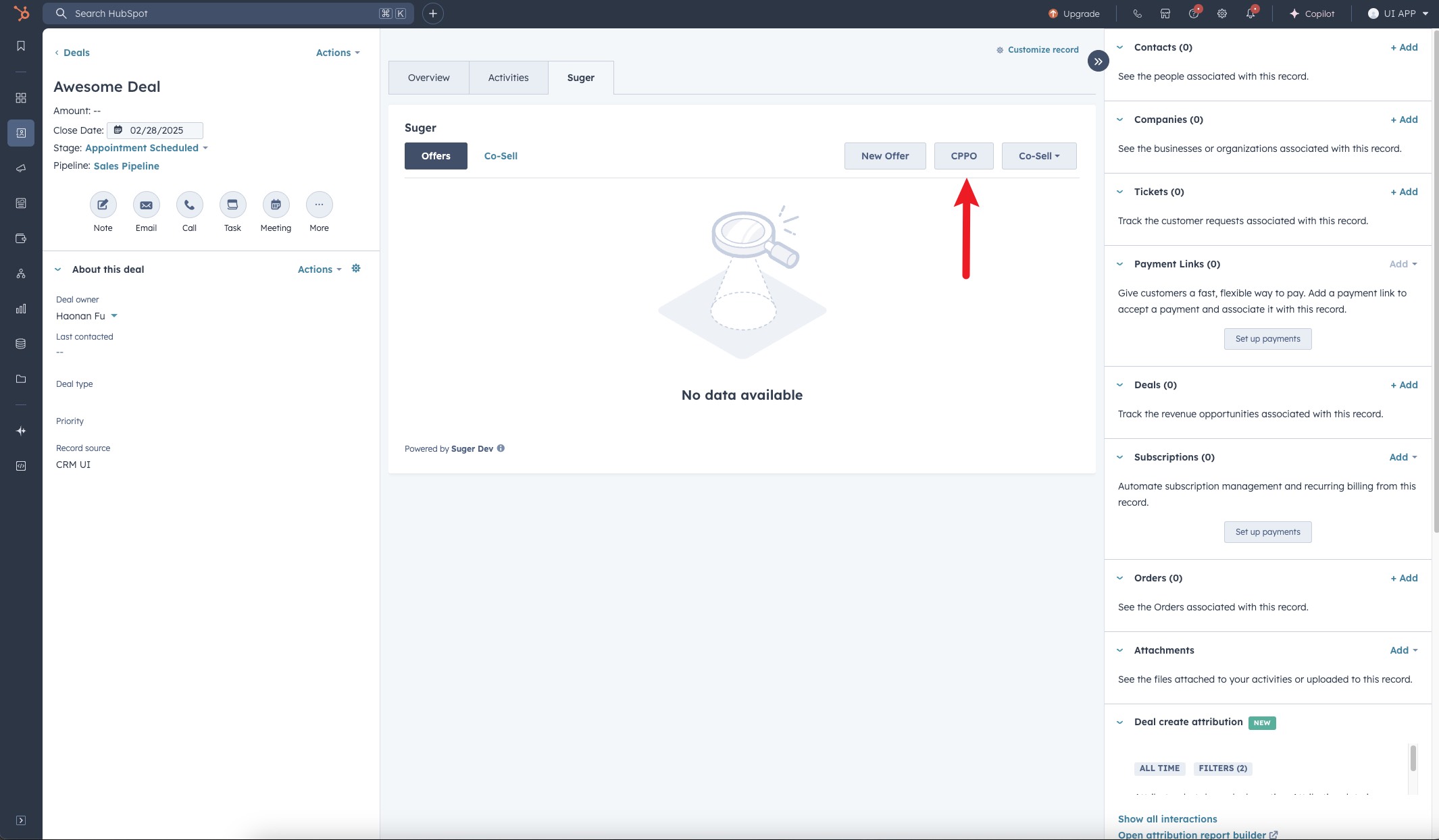
>  2. Locate and click the **"New Resale"** button inside the Suger panel.
>
2. Locate and click the **"New Resale"** button inside the Suger panel.
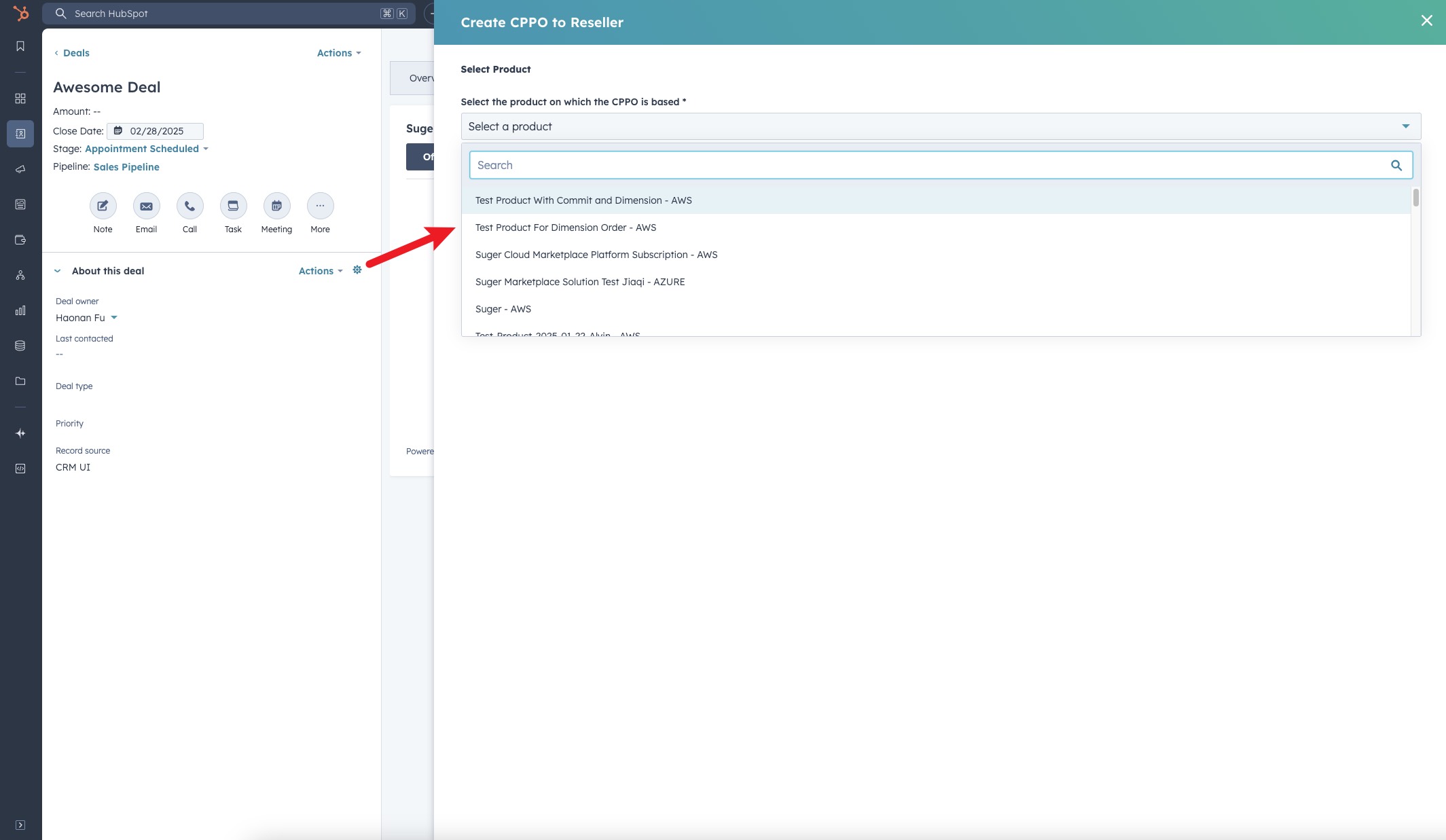
>  3. Under **"Select the product on which the resale authorization is based"**, choose the product. The list shows only products available in your Fours account.
>
3. Under **"Select the product on which the resale authorization is based"**, choose the product. The list shows only products available in your Fours account.
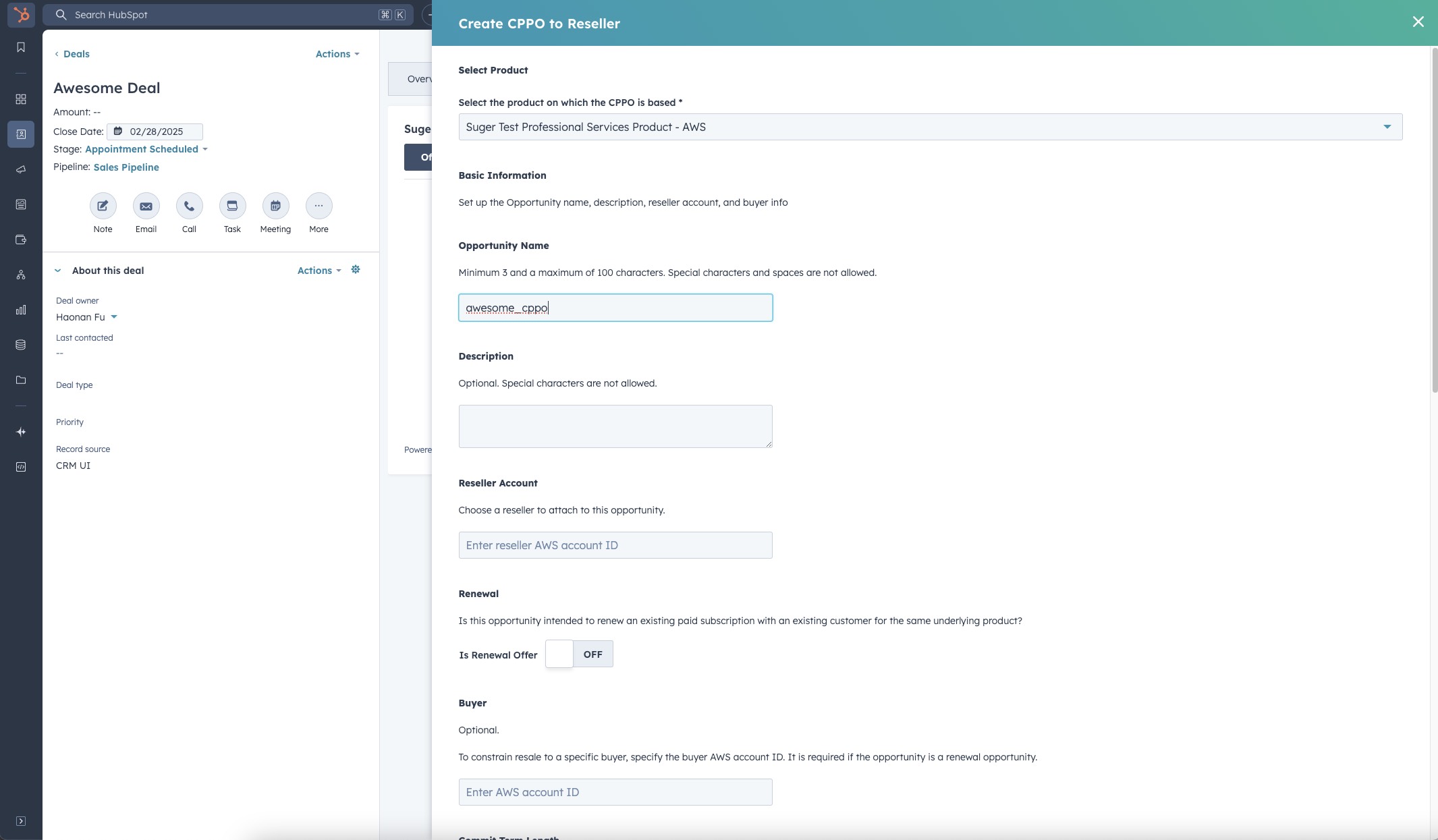
>  4. Complete the required fields in the form. Note that the required fields may vary depending on the cloud marketplace and product type. On AWS, this is where you pick the reseller — see [Choose the reseller account on AWS](#choose-the-reseller-account-on-aws) below. On Azure, this is where you choose the **Private Offer Type** — see [Azure: grant a resale authorization](#azure-grant-a-resale-authorization) below.
>
4. Complete the required fields in the form. Note that the required fields may vary depending on the cloud marketplace and product type. On AWS, this is where you pick the reseller — see [Choose the reseller account on AWS](#choose-the-reseller-account-on-aws) below. On Azure, this is where you choose the **Private Offer Type** — see [Azure: grant a resale authorization](#azure-grant-a-resale-authorization) below.
>  :::tip
If field mapping has been configured, many fields will be pre-filled from the HubSpot deal automatically — review them for accuracy before submitting.
:::
5. Once all necessary information is filled in, submit the form to create the reseller authorization.
>
:::tip
If field mapping has been configured, many fields will be pre-filled from the HubSpot deal automatically — review them for accuracy before submitting.
:::
5. Once all necessary information is filled in, submit the form to create the reseller authorization.
> 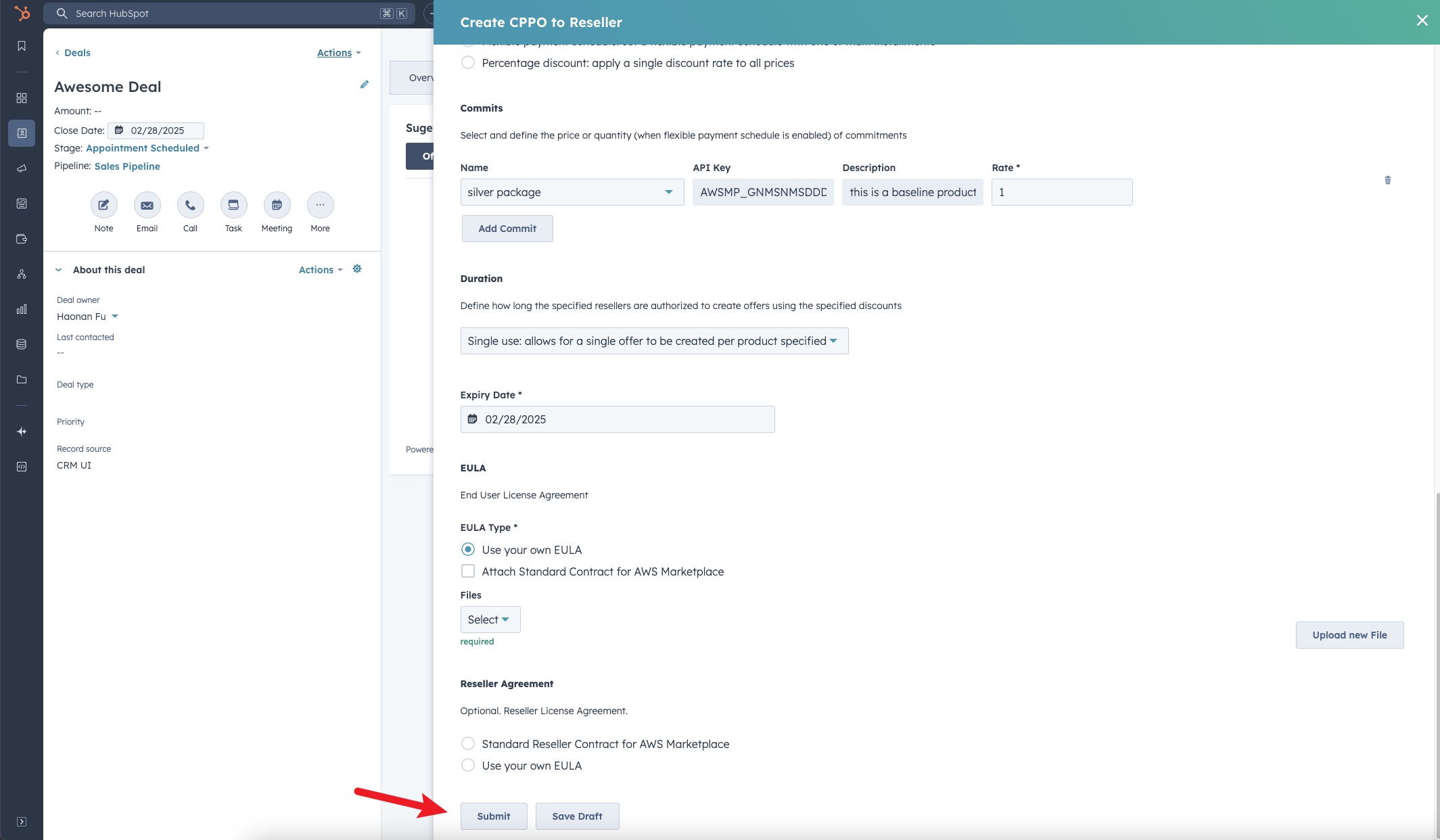 6. You are all set!
### Cap the reseller's payment terms
The AWS resale form has a **Maximum buyer net payment term** field. It sets the longest net payment term the
channel partner is allowed to offer their buyer — the partner can choose that term or anything shorter, but
not longer.
Leave it on **No custom maximum** and the reseller gets no custom-term authorization at all: on their own
offer the field is disabled and reads *"The ISV did not authorize custom net payment terms."*
Like the buyer term itself, a released maximum cannot be changed.
Separately, the AWS resale form's **commit term length** — how long the authorized commitment runs — accepts 1 to 144 months for SaaS (contract or subscription) products and 1 to 60 months for every other product type; a value over the cap is rejected with *"Maximum N months"*. This is measured in months and is a different field from the **Maximum buyer net payment term** above, which is measured in days.
## Choose the reseller account on AWS
On the AWS resale form, the reseller is picked from a single **Reseller Account** dropdown. Fours keeps a crawled list of known AWS reseller accounts, and the dropdown searches it for you — its description reads *"Search by reseller name or 12-digit AWS account ID."*
1. Open the **Reseller Account** dropdown and type part of the reseller's name, or its 12-digit AWS account ID, into the dropdown's own search box — there is no separate filter field.
2. The list is capped — 100 entries before you type, 200 once you are searching. When more resellers match than that, the field's description reads *"Showing {n} of {m} — search by reseller name or 12-digit AWS account ID."* Keep typing until your reseller appears, then select it.
**Add reseller manually** sits right beside the dropdown, for a reseller that is genuinely not in the list — see below.
### Add a reseller manually
If the reseller is genuinely not in the list, click **Add reseller manually**, beside the **Reseller Account** dropdown. The modal asks for two things:
| Field | Required | Rules |
| --- | --- | --- |
| **AWS account ID** | Yes | Exactly 12 digits. Anything else is rejected with *"AWS account ID must be exactly 12 digits."* |
| **Display name** | No | A label so you can recognize the reseller later. At most 128 characters, otherwise *"Name must be at most 128 characters."* |
Three things to know before you use it:
- **A manual entry wins a collision.** If the account ID you add is also in the crawled AWS list, your entry takes precedence and is listed first — so a careless display name renames that reseller for everyone in your organization.
- **The display name never leaves Fours.** It is local to your organization and is not sent to AWS. AWS only ever sees the account ID.
- **The account is not verified against AWS.** Fours checks the format, not that the account exists or is a valid reseller. A typo produces an authorization pointed at the wrong account.
:::warning
If the panel shows *"The reseller list could not be loaded, so known resellers may be missing. Reopen this panel to retry before adding one manually."*, the dropdown being empty does not mean your reseller is unknown — the list simply failed to load. Close and reopen the panel to retry before adding an account by hand.
:::
## Azure: grant a resale authorization
On an Azure product, the **New Resale** form asks for a **Private Offer Type**. Alongside the two private-offer types — **Multiparty private offers**, and **Private offers with CSP margin-sharing**, which is not offered for container products — there is a third option: **Resale authorization**. **Resale authorization** is offered only for SaaS and virtual machine products — Microsoft supports resale-enabled offers for no other product type — so a container product offers **Multiparty private offers** alone. A draft that already holds a resale authorization keeps the option.
A resale authorization is a standing grant, not a private offer. You authorize one resale partner to sell the product on your behalf in the customer markets you choose, and the partner then creates their own private offers for it in Partner Center. It has no pricing, dates or terms of its own, and you can revoke it at any time.
```d2
direction: right
hubspot: "HubSpot deal\n(New Resale)"
suger: "Fours"
pc: "Microsoft\nPartner Center"
partner: "Resale partner"
hubspot -> suger: "seller ID +\ncustomer markets"
suger -> pc: "resale authorization"
partner -> pc: "creates own private offers\nin those markets"
```
Choosing **Resale authorization** cuts the form down to **Offer Name**, a **Resale authorization** section and **Internal Notes** — there are no partner, customer, date, pricing, EULA or renewal fields. The section asks for two things:
| Field | Required | What to enter |
| --- | --- | --- |
| **Resale partner's seller ID** | Yes | The Partner Center seller ID of the partner you are authorizing. The partner finds it in Partner Center under **Account settings** → **Identifiers**, in their organizational profile. |
| **Customer markets** | Yes, at least one | The markets where the partner may sell the product, each listed by country name and code. Seven markets are never offered, because Microsoft does not support resale in them: Brazil, Belarus, India, South Korea, Mexico, Russia and Singapore. |
If either is missing, the form stops with *"Please enter the resale partner's seller ID."* or *"Please select at least one customer market."*
### What Fours checks when you submit
When you click **Create Offer**, Fours checks three things before sending the authorization to Microsoft:
- **The product is published on Azure Marketplace.** A product that has not been published there yet, or that is still a draft, pending, restricted or failed to create, is refused.
- **The partner has no other live or in-progress authorization for the product.** Fours refuses a second authorization for the same partner and product while an existing one is `PENDING_CREATE`, `CREATE_SUCCESS`, `ACTIVE` or `PENDING_CANCEL`. A `DRAFT`, a `CREATE_FAILED` or a revoked (`CANCEL_SUCCESS`) authorization does not block a new one.
- **The seller ID is looked up in Partner Center.** If Partner Center reports the seller ID as not found, the submission is refused. If the lookup cannot run or fails, Fours submits the authorization and Microsoft decides whether it succeeds; a failure Microsoft reports shows as `CREATE_FAILED` on the **Offers** tab.
When Fours refuses a submission, an alert on the panel gives the reason.
### After it is created
- **The partner and markets are not shown in HubSpot.** The HubSpot offer detail does not list them. Open the authorization in the Fours Console, where it shows **Customer Markets** and **Authorization Status**.
- **There is no expiry to extend.** **Extend Expiry Date** is never offered on a resale authorization.
- **Revoke it with Cancel Offer.** Once its status is `ACTIVE`, **Cancel Offer** in the offer's actions menu revokes it. A revoked authorization shows `CANCEL_SUCCESS`.
For the same flow in the Fours Console, see [Create a Resale Authorization](/azure-marketplace/cppo/#create-a-resale-authorization).
## The other way in: Reseller Offer
**New Resale** is the ISV-side action — you authorize a reseller. The reseller side of the same transaction is a **Reseller Offer**, which is one of the three options inside the **New Offer** panel, alongside **Private Offer** and **Amendment Offer**. Use it when you are the reseller creating the final offer to the end customer from an authorization someone granted you. See [Create Offer](/hubspot-app/hubspot-app-offer/).
## What happens next
After you submit the reseller authorization:
- Fours creates the authorization and links it to the HubSpot deal.
- The authorization is sent to the cloud marketplace for processing.
- Once confirmed by the marketplace, the reseller receives access to the authorization and can create their own private offer to the end customer.
- You can track the status of the authorization from the deal record in HubSpot or in the Fours Console under your offers list.
## Troubleshooting common issues
| Issue | Possible cause | Resolution |
| --- | --- | --- |
| No Suger tab visible on the deal page | The Fours app card has not been added to the deal layout | [Set up the Fours App in HubSpot](/hubspot-app/hubspot-app-configuration/) to add the app card |
| No **New Resale** button visible inside the Suger panel | The HubSpot integration connection has been disrupted | Go to Fours Console → **Settings → Integrations → HubSpot** and click **Verify** to re-verify the connection |
| Product list is empty | No products have been set up in Fours | Confirm products exist in the Fours Console before creating a reseller authorization |
| The reseller is not in the **Reseller Account** dropdown | The list is capped, or it failed to load | Type more of the reseller's name or account ID into the dropdown's search box to narrow the capped list. If the "could not be loaded" notice is showing, reopen the panel to retry before adding the account manually |
| Form fields are blank — not pre-filled from the deal | Field mapping has not been configured | Field mapping is an optional admin setup. Contact your admin to configure it |
| An error alert says *the offer expiration date (…) is too late* when you submit a GCP resale authorization | The **Acceptance Due Date** is more than three months away, which Google Cloud Marketplace does not accept | Pick the date the message names, or an earlier one, and submit again — see [GCP: expiry within three months](/hubspot-app/hubspot-app-offer/#gcp-expiry-within-three-months) |
| Reseller authorization was created but is not visible on the deal | Sync between Fours and HubSpot is delayed | Refresh the page after a few minutes. If it still doesn't appear, confirm the authorization was created in the Fours Console |
## Frequently Asked Questions (FAQs)
**Q: What's the difference between a reseller authorization and a private offer?**
A private offer goes directly to an end customer. A reseller authorization goes to a channel partner (reseller), who then creates their own private offer to the end customer. Use a reseller authorization when you're selling through a partner, not directly to the buyer.
**Q: Does the reseller see my cost price when I create a reseller authorization?**
Yes — the reseller sees the price you set in the authorization. They can then mark it up when creating their own offer to the end customer, but they cannot go below the price you've authorized.
An Azure [resale authorization](#azure-grant-a-resale-authorization) is the exception: it carries no price at all. The partner creates their own private offers for your product in Partner Center.
**Q: Can I track whether the reseller has acted on the authorization?**
Yes. You can check the status of the reseller authorization from the deal record in HubSpot or in the Fours Console.
**Q: Will the reseller authorization show up in the Fours Console too?**
Yes. Any reseller authorization created from HubSpot is also visible in the Fours Console under your offers list.
6. You are all set!
### Cap the reseller's payment terms
The AWS resale form has a **Maximum buyer net payment term** field. It sets the longest net payment term the
channel partner is allowed to offer their buyer — the partner can choose that term or anything shorter, but
not longer.
Leave it on **No custom maximum** and the reseller gets no custom-term authorization at all: on their own
offer the field is disabled and reads *"The ISV did not authorize custom net payment terms."*
Like the buyer term itself, a released maximum cannot be changed.
Separately, the AWS resale form's **commit term length** — how long the authorized commitment runs — accepts 1 to 144 months for SaaS (contract or subscription) products and 1 to 60 months for every other product type; a value over the cap is rejected with *"Maximum N months"*. This is measured in months and is a different field from the **Maximum buyer net payment term** above, which is measured in days.
## Choose the reseller account on AWS
On the AWS resale form, the reseller is picked from a single **Reseller Account** dropdown. Fours keeps a crawled list of known AWS reseller accounts, and the dropdown searches it for you — its description reads *"Search by reseller name or 12-digit AWS account ID."*
1. Open the **Reseller Account** dropdown and type part of the reseller's name, or its 12-digit AWS account ID, into the dropdown's own search box — there is no separate filter field.
2. The list is capped — 100 entries before you type, 200 once you are searching. When more resellers match than that, the field's description reads *"Showing {n} of {m} — search by reseller name or 12-digit AWS account ID."* Keep typing until your reseller appears, then select it.
**Add reseller manually** sits right beside the dropdown, for a reseller that is genuinely not in the list — see below.
### Add a reseller manually
If the reseller is genuinely not in the list, click **Add reseller manually**, beside the **Reseller Account** dropdown. The modal asks for two things:
| Field | Required | Rules |
| --- | --- | --- |
| **AWS account ID** | Yes | Exactly 12 digits. Anything else is rejected with *"AWS account ID must be exactly 12 digits."* |
| **Display name** | No | A label so you can recognize the reseller later. At most 128 characters, otherwise *"Name must be at most 128 characters."* |
Three things to know before you use it:
- **A manual entry wins a collision.** If the account ID you add is also in the crawled AWS list, your entry takes precedence and is listed first — so a careless display name renames that reseller for everyone in your organization.
- **The display name never leaves Fours.** It is local to your organization and is not sent to AWS. AWS only ever sees the account ID.
- **The account is not verified against AWS.** Fours checks the format, not that the account exists or is a valid reseller. A typo produces an authorization pointed at the wrong account.
:::warning
If the panel shows *"The reseller list could not be loaded, so known resellers may be missing. Reopen this panel to retry before adding one manually."*, the dropdown being empty does not mean your reseller is unknown — the list simply failed to load. Close and reopen the panel to retry before adding an account by hand.
:::
## Azure: grant a resale authorization
On an Azure product, the **New Resale** form asks for a **Private Offer Type**. Alongside the two private-offer types — **Multiparty private offers**, and **Private offers with CSP margin-sharing**, which is not offered for container products — there is a third option: **Resale authorization**. **Resale authorization** is offered only for SaaS and virtual machine products — Microsoft supports resale-enabled offers for no other product type — so a container product offers **Multiparty private offers** alone. A draft that already holds a resale authorization keeps the option.
A resale authorization is a standing grant, not a private offer. You authorize one resale partner to sell the product on your behalf in the customer markets you choose, and the partner then creates their own private offers for it in Partner Center. It has no pricing, dates or terms of its own, and you can revoke it at any time.
```d2
direction: right
hubspot: "HubSpot deal\n(New Resale)"
suger: "Fours"
pc: "Microsoft\nPartner Center"
partner: "Resale partner"
hubspot -> suger: "seller ID +\ncustomer markets"
suger -> pc: "resale authorization"
partner -> pc: "creates own private offers\nin those markets"
```
Choosing **Resale authorization** cuts the form down to **Offer Name**, a **Resale authorization** section and **Internal Notes** — there are no partner, customer, date, pricing, EULA or renewal fields. The section asks for two things:
| Field | Required | What to enter |
| --- | --- | --- |
| **Resale partner's seller ID** | Yes | The Partner Center seller ID of the partner you are authorizing. The partner finds it in Partner Center under **Account settings** → **Identifiers**, in their organizational profile. |
| **Customer markets** | Yes, at least one | The markets where the partner may sell the product, each listed by country name and code. Seven markets are never offered, because Microsoft does not support resale in them: Brazil, Belarus, India, South Korea, Mexico, Russia and Singapore. |
If either is missing, the form stops with *"Please enter the resale partner's seller ID."* or *"Please select at least one customer market."*
### What Fours checks when you submit
When you click **Create Offer**, Fours checks three things before sending the authorization to Microsoft:
- **The product is published on Azure Marketplace.** A product that has not been published there yet, or that is still a draft, pending, restricted or failed to create, is refused.
- **The partner has no other live or in-progress authorization for the product.** Fours refuses a second authorization for the same partner and product while an existing one is `PENDING_CREATE`, `CREATE_SUCCESS`, `ACTIVE` or `PENDING_CANCEL`. A `DRAFT`, a `CREATE_FAILED` or a revoked (`CANCEL_SUCCESS`) authorization does not block a new one.
- **The seller ID is looked up in Partner Center.** If Partner Center reports the seller ID as not found, the submission is refused. If the lookup cannot run or fails, Fours submits the authorization and Microsoft decides whether it succeeds; a failure Microsoft reports shows as `CREATE_FAILED` on the **Offers** tab.
When Fours refuses a submission, an alert on the panel gives the reason.
### After it is created
- **The partner and markets are not shown in HubSpot.** The HubSpot offer detail does not list them. Open the authorization in the Fours Console, where it shows **Customer Markets** and **Authorization Status**.
- **There is no expiry to extend.** **Extend Expiry Date** is never offered on a resale authorization.
- **Revoke it with Cancel Offer.** Once its status is `ACTIVE`, **Cancel Offer** in the offer's actions menu revokes it. A revoked authorization shows `CANCEL_SUCCESS`.
For the same flow in the Fours Console, see [Create a Resale Authorization](/azure-marketplace/cppo/#create-a-resale-authorization).
## The other way in: Reseller Offer
**New Resale** is the ISV-side action — you authorize a reseller. The reseller side of the same transaction is a **Reseller Offer**, which is one of the three options inside the **New Offer** panel, alongside **Private Offer** and **Amendment Offer**. Use it when you are the reseller creating the final offer to the end customer from an authorization someone granted you. See [Create Offer](/hubspot-app/hubspot-app-offer/).
## What happens next
After you submit the reseller authorization:
- Fours creates the authorization and links it to the HubSpot deal.
- The authorization is sent to the cloud marketplace for processing.
- Once confirmed by the marketplace, the reseller receives access to the authorization and can create their own private offer to the end customer.
- You can track the status of the authorization from the deal record in HubSpot or in the Fours Console under your offers list.
## Troubleshooting common issues
| Issue | Possible cause | Resolution |
| --- | --- | --- |
| No Suger tab visible on the deal page | The Fours app card has not been added to the deal layout | [Set up the Fours App in HubSpot](/hubspot-app/hubspot-app-configuration/) to add the app card |
| No **New Resale** button visible inside the Suger panel | The HubSpot integration connection has been disrupted | Go to Fours Console → **Settings → Integrations → HubSpot** and click **Verify** to re-verify the connection |
| Product list is empty | No products have been set up in Fours | Confirm products exist in the Fours Console before creating a reseller authorization |
| The reseller is not in the **Reseller Account** dropdown | The list is capped, or it failed to load | Type more of the reseller's name or account ID into the dropdown's search box to narrow the capped list. If the "could not be loaded" notice is showing, reopen the panel to retry before adding the account manually |
| Form fields are blank — not pre-filled from the deal | Field mapping has not been configured | Field mapping is an optional admin setup. Contact your admin to configure it |
| An error alert says *the offer expiration date (…) is too late* when you submit a GCP resale authorization | The **Acceptance Due Date** is more than three months away, which Google Cloud Marketplace does not accept | Pick the date the message names, or an earlier one, and submit again — see [GCP: expiry within three months](/hubspot-app/hubspot-app-offer/#gcp-expiry-within-three-months) |
| Reseller authorization was created but is not visible on the deal | Sync between Fours and HubSpot is delayed | Refresh the page after a few minutes. If it still doesn't appear, confirm the authorization was created in the Fours Console |
## Frequently Asked Questions (FAQs)
**Q: What's the difference between a reseller authorization and a private offer?**
A private offer goes directly to an end customer. A reseller authorization goes to a channel partner (reseller), who then creates their own private offer to the end customer. Use a reseller authorization when you're selling through a partner, not directly to the buyer.
**Q: Does the reseller see my cost price when I create a reseller authorization?**
Yes — the reseller sees the price you set in the authorization. They can then mark it up when creating their own offer to the end customer, but they cannot go below the price you've authorized.
An Azure [resale authorization](#azure-grant-a-resale-authorization) is the exception: it carries no price at all. The partner creates their own private offers for your product in Partner Center.
**Q: Can I track whether the reseller has acted on the authorization?**
Yes. You can check the status of the reseller authorization from the deal record in HubSpot or in the Fours Console.
**Q: Will the reseller authorization show up in the Fours Console too?**
Yes. Any reseller authorization created from HubSpot is also visible in the Fours Console under your offers list.