# Inbound Referral
Manage inbound referrals shared by partners
---
## Fours Console - Co-sell Inbox
In Fours Console, the Co-sell Inbox tab is the place to check all inbound referrals from cloud partners.
Click on any item from the list to check the details:
> 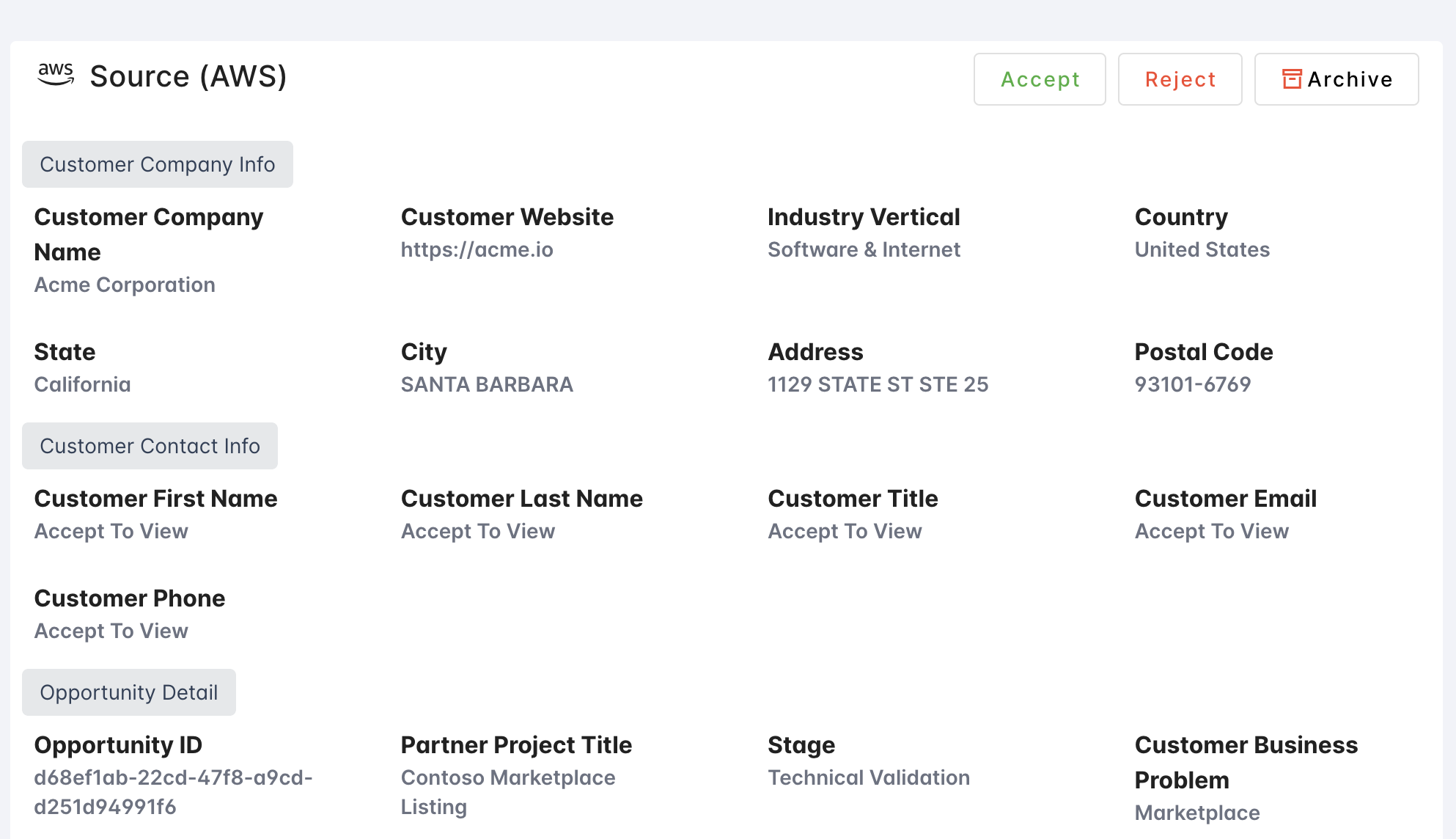 You can accept the referral by clicking the `Accept` button on the top right:
>
You can accept the referral by clicking the `Accept` button on the top right:
> 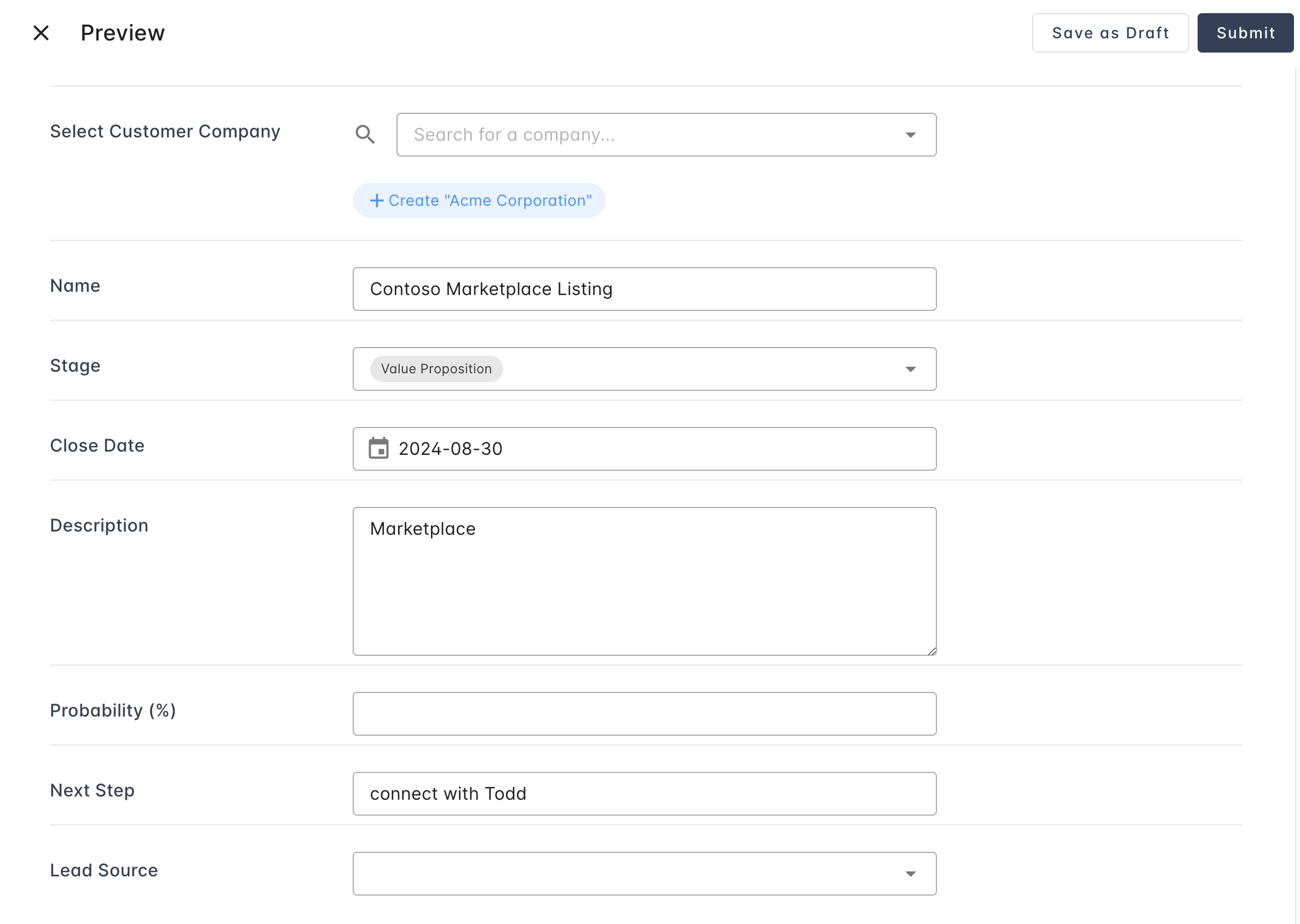 The pop-up will guide you through the process to:
1. Select an Account (company).
If there is no existing account you would like to use, you can also create a new one right in the dialog.
2. Populate the opportunity detail. Most fields will be auto-populated if you have configured the field mappings & templates.
3. Click `Submit`.
Fours will create the opportunity in your CRM, and notify the cloud partner that we would like to accept this referral,
with the associated CRM record ID.
**Microsoft referrals without an account ID**
Some inbound Microsoft referrals arrive without an account ID. Accepting one of these is
still allowed, but Fours asks you to confirm first rather than accepting silently —
confirm to proceed, or cancel and set the account first.
**Contact Information of AWS Referrals**
- The contact information will be shared **10-30min** after you accepted it.
- Upon receiving the contact info, we will automatically create the contact in your CRM
- Before creation, we will check if a contact with the same last name and email address already exists for this Account/Company. If yes, then we will skip it.
- After creation, we will also assign the Contact Role (Salesforce) or Association Type (HubSpot) as you configured in the field mappings.
- To disable this behavior, set the SyncMode of contacts to `None` so we don't create/edit any contacts.
## Using Suger Connector in Salesforce
All incoming referrals will be created as the "Referral (Suger)" records in your Salesforce,
and you can check the list by going to the "Referrals (Suger)" tab.
>
The pop-up will guide you through the process to:
1. Select an Account (company).
If there is no existing account you would like to use, you can also create a new one right in the dialog.
2. Populate the opportunity detail. Most fields will be auto-populated if you have configured the field mappings & templates.
3. Click `Submit`.
Fours will create the opportunity in your CRM, and notify the cloud partner that we would like to accept this referral,
with the associated CRM record ID.
**Microsoft referrals without an account ID**
Some inbound Microsoft referrals arrive without an account ID. Accepting one of these is
still allowed, but Fours asks you to confirm first rather than accepting silently —
confirm to proceed, or cancel and set the account first.
**Contact Information of AWS Referrals**
- The contact information will be shared **10-30min** after you accepted it.
- Upon receiving the contact info, we will automatically create the contact in your CRM
- Before creation, we will check if a contact with the same last name and email address already exists for this Account/Company. If yes, then we will skip it.
- After creation, we will also assign the Contact Role (Salesforce) or Association Type (HubSpot) as you configured in the field mappings.
- To disable this behavior, set the SyncMode of contacts to `None` so we don't create/edit any contacts.
## Using Suger Connector in Salesforce
All incoming referrals will be created as the "Referral (Suger)" records in your Salesforce,
and you can check the list by going to the "Referrals (Suger)" tab.
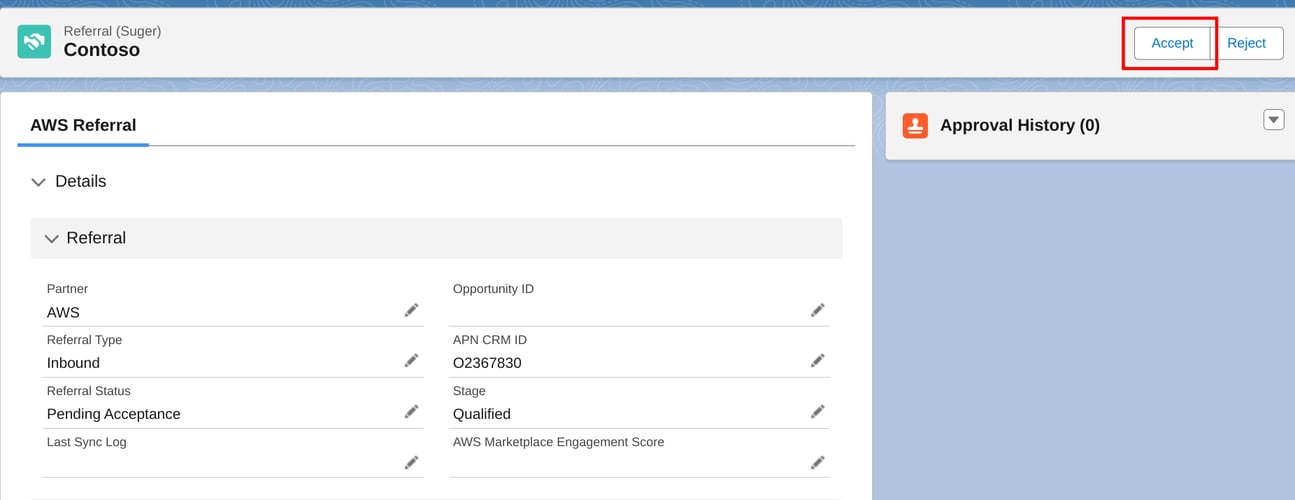
>  To accept the referral, click on any of the pending acceptance ones, and click the `Accept` button on the top right.
>
To accept the referral, click on any of the pending acceptance ones, and click the `Accept` button on the top right.
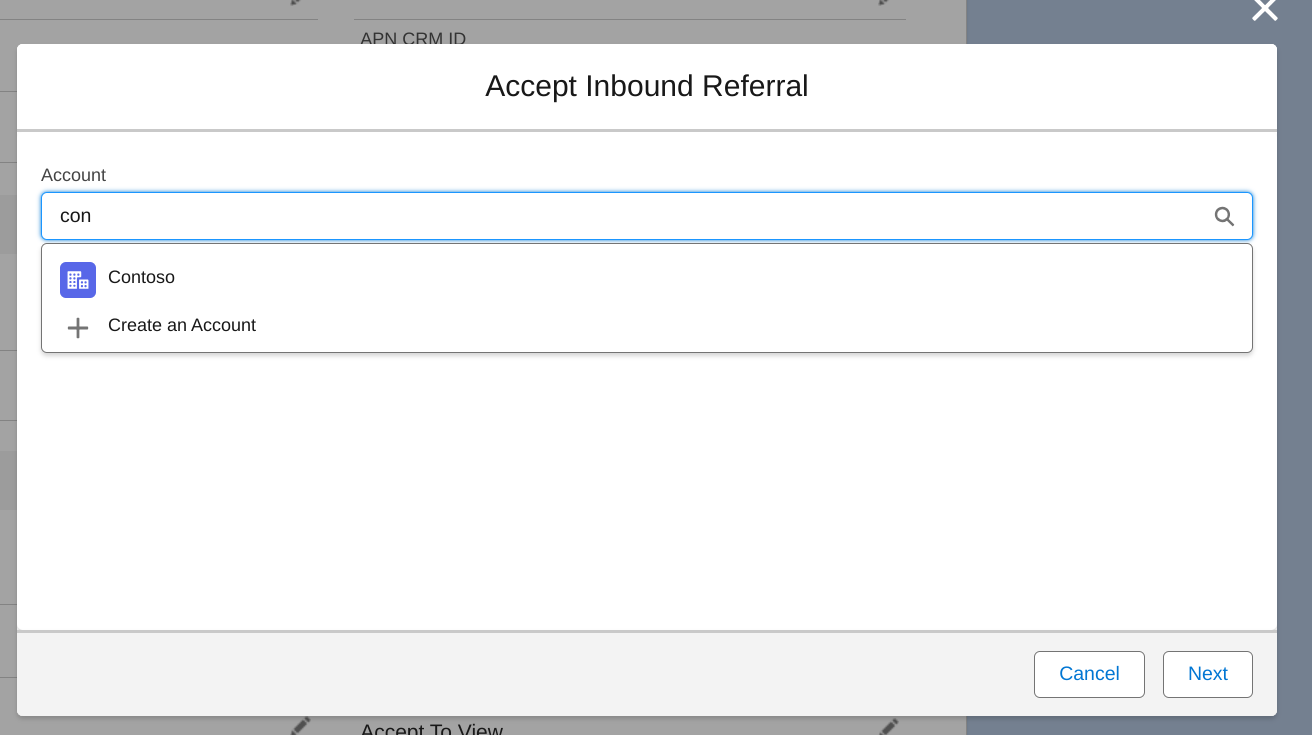
>  First, select or create an opportunity:
>
First, select or create an opportunity:
>  Then, click next and fill in the form to create the opportunity:
>
Then, click next and fill in the form to create the opportunity:
> 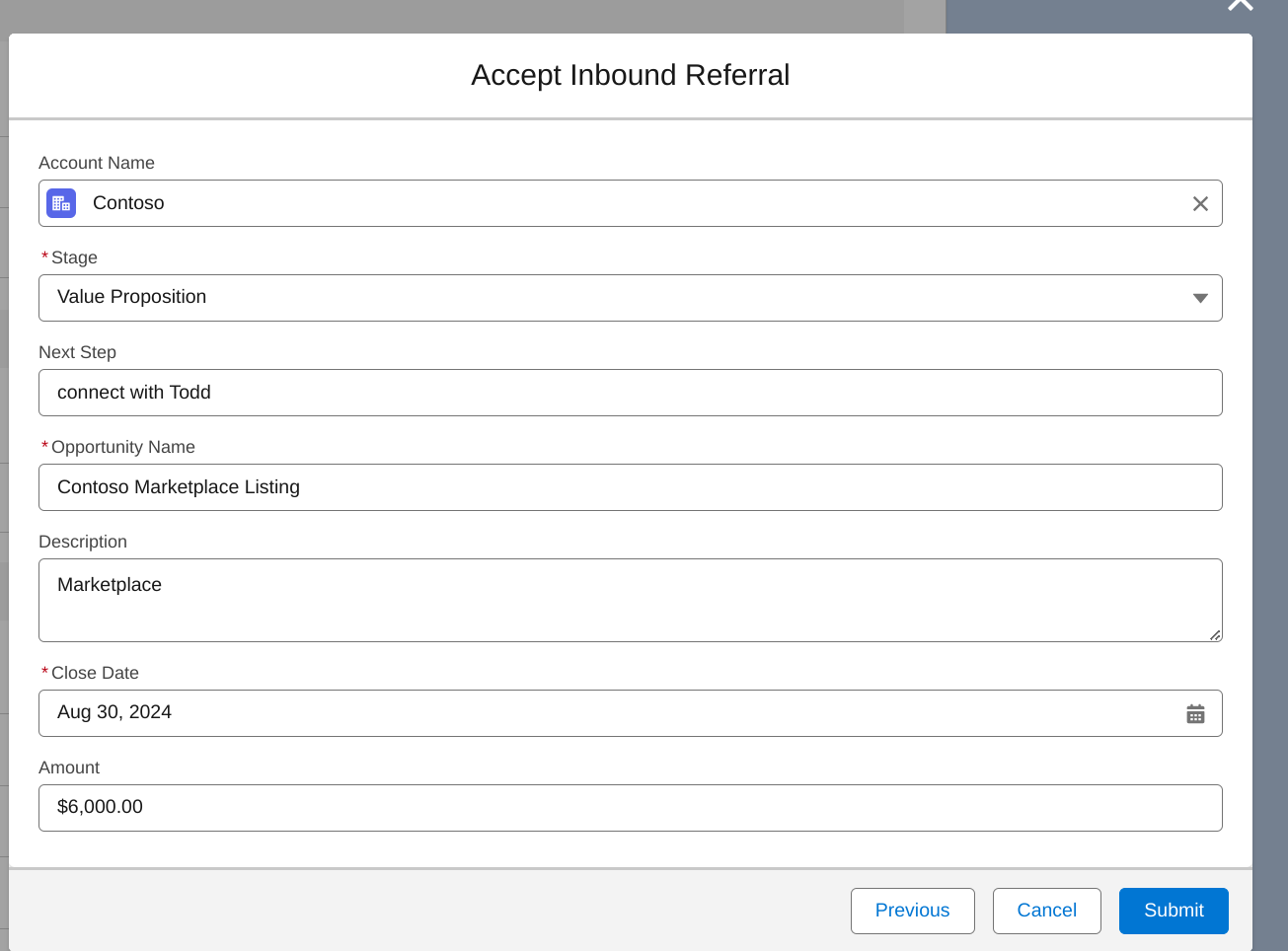 By default, the Account/Opportunity creation form only includes the fields that you have configured field mapping on Fours Console.
To add more fields without field mapping, please ask your Salesforce Admin to configure the `Creation from Referral` Field Sets
for Opportunity/Account.
## AWS Referral — Field Timing
AWS populates fields on the `Suger__Referral__c` record in **two waves**:
1. **At invitation time** (before you accept) — a thin snapshot with customer company / industry / country / website, project title / problem / target date, and one expected-spend figure. Enough to triage and route the referral.
2. **After you accept** — AWS creates an Opportunity in your catalog, and Fours syncs the full record back. Lifecycle, team contacts, marketing attribution, software revenue, and insights arrive at this point. Customer contact details (name, email, phone) are shared by AWS **10–30 minutes after acceptance**, not immediately.
The invitation and the opportunity it becomes share **one** `Suger__Referral__c` row. The AWS
sender's covering note on the invitation is written to its own **Invitation Message** field
rather than to Additional Comments, so accepting the referral does not overwrite it — the note
stays readable on the record after acceptance. Alongside it, Fours backfills the partner
acceptance status (`Pending` / `Accepted` / `Rejected`, plus the rejection reason when there is
one), the engagement invitation ARN, and the **Accept By** expiration date.
### Declining an invitation
When you decline an AWS engagement invitation, the reason you type is **sent to AWS** — it is no longer collapsed to "Other". AWS accepts free text here, but enforces a shape, so Fours validates it in the dialog rather than letting AWS reject it as an opaque partner-API failure:
| Rule | Detail |
| ---- | ------ |
| **Length** | 1 to 80 characters. |
| **Single line** | No line breaks. |
| **Printable characters only** | No control characters and no emoji. |
AWS's own documentation names five example reasons — *Customer problem unclear*, *Next steps unclear*, *Unable to support*, *Duplicate of partner referral*, *Other* — but these are guidance for AWS's usage tracking, **not a closed list**. A specific reason in your own words is legitimate and more useful to the AWS team reading it.
The same validation applies wherever you decline: the lead detail page, and the reject action in the [Salesforce app](/salesforce-app/salesforce-app-cosell/).
For the complete list of AWS fields on the Referral object — and which wave each field is populated in — see [Custom Objects → AWS Fields](/salesforce-app/salesforce-app-custom-objects/#aws-fields).
### If accepting or declining an AWS invitation fails
When an accept or a decline fails, the invitation page shows the error in a message such as
*Failed to accept invitation: …*. Nothing about the referral moves: it is not marked Active or
Rejected, and its status stays what it was.
The failure is recorded on the referral instead, so it stays visible after the message
disappears. The status tag carries a red **!**, and hovering over it shows the reason (see
[Failures that don't change the status](/cosell/cosell-status/#failures-that-dont-change-the-status)).
The same happens when an invitation fails under [Auto-Accept](/cosell/cosell-configuration/#auto-accept-referrals).
**What to do:** retry. **Accept** and **Decline** stay available for as long as the invitation
is still pending, and a successful retry clears the red **!**.
If the invitation is no longer pending (for example, it has already been accepted), Fours
refuses the action and does not mark the referral.
## AWS Partner Central Leads
AWS also sends **leads** — earlier-stage prospects, ahead of a full ACE opportunity. They arrive
on their own inbound track and are worked from the **Lead** filter rather than the Co-sell Inbox.
See [AWS Partner Central Leads](/cosell/cosell-leads/).
By default, the Account/Opportunity creation form only includes the fields that you have configured field mapping on Fours Console.
To add more fields without field mapping, please ask your Salesforce Admin to configure the `Creation from Referral` Field Sets
for Opportunity/Account.
## AWS Referral — Field Timing
AWS populates fields on the `Suger__Referral__c` record in **two waves**:
1. **At invitation time** (before you accept) — a thin snapshot with customer company / industry / country / website, project title / problem / target date, and one expected-spend figure. Enough to triage and route the referral.
2. **After you accept** — AWS creates an Opportunity in your catalog, and Fours syncs the full record back. Lifecycle, team contacts, marketing attribution, software revenue, and insights arrive at this point. Customer contact details (name, email, phone) are shared by AWS **10–30 minutes after acceptance**, not immediately.
The invitation and the opportunity it becomes share **one** `Suger__Referral__c` row. The AWS
sender's covering note on the invitation is written to its own **Invitation Message** field
rather than to Additional Comments, so accepting the referral does not overwrite it — the note
stays readable on the record after acceptance. Alongside it, Fours backfills the partner
acceptance status (`Pending` / `Accepted` / `Rejected`, plus the rejection reason when there is
one), the engagement invitation ARN, and the **Accept By** expiration date.
### Declining an invitation
When you decline an AWS engagement invitation, the reason you type is **sent to AWS** — it is no longer collapsed to "Other". AWS accepts free text here, but enforces a shape, so Fours validates it in the dialog rather than letting AWS reject it as an opaque partner-API failure:
| Rule | Detail |
| ---- | ------ |
| **Length** | 1 to 80 characters. |
| **Single line** | No line breaks. |
| **Printable characters only** | No control characters and no emoji. |
AWS's own documentation names five example reasons — *Customer problem unclear*, *Next steps unclear*, *Unable to support*, *Duplicate of partner referral*, *Other* — but these are guidance for AWS's usage tracking, **not a closed list**. A specific reason in your own words is legitimate and more useful to the AWS team reading it.
The same validation applies wherever you decline: the lead detail page, and the reject action in the [Salesforce app](/salesforce-app/salesforce-app-cosell/).
For the complete list of AWS fields on the Referral object — and which wave each field is populated in — see [Custom Objects → AWS Fields](/salesforce-app/salesforce-app-custom-objects/#aws-fields).
### If accepting or declining an AWS invitation fails
When an accept or a decline fails, the invitation page shows the error in a message such as
*Failed to accept invitation: …*. Nothing about the referral moves: it is not marked Active or
Rejected, and its status stays what it was.
The failure is recorded on the referral instead, so it stays visible after the message
disappears. The status tag carries a red **!**, and hovering over it shows the reason (see
[Failures that don't change the status](/cosell/cosell-status/#failures-that-dont-change-the-status)).
The same happens when an invitation fails under [Auto-Accept](/cosell/cosell-configuration/#auto-accept-referrals).
**What to do:** retry. **Accept** and **Decline** stay available for as long as the invitation
is still pending, and a successful retry clears the red **!**.
If the invitation is no longer pending (for example, it has already been accepted), Fours
refuses the action and does not mark the referral.
## AWS Partner Central Leads
AWS also sends **leads** — earlier-stage prospects, ahead of a full ACE opportunity. They arrive
on their own inbound track and are worked from the **Lead** filter rather than the Co-sell Inbox.
See [AWS Partner Central Leads](/cosell/cosell-leads/).